Watch the video below OR scroll down to view the steps listed out instead.
TABLE OF CONTENTS
- Where to Find Reports
- Skill Reports
- Scenario Activity (Learn) Reports
- Simulation (Assess) Reports
- Other Reports
Video Tutorial:
Step By Step Guide:
Where to Find Reports
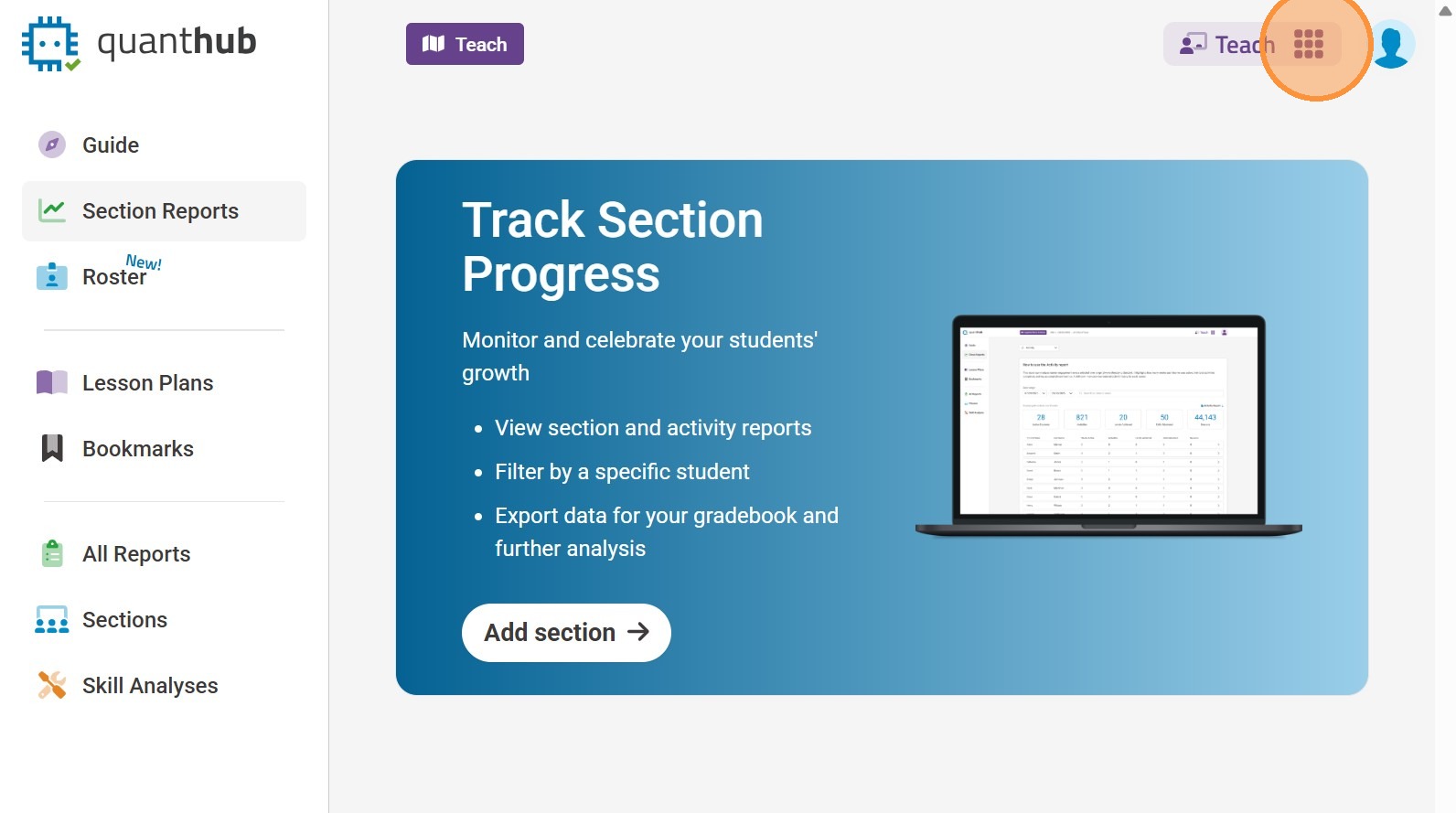
1. If you aren't already in the "Teach" app, first select the "Nine Dot" menu in the top right corner. Then select the "Teach" icon.
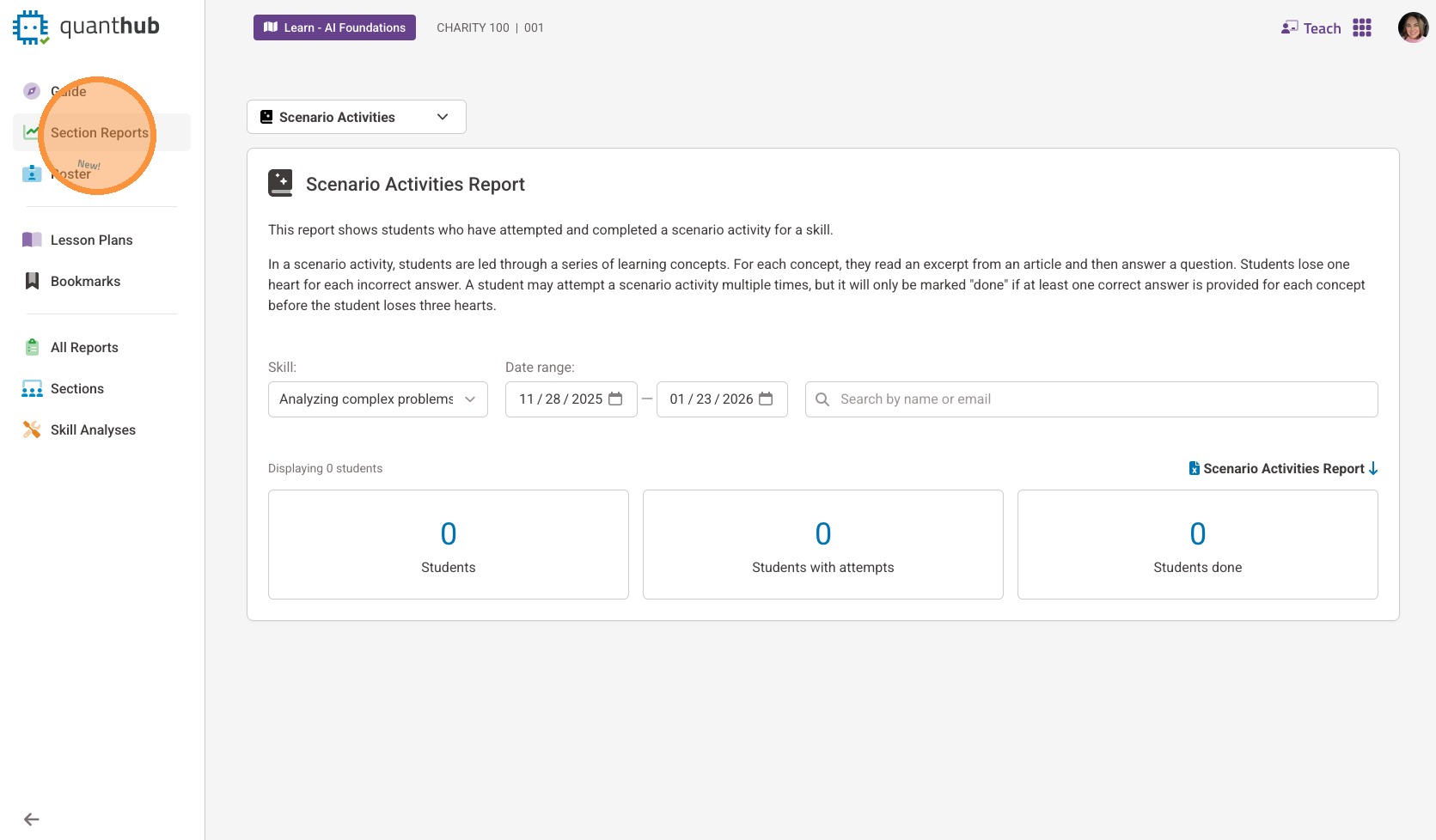
2. Select "Section Reports" from the left-side menu
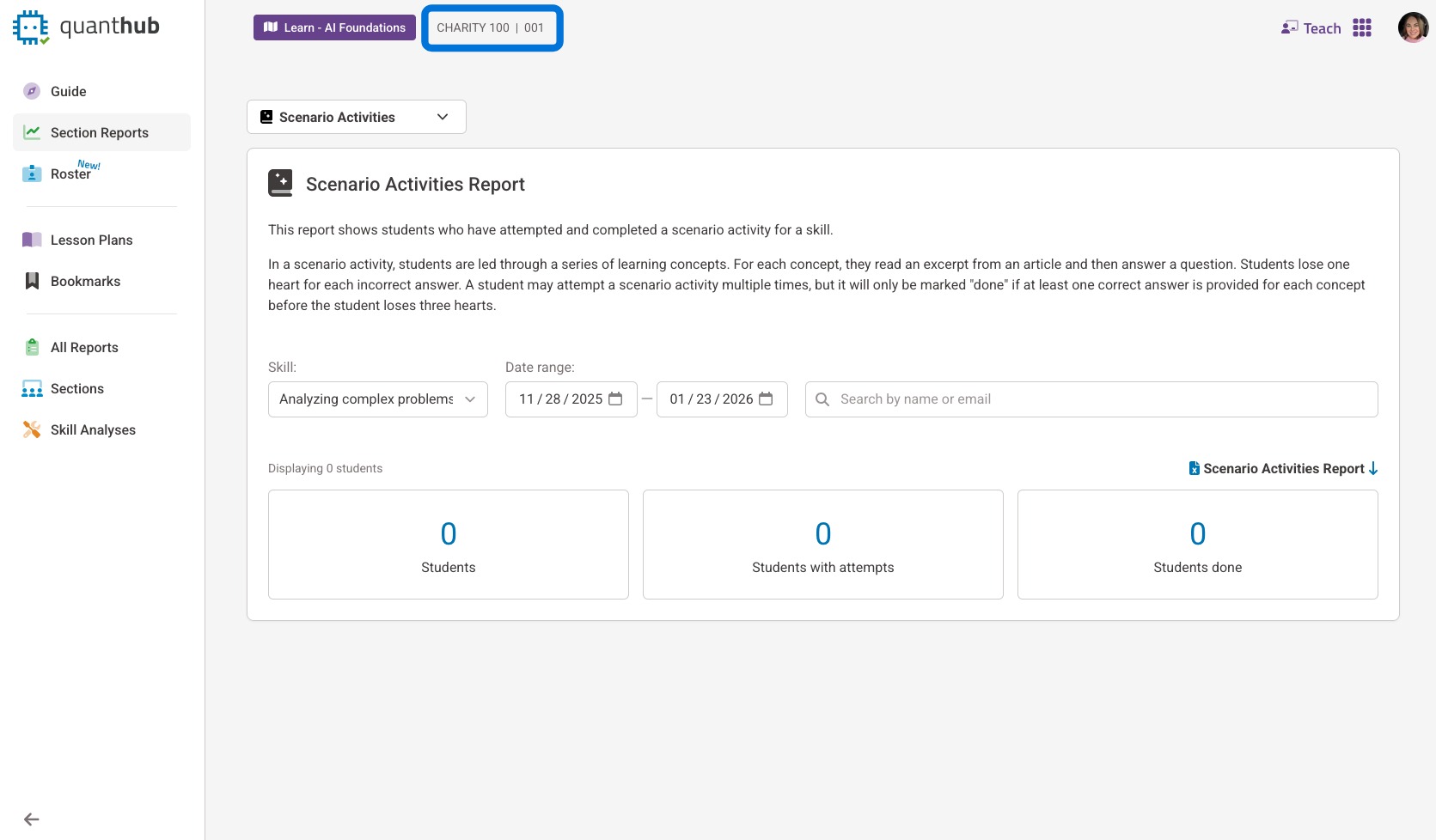
3. The section/class report will be displayed for your currently selected section/class. To change your section/class, select the purple box next to it and choose your desired section/class.
Skill Reports
Tip: You can tell if a module is a skill if it looks like this to the learner.
Higher Education Users: This module type does not apply to you - skip to the scenario activities (learn) report section below.

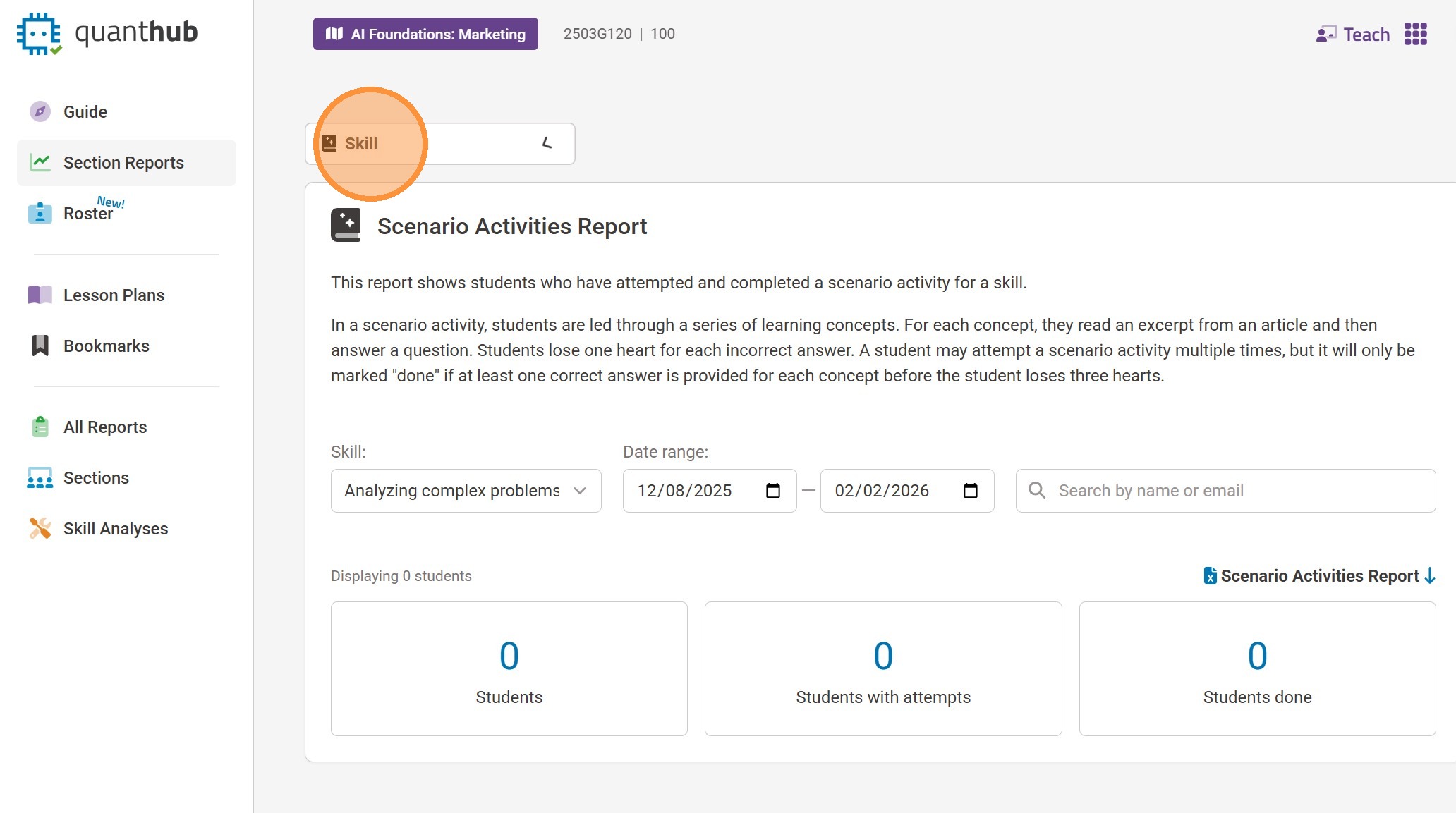
4. To view skill reports, select "Skill" from the drop down box
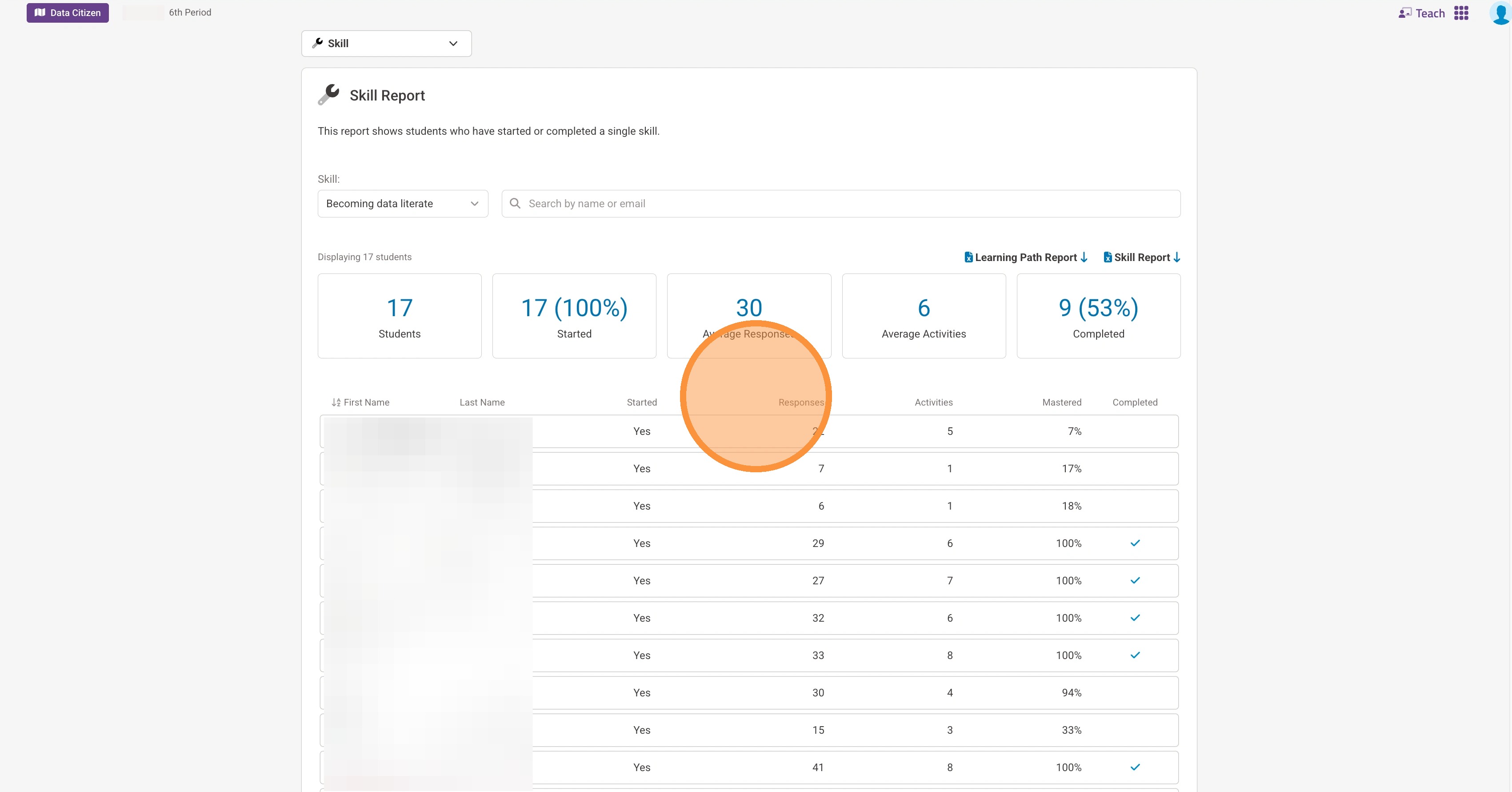
5. After selecting the skill, you will be able to see the percentage of the skill mastered by each learner.
Note for K12: The easiest way to grade is to take this percentage and put it into your grade book.
You are also able to download a report on this specific skill or whole level.
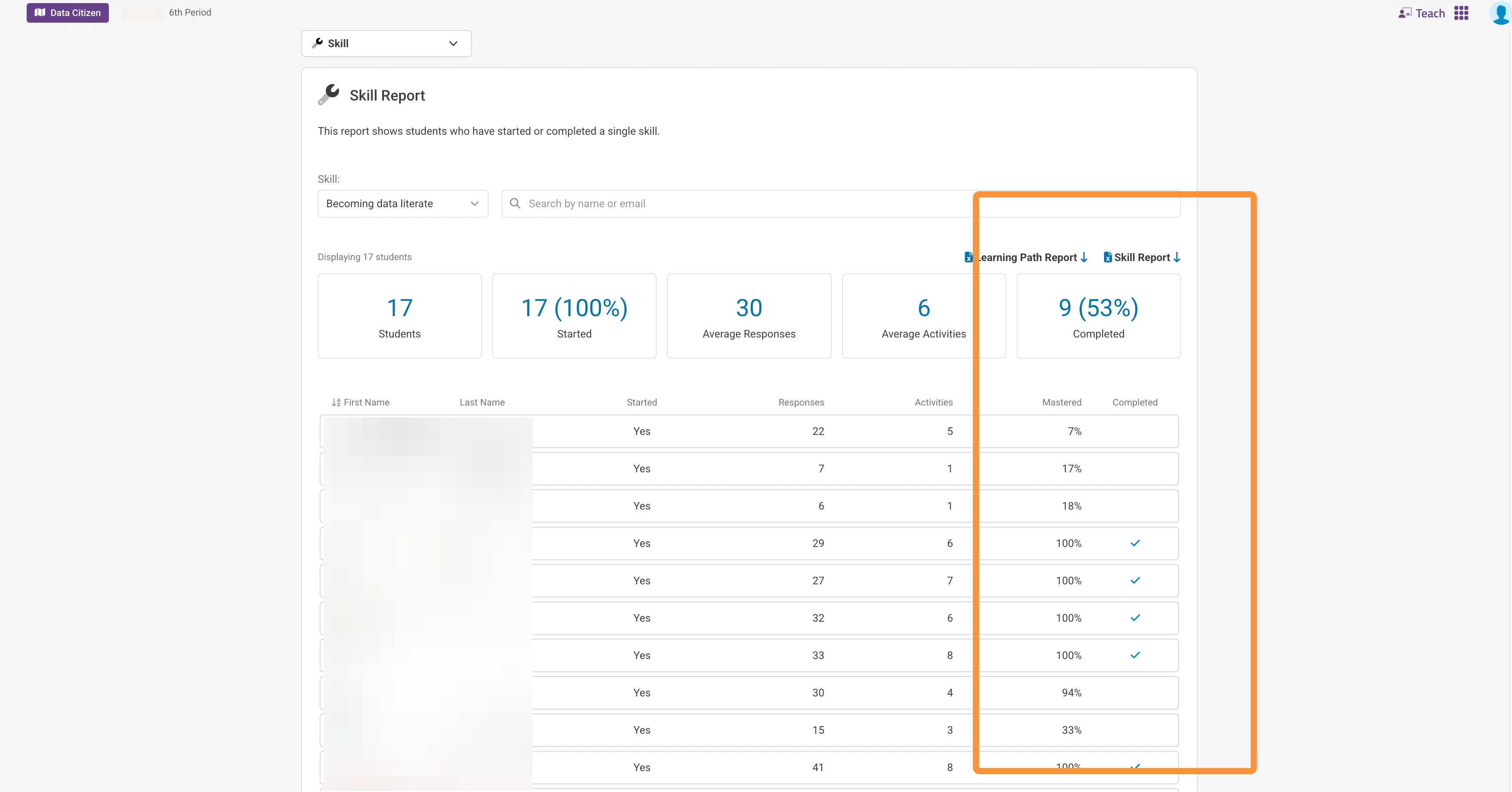
6. You can change the skill you are viewing by selecting a different one from the drop-down box.
Scenario Activity (Learn) Reports
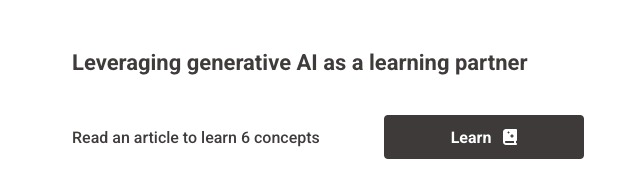
Tip: You can tell if a module is a scenario/learn activity if it looks like this to the learner.
You can also tell if the module has "Learn -" at the beginning in your LMS.
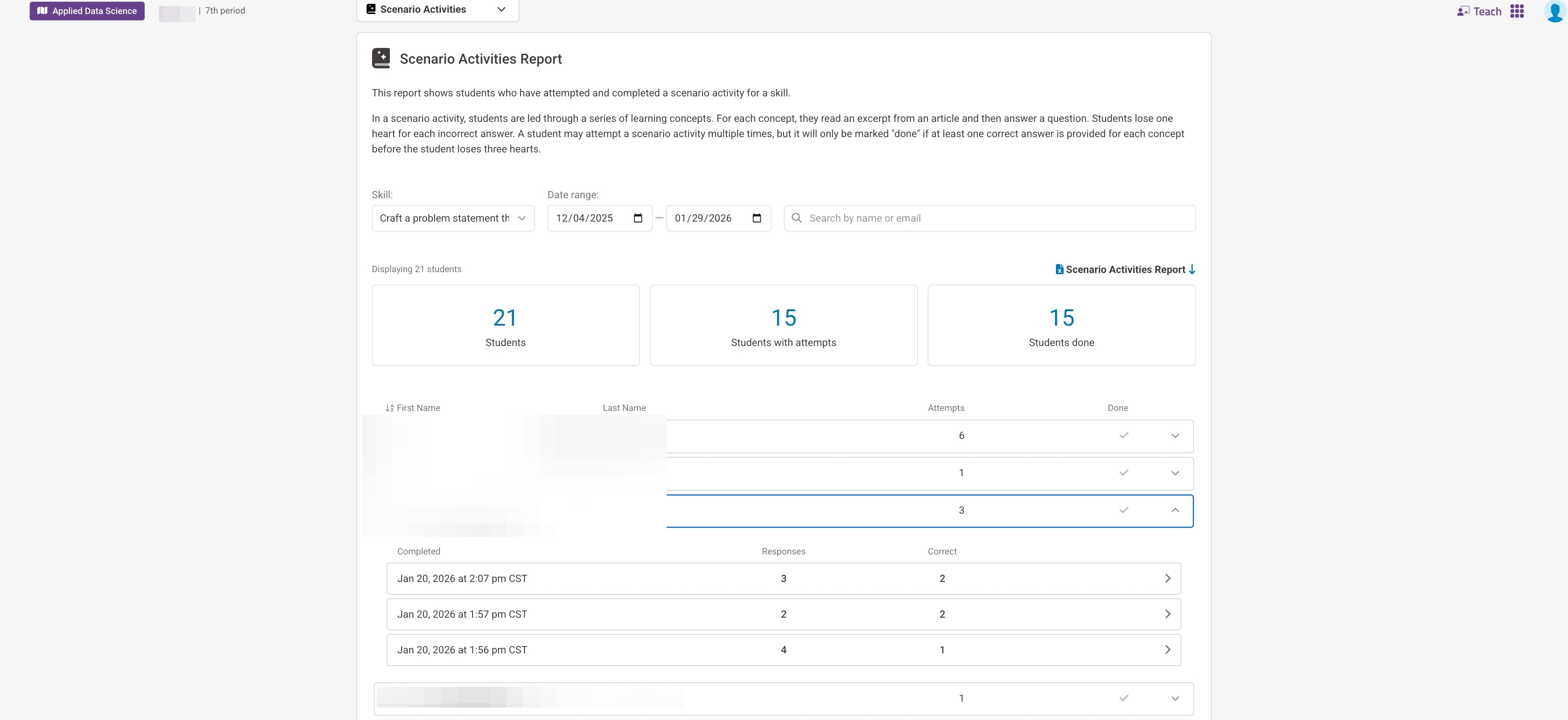
7. To view scenario activities reports, select "Scenario Activities" from the drop down box
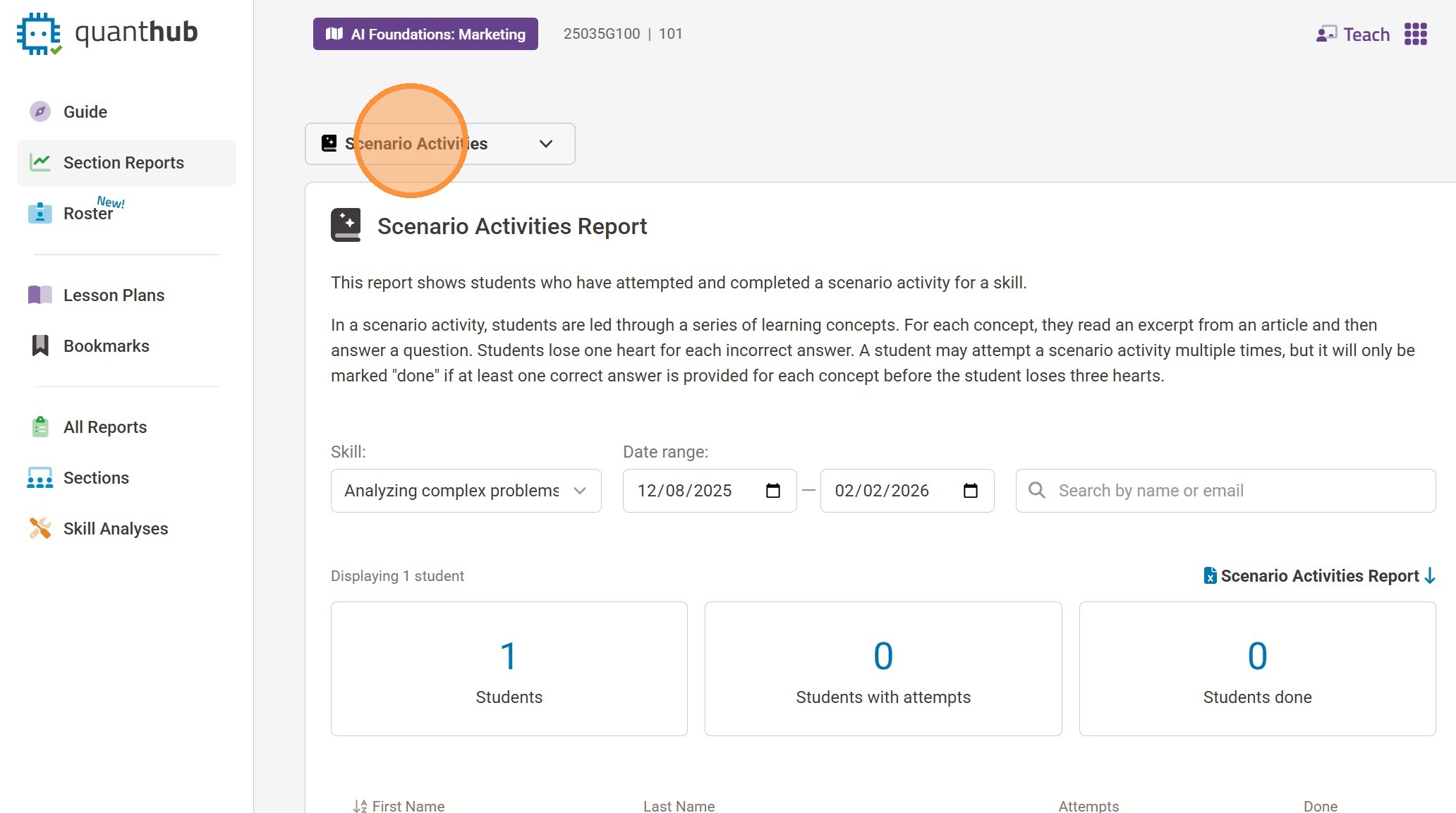
8. After selecting the scenario you want to review, you will be able to see the amount of attempts done by a learner and if they have completed the module. If you want a further breakdown of a learner hit the drop down menu to the right of the row to expand it.
Note: If you want to see the exact questions the learner answered and what they got correct/incorrect you can click on attempt for the detailed information.
Simulation (Assess) Reports
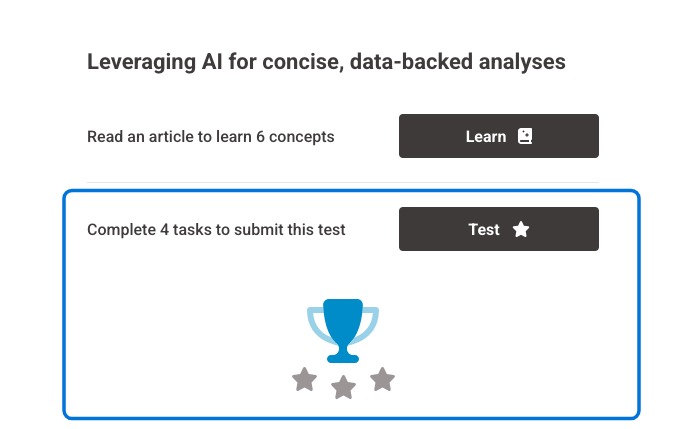
Tip: You can tell if a module is a simulation if it looks like this to the learner.
You can also tell if the module has "Assess -" at the beginning in your LMS.
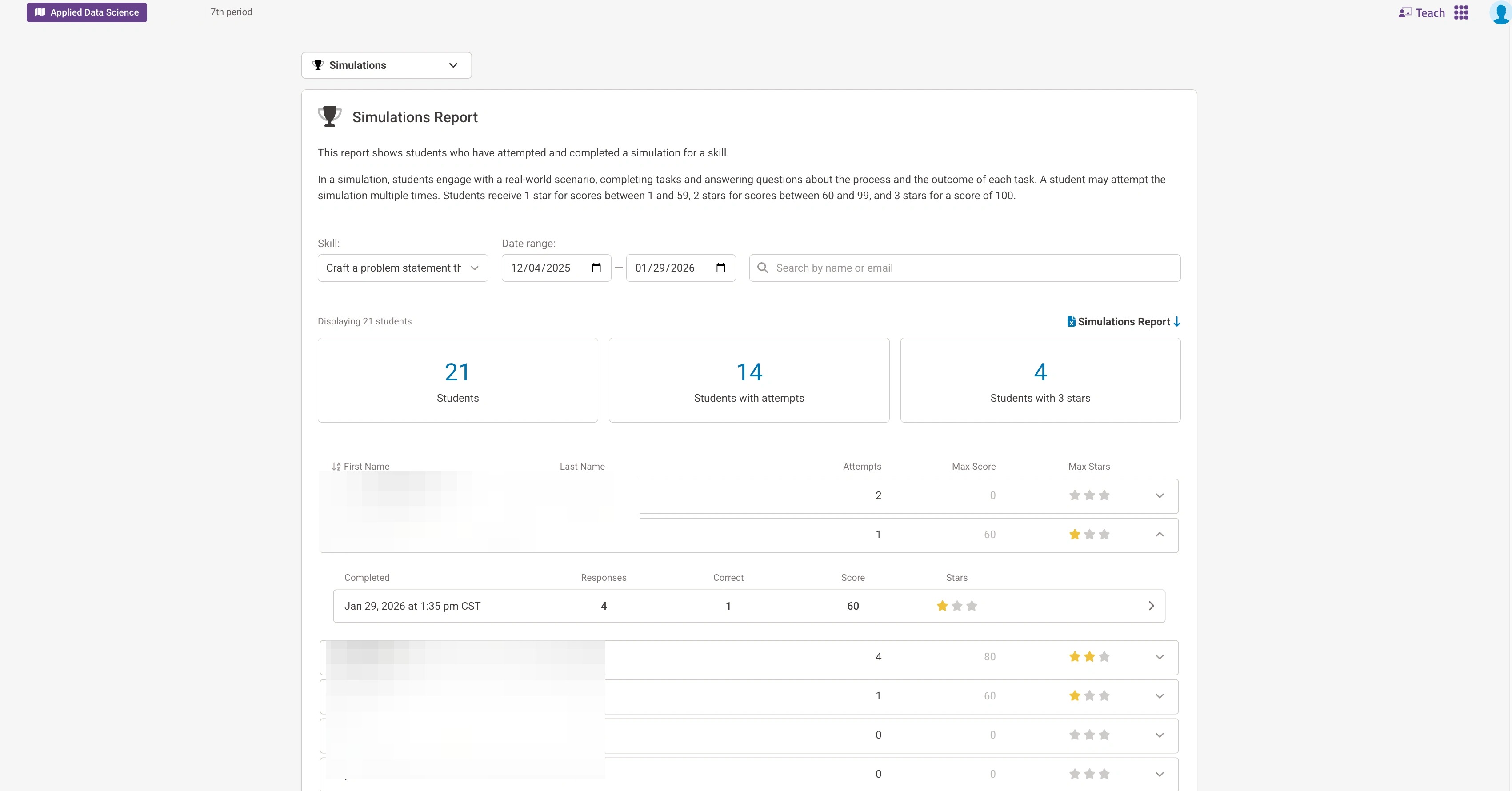
9. After selecting the simulation you want to review, you will be able to see the amount of attempts done by a learner and if they have completed the module. If you want a further breakdown of a learner hit the drop down menu to the right of the row to expand it.
Note: If you want to see the exact questions the learner answered and what they got correct/incorrect you can click on attempt for the detailed information.
Other Reports
10. QuantHub has additional reports to help you gauge learner engagement.
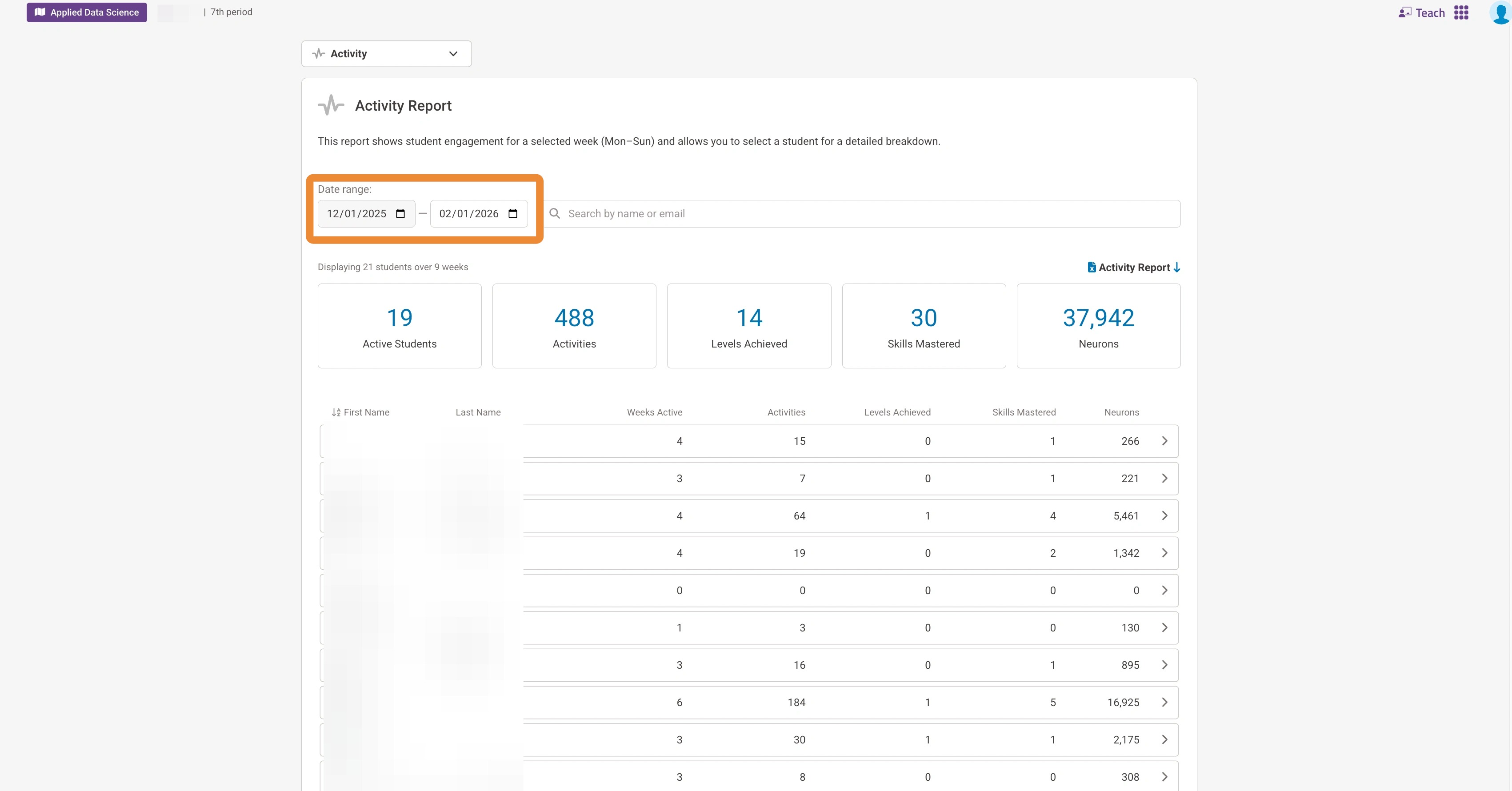
To see an overview of activity in your class, click the drop-down and select "Activity".
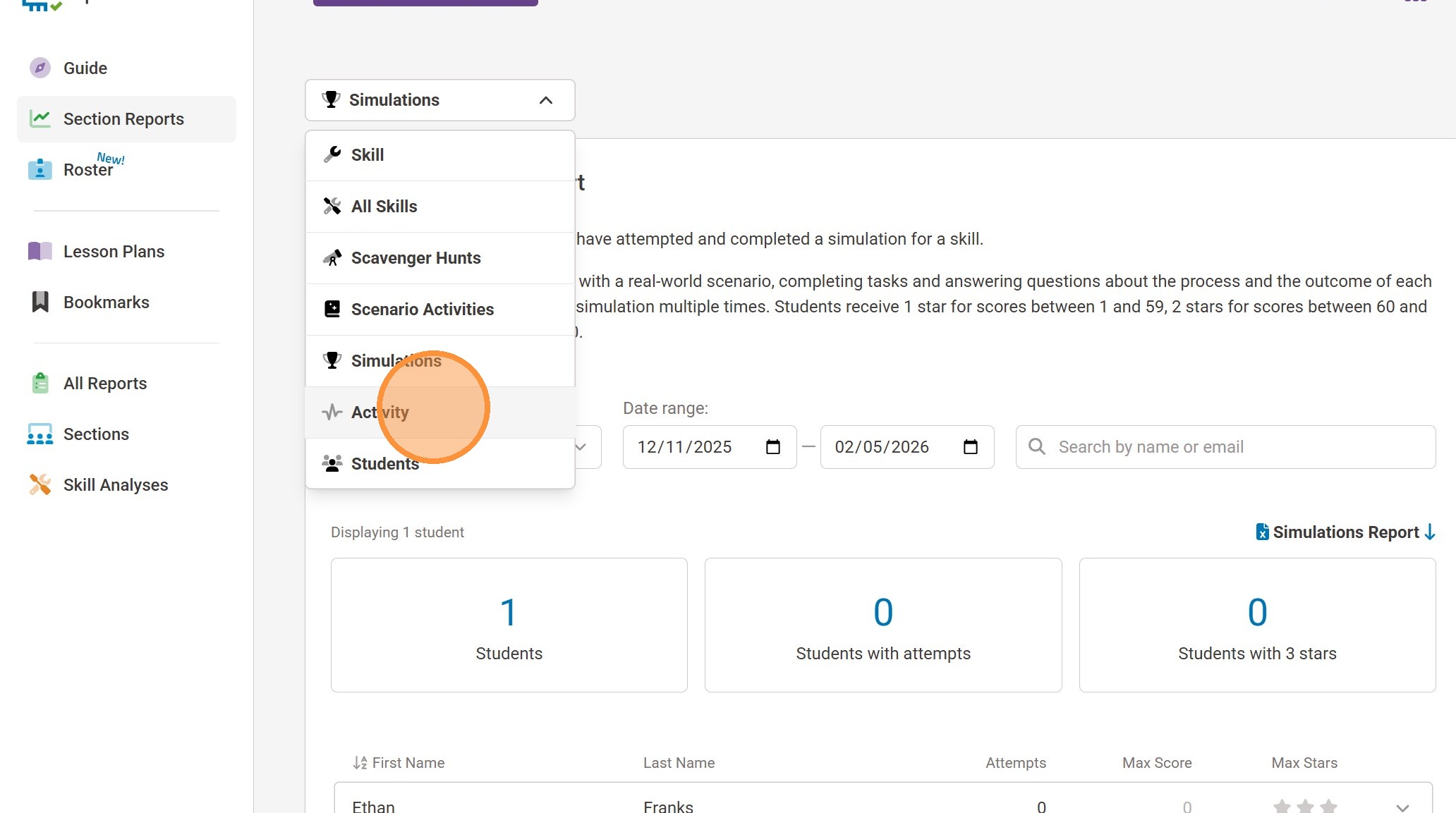
11. You can see learner activity with the platform within a certain time range. For a more detailed report for a learner, select the drop down menu to the right.
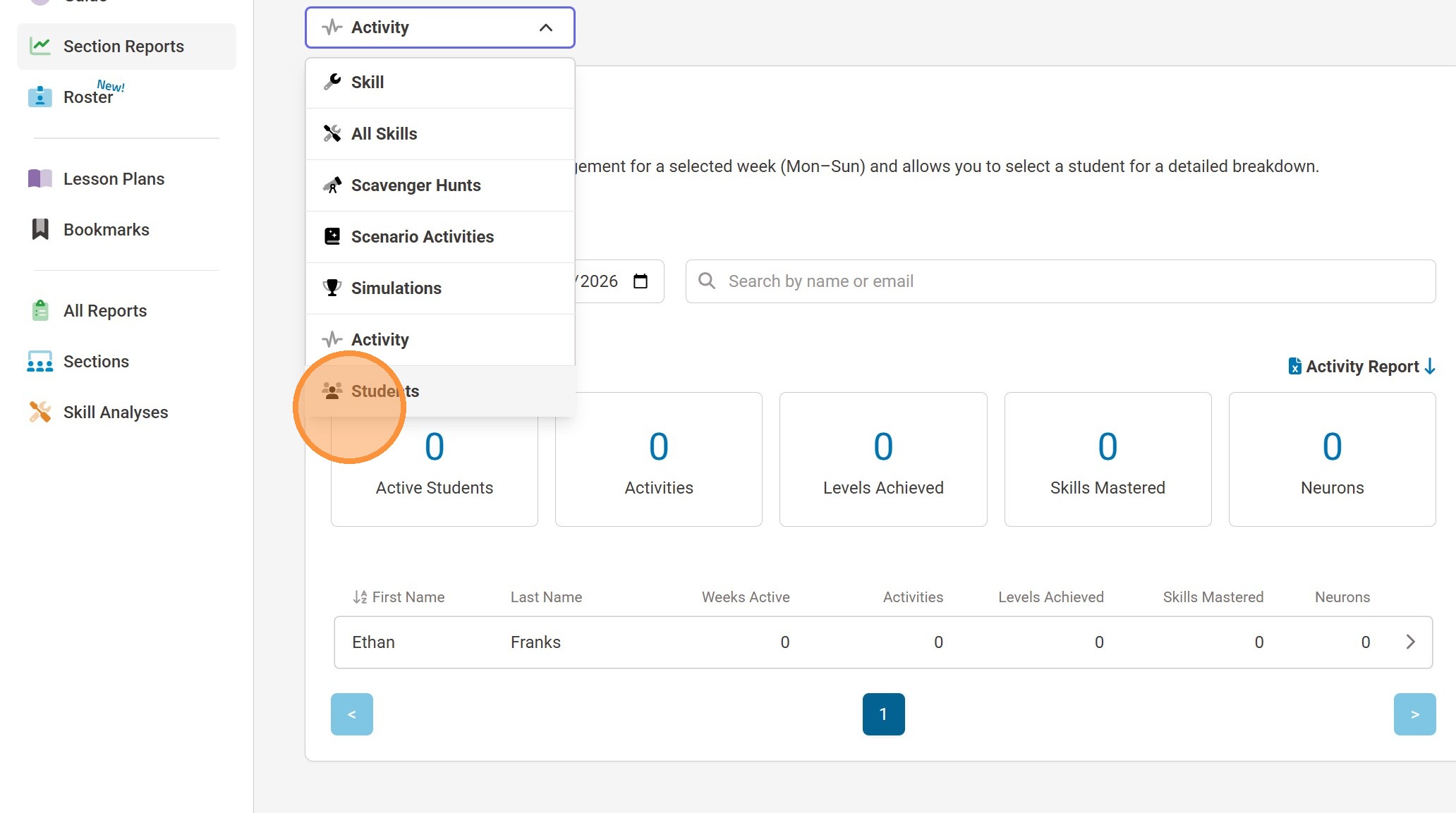
12. To see what individual learners have accomplished most recently, select "Students."
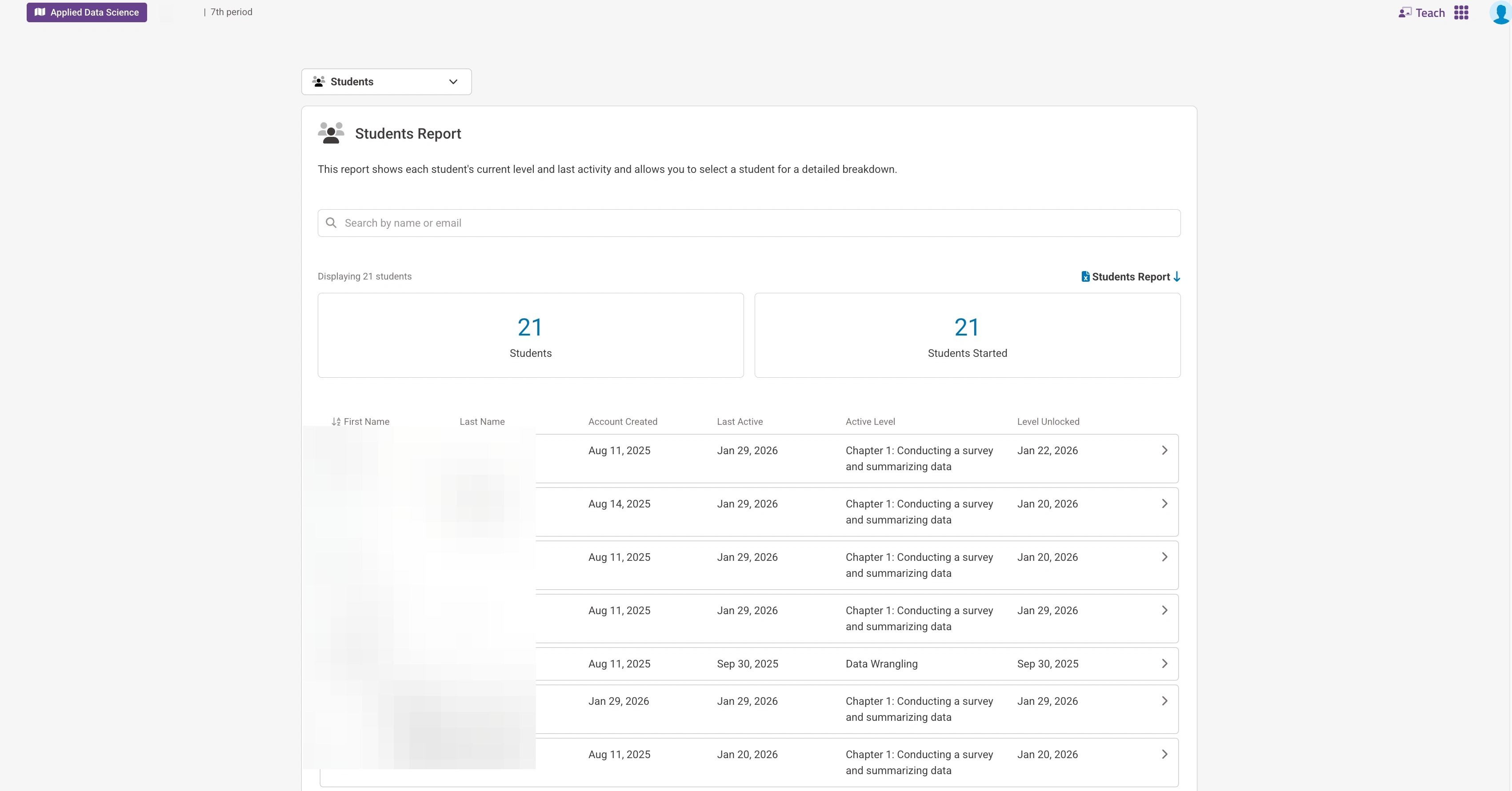
13. This report shows each learner's current level and last activity and allows you to select a learner for a detailed break down of what they have accomplished.
Was this article helpful?
That’s Great!
Thank you for your feedback
Sorry! We couldn't be helpful
Thank you for your feedback
Feedback sent
We appreciate your effort and will try to fix the article