Watch the video below OR scroll down to view the steps listed out instead.
TABLE OF CONTENTS
Video Tutorial:
Step By Step Guide:
Add a new class in QuantHub
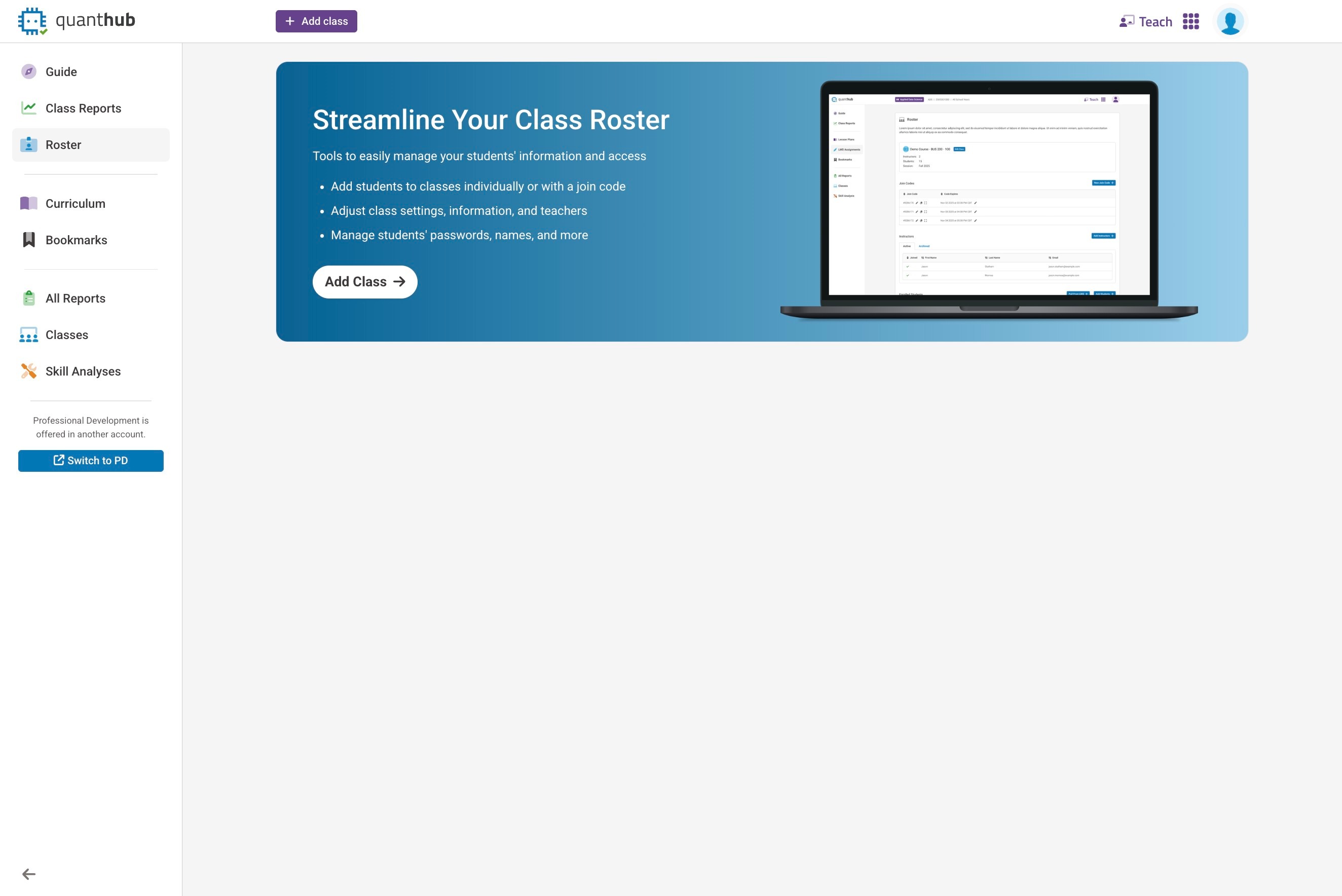
2. Ensure you are on the "Teach" Tab at your school
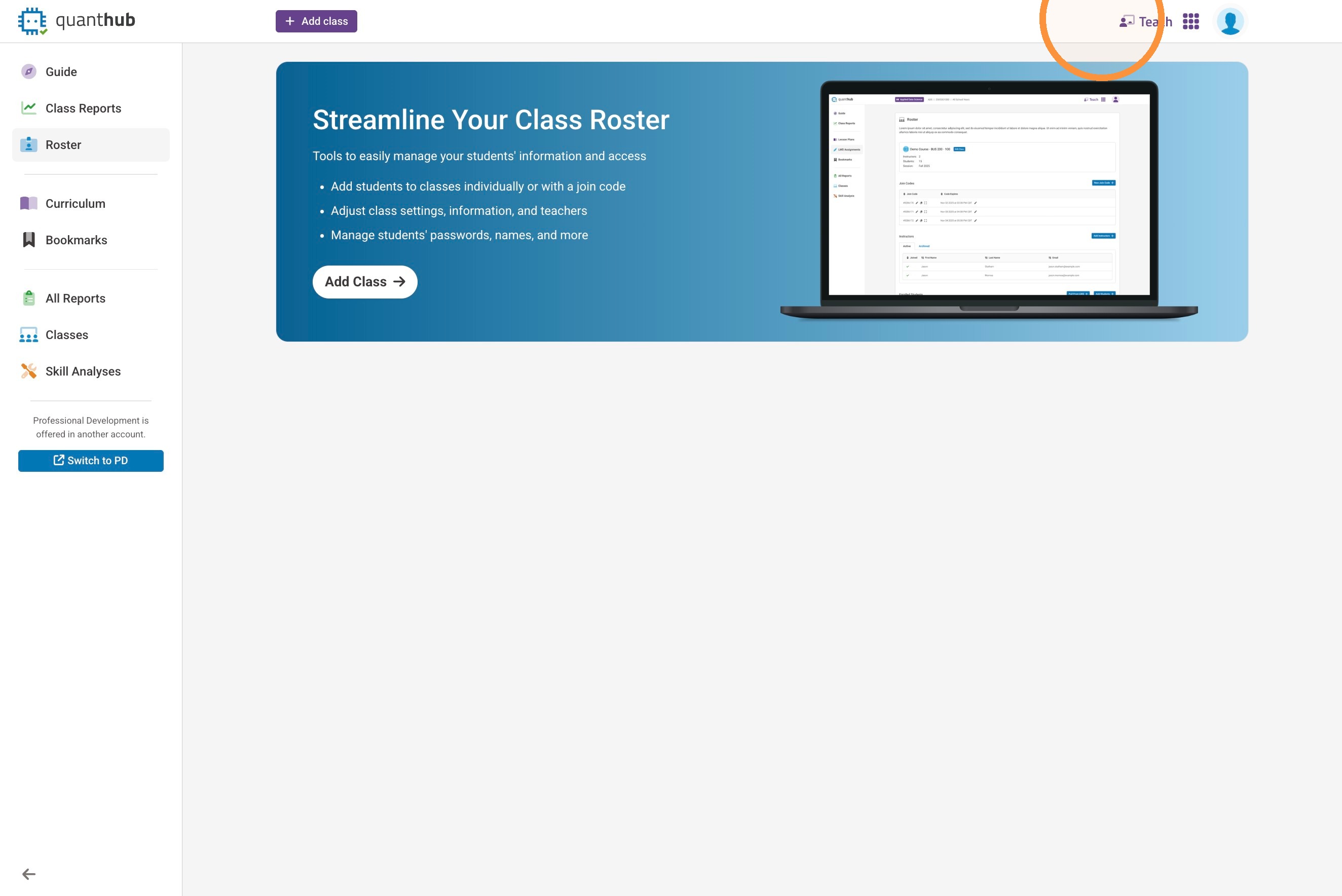
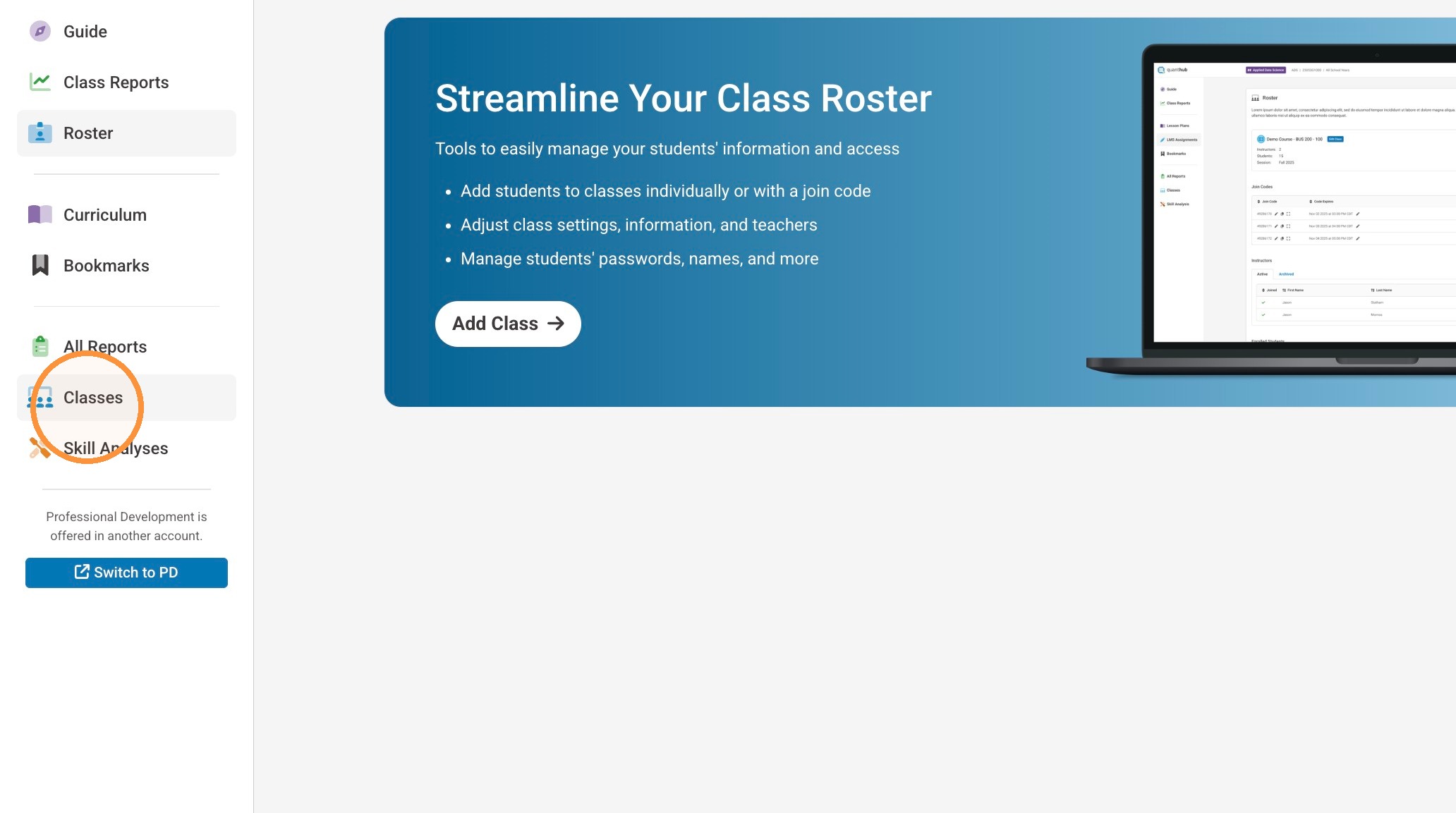
3. Select "Classes"
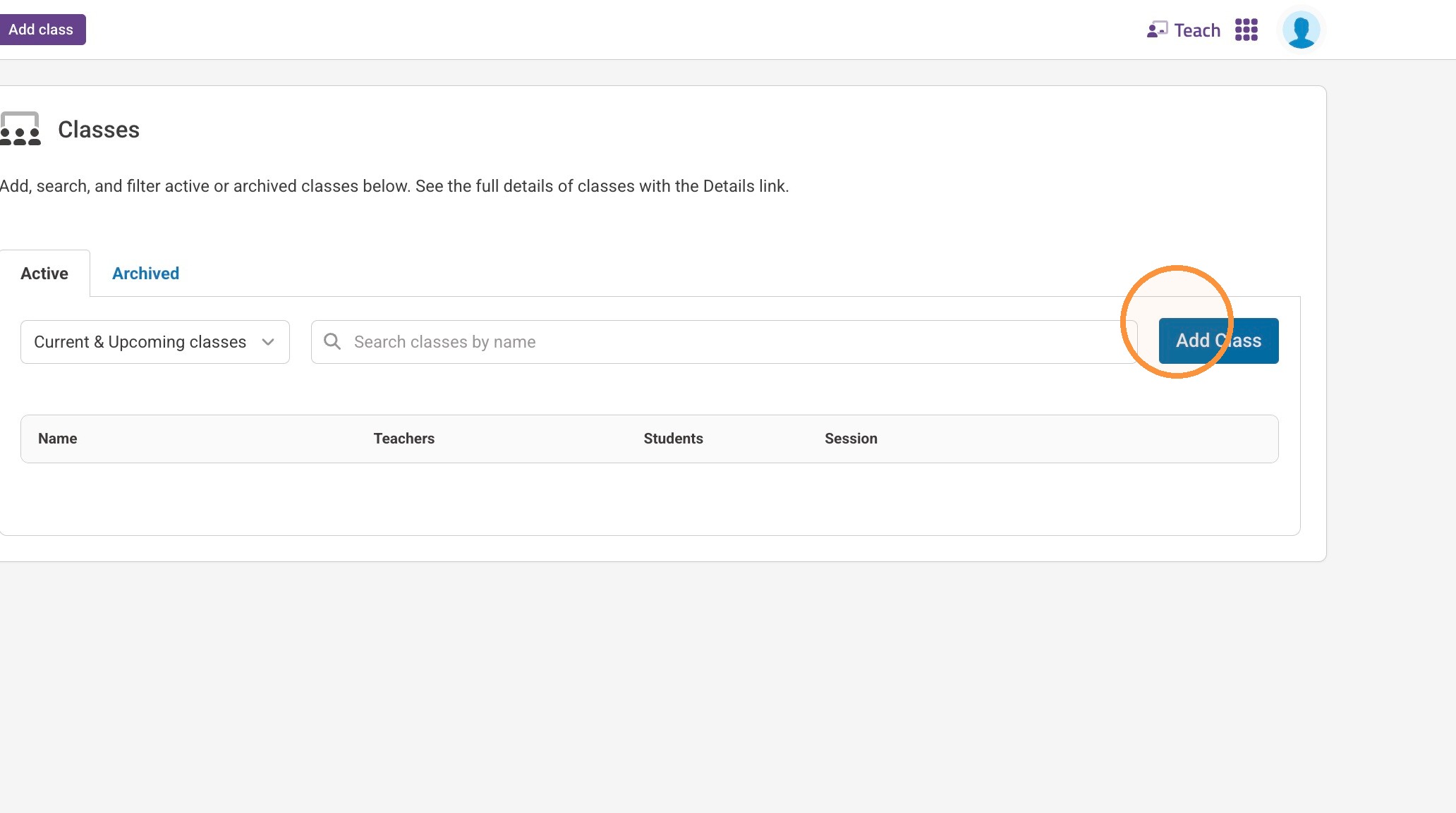
4. Select "Add Class"
5. Insert a name of your class here. Some teachers will also include their name in this section
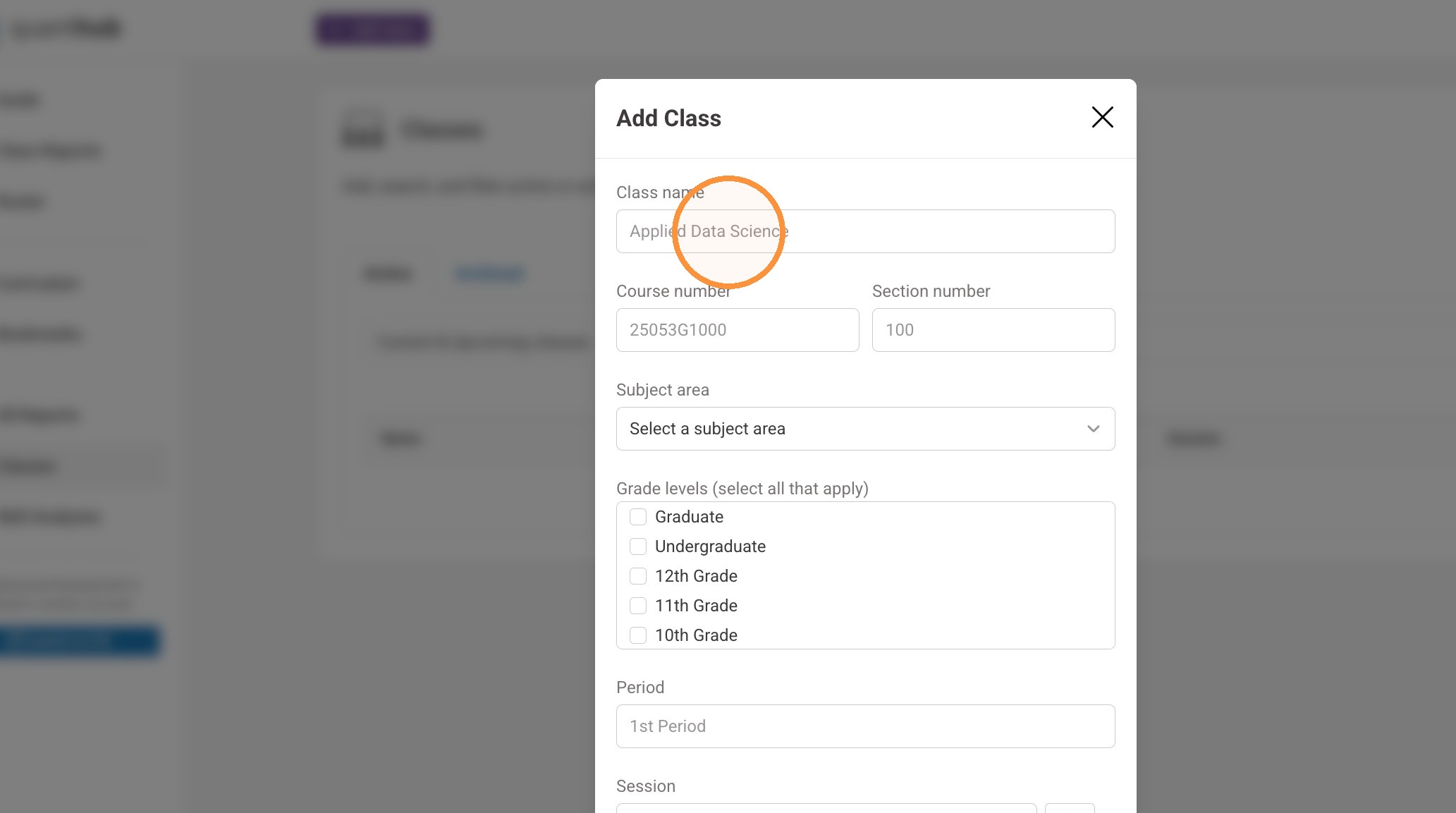
6. Complete the Class information
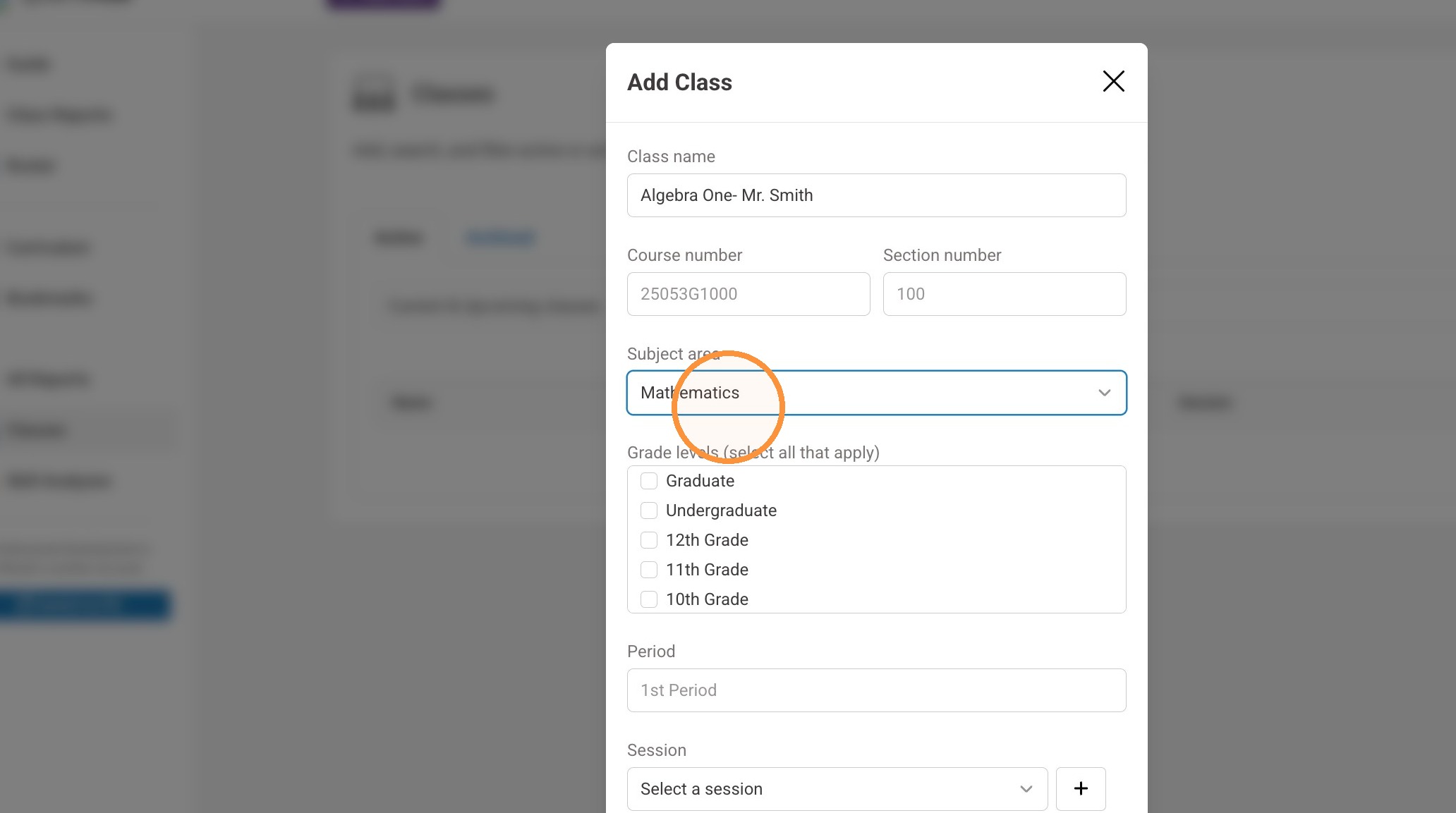
7. Enter a period for your class. You can enter whatever makes sense for your school ("2nd block", "Robotics Club", "Homeroom", etc.)
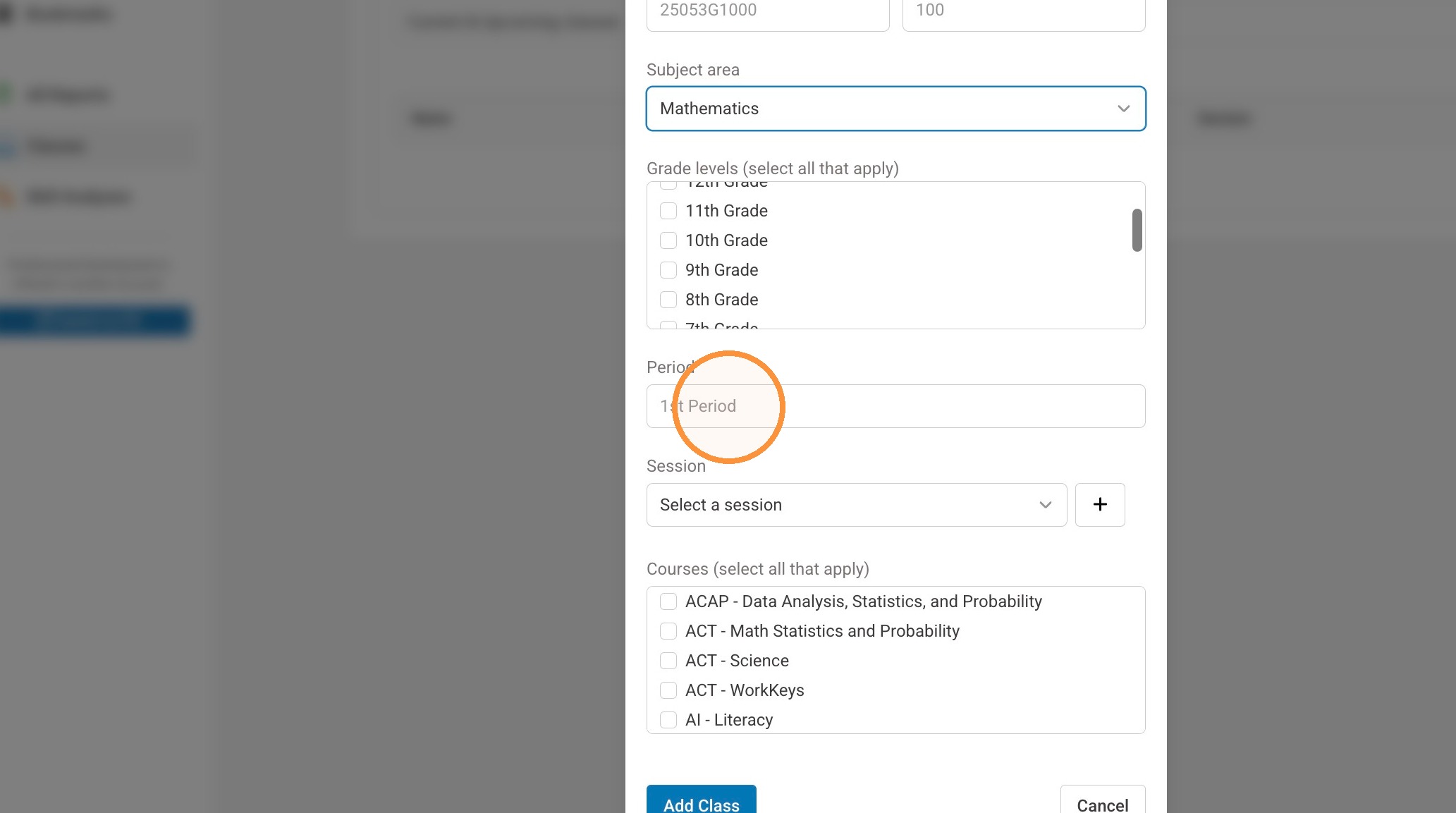
8. Select a session
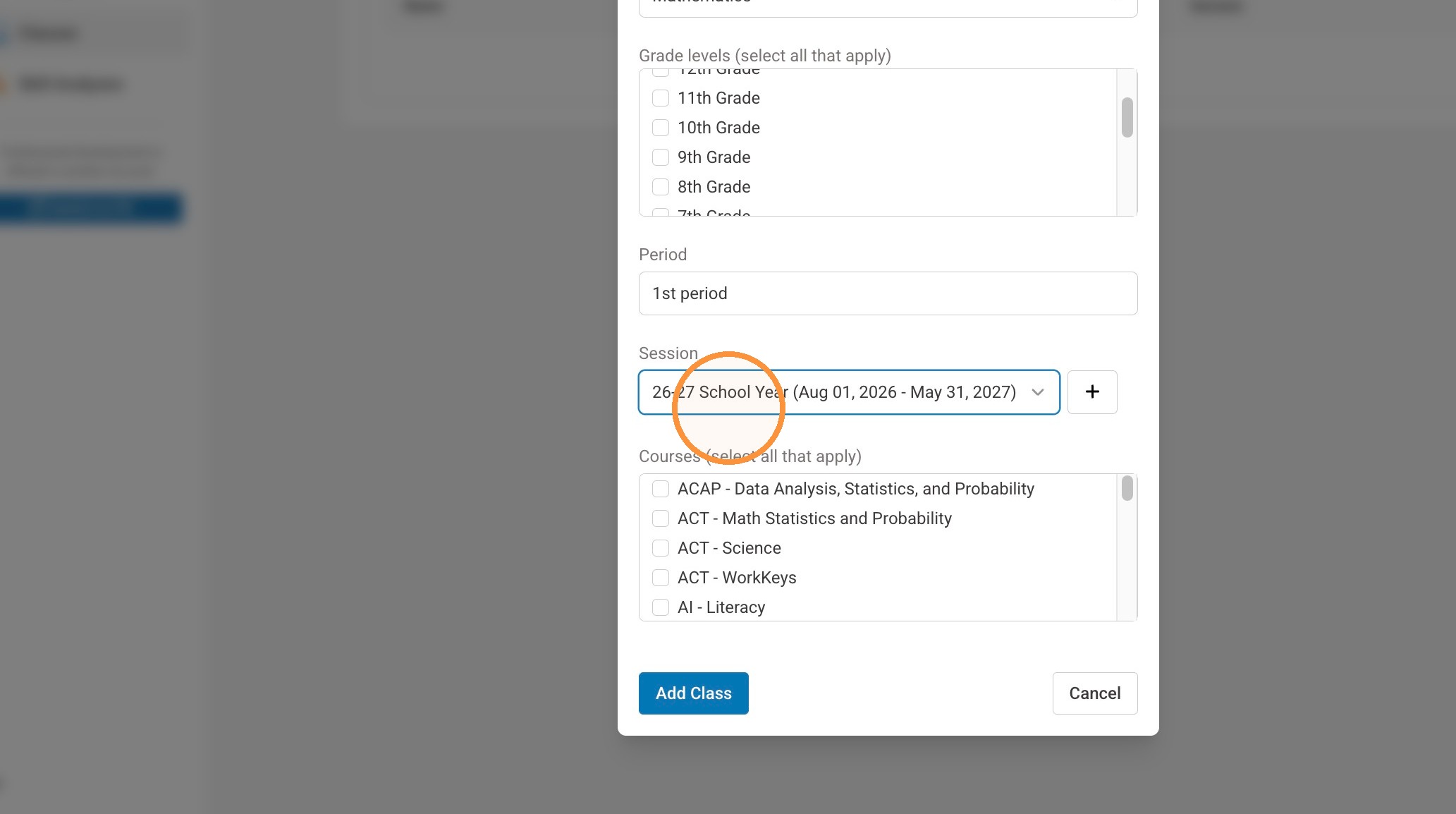
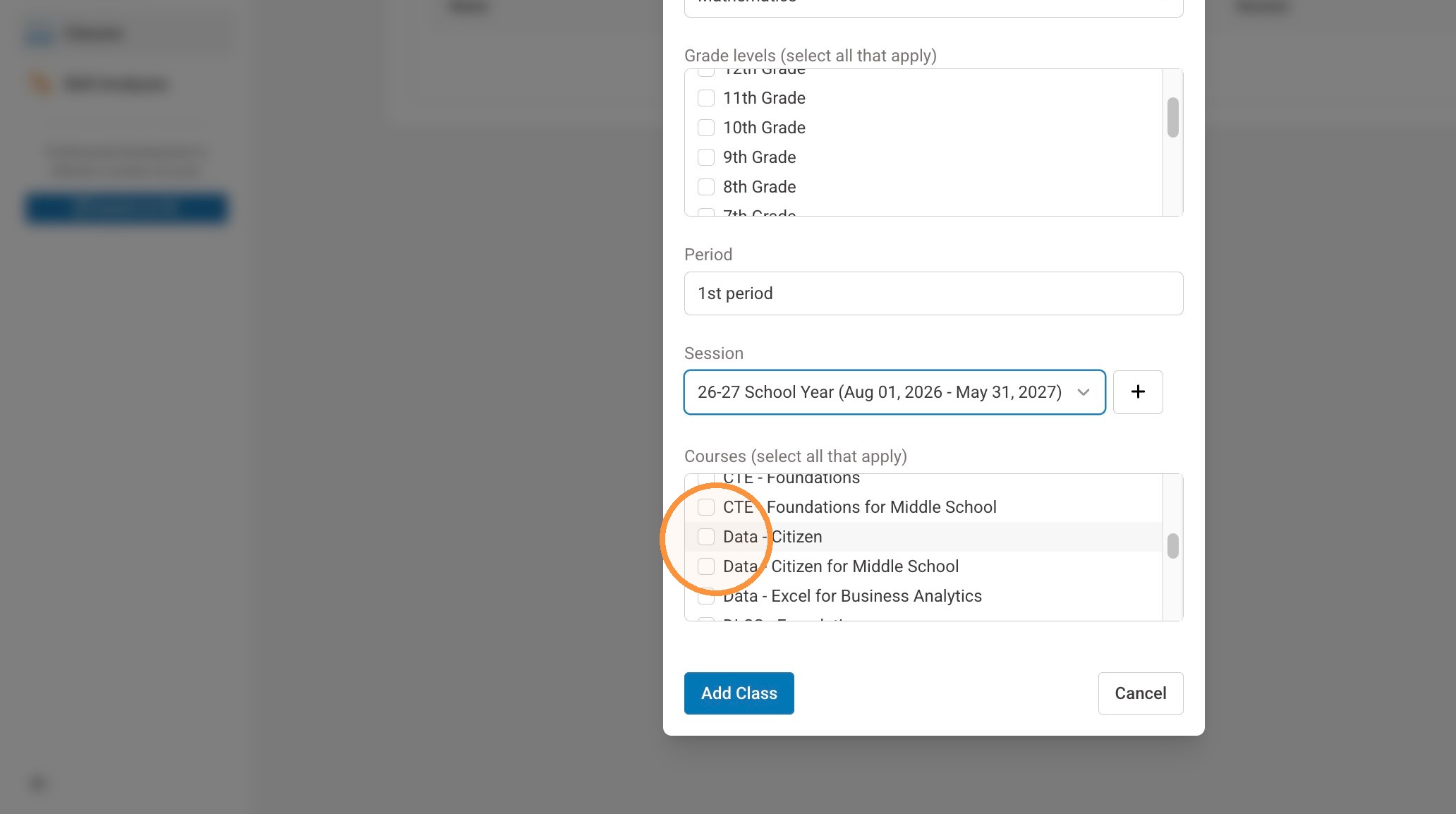
9. Select the course(s)/curriculum you'd like your students to complete. We recommend 1-3 courses
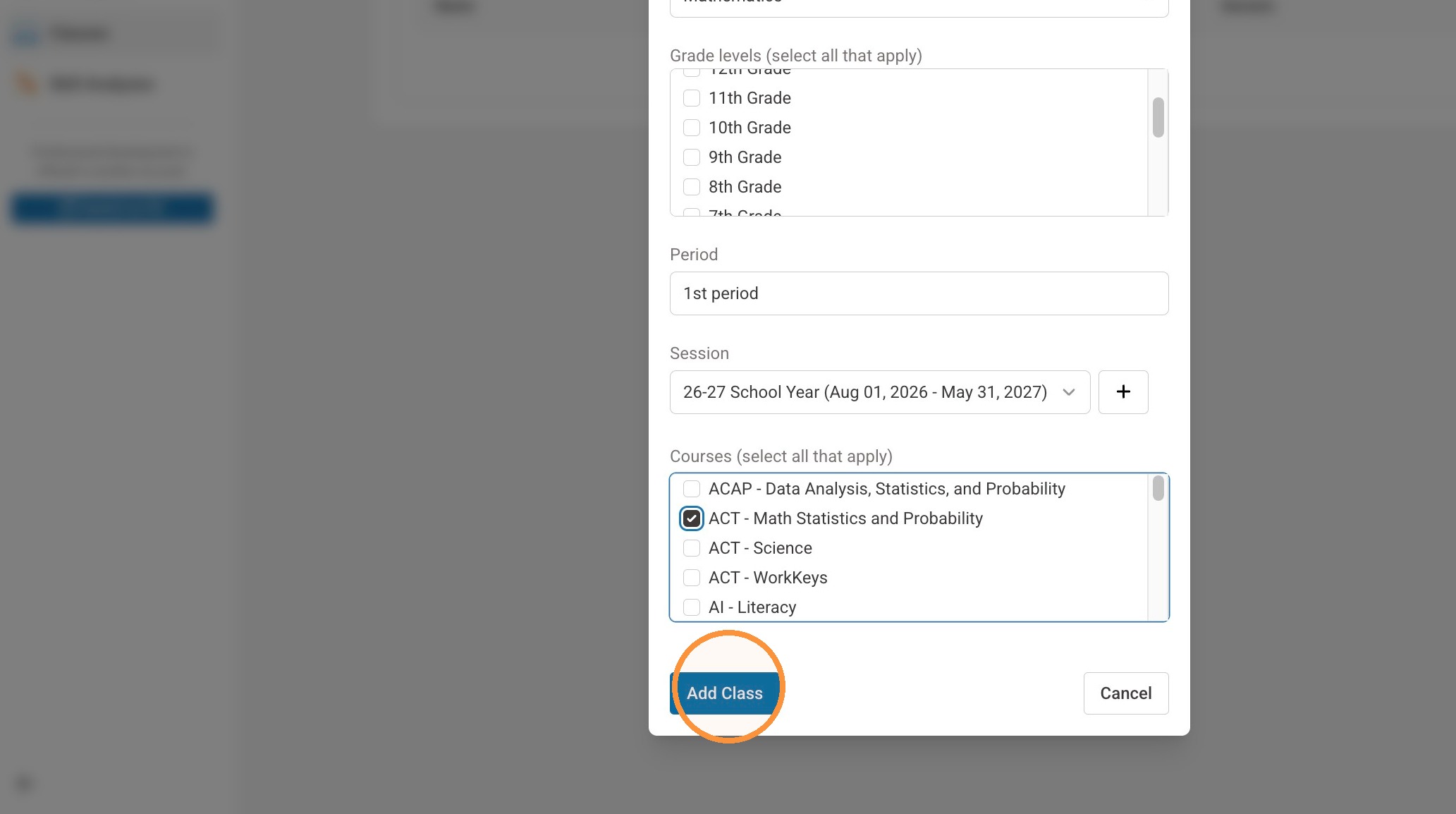
10. Once complete, select "Add Class"
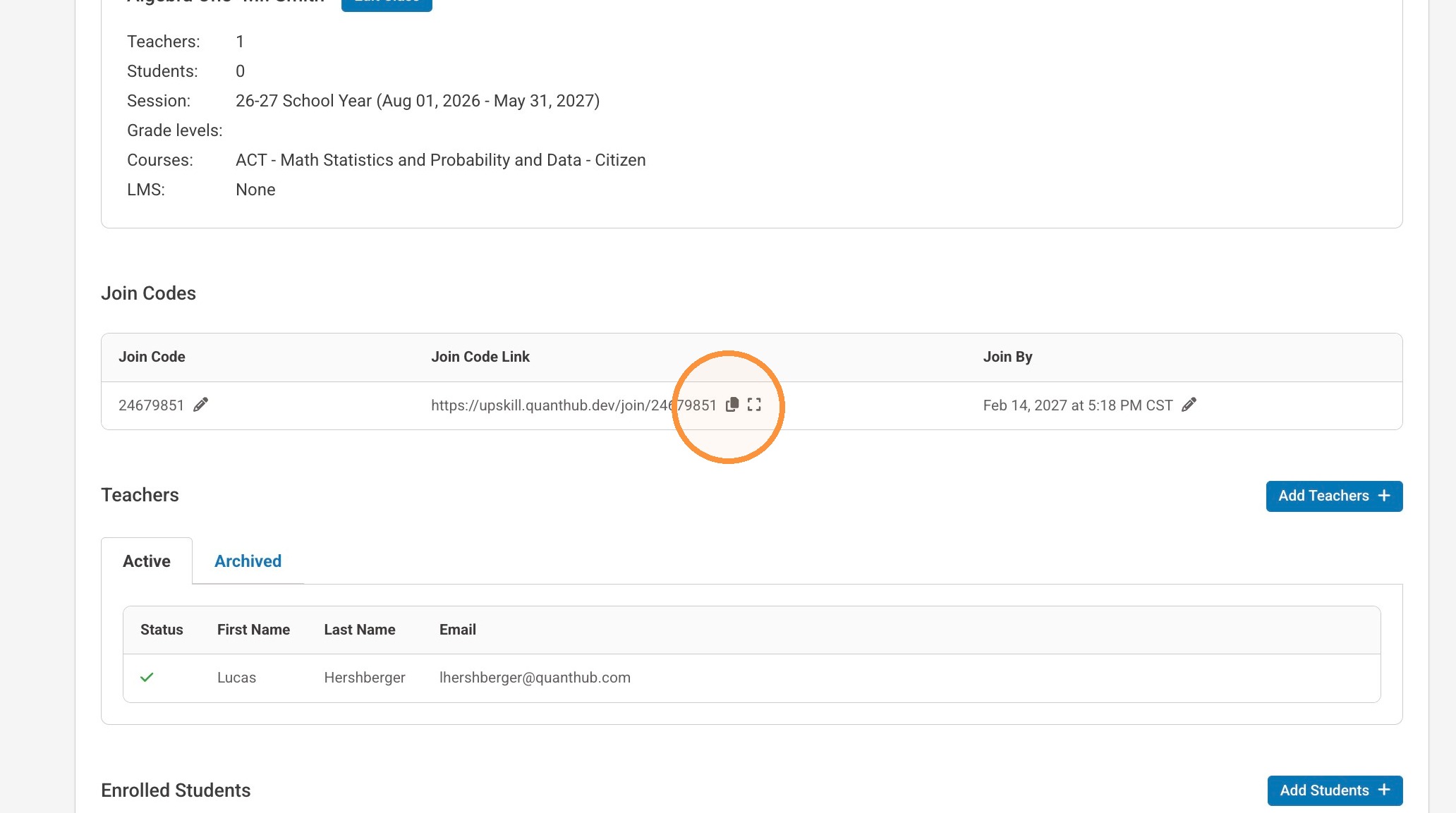
11. Once you have completed this section, you can now access this class's roster tab. To get students started, simply copy and paste the join code into your LMS!
Was this article helpful?
That’s Great!
Thank you for your feedback
Sorry! We couldn't be helpful
Thank you for your feedback
Feedback sent
We appreciate your effort and will try to fix the article