Watch the video below OR scroll down to view the steps listed out instead.
Video Tutorial
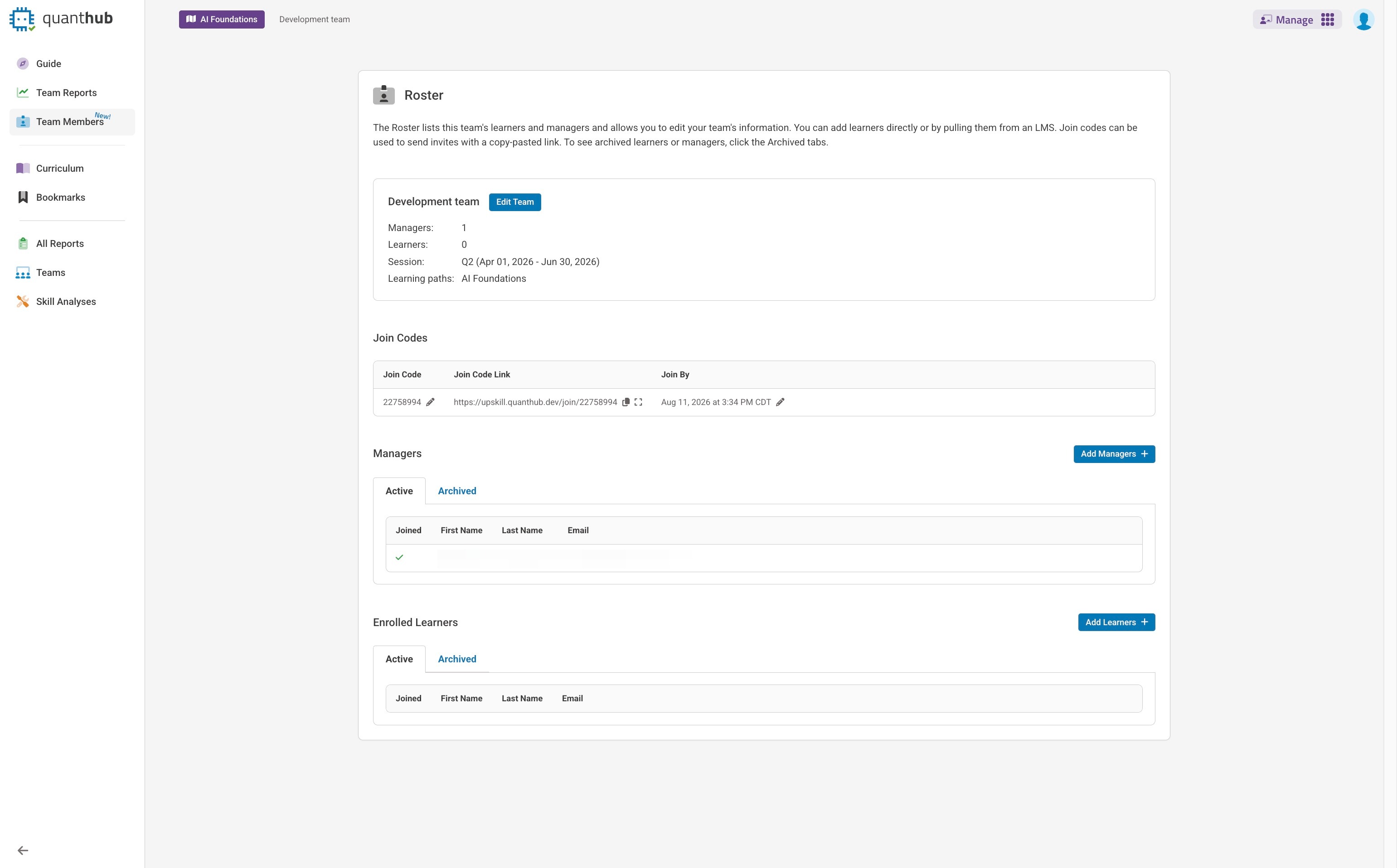
2. To manage your team roster, ensure you are in the "Manage" App by selecting nine dot icon in the top right.
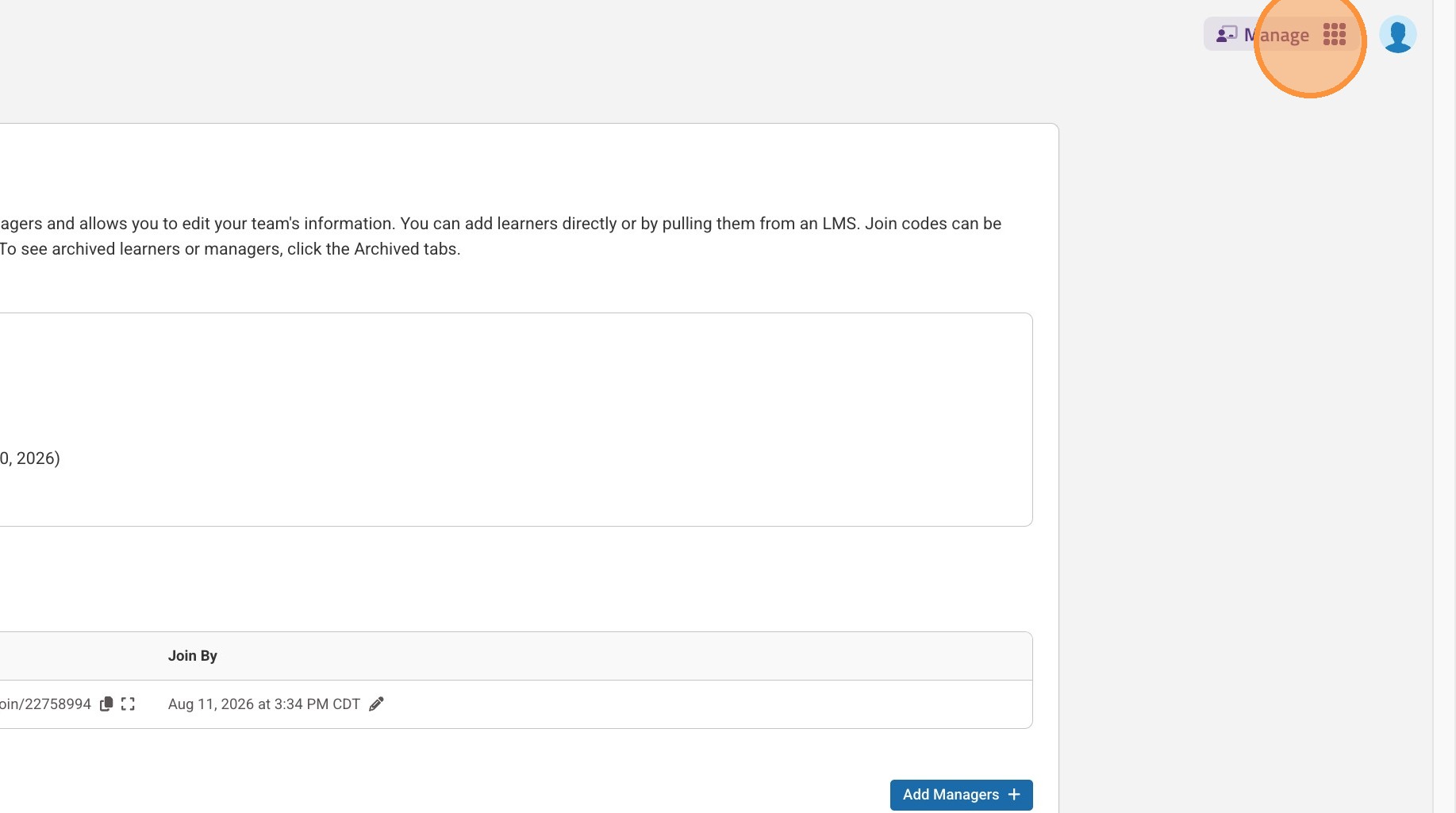
3. To manage your teams, first select your desired team from the drop down menu. If you want to create a new team select "Add Team" icon.
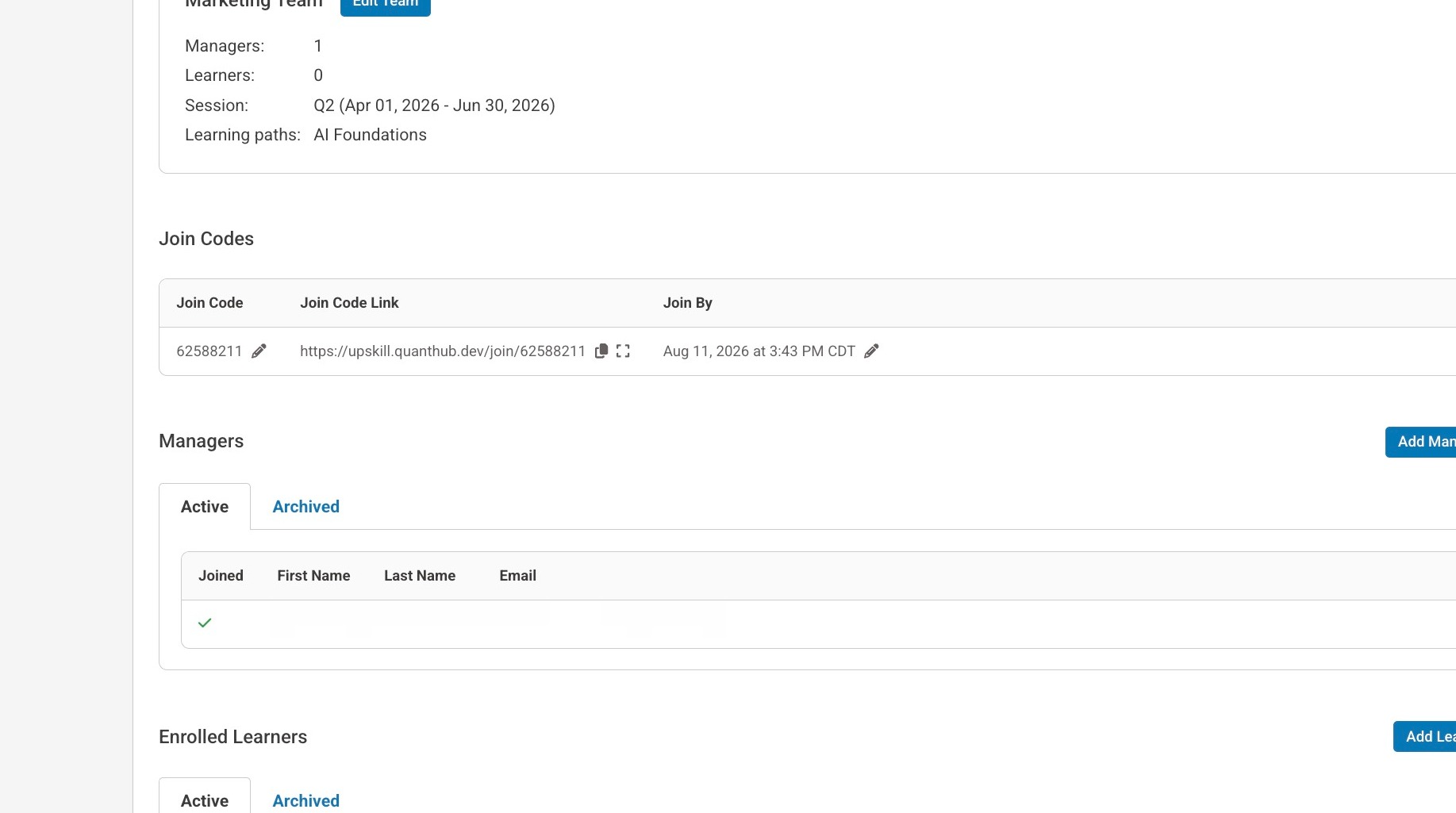
4. Select "Team Members". On this page you can do a variety of things such as editing your team settings, inviting new team members, and managing current learners and managers.
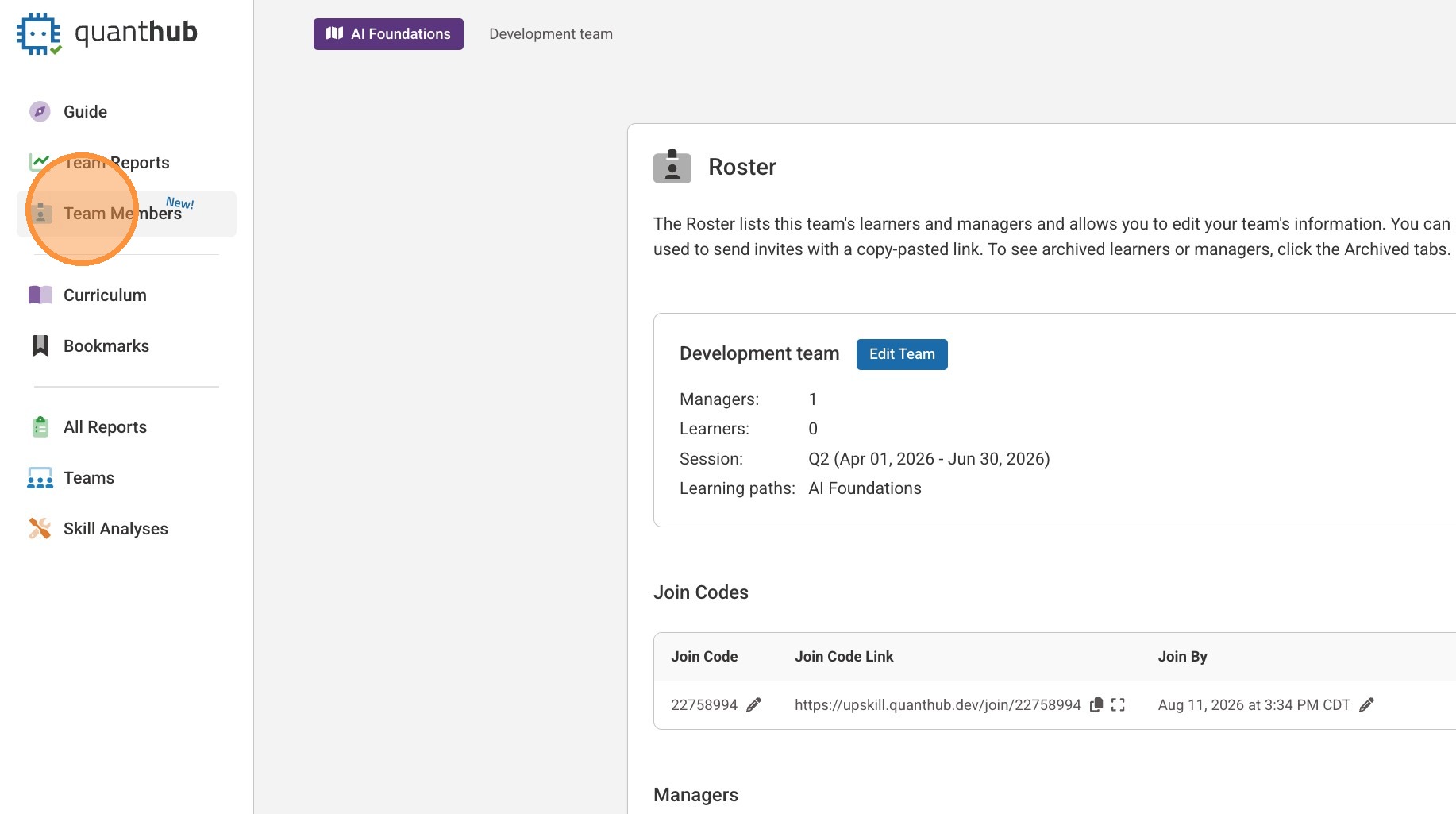
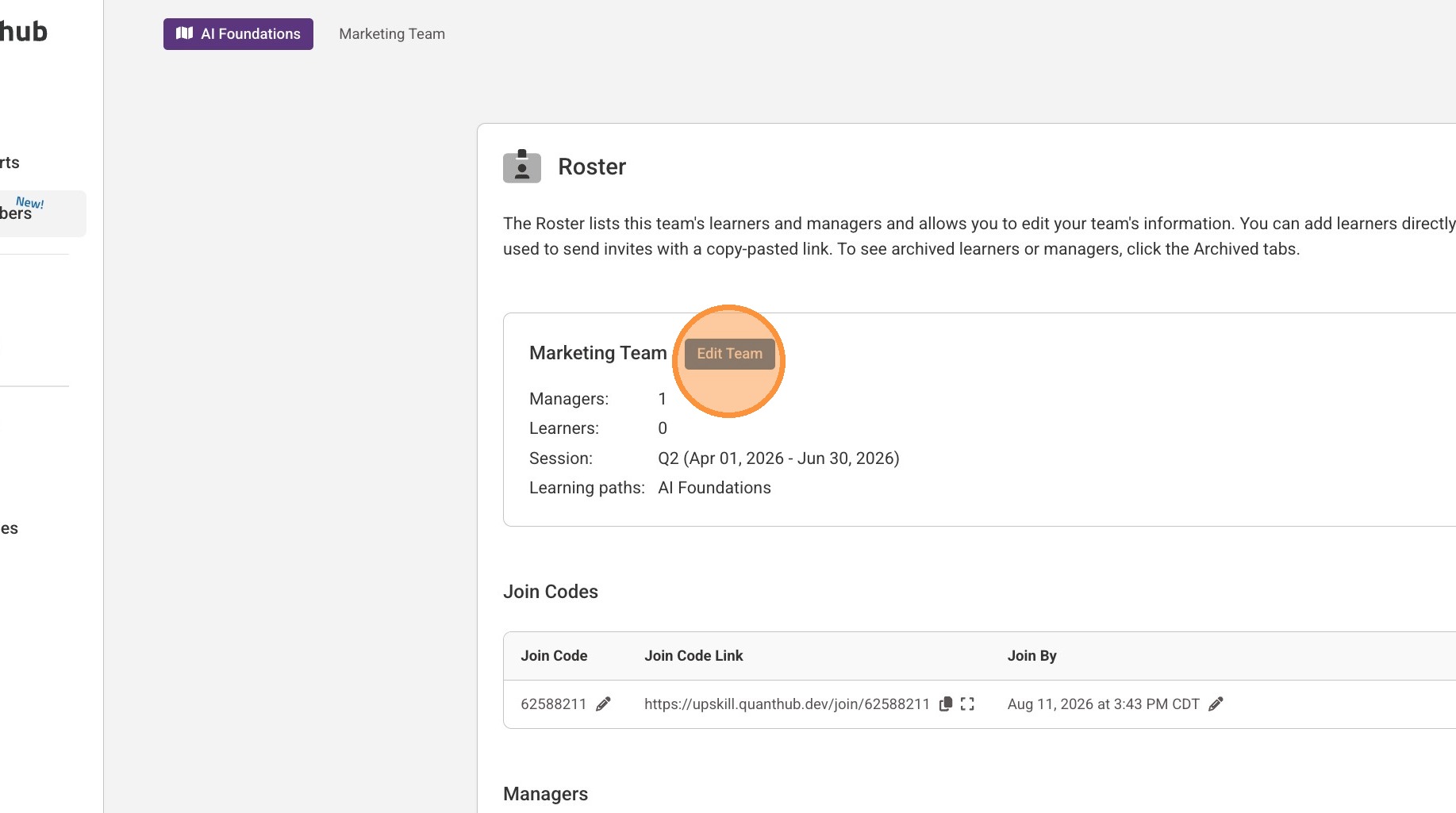
5. To edit your team select "Edit Team."
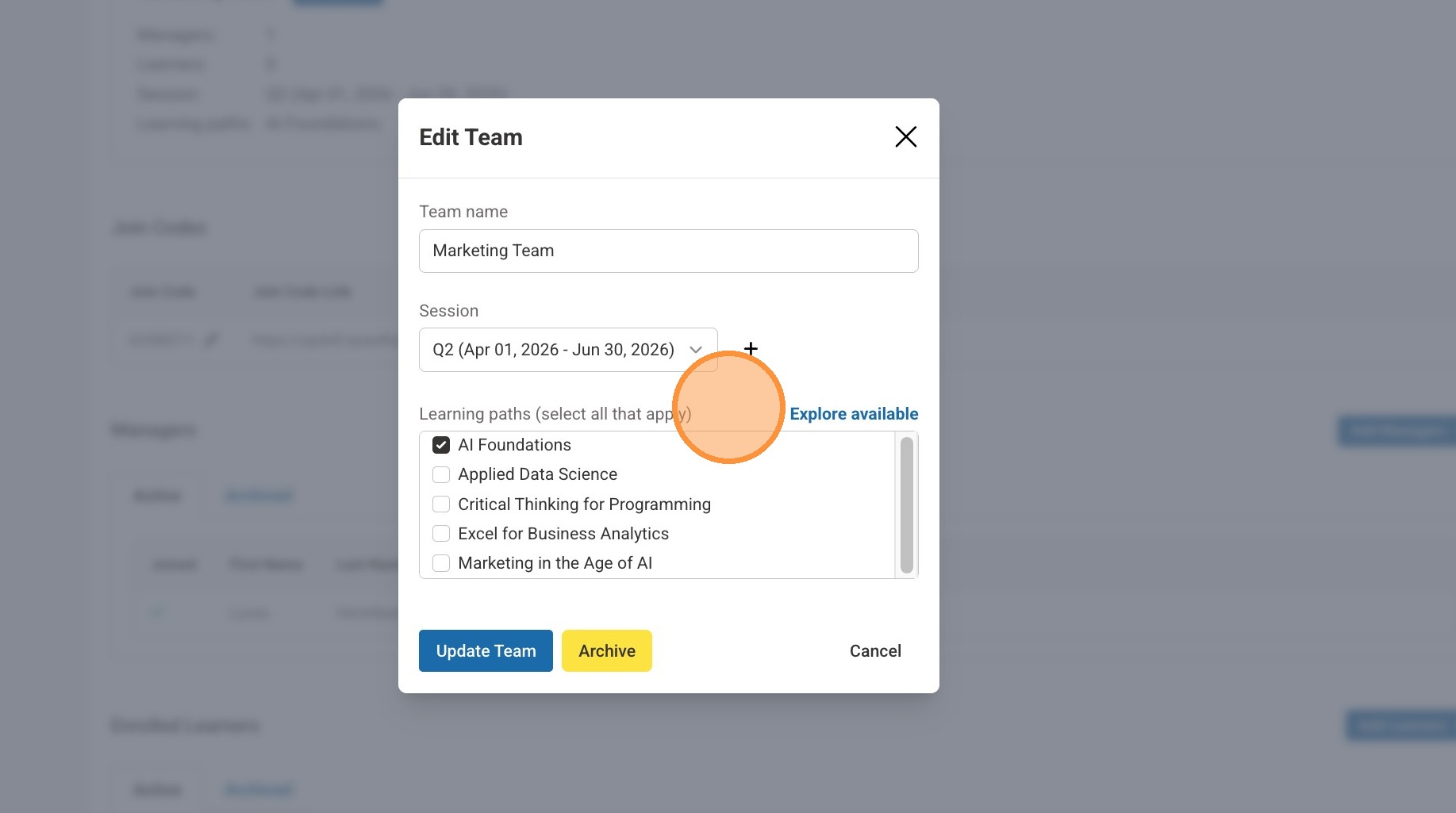
6. Here you can select additional trainings, change name of team, edit the session, and also archive the team.
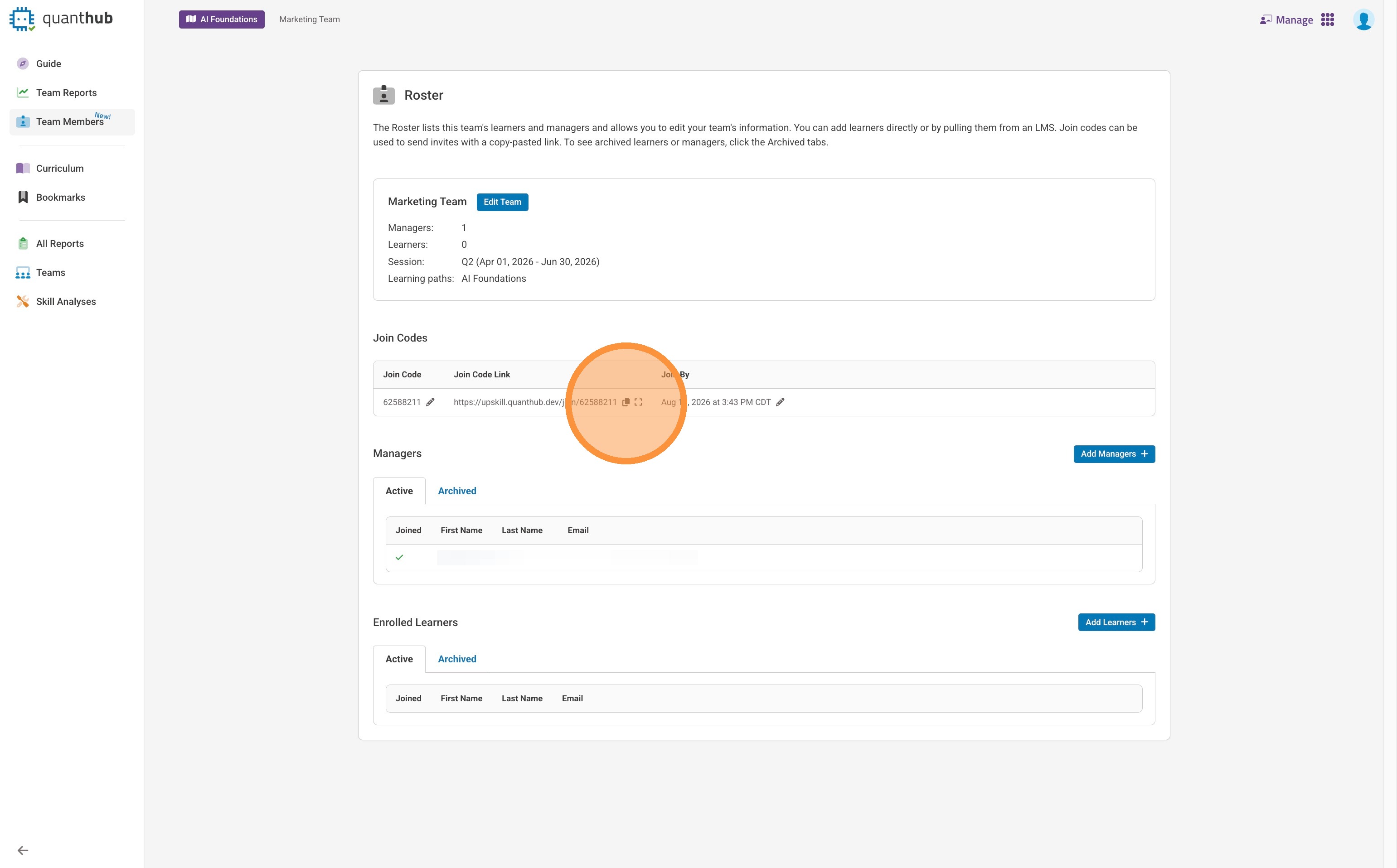
7. To invite new team members, you can select the "join code link" and send to additional team members. Team members will be prompted to make a new account or sign in and be put into this team.
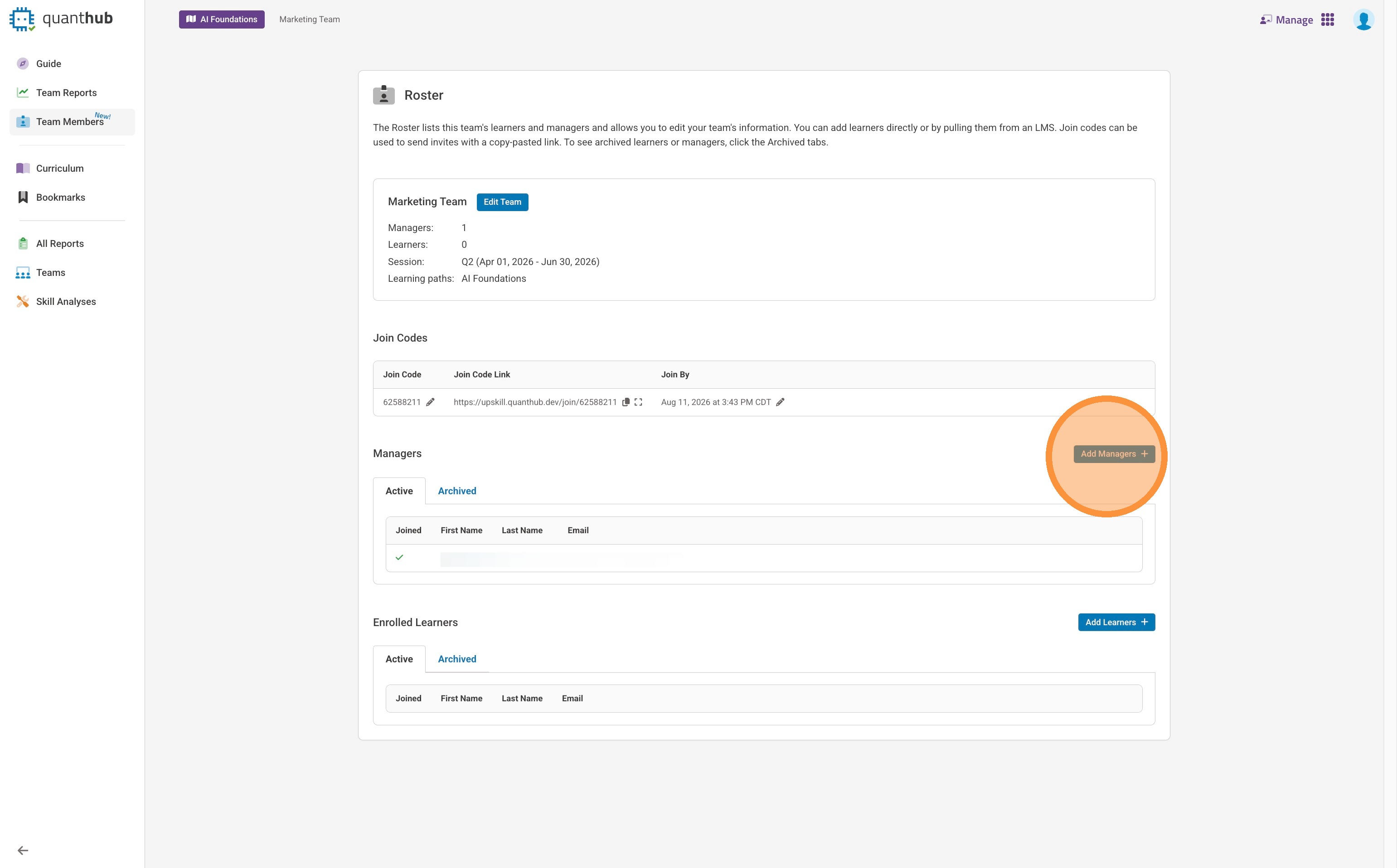
8. To add additional managers select "Add Managers." These users will be able to look at reports related to the team, add and archive learners, and have access to all manager resources.
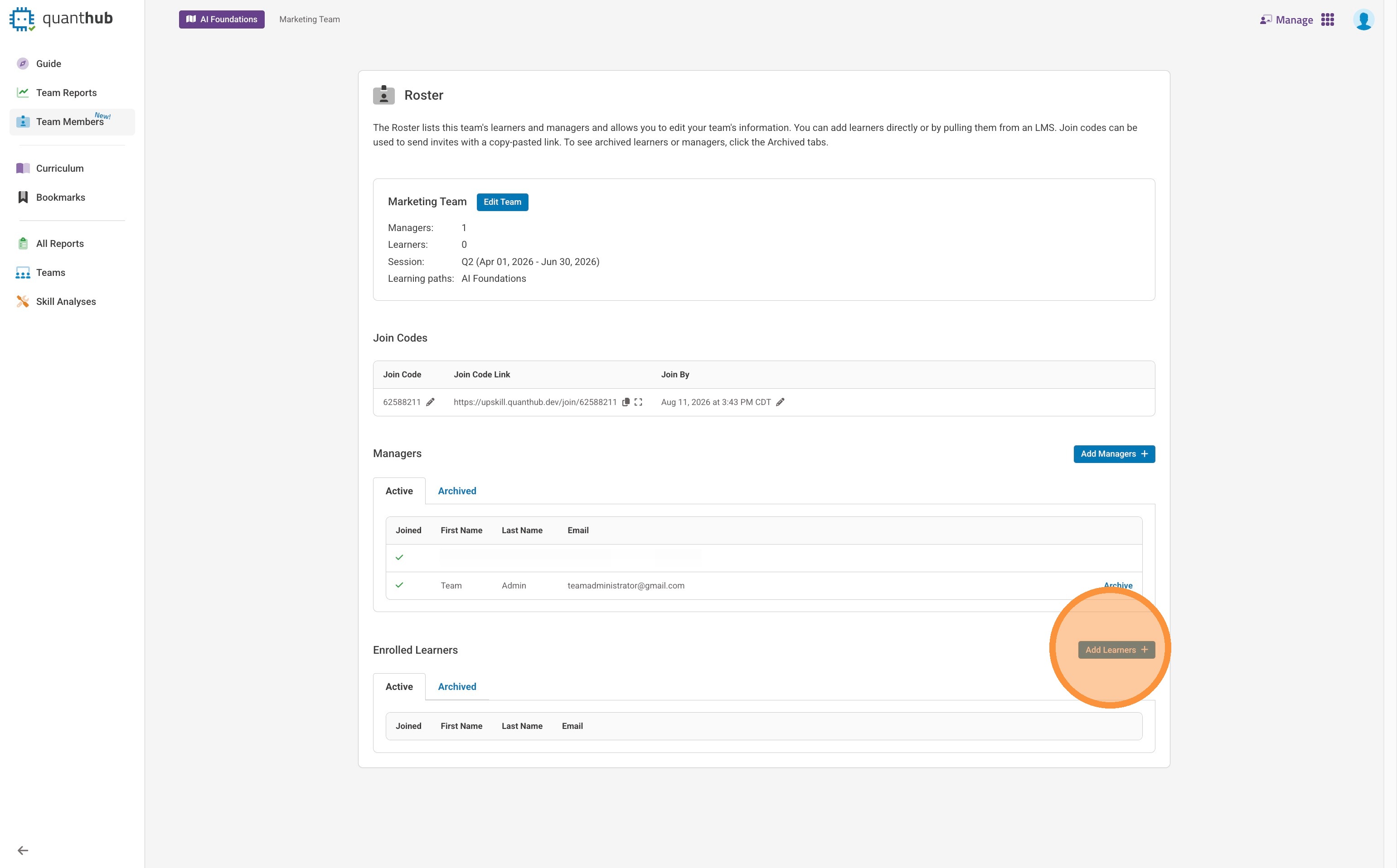
9. To add additional members, outside of the join code, select "Add Learners". These users will be put in the team on the "Learn" side of the platform and have access to all assigned content.
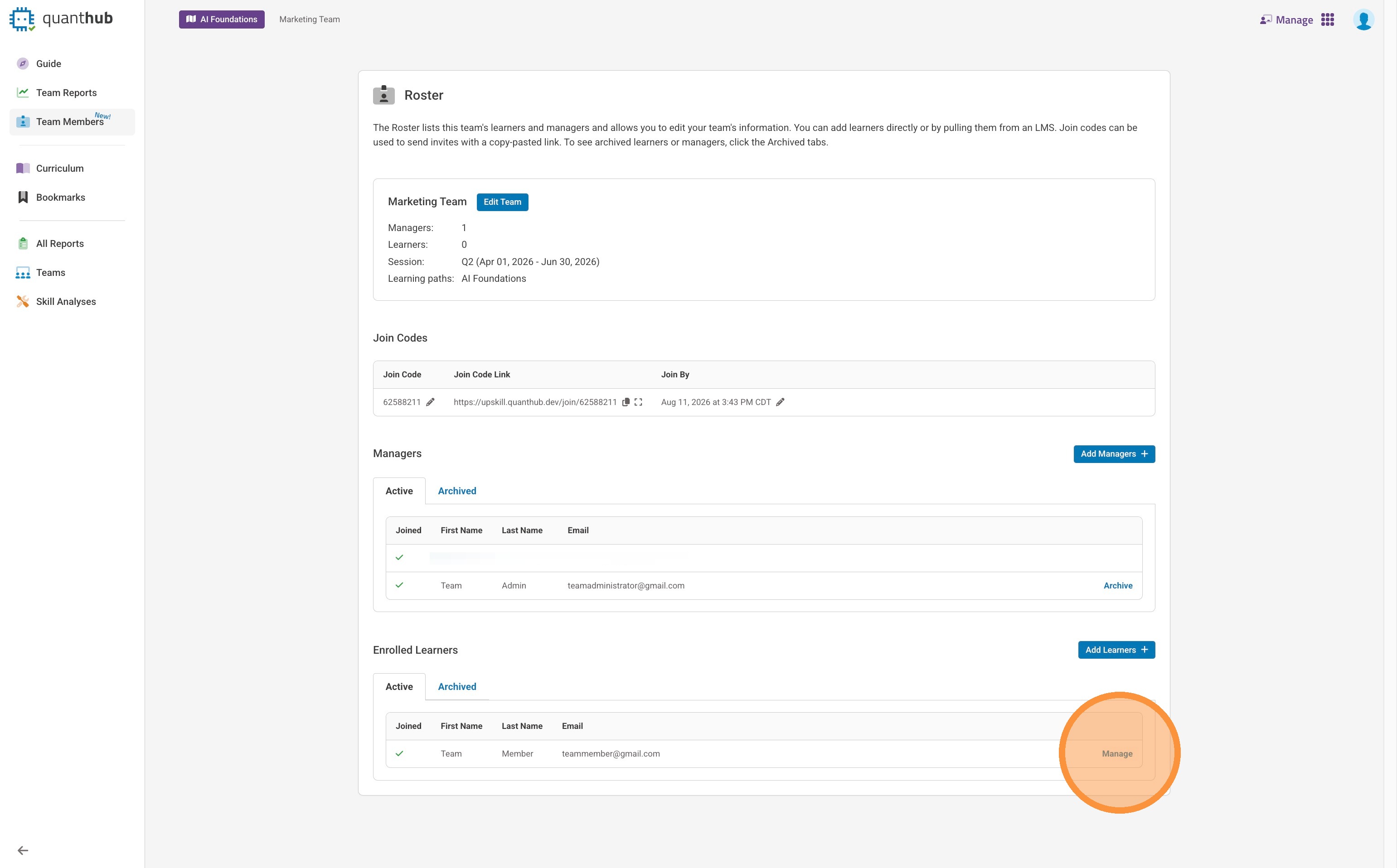
10. To manage a specific learner, "Manage"
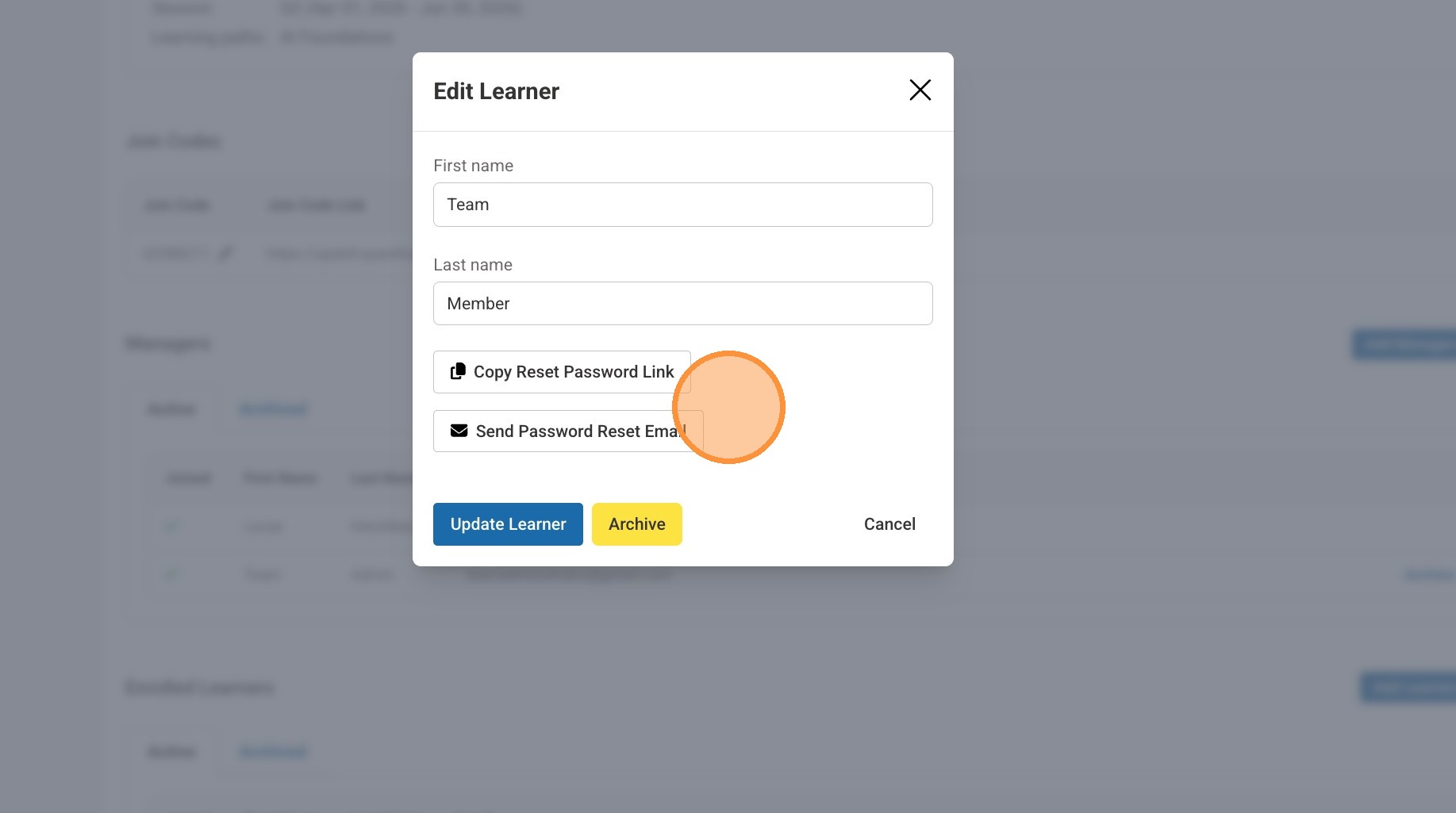
11. Here you can edit the team members name, send a password reset email, or generate a password reset link.
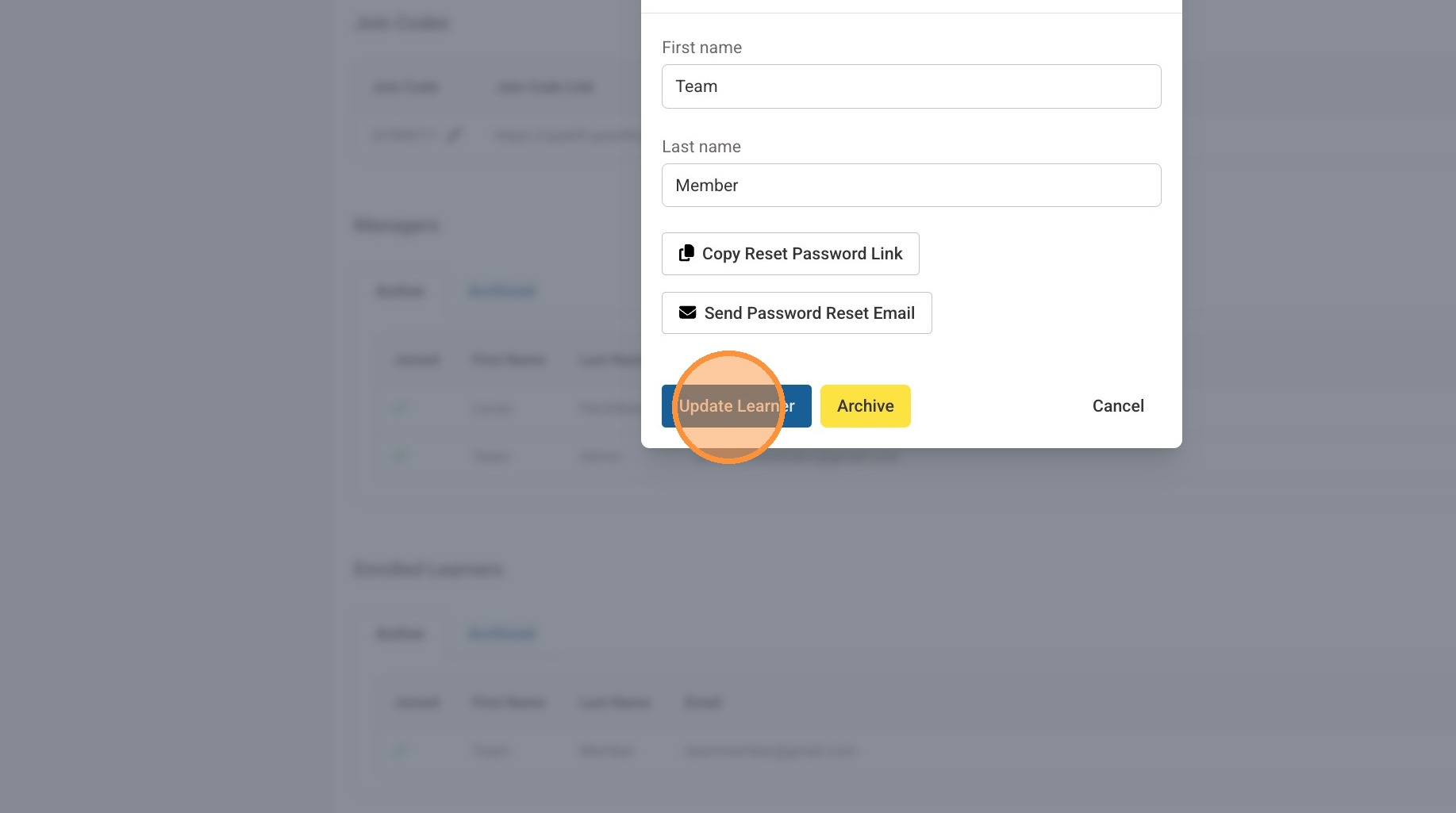
12. Once done select "Update Learner"
Tip: If you need additional help managing your teams, "Submit a Ticket" by visiting https://quanthub.freshdesk.com/support/home.
Was this article helpful?
That’s Great!
Thank you for your feedback
Sorry! We couldn't be helpful
Thank you for your feedback
Feedback sent
We appreciate your effort and will try to fix the article