Watch the video below OR scroll down to view the steps listed out instead.
Video Guide
Step By Step Guide
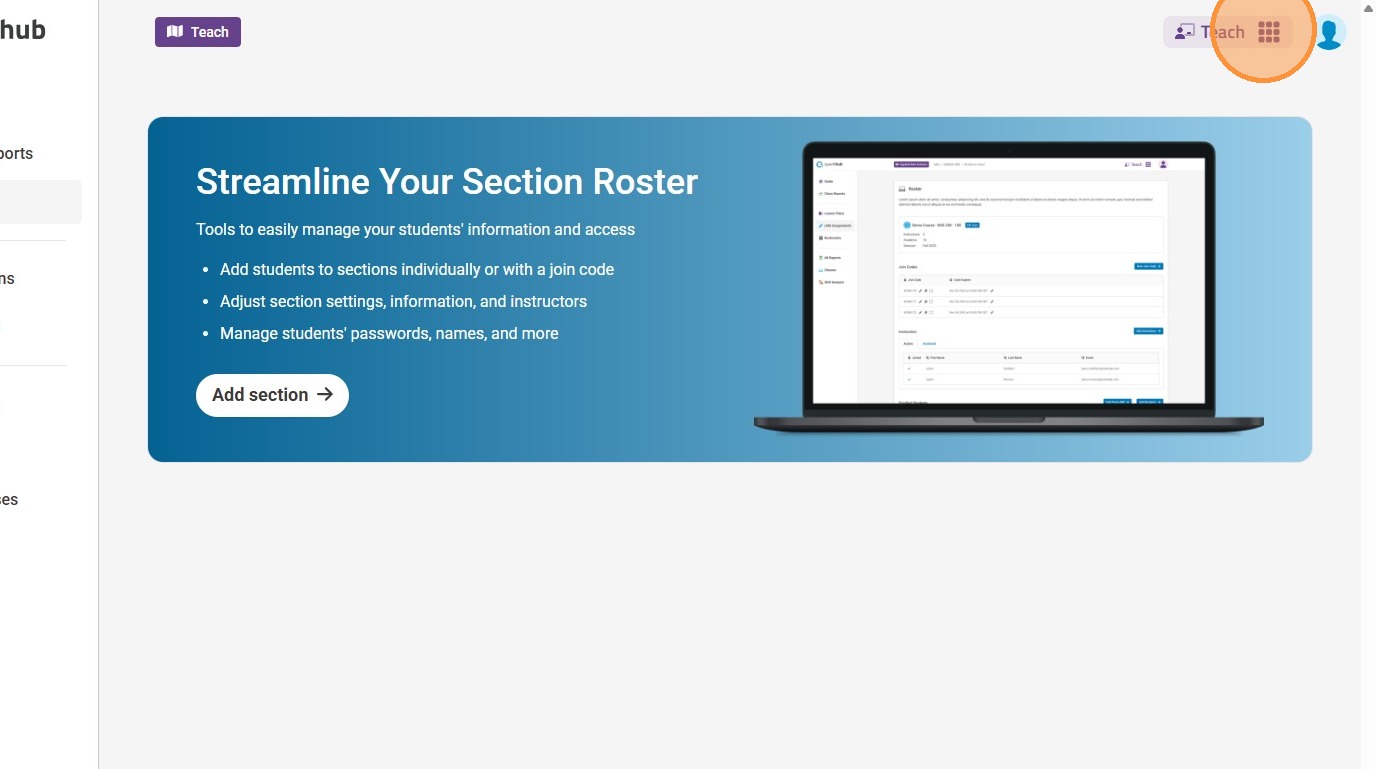
1. Select the nine dot menu.
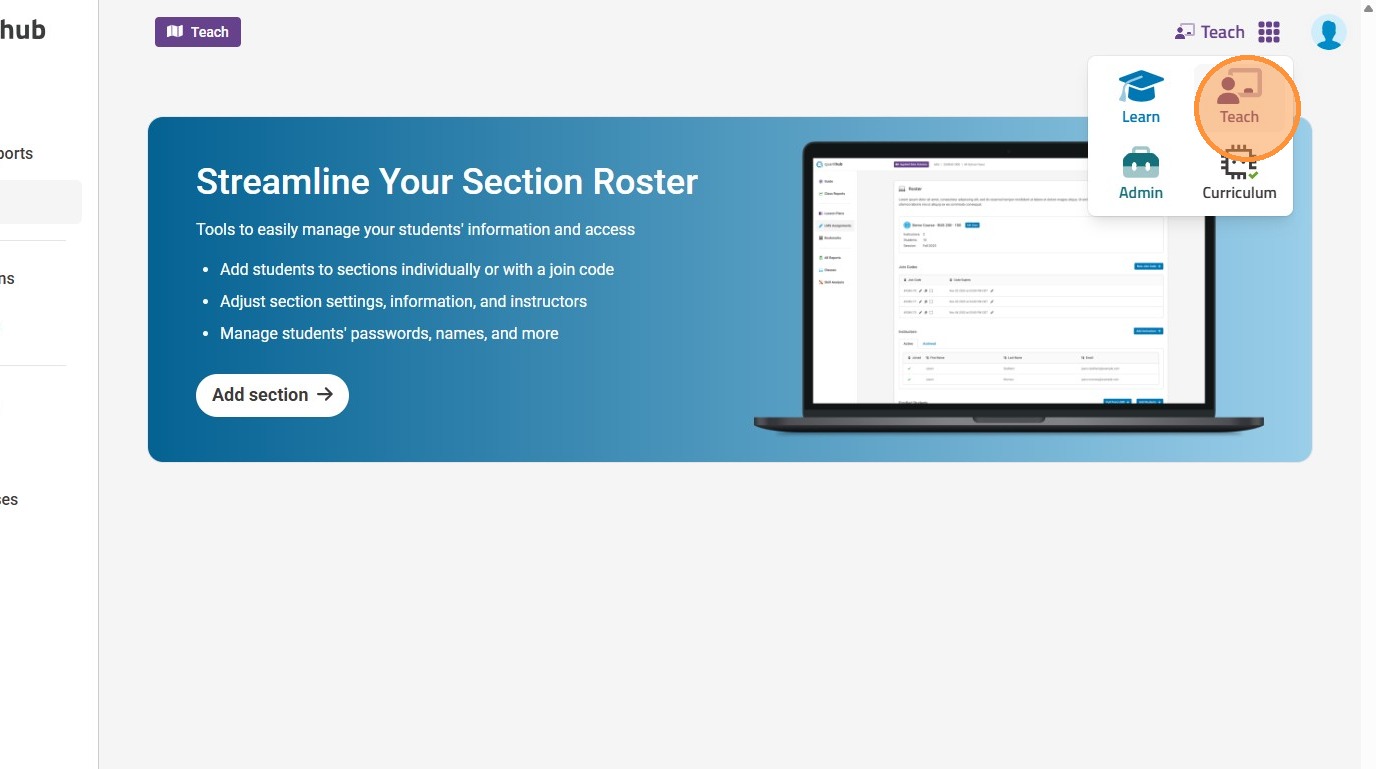
2. Select the "Teach" app.
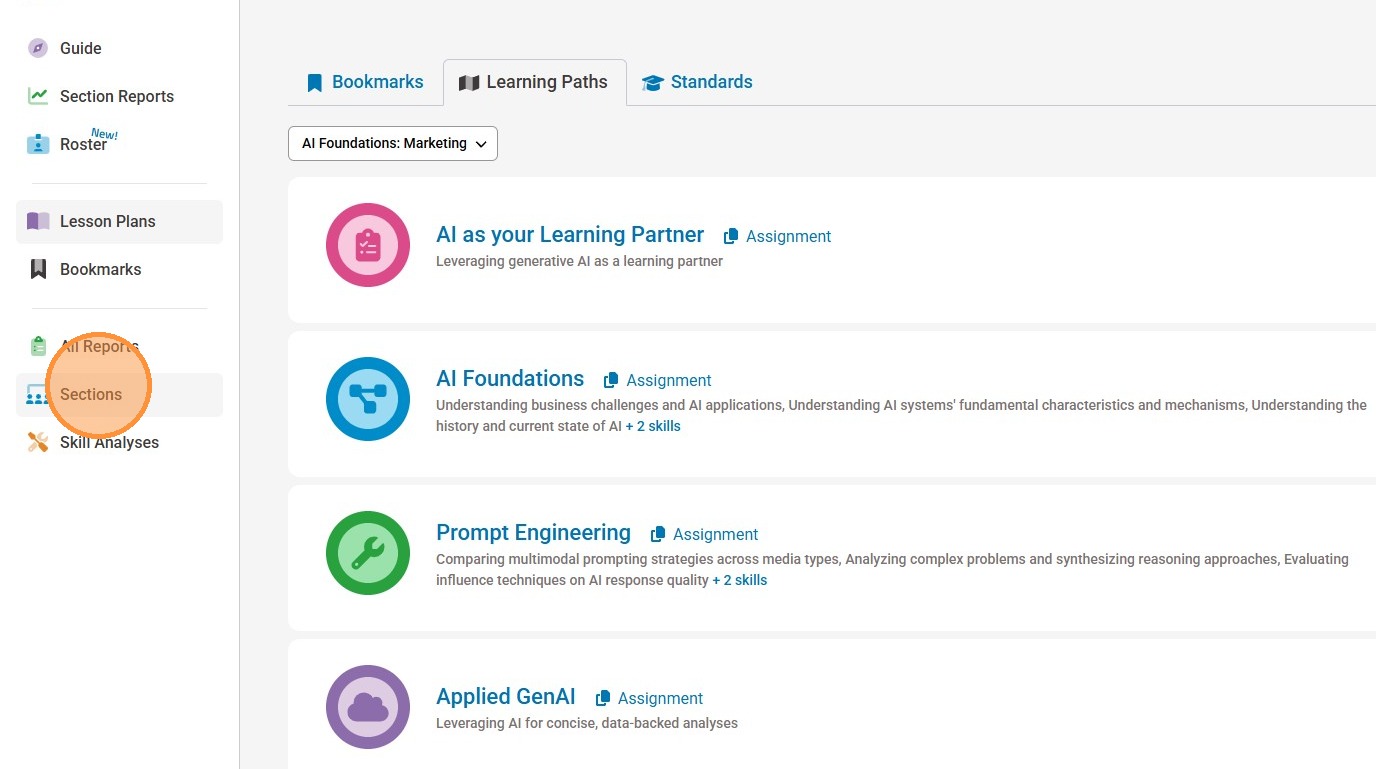
3. Select "Sections/Classes" in the left-side menu.
Note: If you are a K12 user you will see "Classes" and if you are a corporate user you will see "Teams."
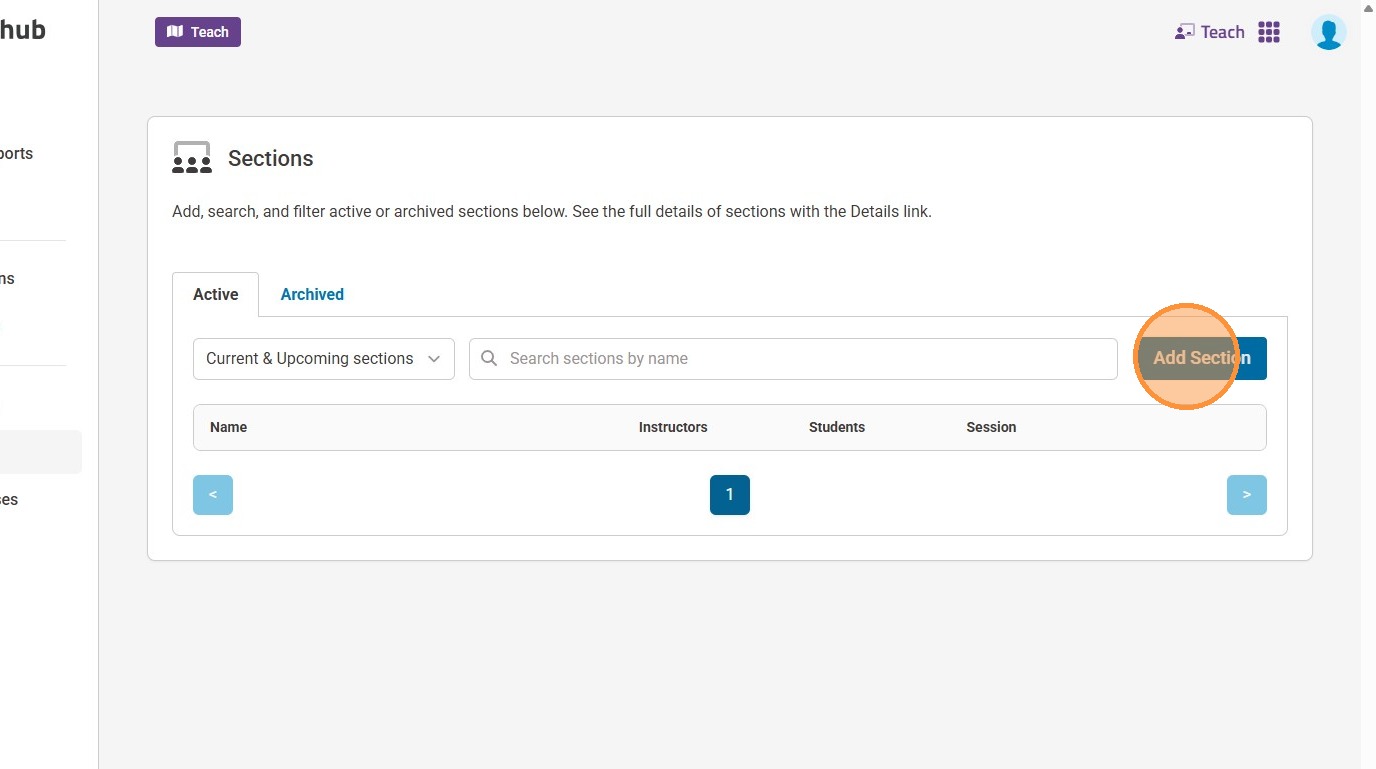
4. Select "Add Section/Class "
Note: If you are a K12 user you will see "Add class" and if you are a corporate user you will see "Add team."
5. Give your (Section/Class/Team) a name.
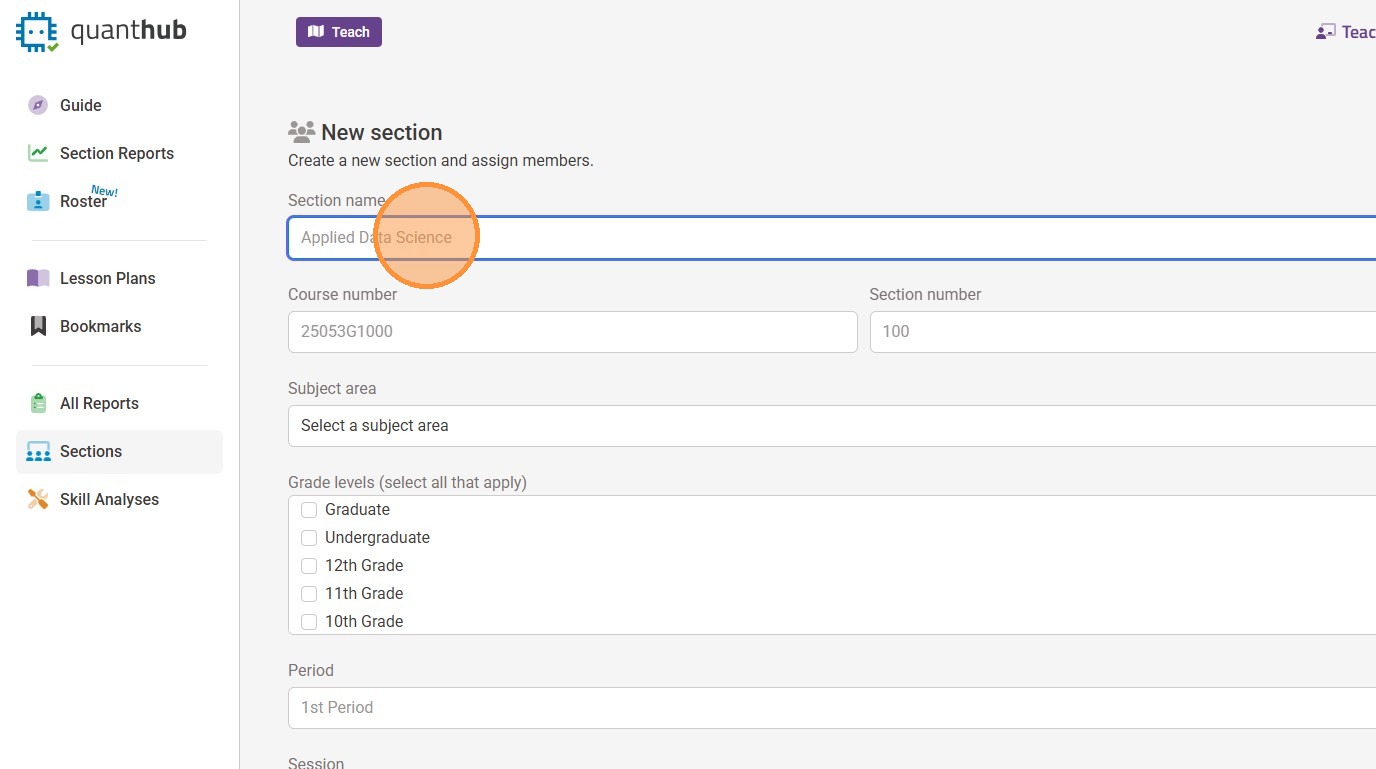
6. For higher education users, enter the course number.
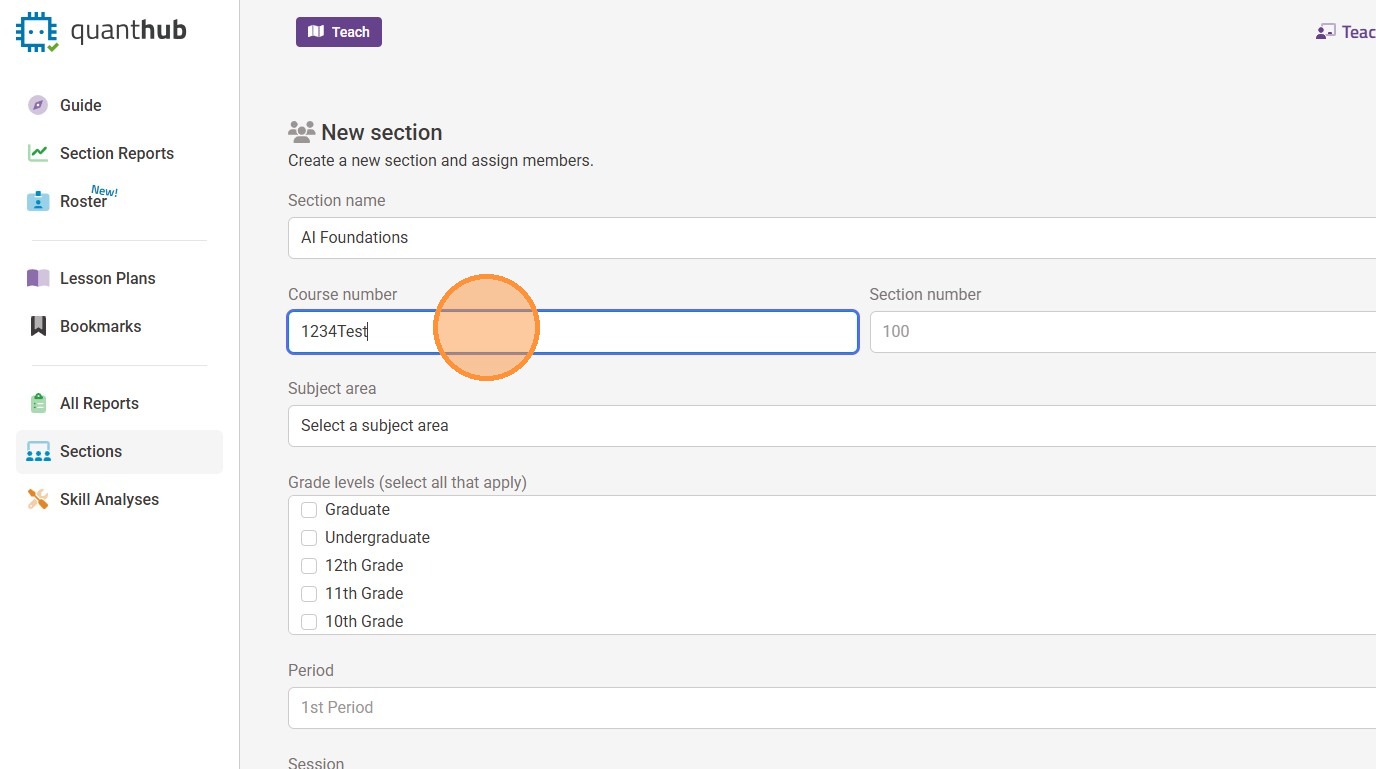
7. For higher education users, enter the section number.
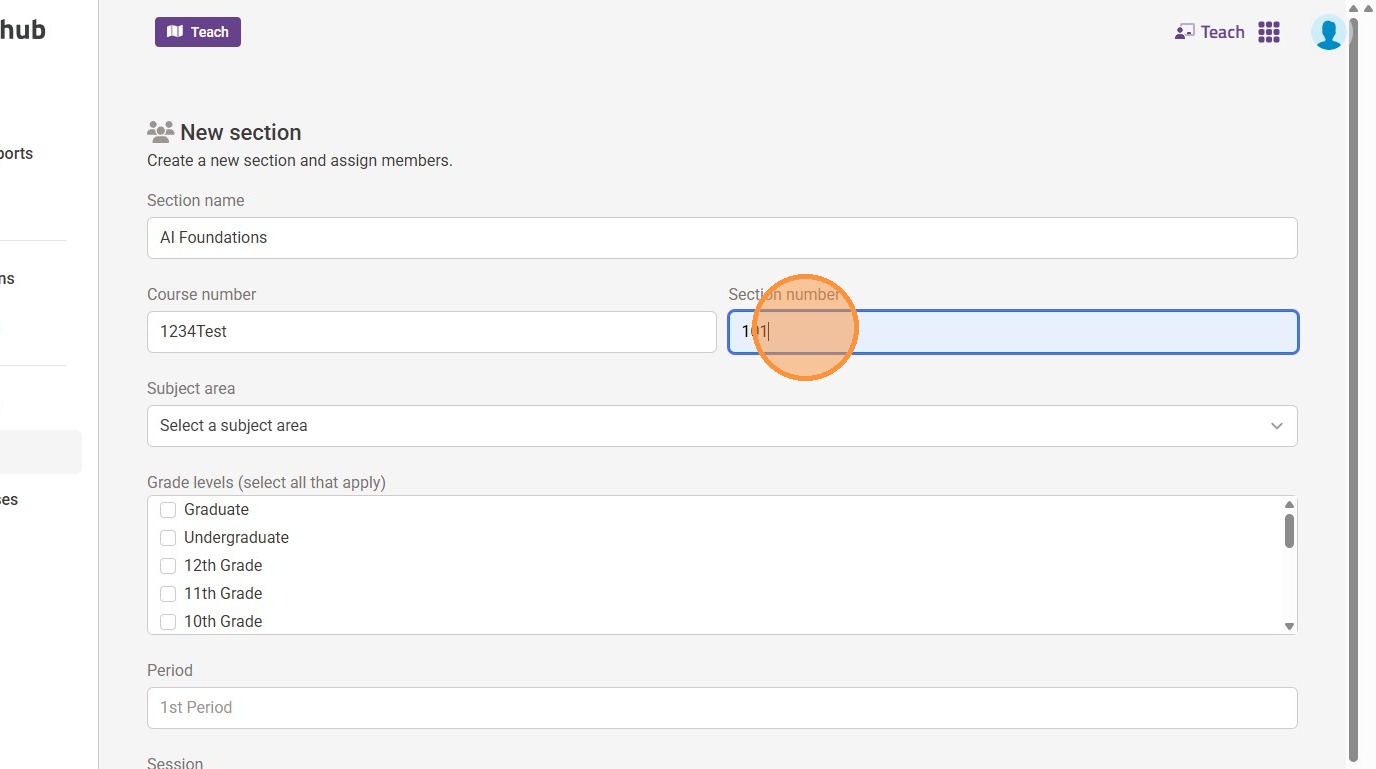
8. Select the "Subject area" tab and choose your subject.
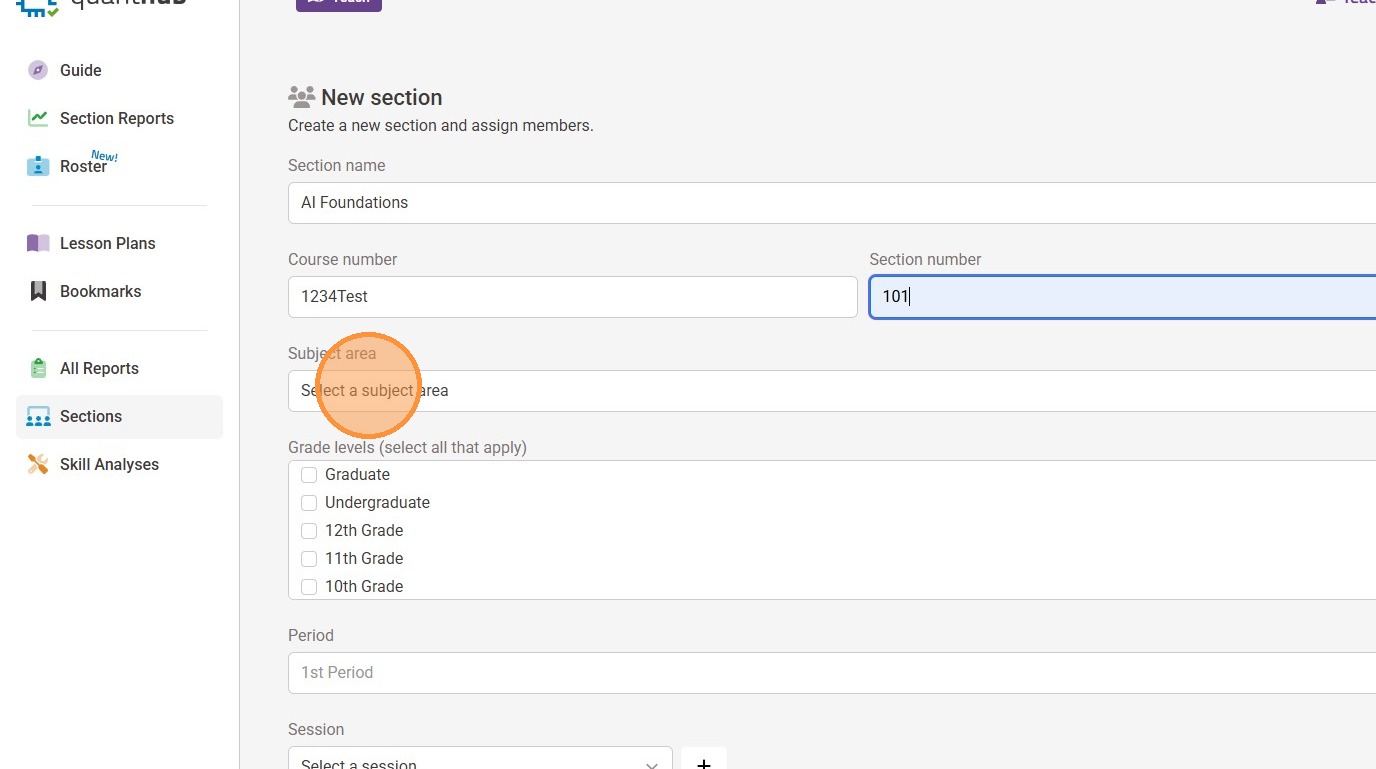
9. Select the "Grade levels" that apply.
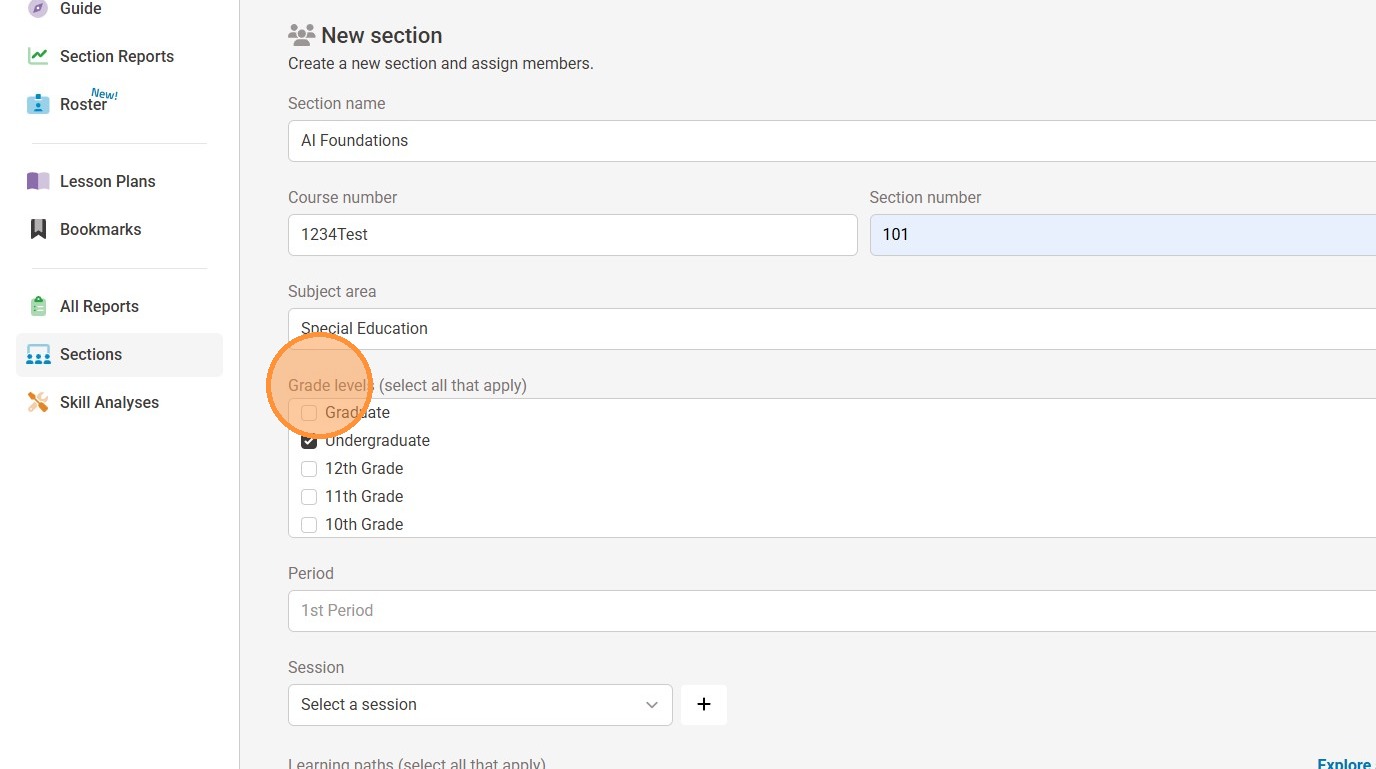
10. For K-12 users, enter your period or block information.
- 1st period
- 2nd block
- 3rd section
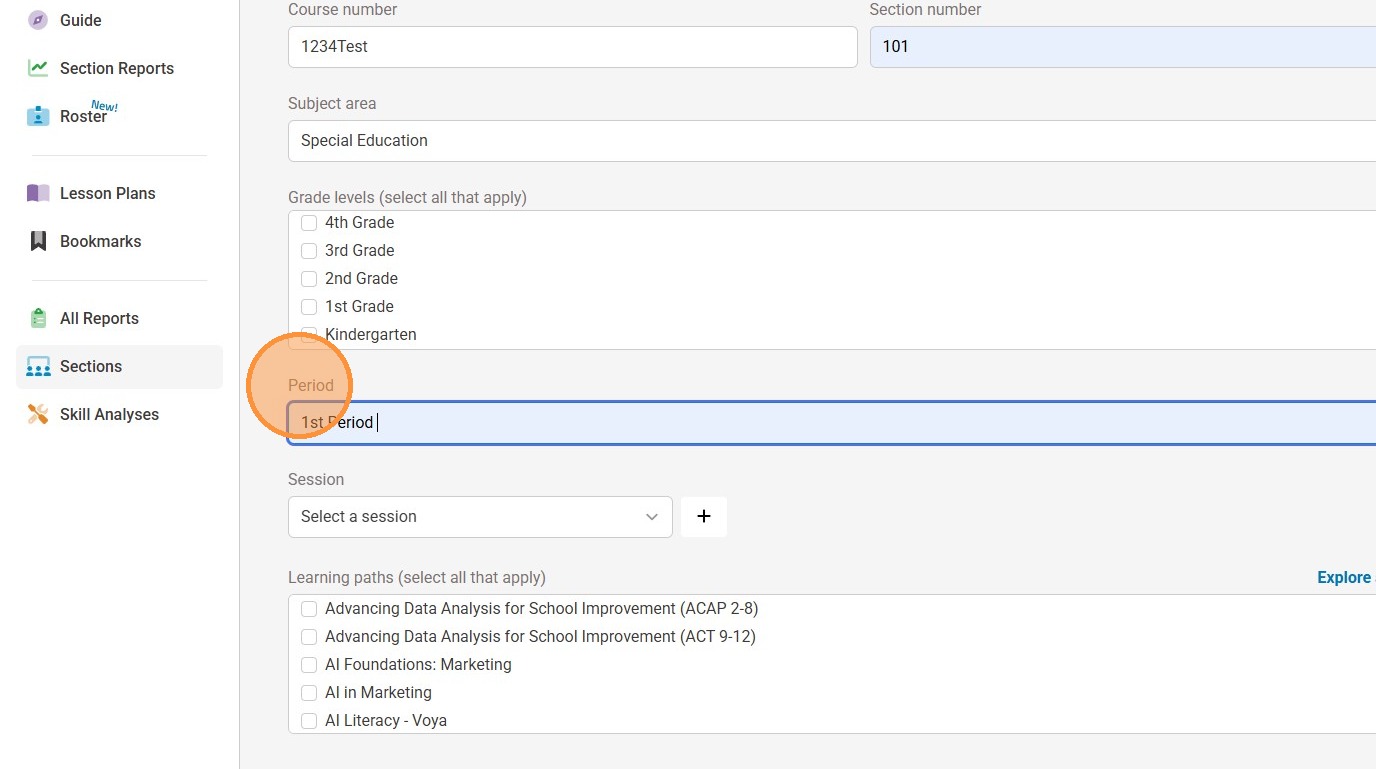
11. Select the "Session" to choose your term.
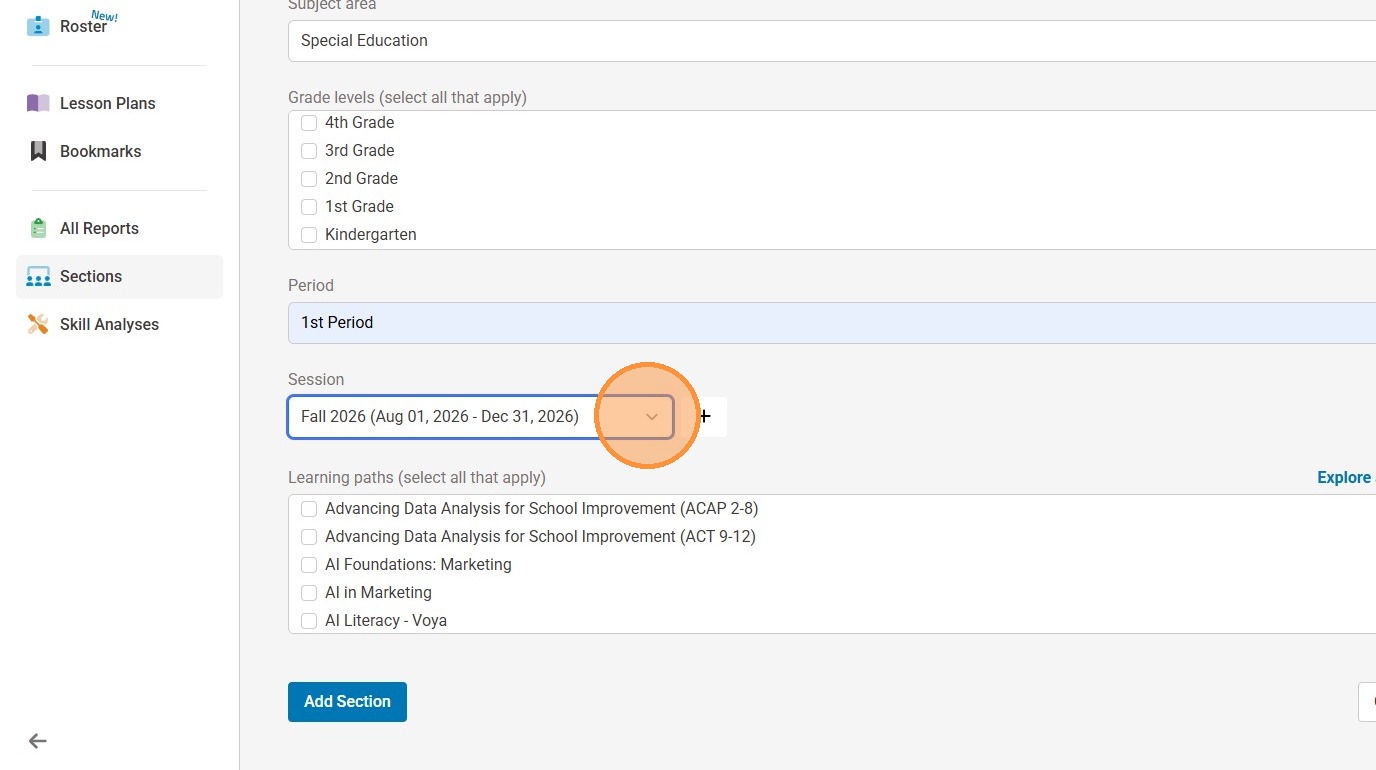
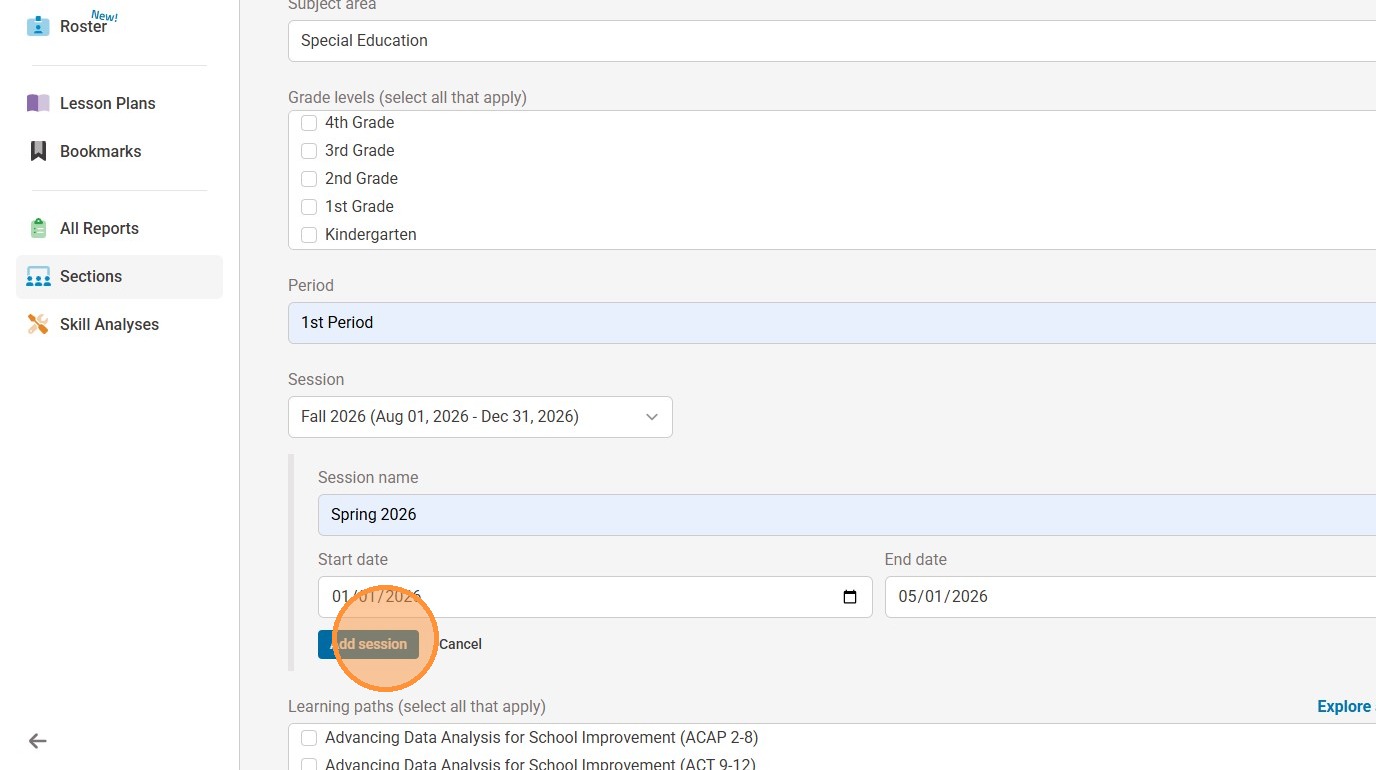
12. If a session does not already exist, select "+"
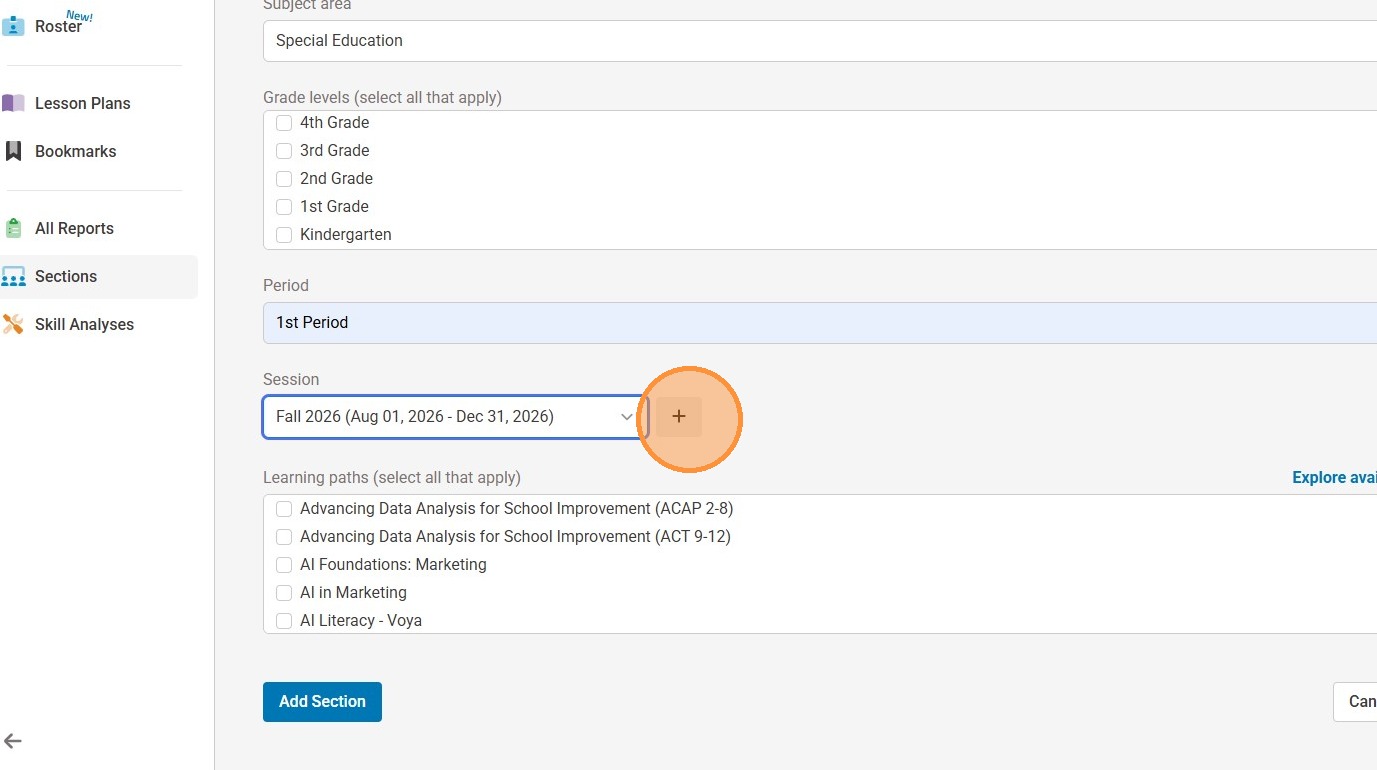
13. If a session does not already exist, select "+". Please fill out "Session Name, Start Date, and End Date." Then select "Add session."
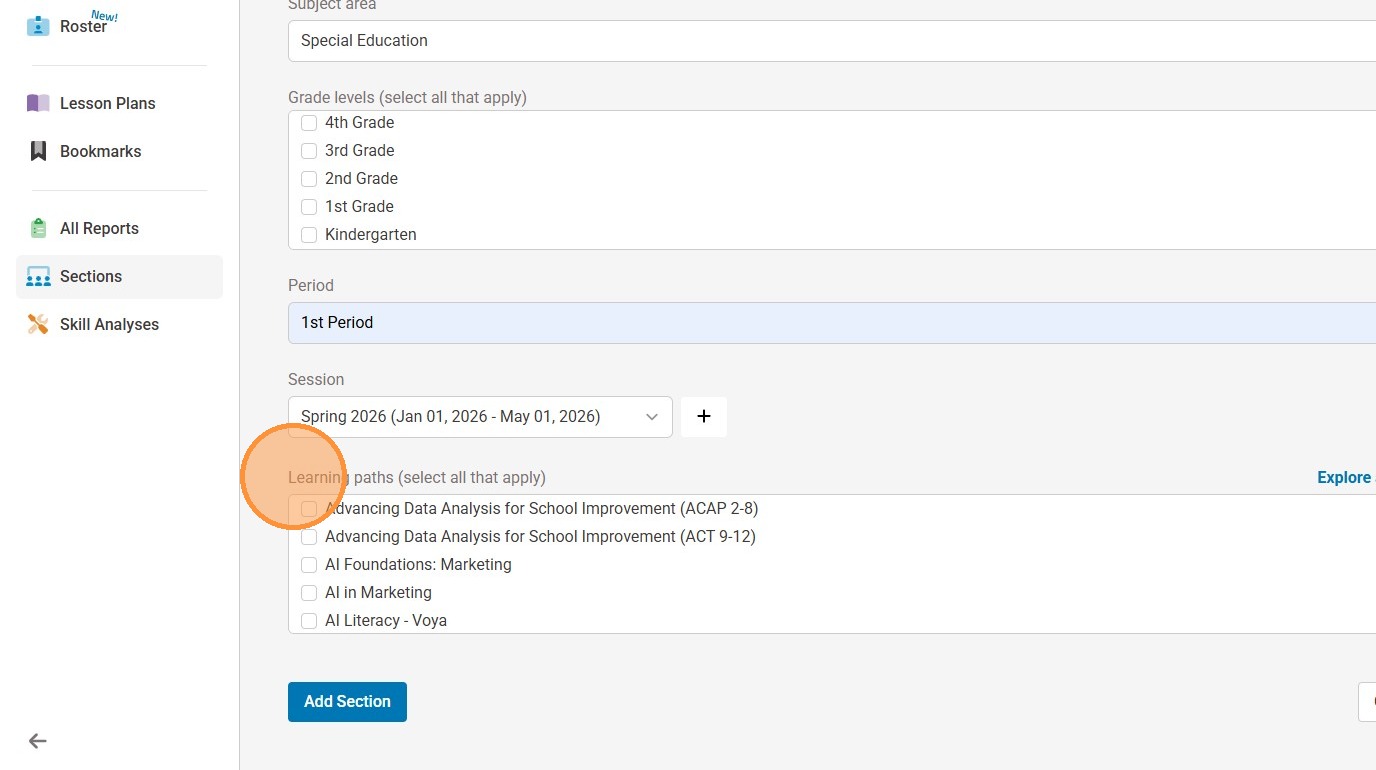
14. Select the appropriate learning path(s) for your course.
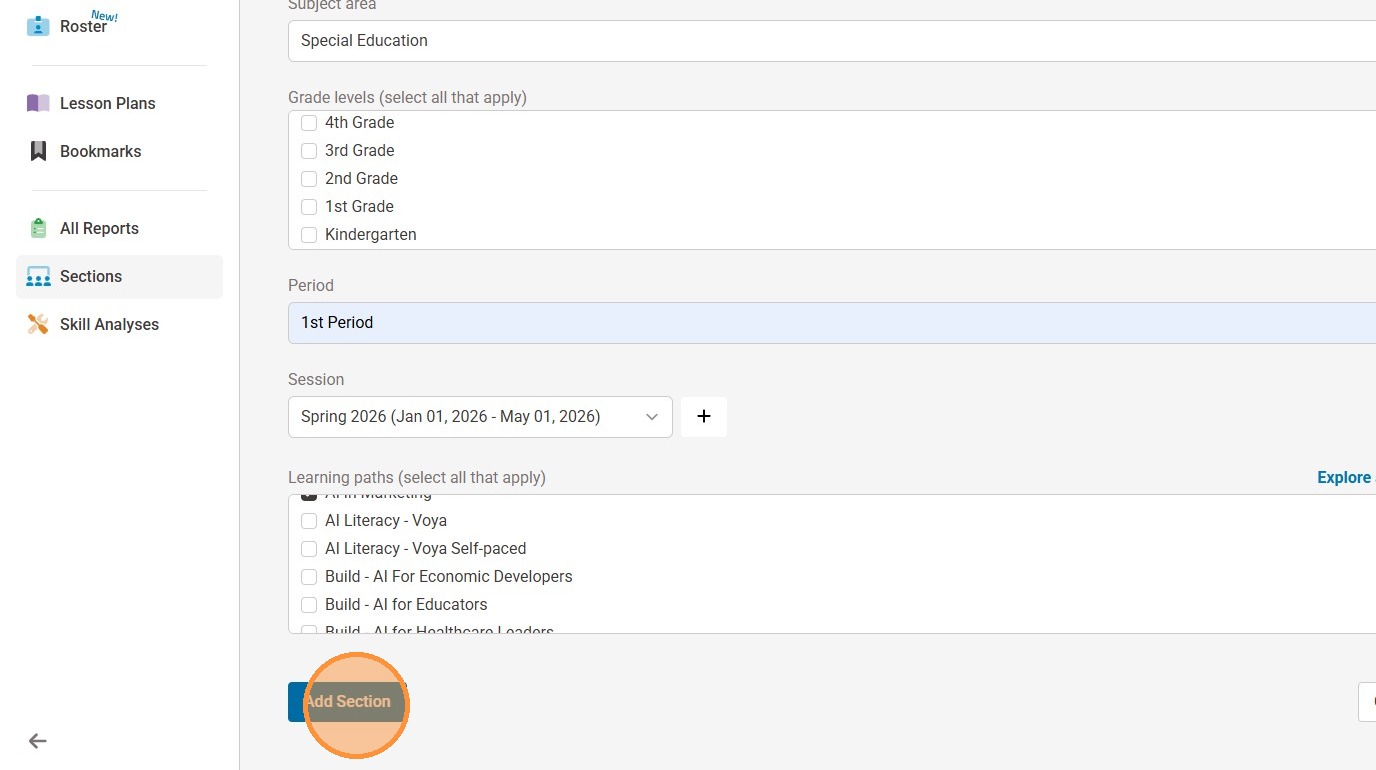
15. Select "Add Section"
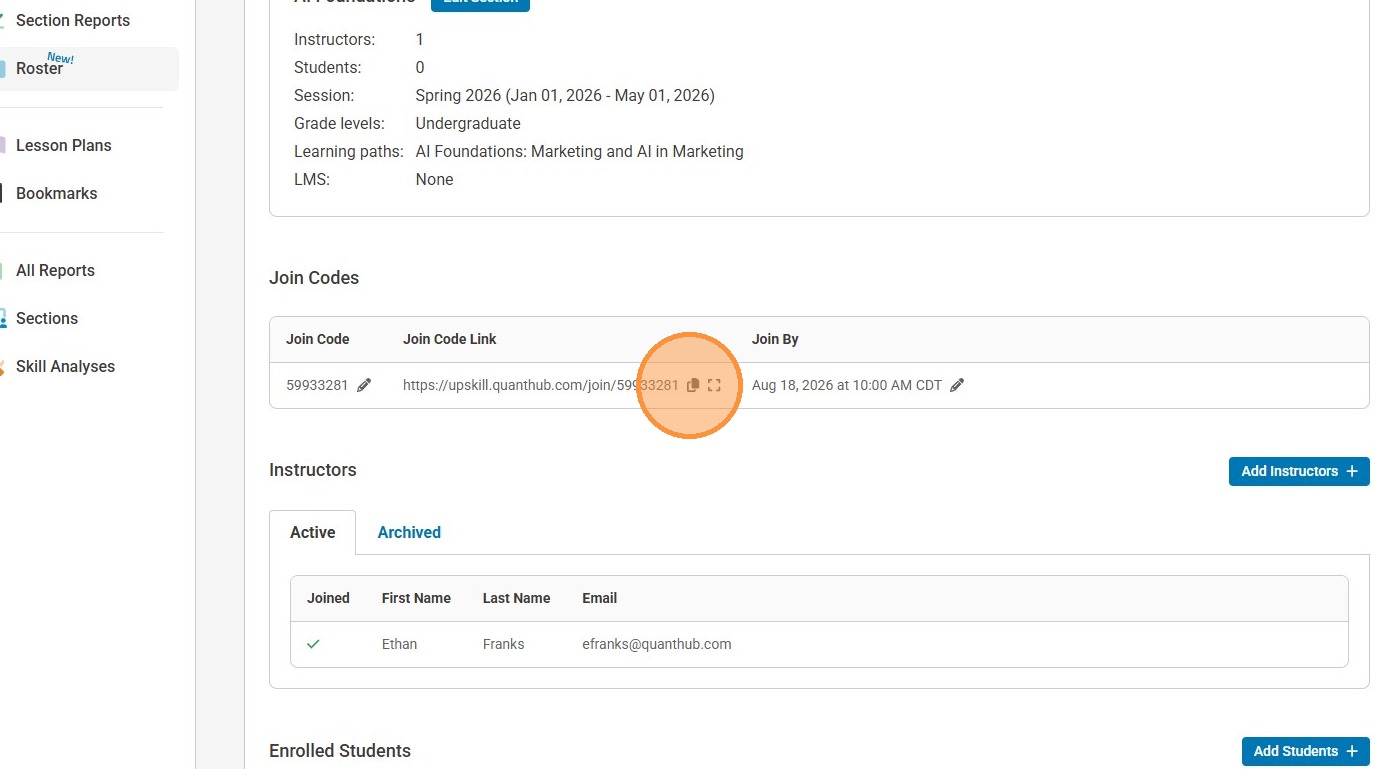
16. Lastly, to enroll students in the course, copy the join code link (found in "Roster") and paste it into your LMS (Google Classroom, Schoology, Canvas, etc.). I usually recommend posting it as an announcement.
Was this article helpful?
That’s Great!
Thank you for your feedback
Sorry! We couldn't be helpful
Thank you for your feedback
Feedback sent
We appreciate your effort and will try to fix the article