TABLE OF CONTENTS
- Creating Assessments and Adding Applicants
- Sending Assessments
- Editing & Viewing Assessments
- Icons Explained
The skill analysis is a powerful assessment tool that allows you to evaluate an individual's skill level in great detail. It is fully customizable and can be tailored to meet your specific needs. You can select skills from our extensive catalog or choose from our suggested configurations.
How Can I Use It?
- Assessing candidates' skills
- Needs analysis/gap analysis for employees
- Helps build teams with complementary skills
Creating Assessments and Adding Applicants
We offer a white glove service when it comes to building assessments for our clients utilizing our services for hiring. Please reach out to your account manager to start this process, or to support@quanthub.com.
After your assessments have been created, it's time to add the candidates.
Add recipients one of two ways:
1. Type in names and email addresses one by one and click "Add candidate."
2. Import a CSV to add candidates in bulk. Be sure to follow the provided template.
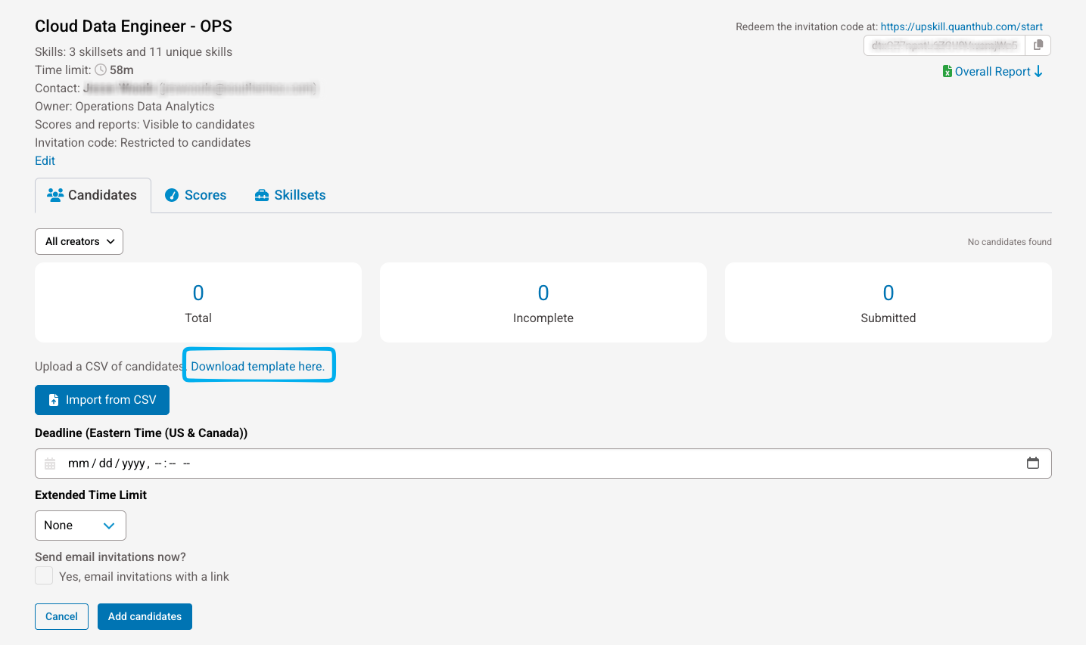
From here, you can edit the deadline and if any candidates will need an extended time limit.
Enter the candidate's email correctly so they can successfully redeem the invitation. This step is necessary for them to be able to access the assessment unless you set it to be an open invite assessment.
Sending Assessments
1. When you are ready to send out the assessments, click on the "Skill analyses" tab found on the left-hand tab of the "Teach" app.
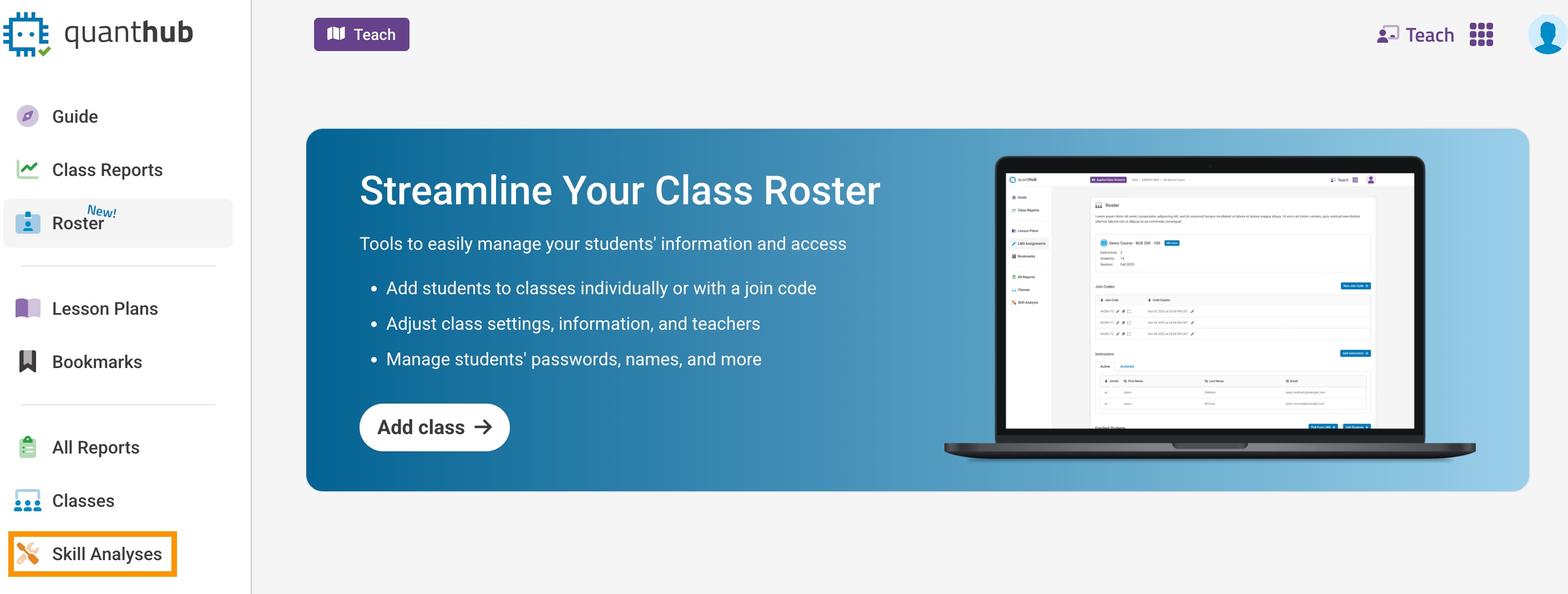
2. Select the assessment you want to send out from the list.
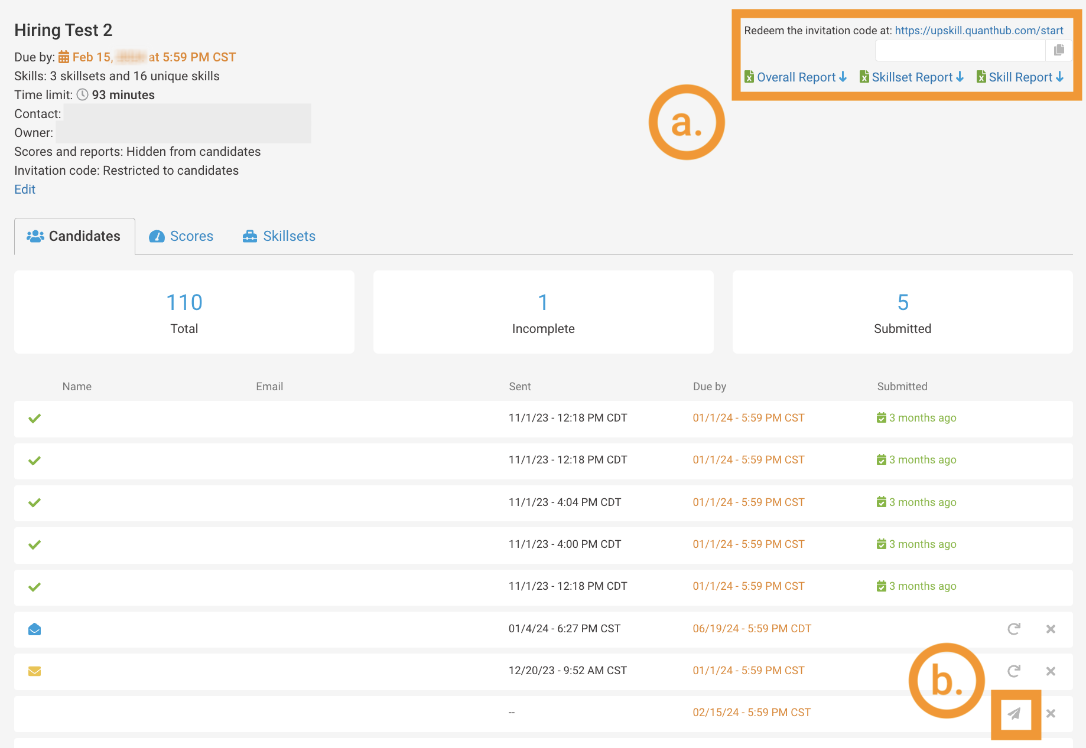
- You can provide the link (https://upskill.quanthub.com/start) to redeem the invitation code to participants
- You also have the option to send the skill analysis via the grey airplane icon. This will send an identical email to the recipient prompting them to begin the assessment.
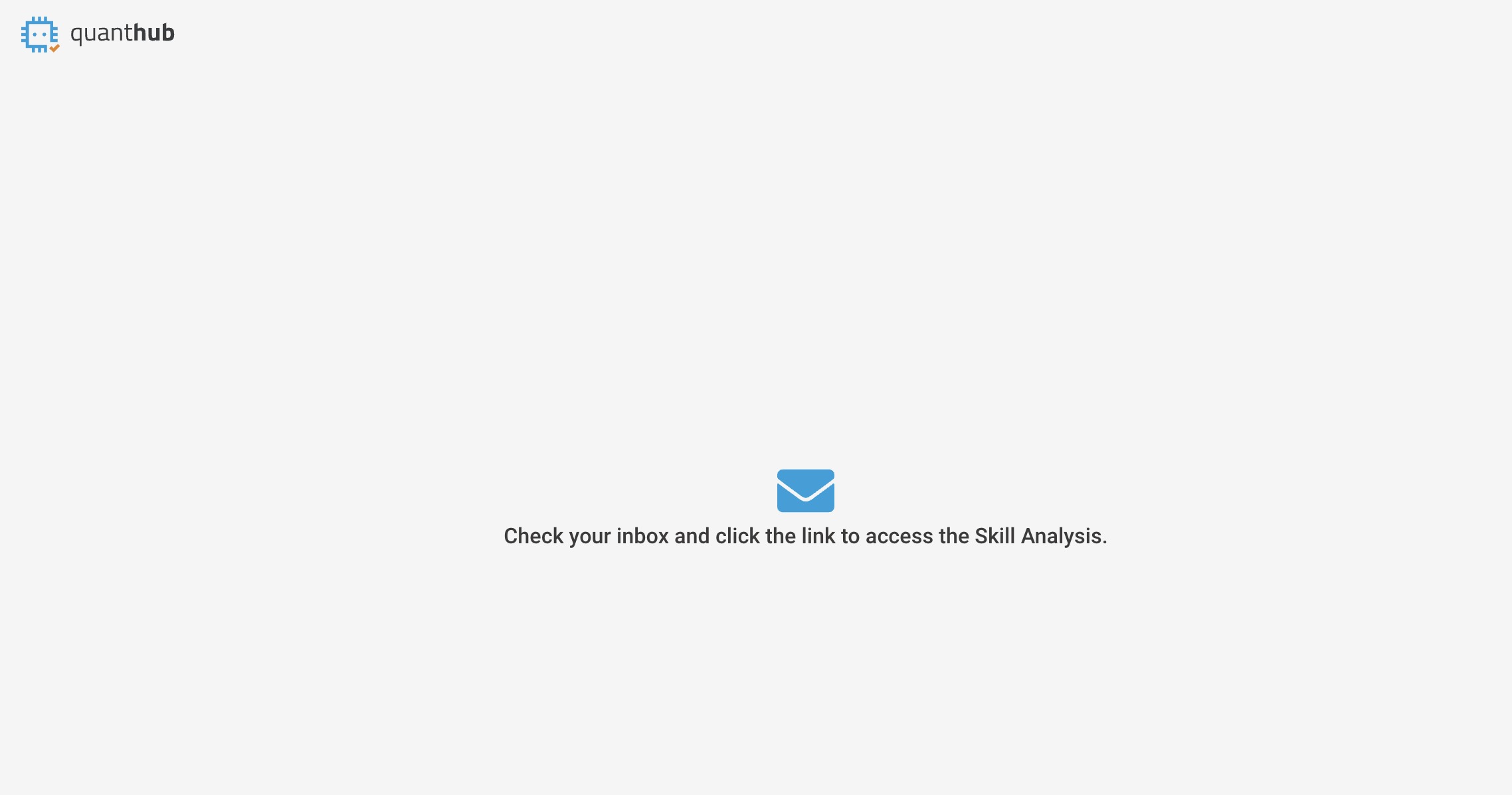
After candidates visit the assessment link (https://upskill.quanthub.com/start), they will enter the invitation code and their email. Afterward, they will receive a confirmation message stating that they have been sent an email invitation to take the test.
Editing & Viewing Assessments
Find the Assessment
- Click on the "Skill analyses" tab found on the left-hand tab of the "Teach" app.
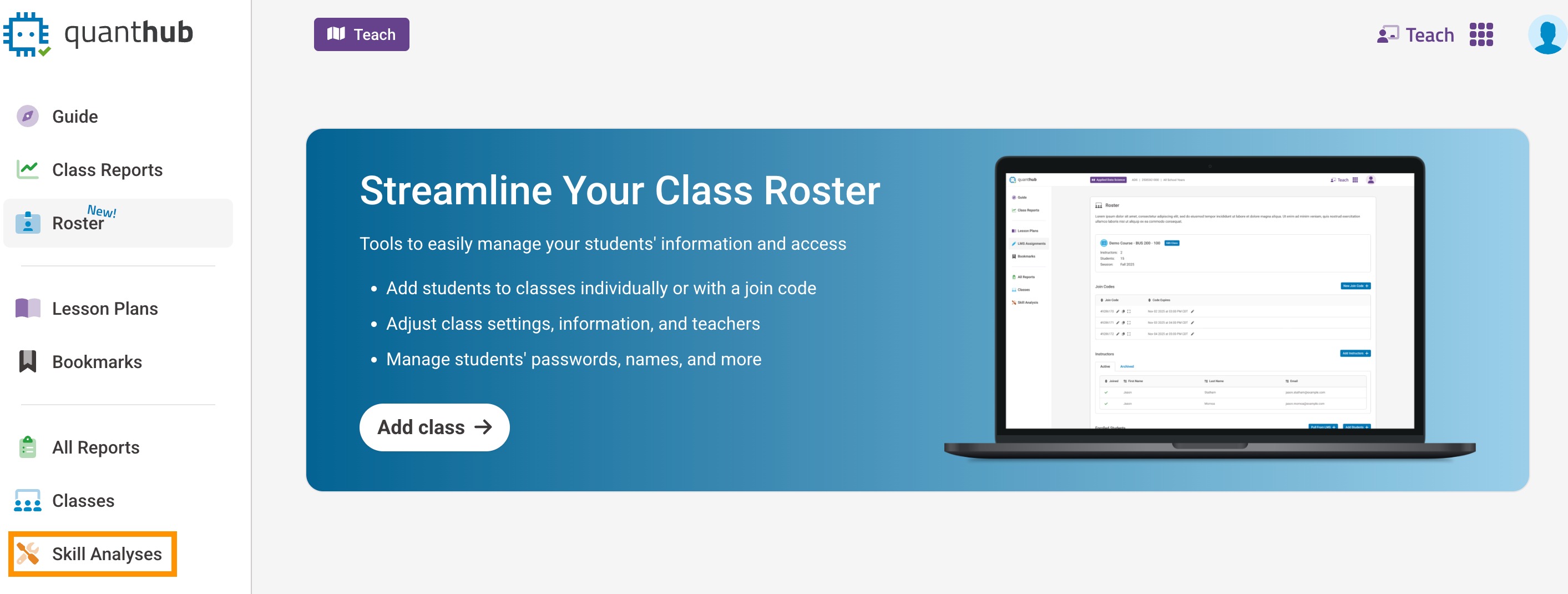
You will see a list of assessments. Select the one you want to view.
Edit the Assessment & Analyze Results
- Click "Edit" to change the name, deadline, contact information and own.
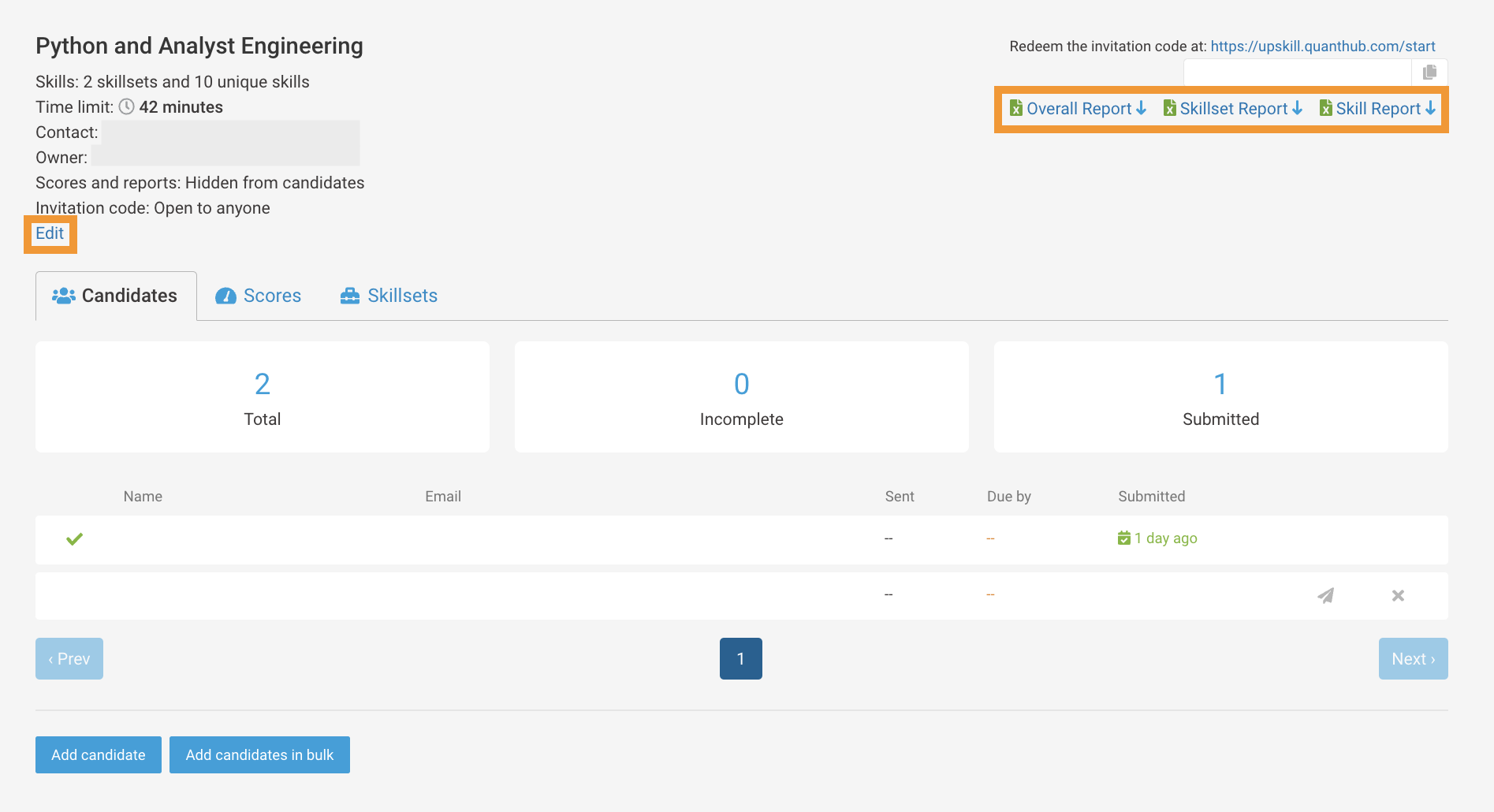
- You can download reports from this view.
In this window, there are three filters, or tabs, to explore:
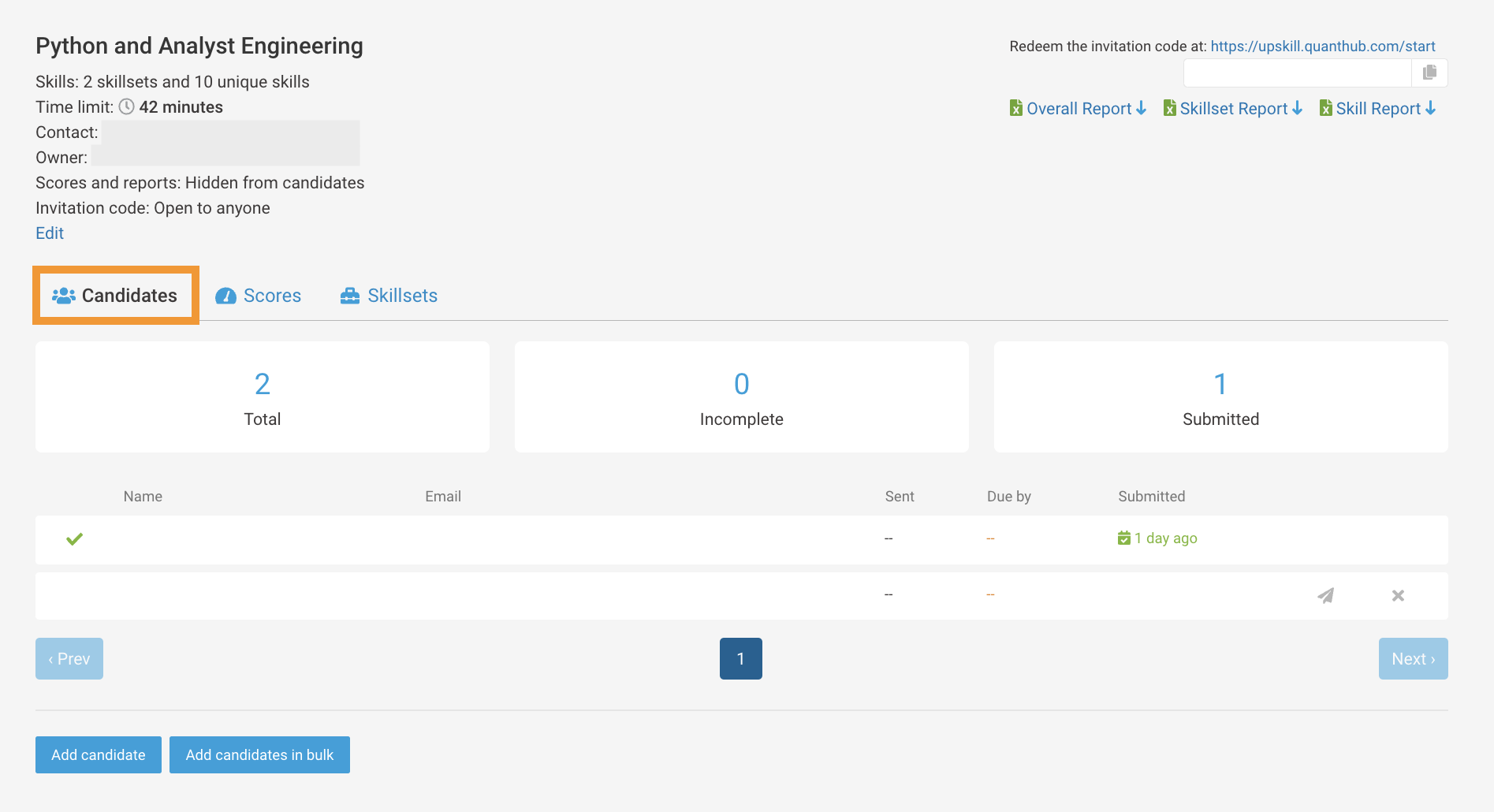
Candidates
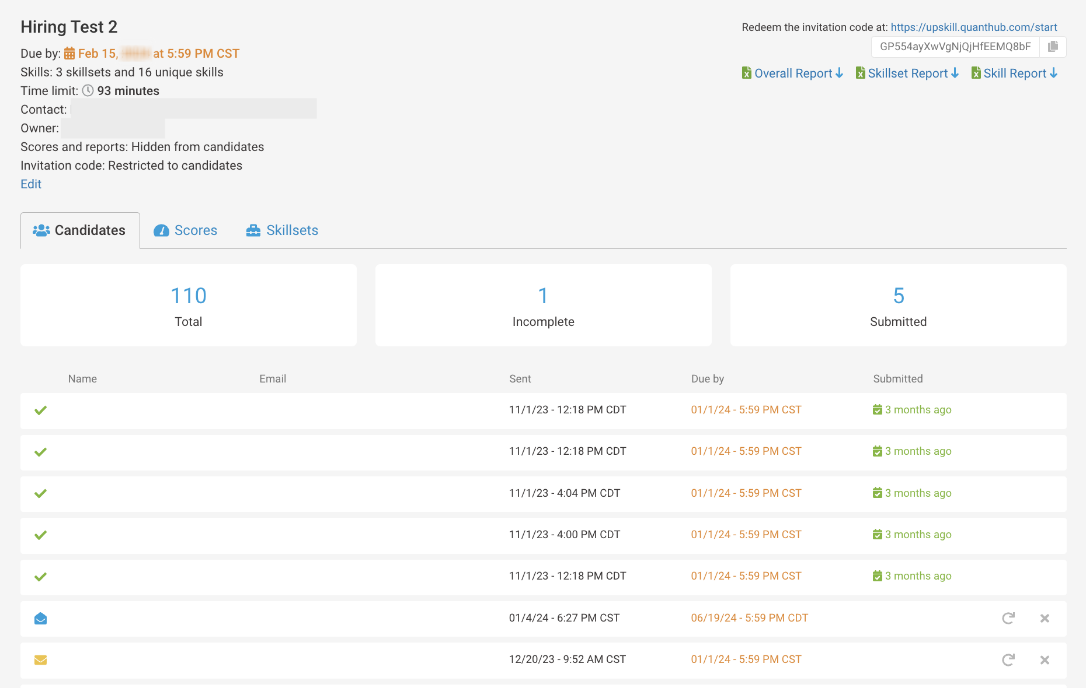
This view will show you the candidates who have been assigned the assessment. In the instance below, one candidate has completed the assessment (indicated by the green checkmark), while the other has not been sent the assessment yet (indicated by the grey airplane).
Scores
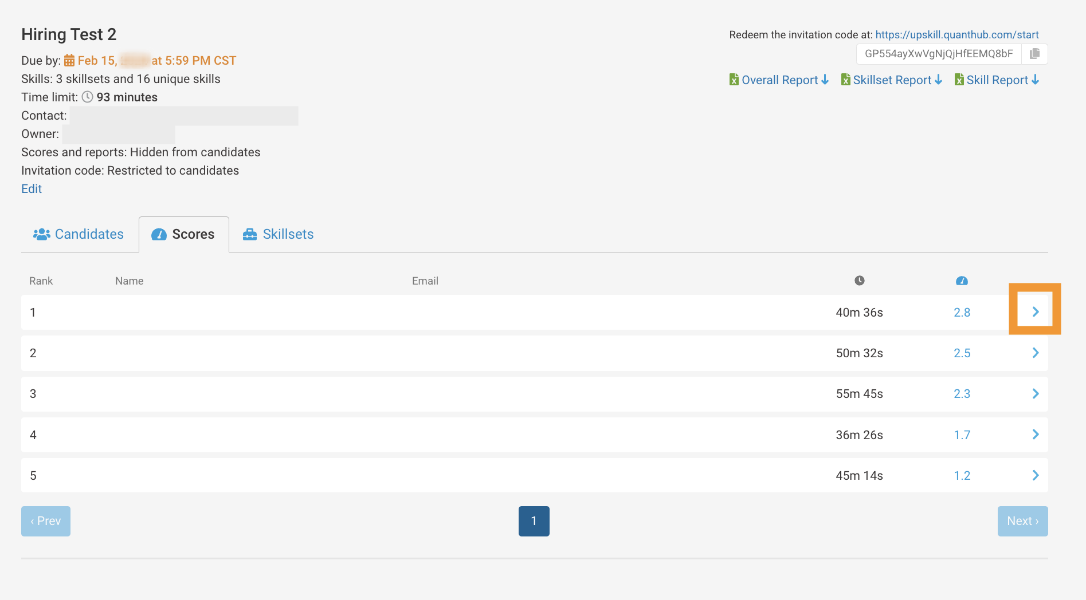
This tab ranks the candidates by their qScore while also showing the time it took them to take the assessment.
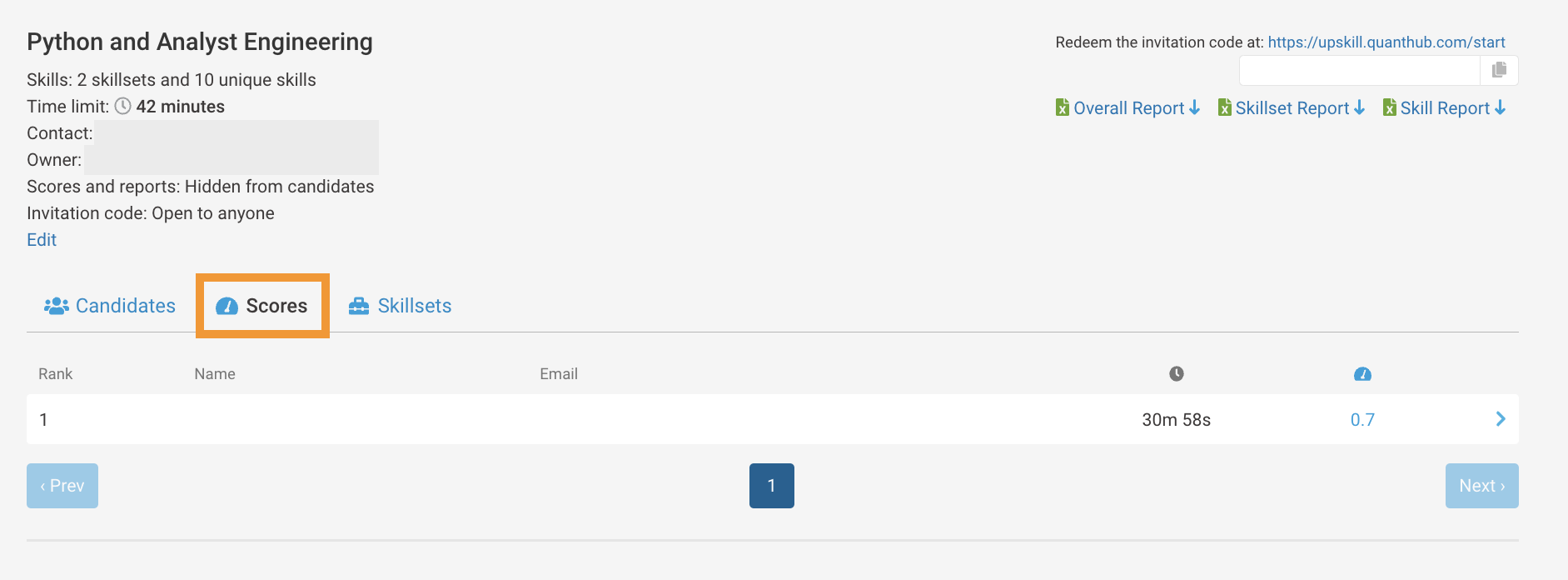
If you click on the blue (>) icon next to a candidate, you will see an in-depth view of their results.
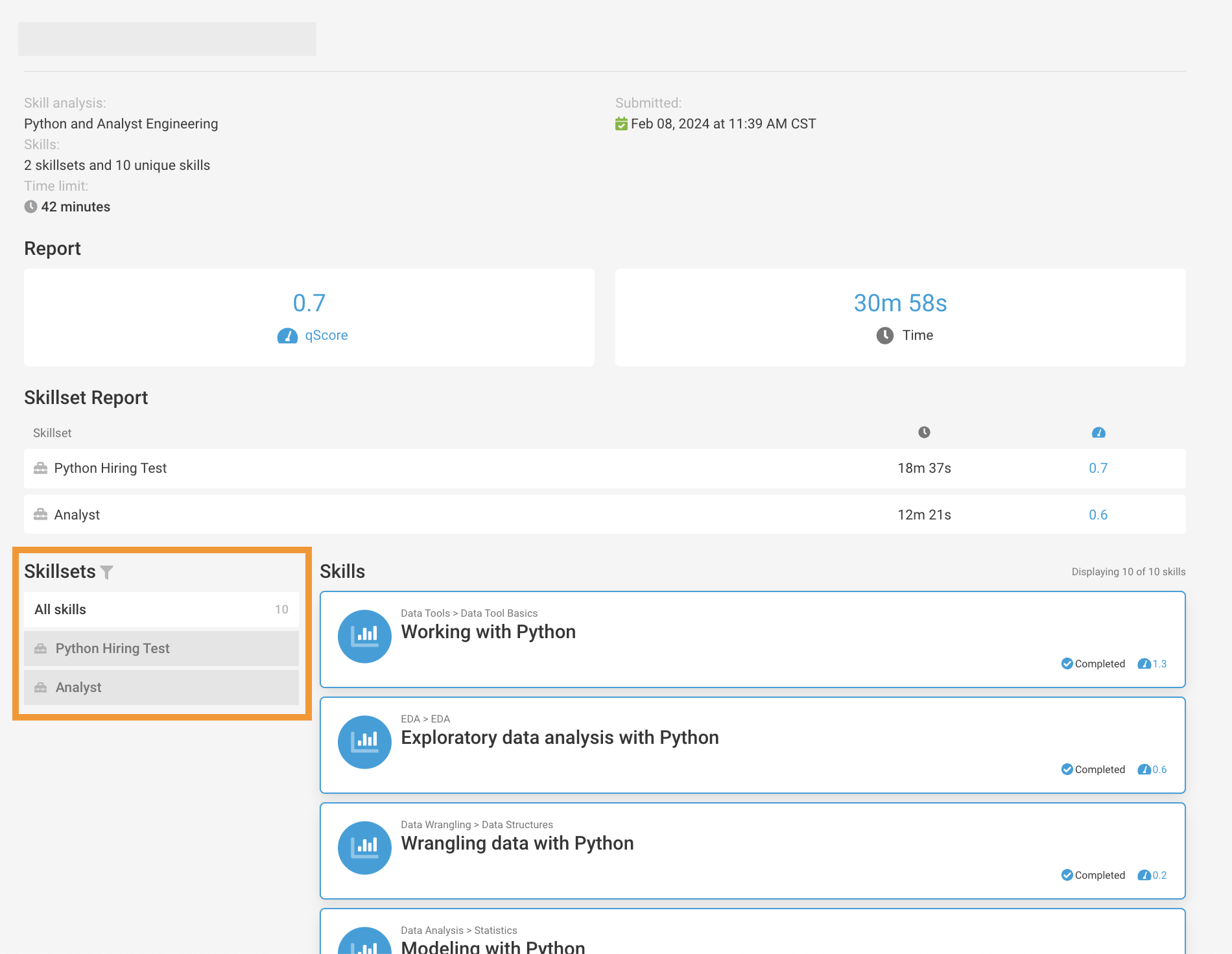
You can view the candidate's results by skill and skillset. To view the results by skillset, navigate to the "Skillsets" filter and select the desired skillset (i.e., "All skills").
Skillsets
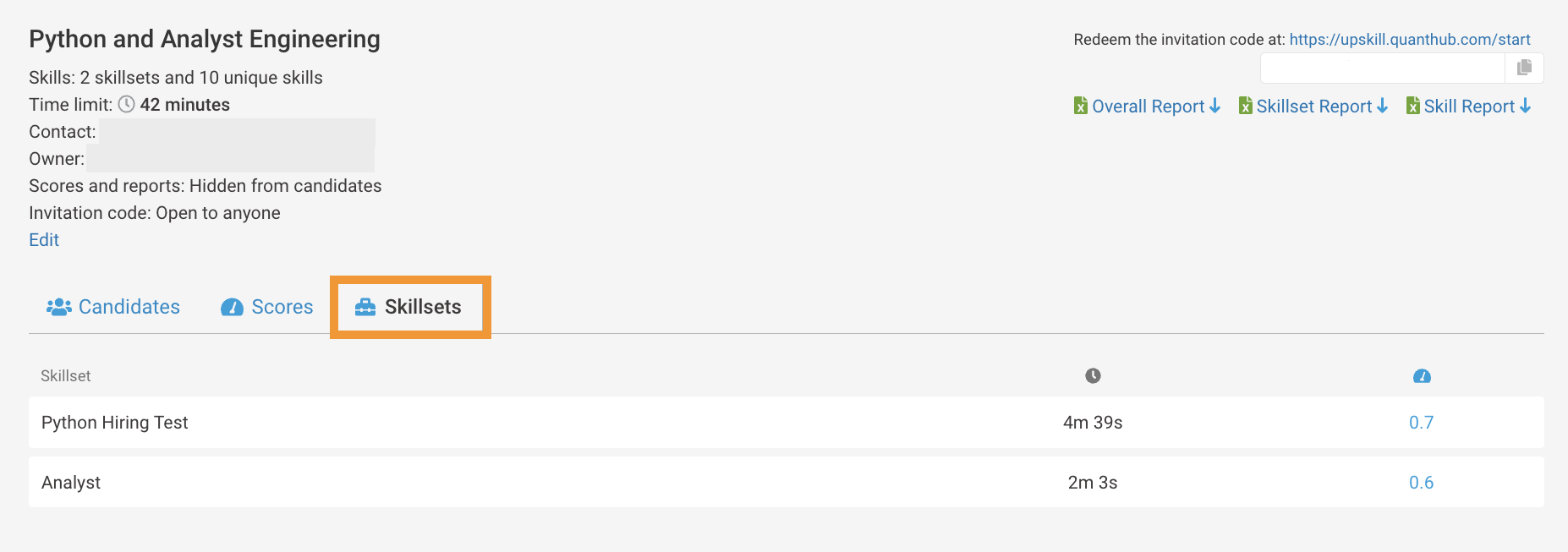
This view will show the average duration and qScore per skillset.
Icons Explained
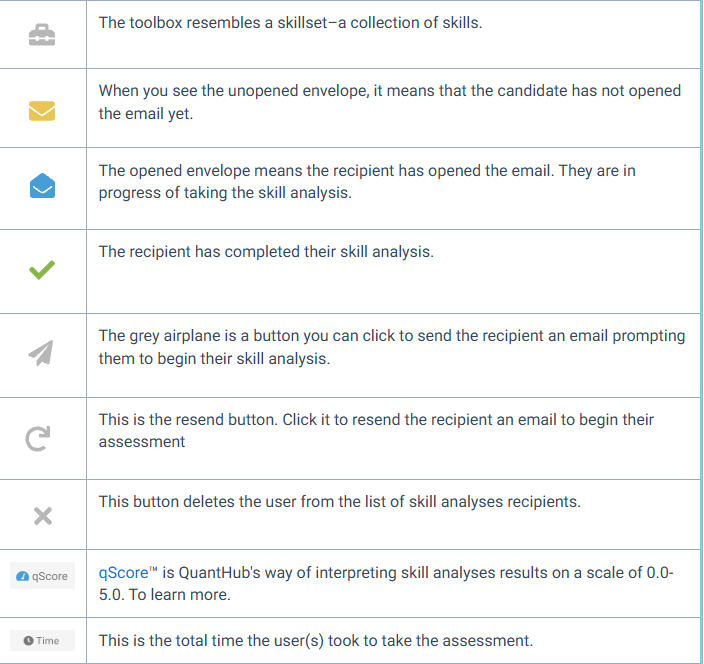
If you have any questions or need assistance, please submit a support ticket or reach out to support@quanthub.com
Was this article helpful?
That’s Great!
Thank you for your feedback
Sorry! We couldn't be helpful
Thank you for your feedback
Feedback sent
We appreciate your effort and will try to fix the article