Watch the video below OR scroll down to view the steps listed out instead.
TABLE OF CONTENTS
Video Tutorial:
Step By Step Guide:
Adding QuantHub Upskill materials to Schoology
1. Navigate to your desired Schoology Course.
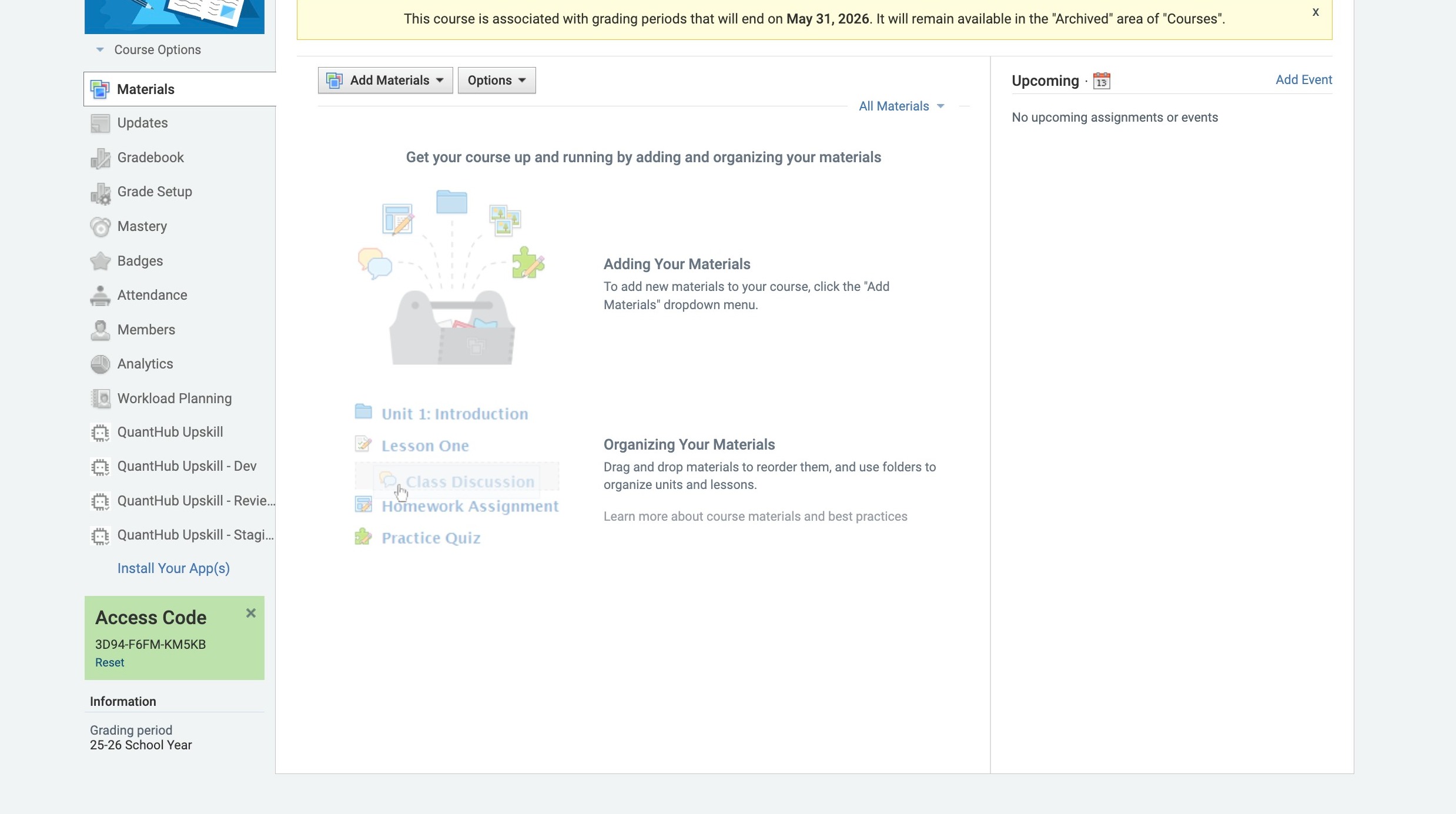
2. Select "Add Materials".
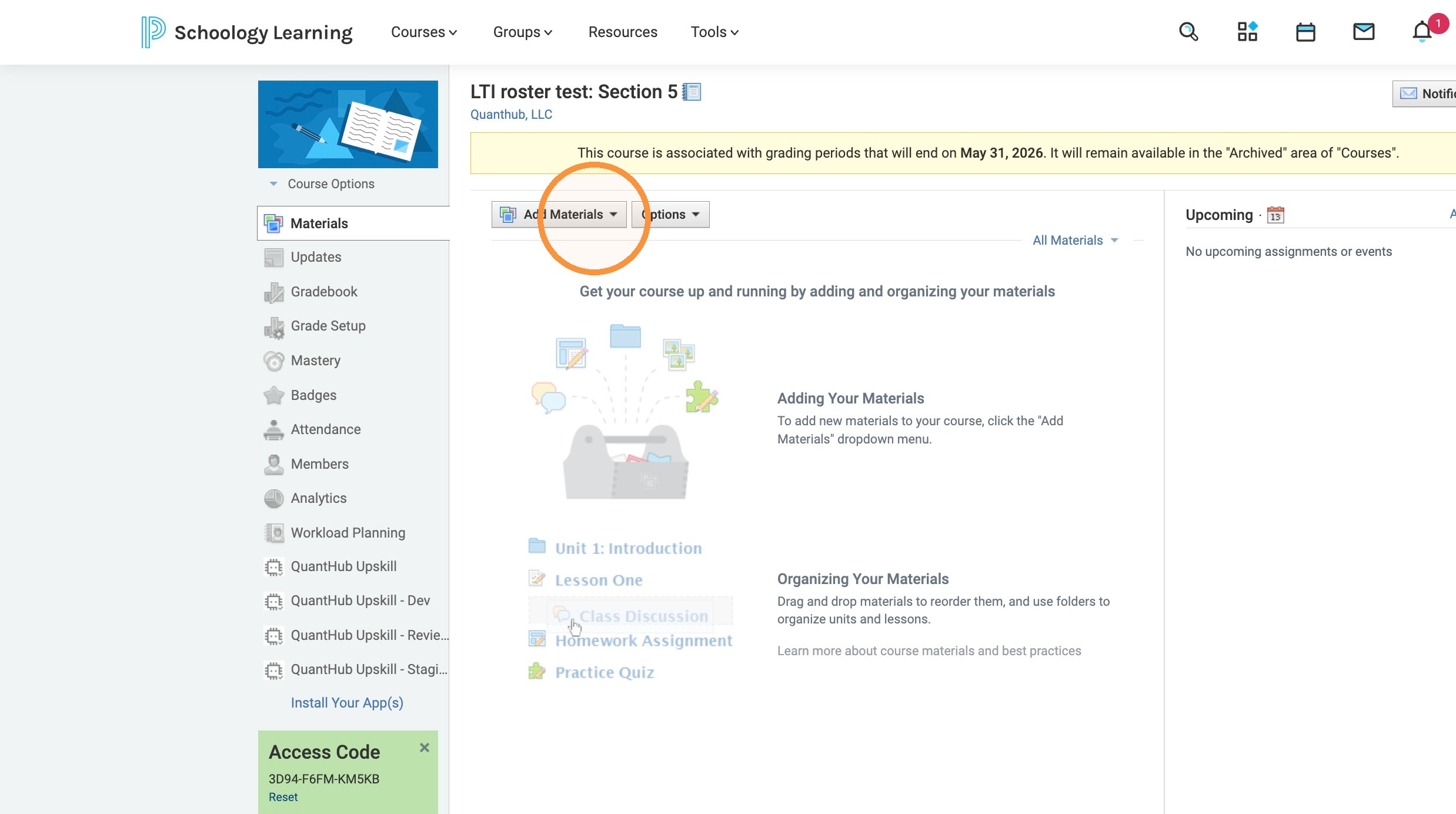
3. Select "QuantHub Upskill".
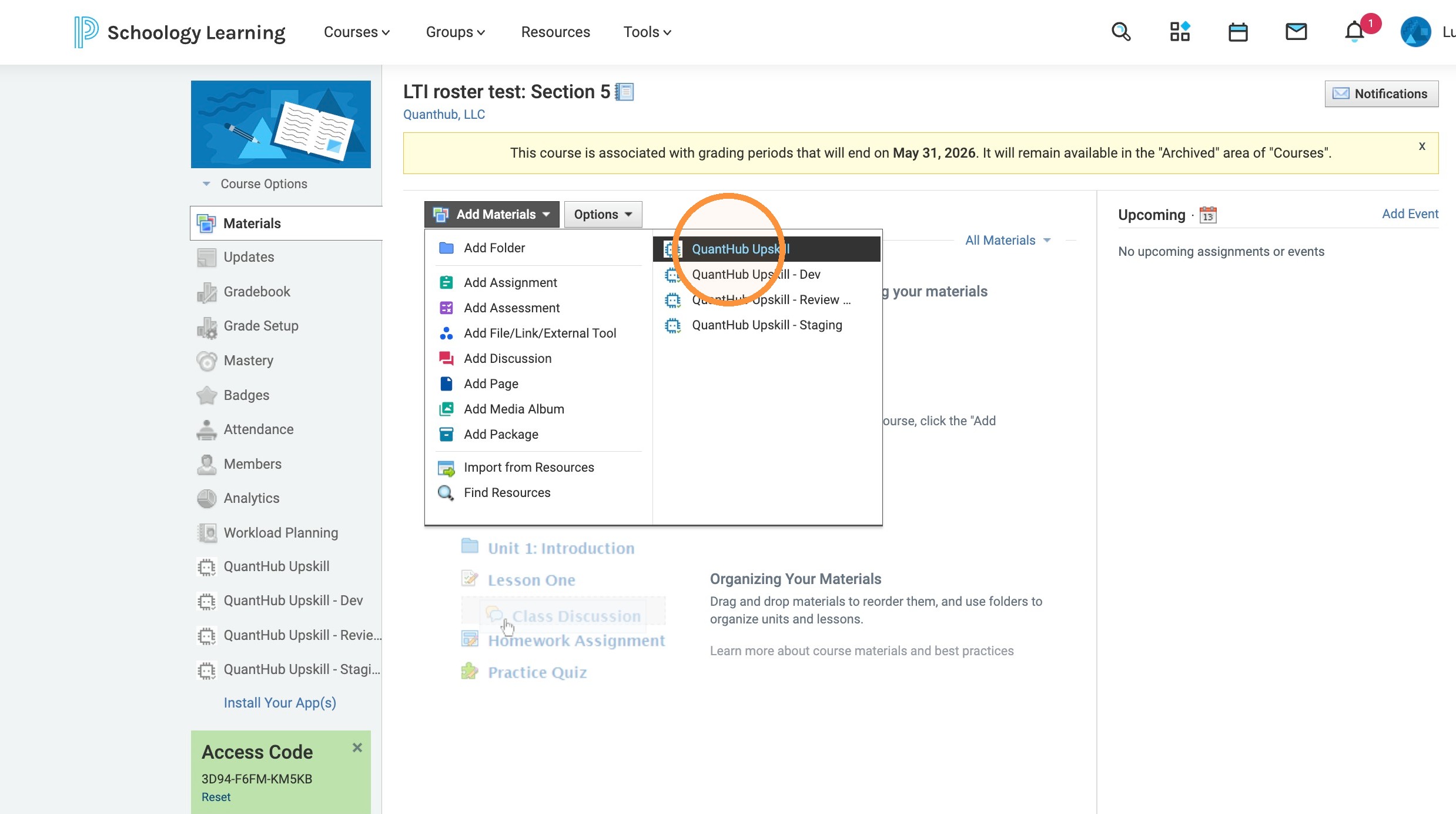
4. Ensure that you have rostered your class. After initially rostering, you will always be dropped into the "activity" page to assign work. When you load in you will see all your selected curriculum. You can minimize or expand the offers using the + and - buttons.
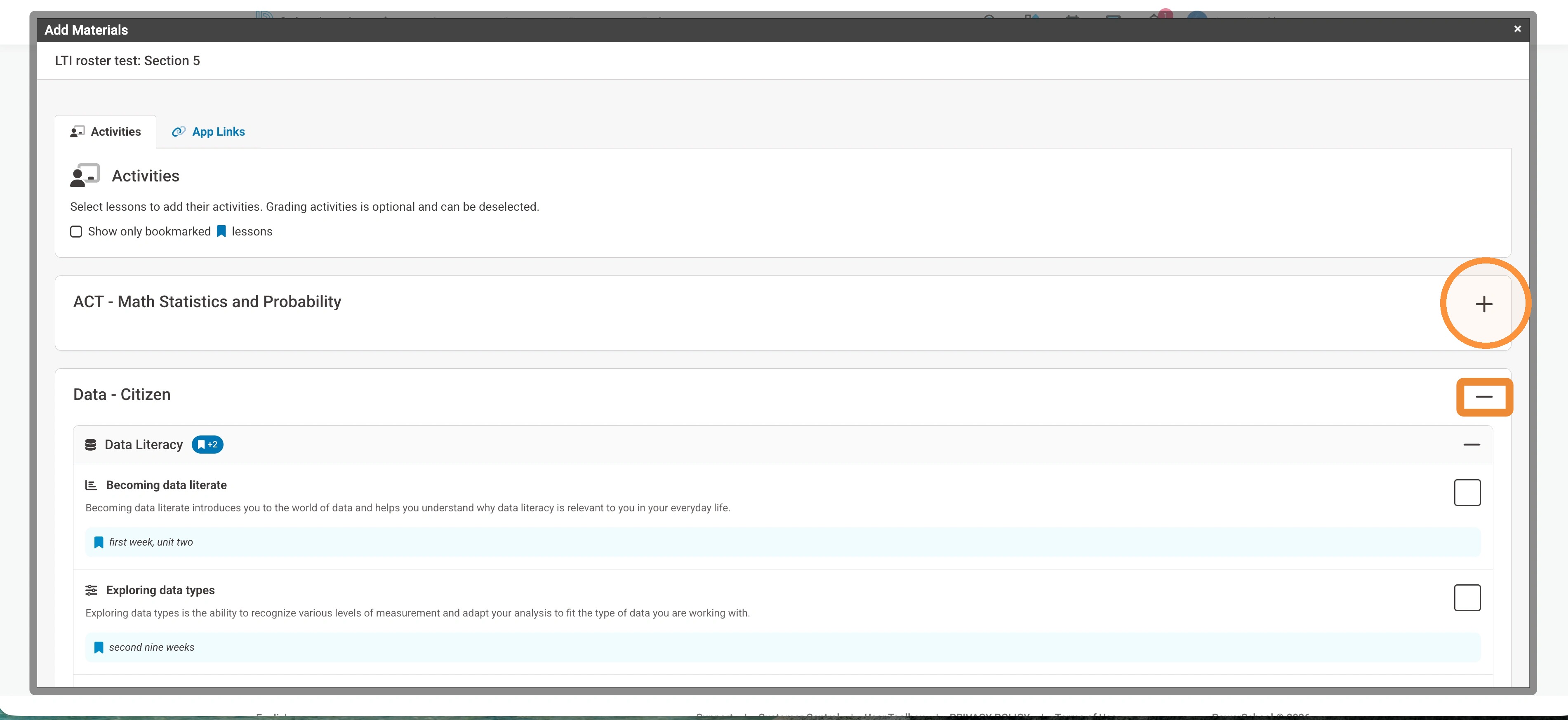
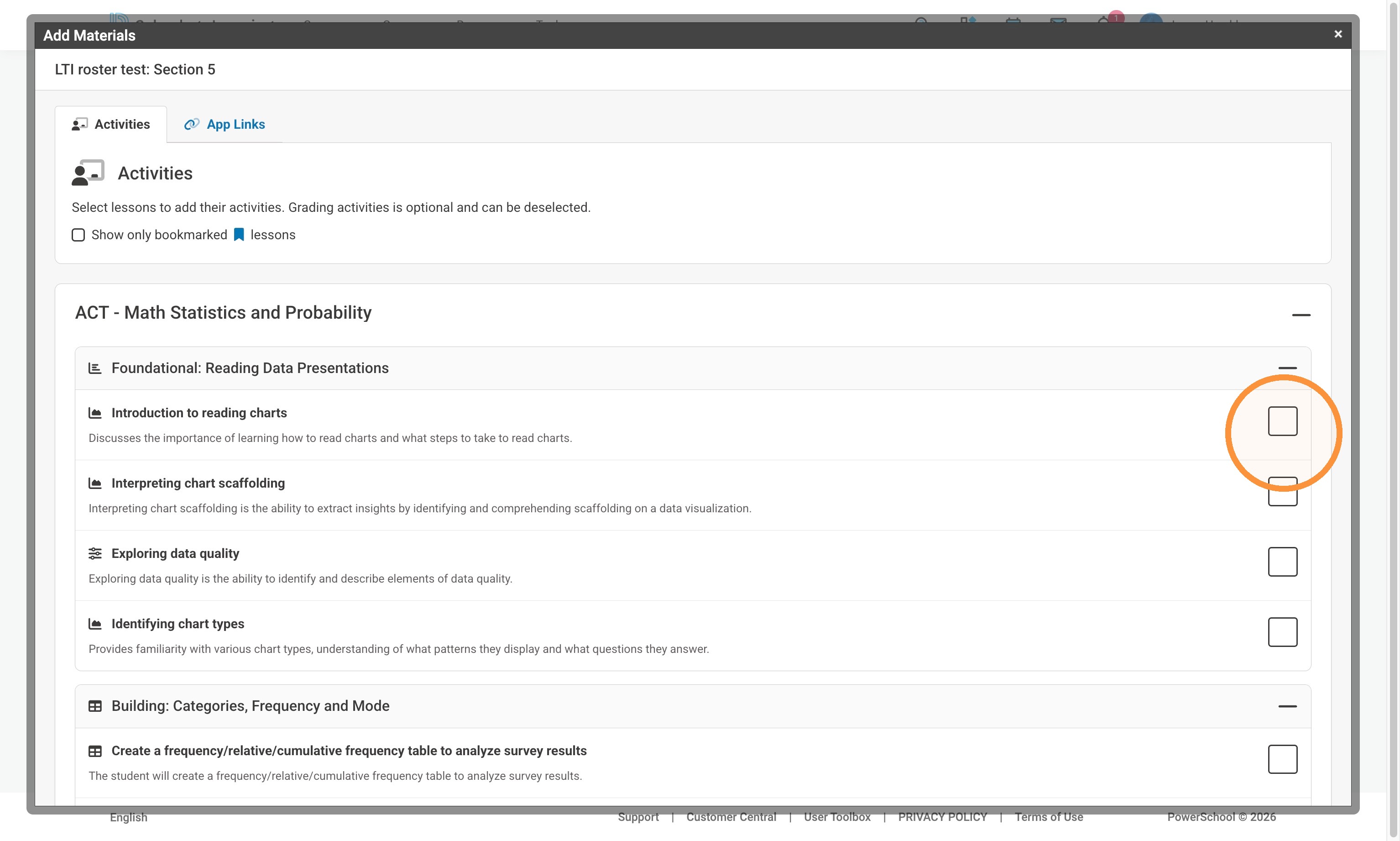
5. Select the checkbox of the activities you would like to add. You can select multiple activities at a time and each will appear as an individual assignment.
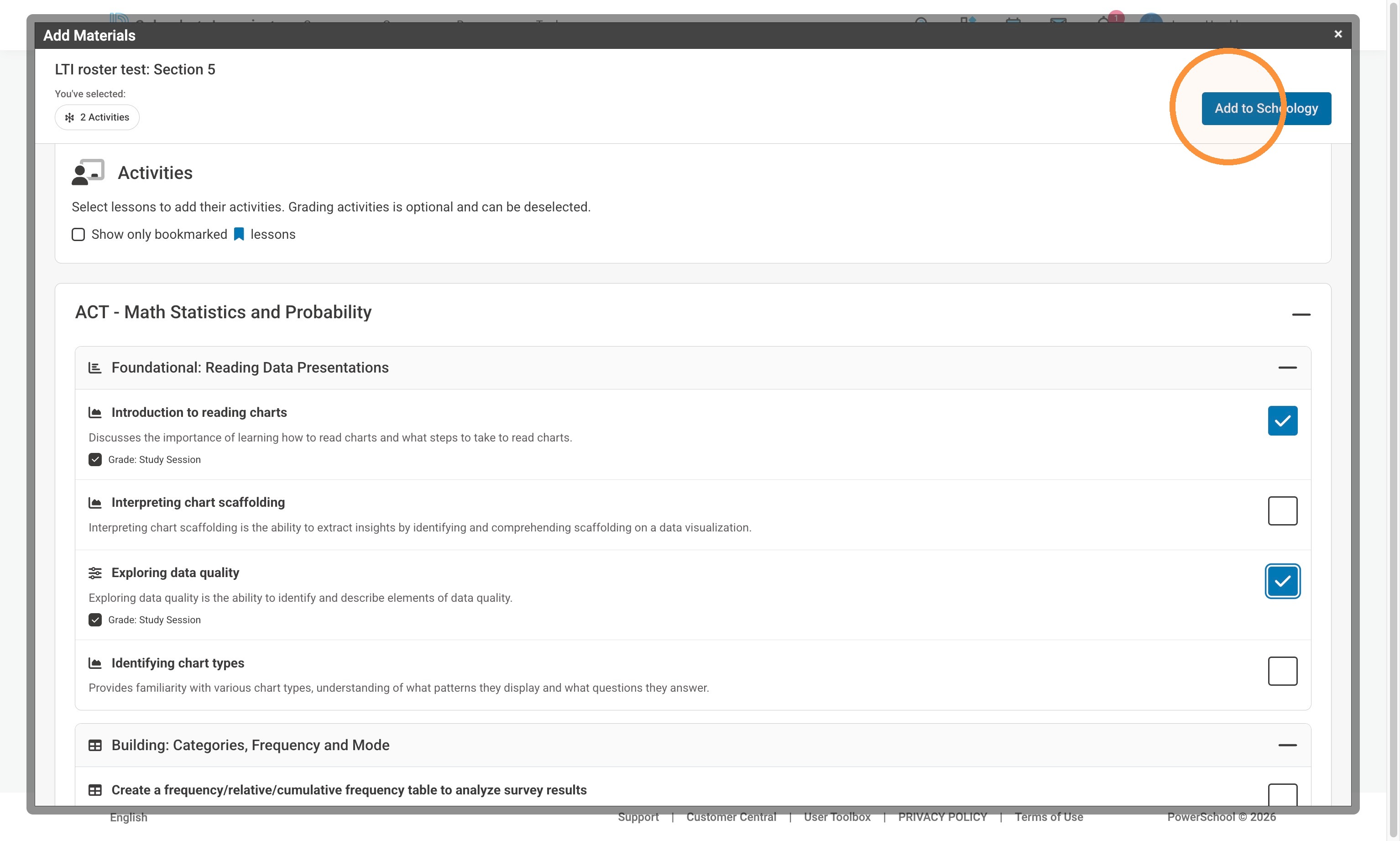
6. Once you have selected your activities you can select "Add to Schoology".
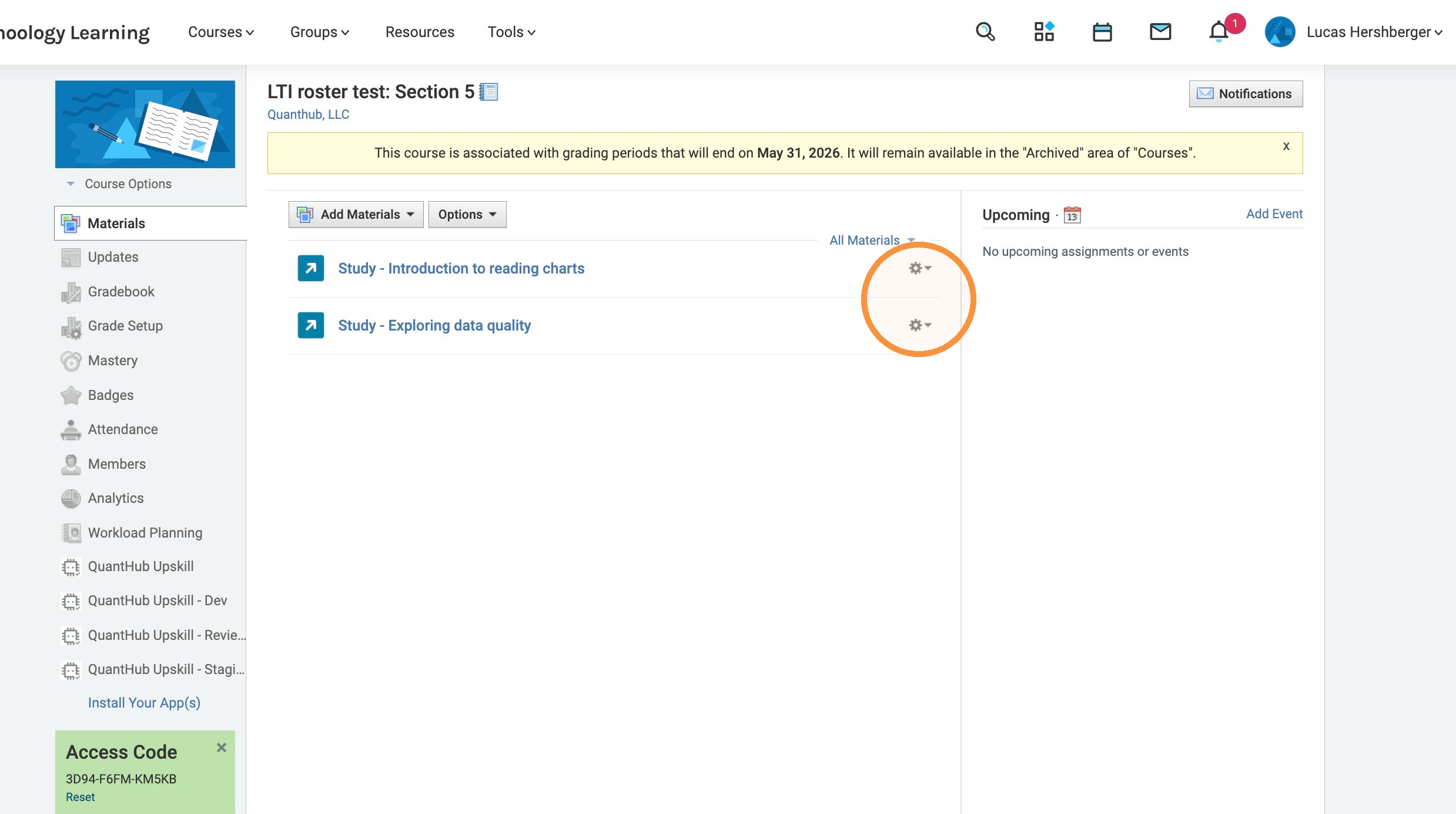
7. Once done, the QuantHub activities will appear in your section. Make sure you set a due-date and a grading category for the assignment to fall under! Once you have done this, student progress should automatically update in the Schoology Platform.
Was this article helpful?
That’s Great!
Thank you for your feedback
Sorry! We couldn't be helpful
Thank you for your feedback
Feedback sent
We appreciate your effort and will try to fix the article