Watch the video below OR scroll down to view the steps listed out instead.
TABLE OF CONTENTS
Video Tutorial:
Step By Step Guide:
Rostering your section in QuantHub
1. You only need to roster your section once in QuantHub! Navigate to desired course to roster.
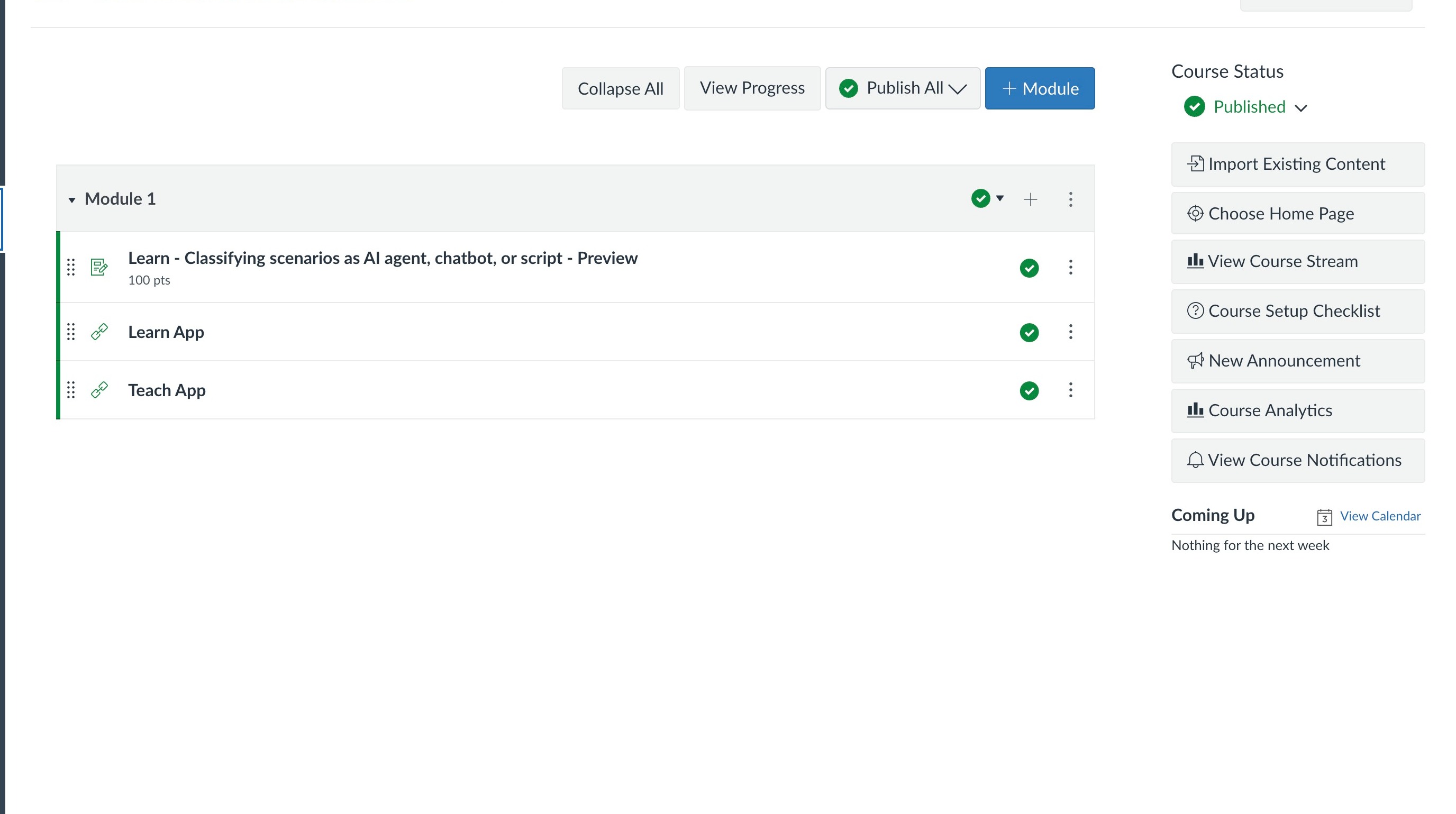
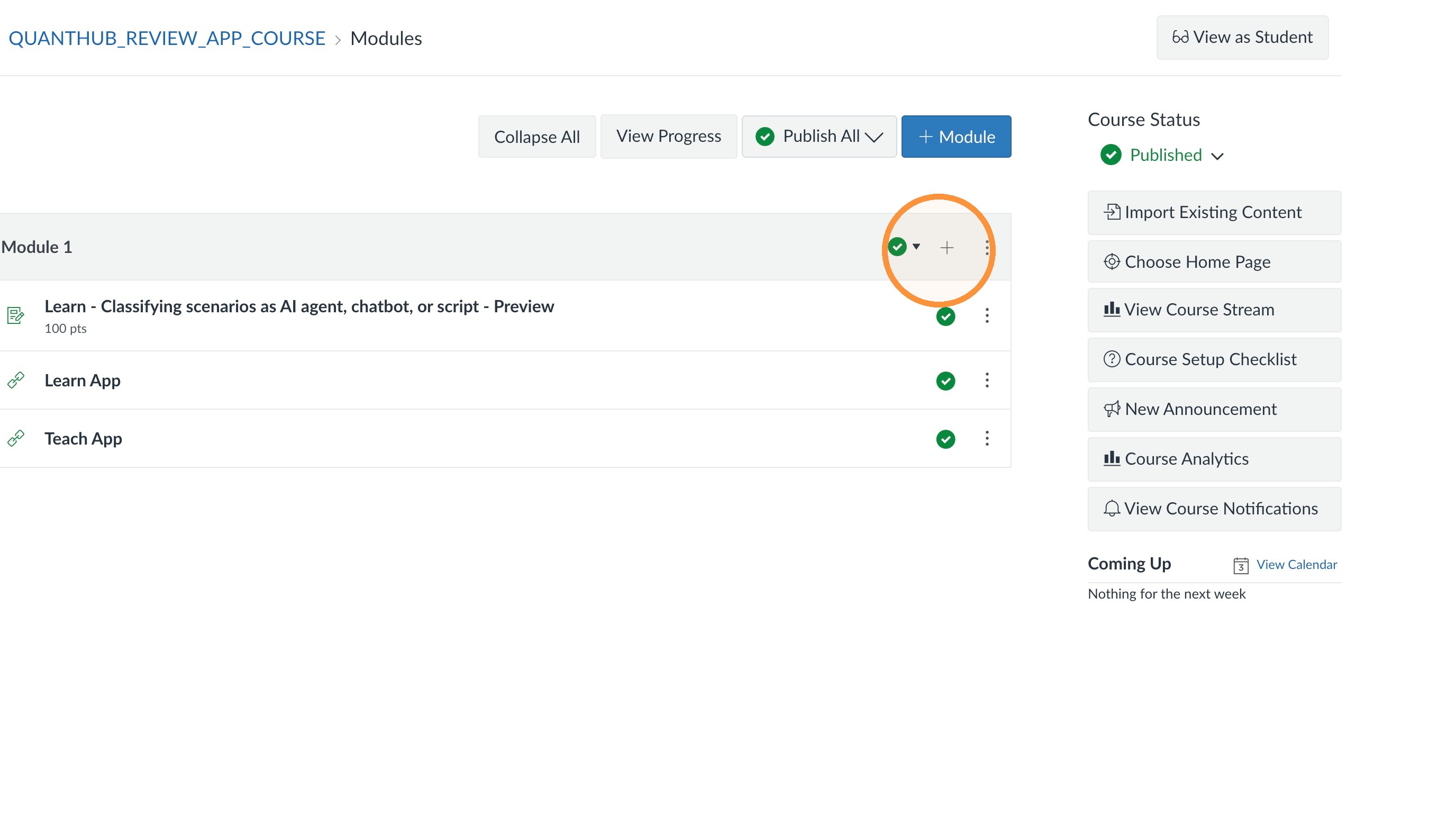
2. Click the Add Item (+) button in any module.
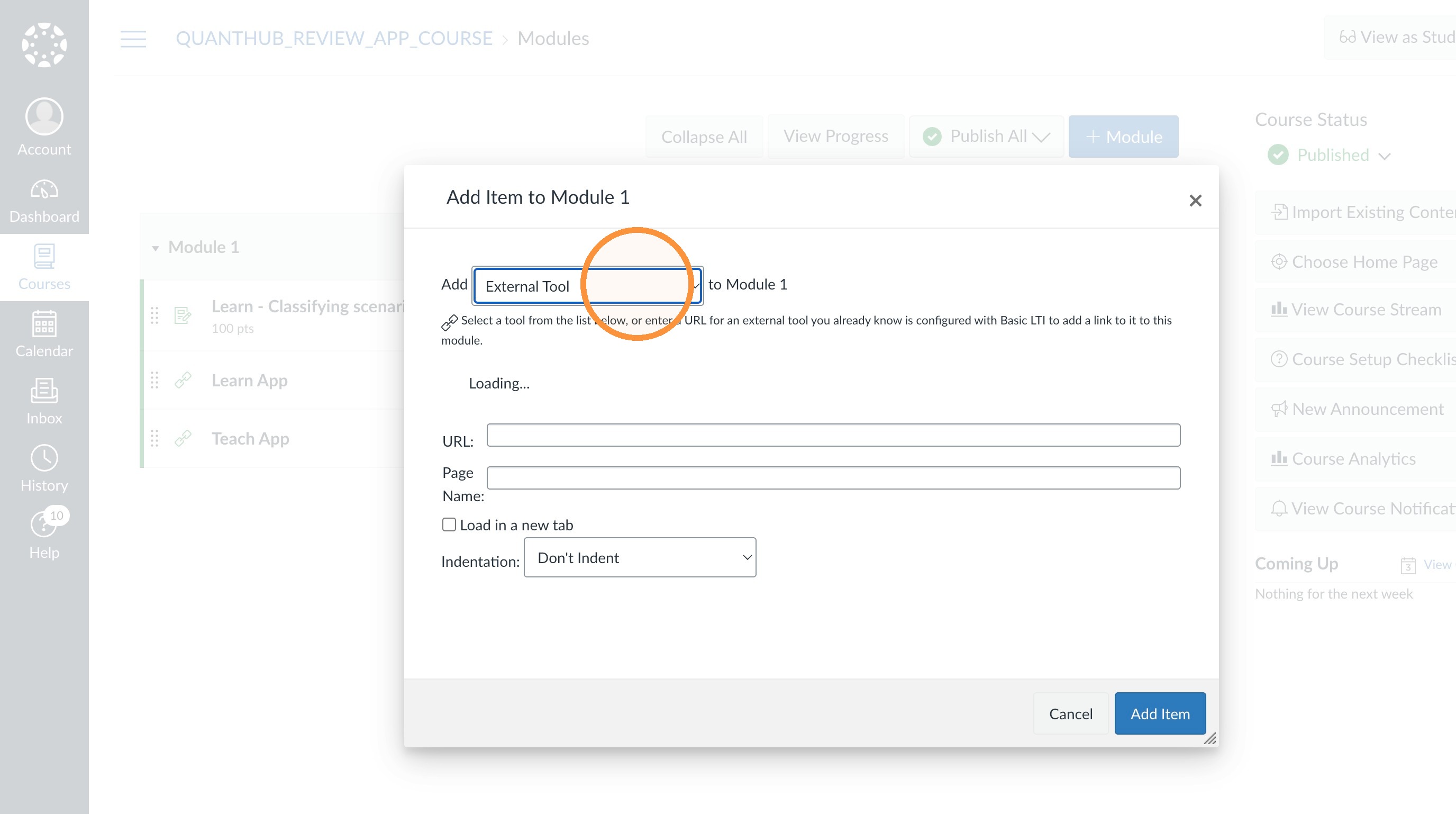
3. Select the "External Tool" option.
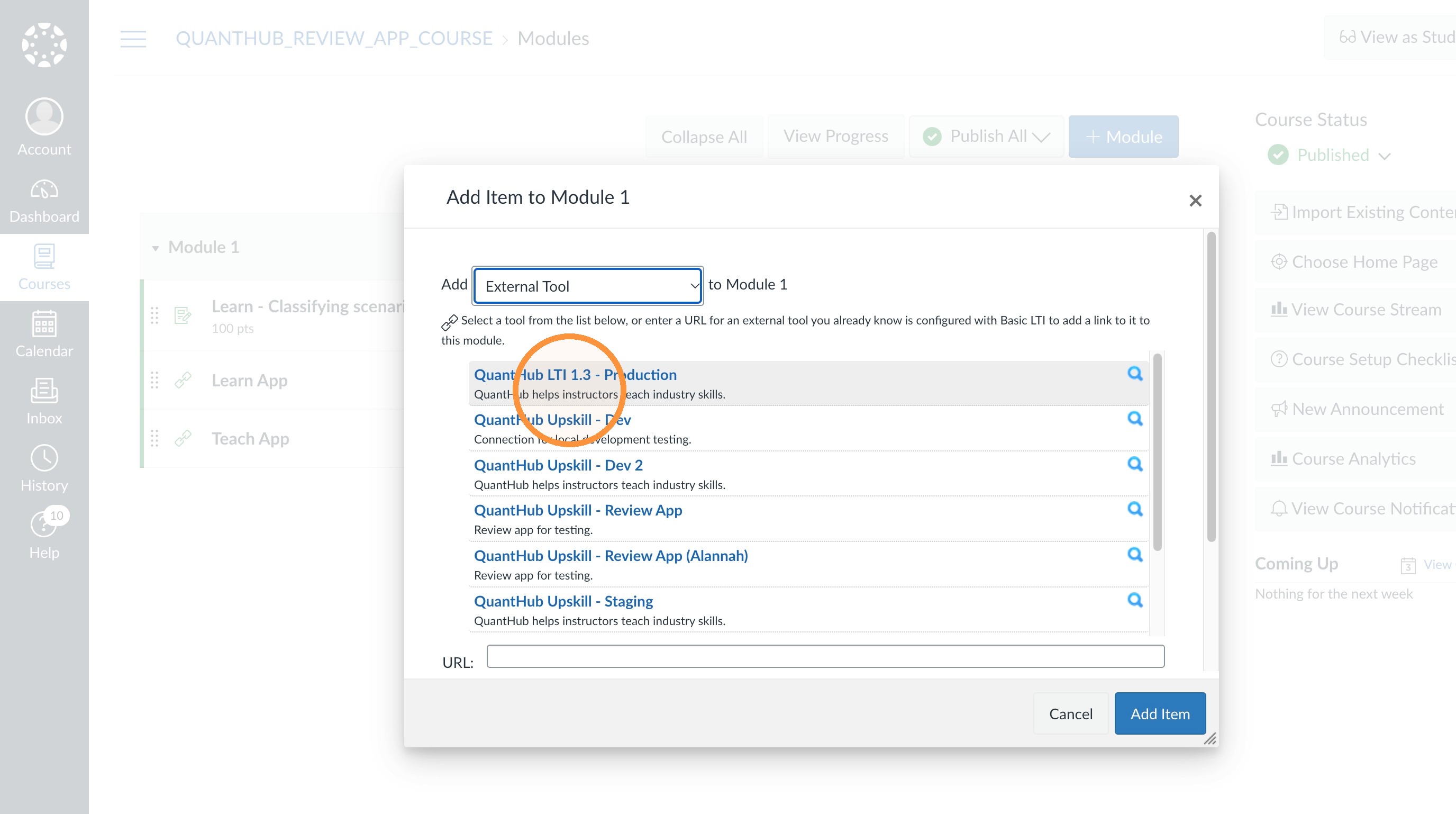
4. Select "QuantHub" app.
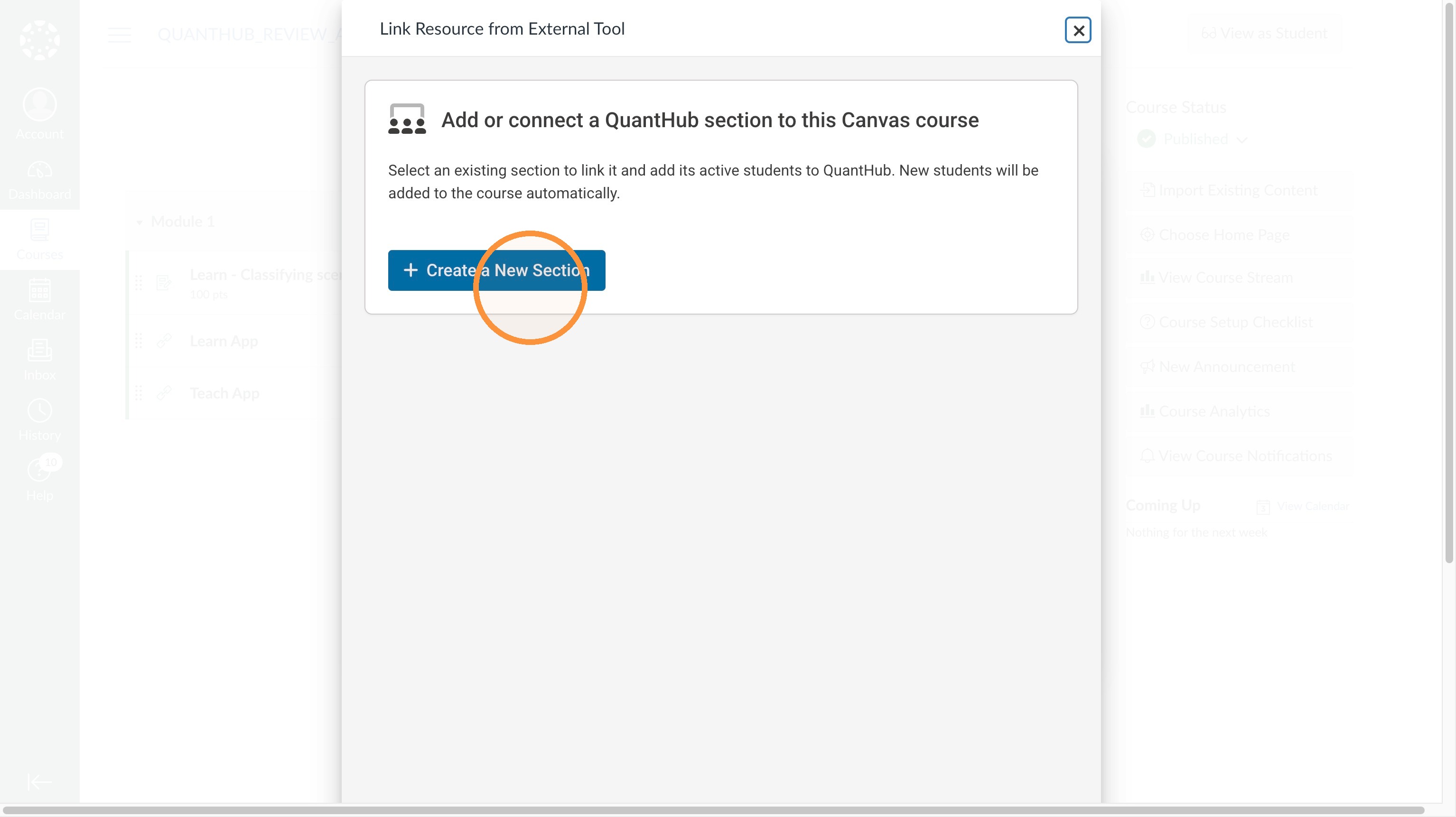
5. You can either create your section in https://upskill.quanthub.com/teach and connect the roster here, or you can select "Create a New Section" here.
Section details
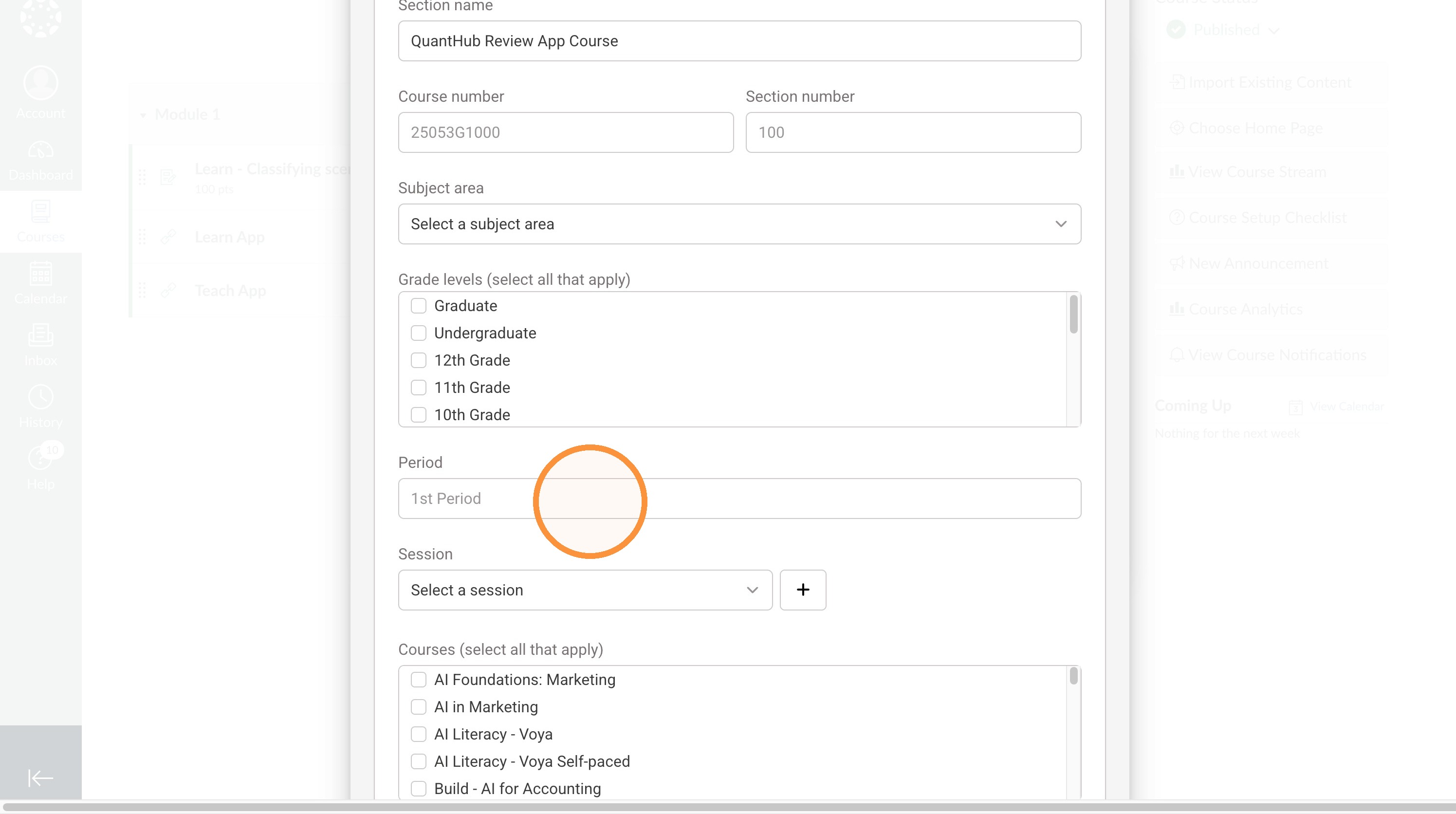
6. Fill out your section details including name, period, and session.
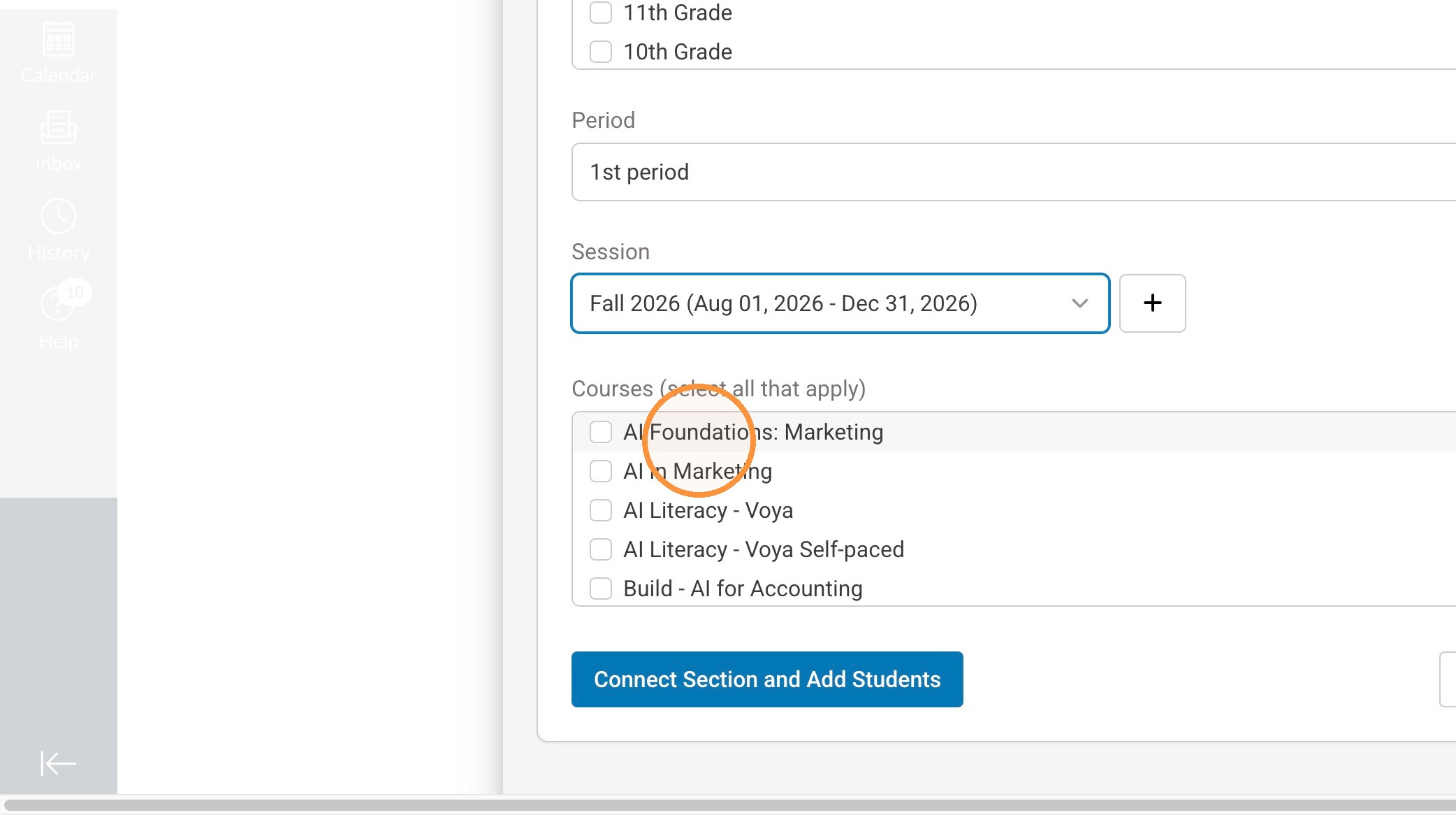
7. Once your details are completed, you will select the QuantHub Curriculum you would want available in your class.
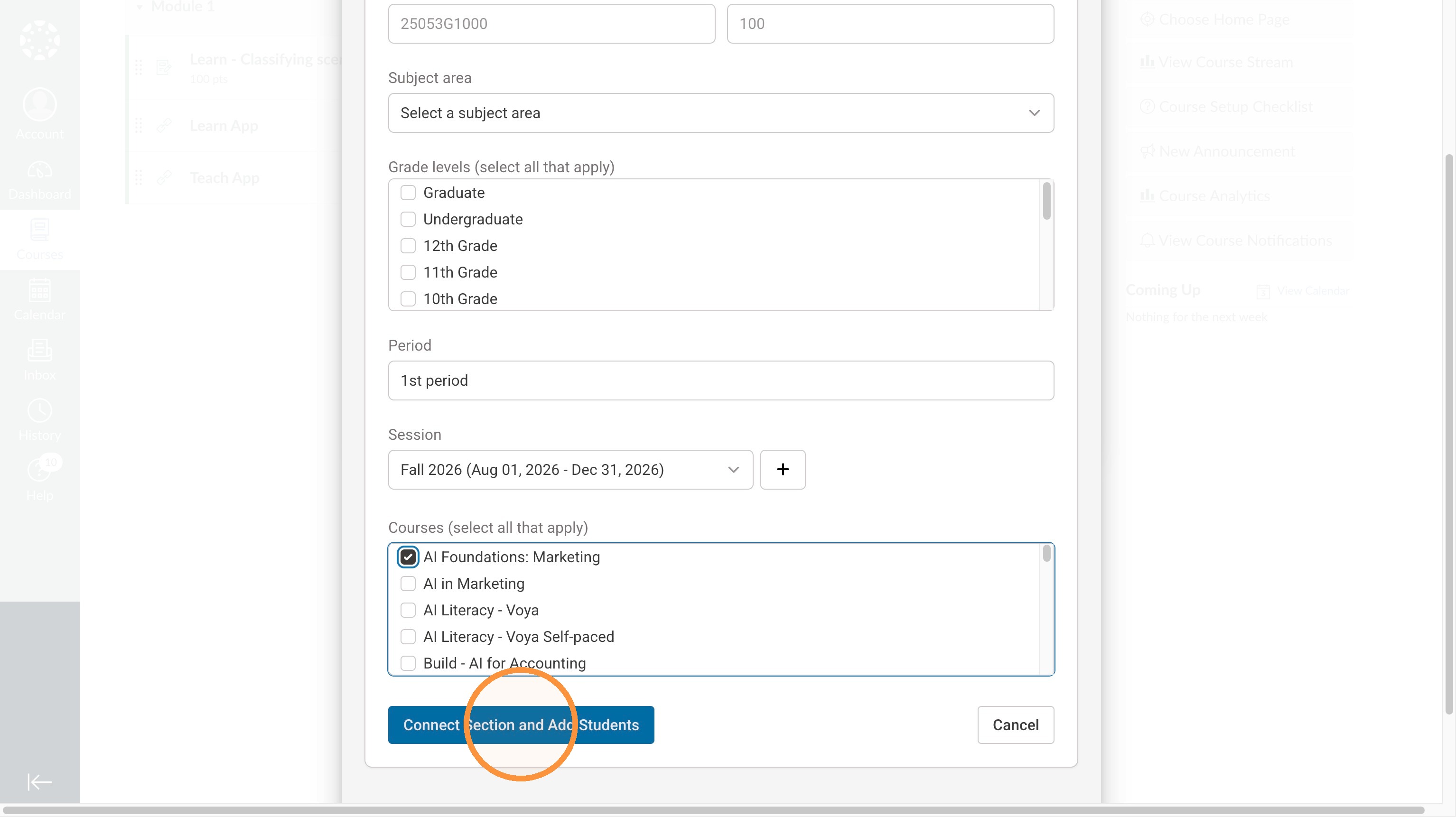
8. Once completed select "Connect Section and Add Students". This will roster all the students in your section into a QuantHub class and allow you to assign QuantHub activities directly into Canvas.
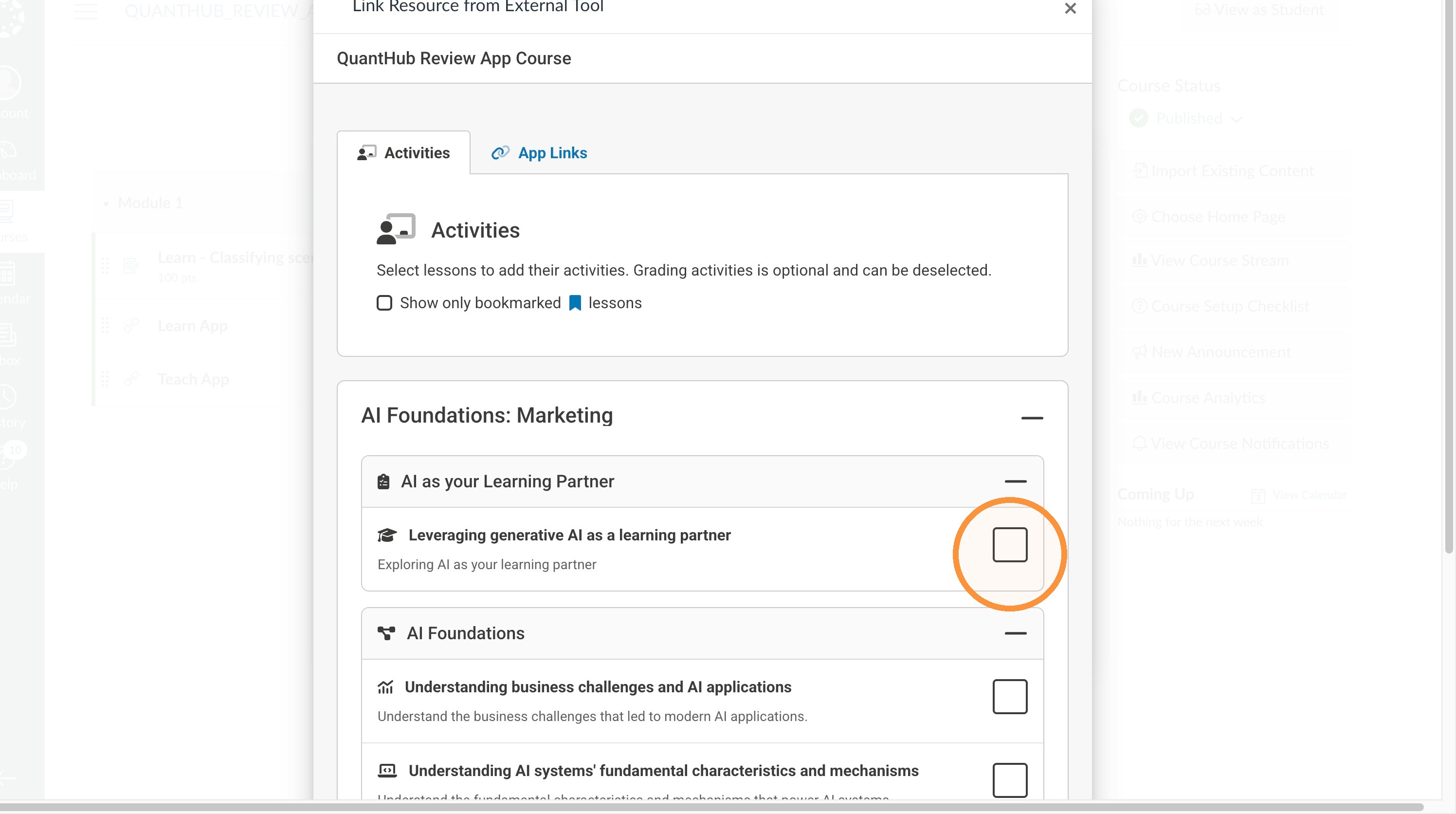
Activity selection
9. Now that you are rostered, you have access to all curriculum selected to add QuantHub Activities to your section!
Was this article helpful?
That’s Great!
Thank you for your feedback
Sorry! We couldn't be helpful
Thank you for your feedback
Feedback sent
We appreciate your effort and will try to fix the article