Watch the video below OR scroll down to view the steps listed out instead.
IF YOUR CLASSES ARE CLASS-LINKED, PLEASE CONTACT support@quanthub.com SO WE CAN ASSIST.
TABLE OF CONTENTS
Video Tutorial:
Step By Step Guide:
Auto Roster your students
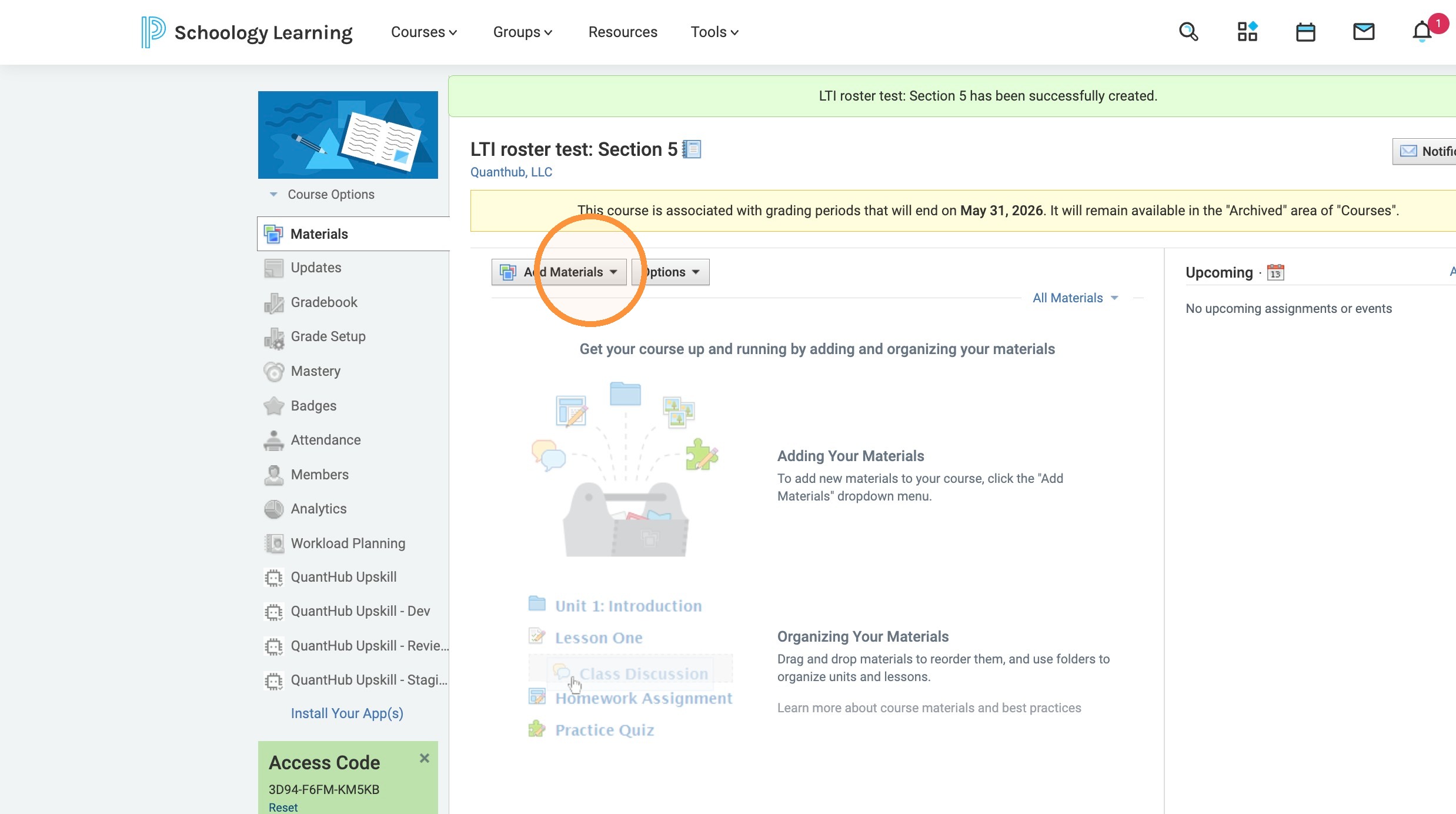
1. Select "Add Materials".
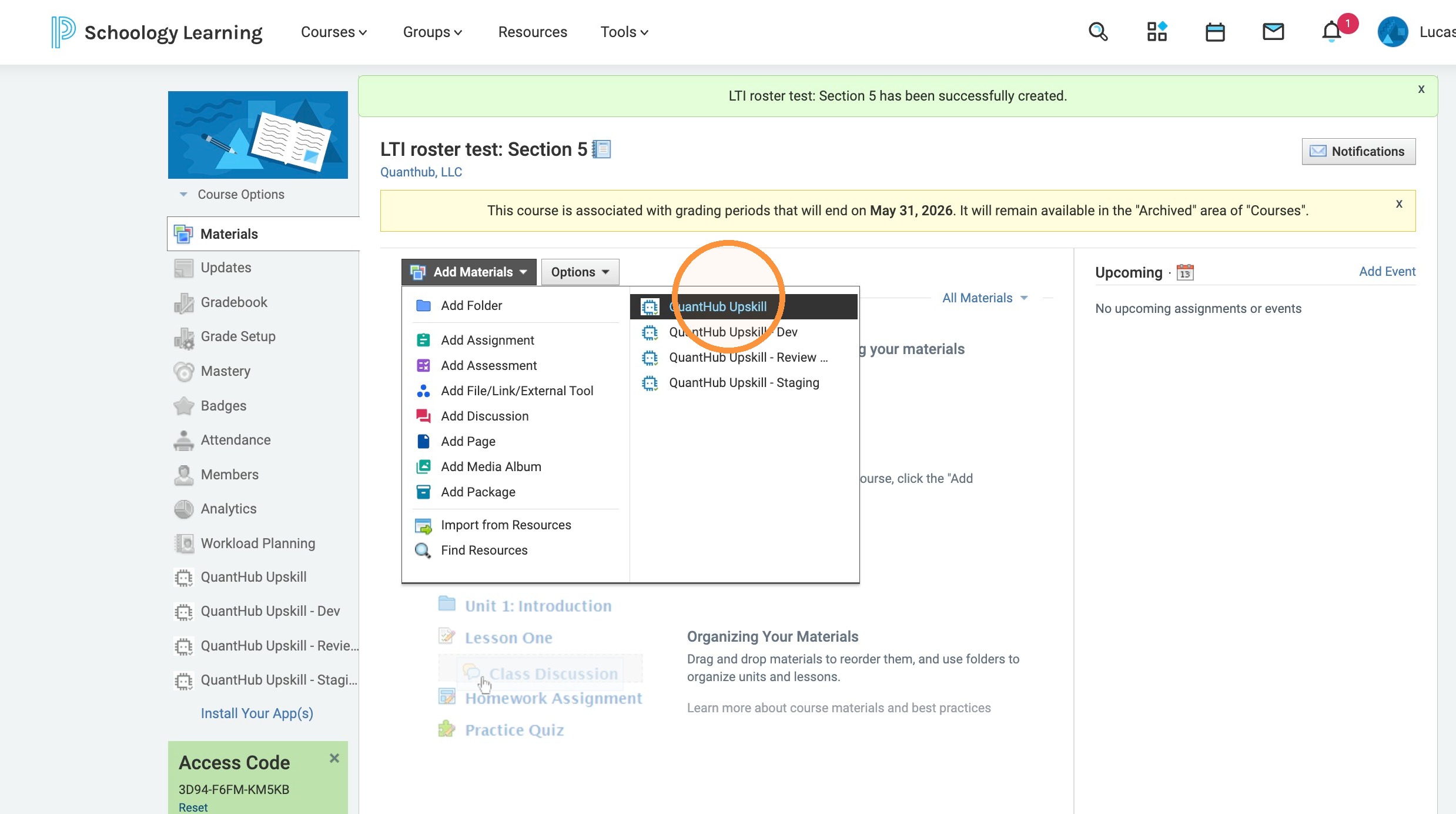
2. Select "QuantHub Upskill" from the Add Materials menu.
Alert: If your classes are class-linked (you have multiple sections connected), please contact support@quanthub.com so we can assist with your rostering process.
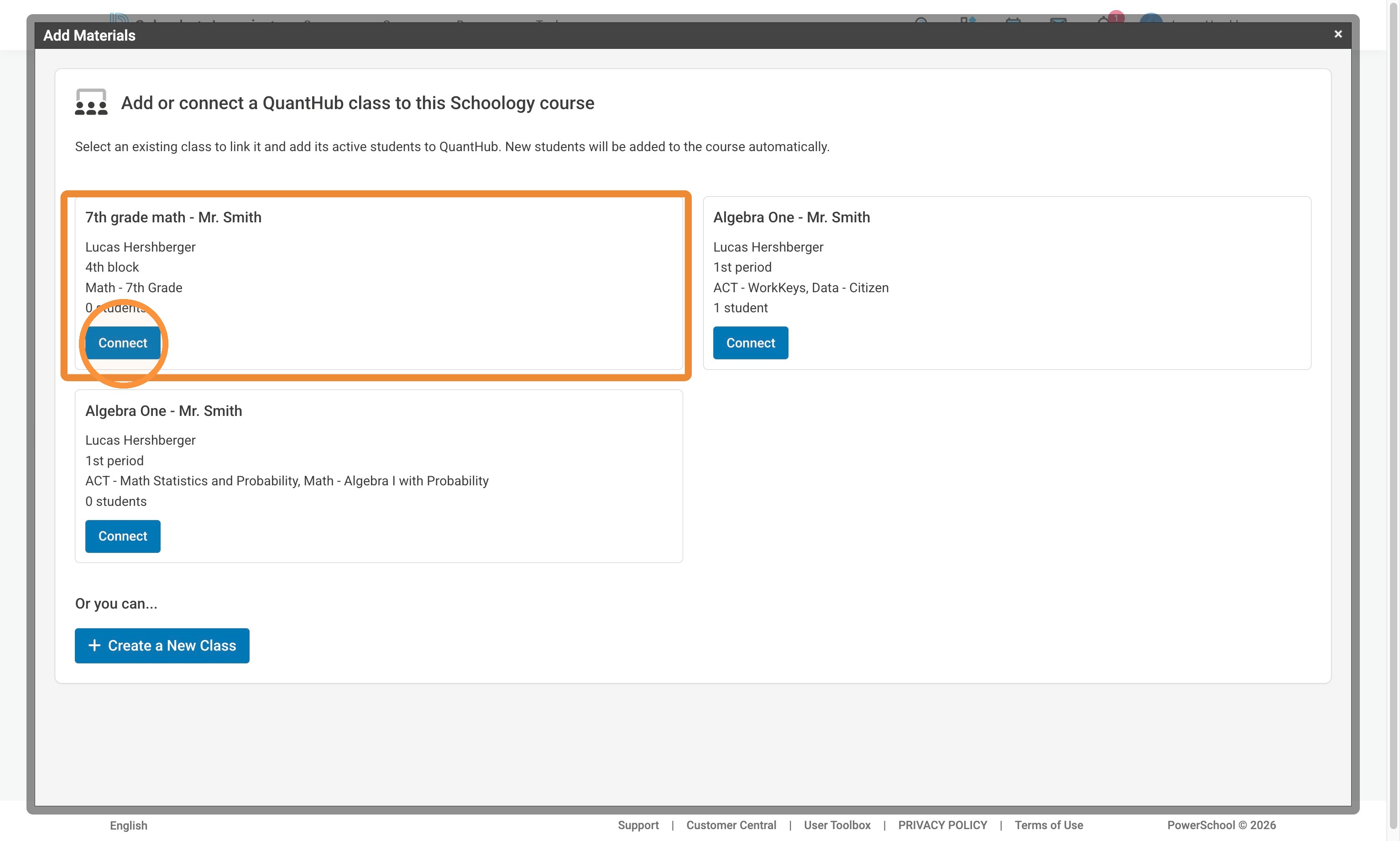
3. After you select the QuantHub App for the first time, you will be asked to roster. There are two options: Option 1: Roster your current class with a QuantHub Class you previously made by selecting "Connect." If you would like help with this option, view the "Create Your Section in QuantHub" portion of this tutorial.
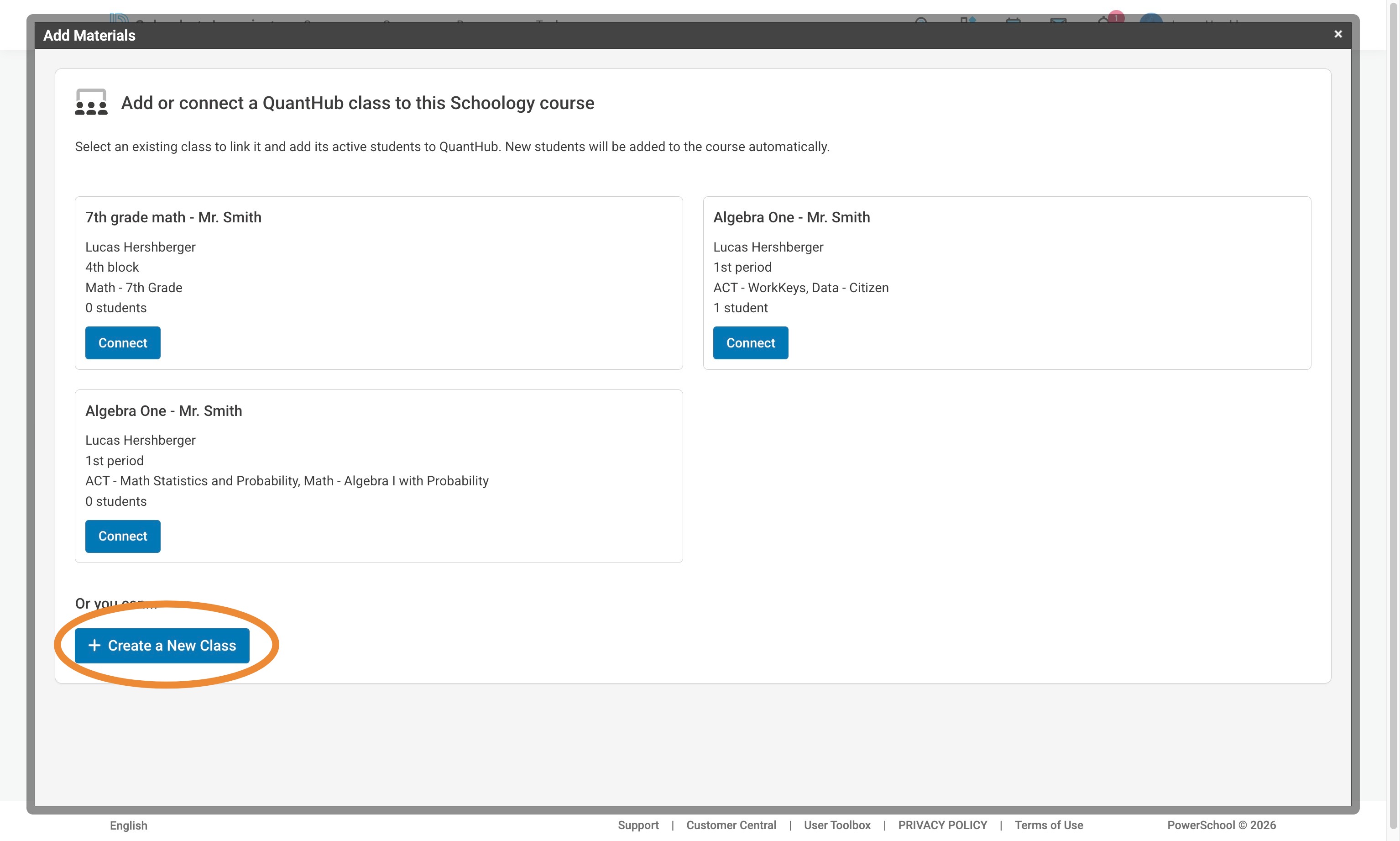
4. Option 2: Create a new class from scratch.
5. If you are creating a new class, fill out details and add the desired courses you would like to pull lessons from.
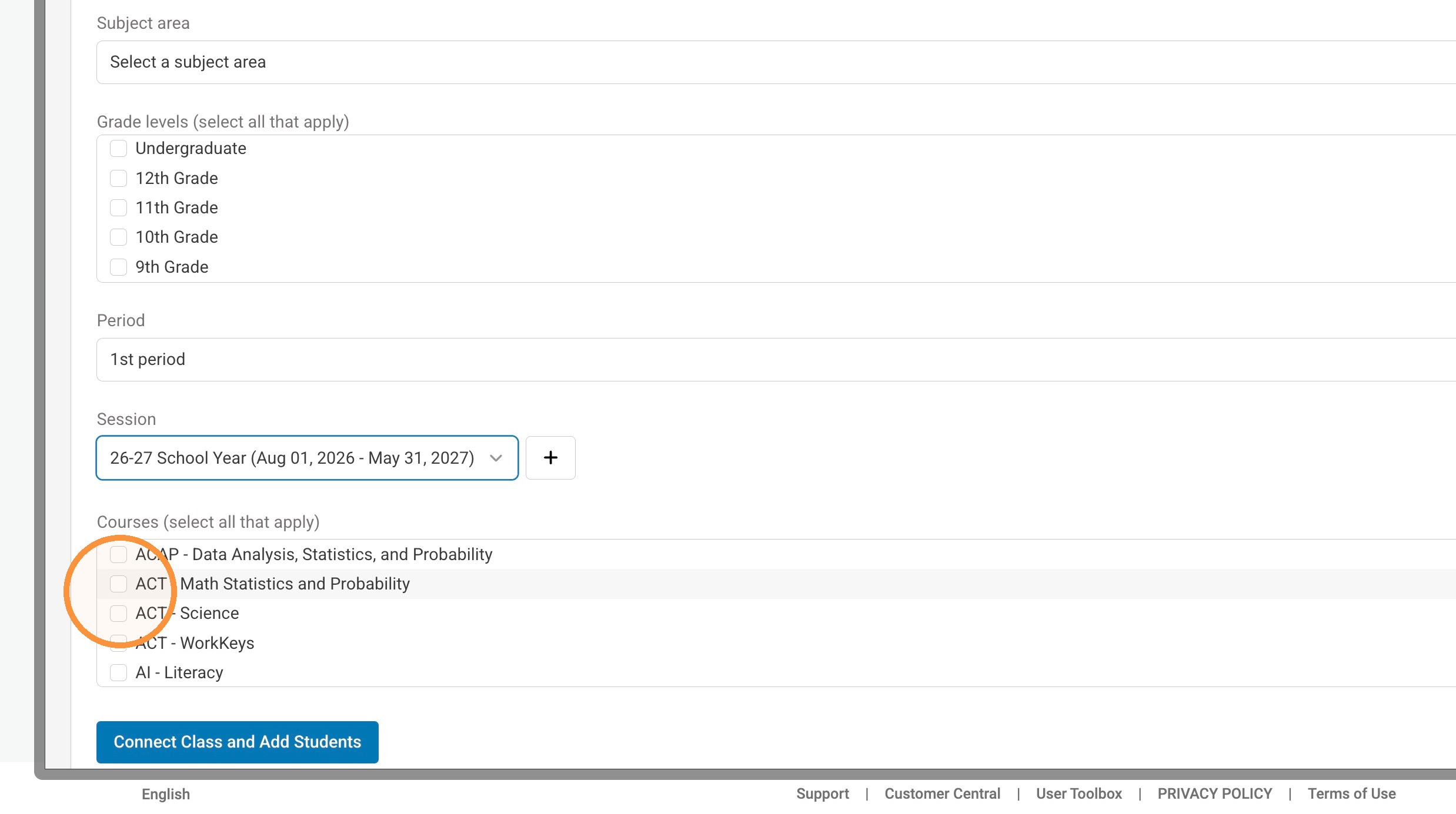
6. Once finished, select "Connect Class and Add Students."
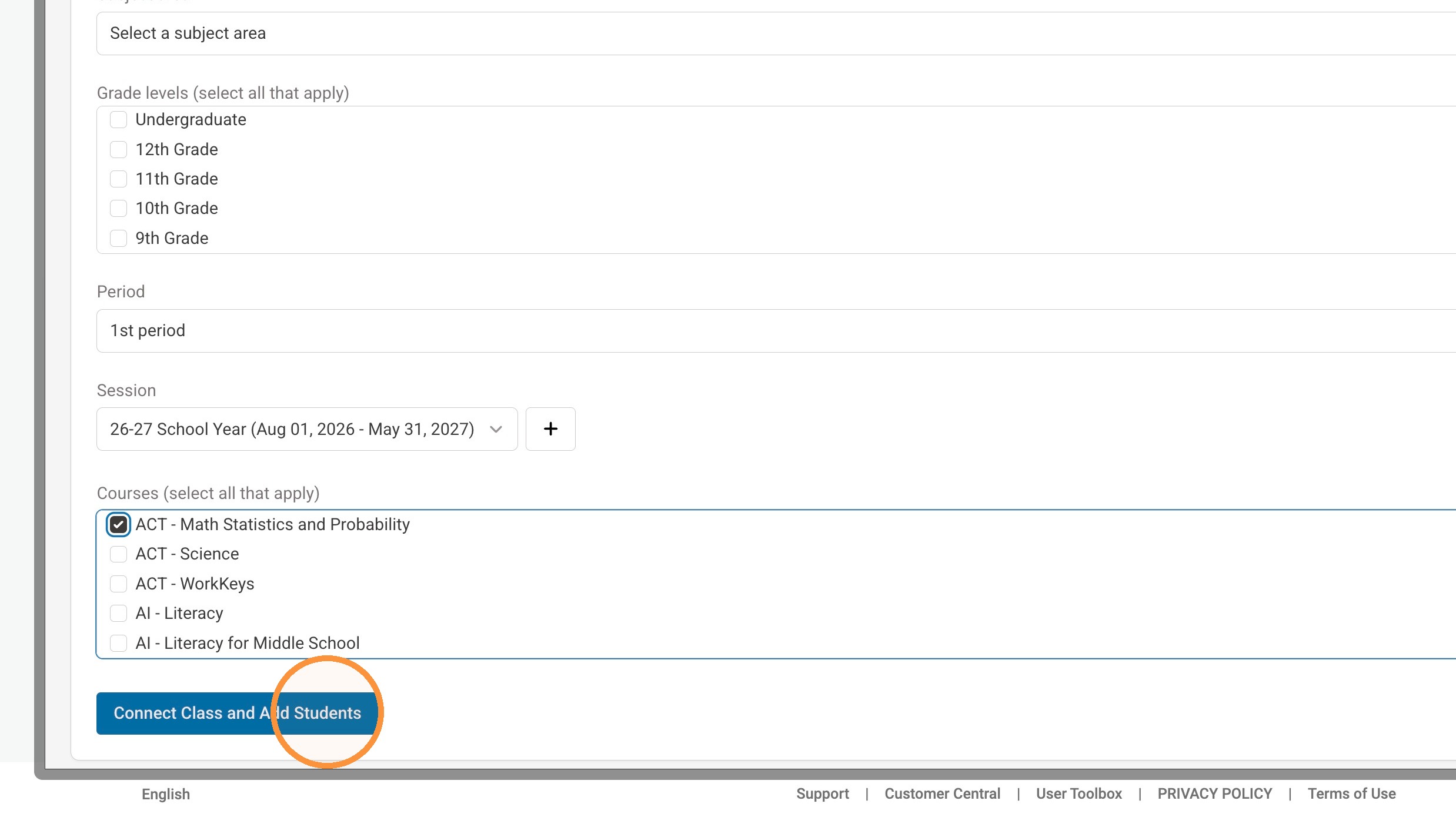
7. If you would like to add more QuantHub curriculum, scroll until you see "Missing activities? Edit your class in QuantHub" and edit your available material back in the QuantHub platform. Now that you are rostered in your section, every time you select the QuantHub App you will be taken to the "Add Activities" page.
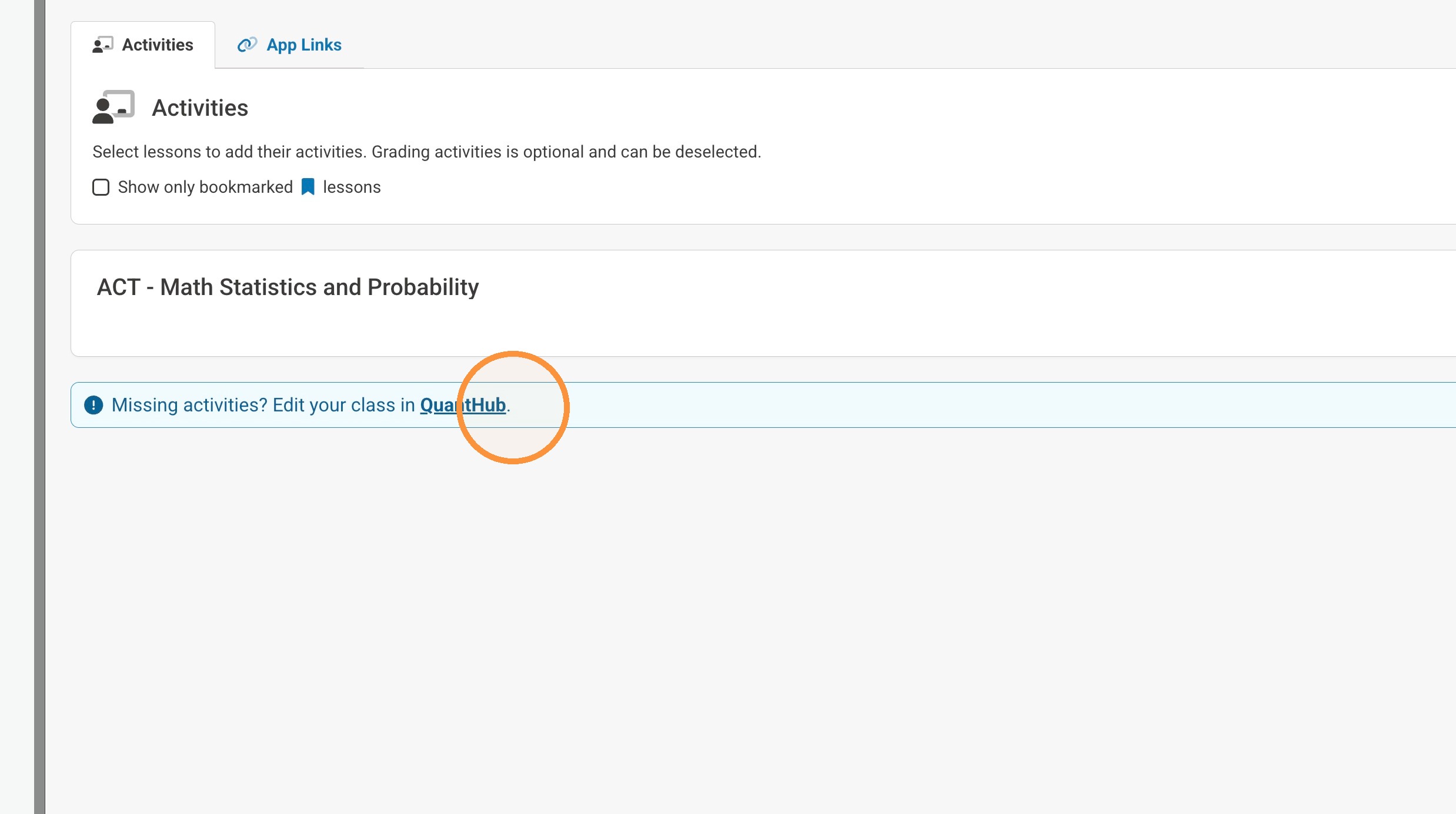
Create Your Section in QuantHub
8. If you would like to create your classes before rostering your students, visit https://upskill.quanthub.com/teach.
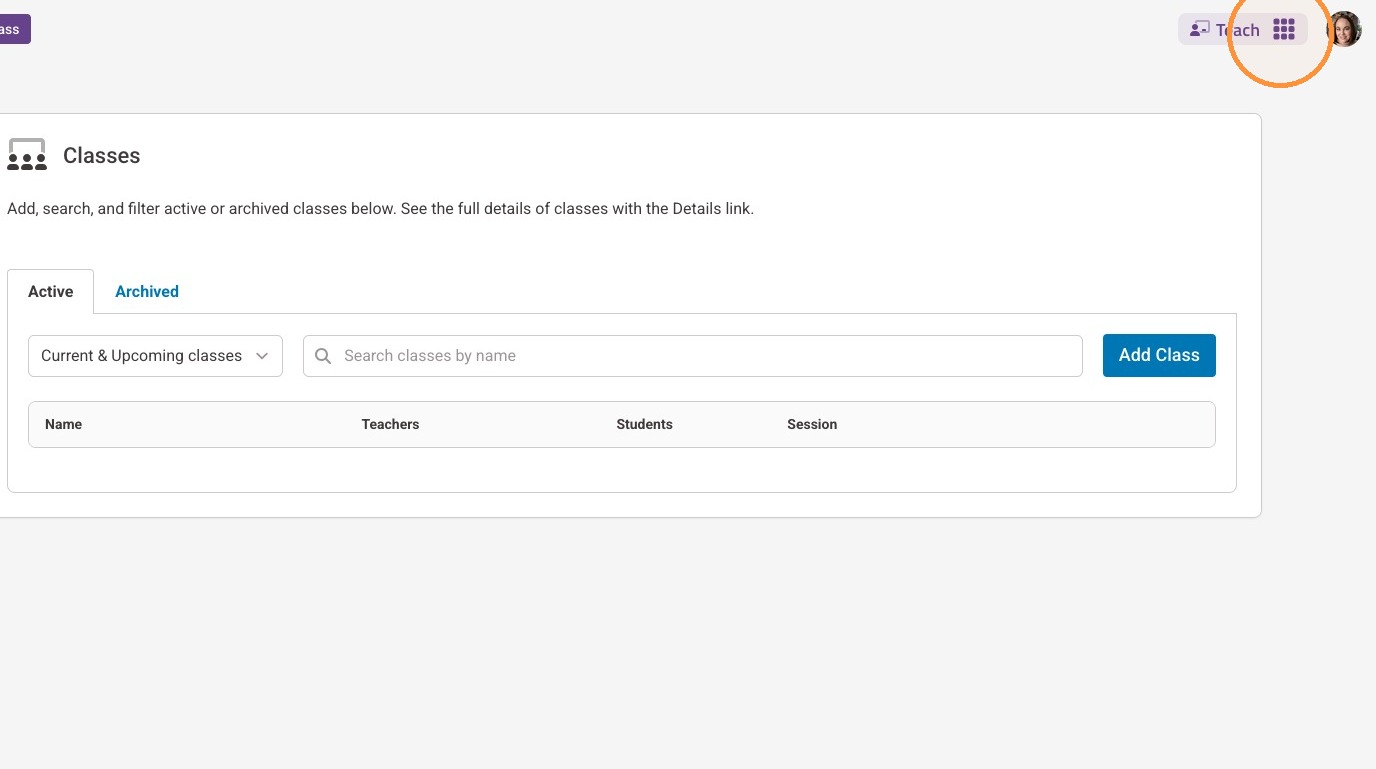
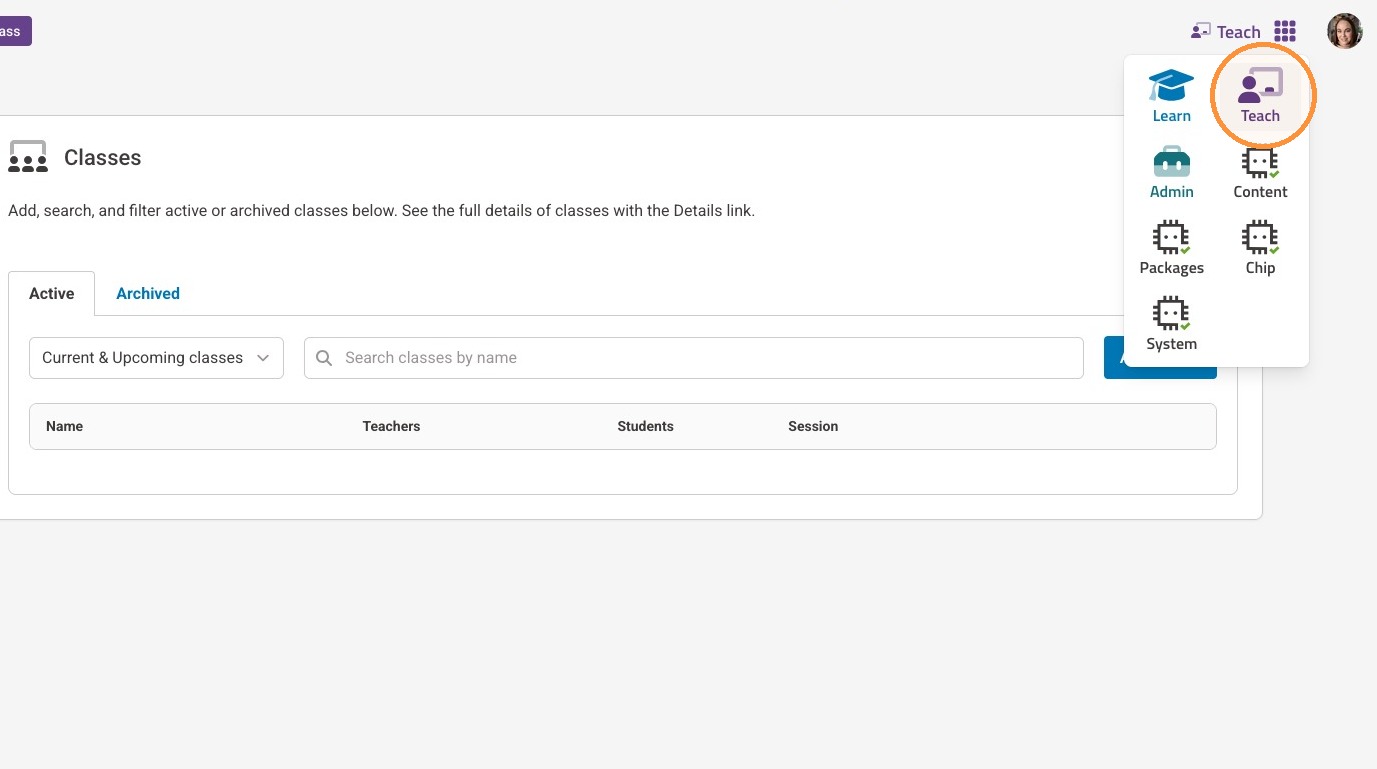
9. Then select the "Teach" icon.
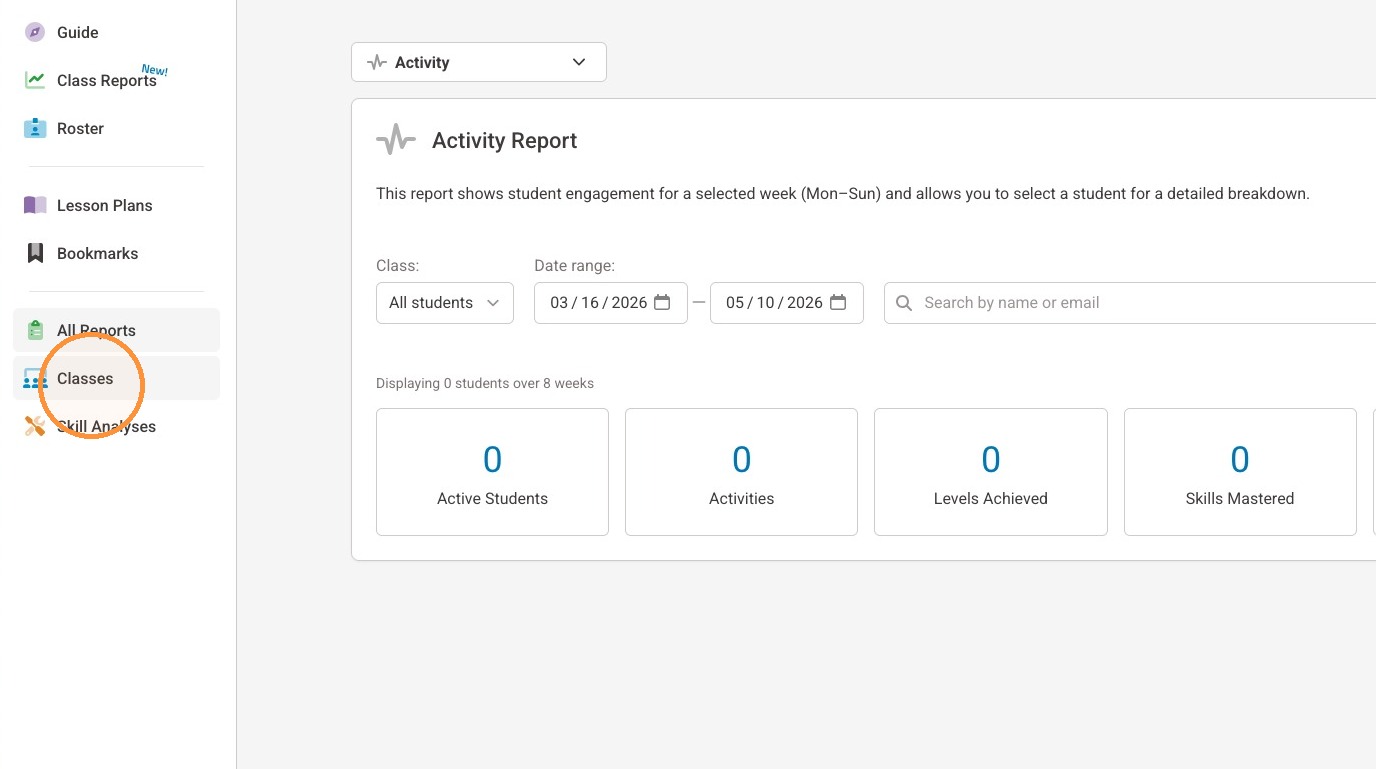
10. Select "Classes" from your left-side menu.
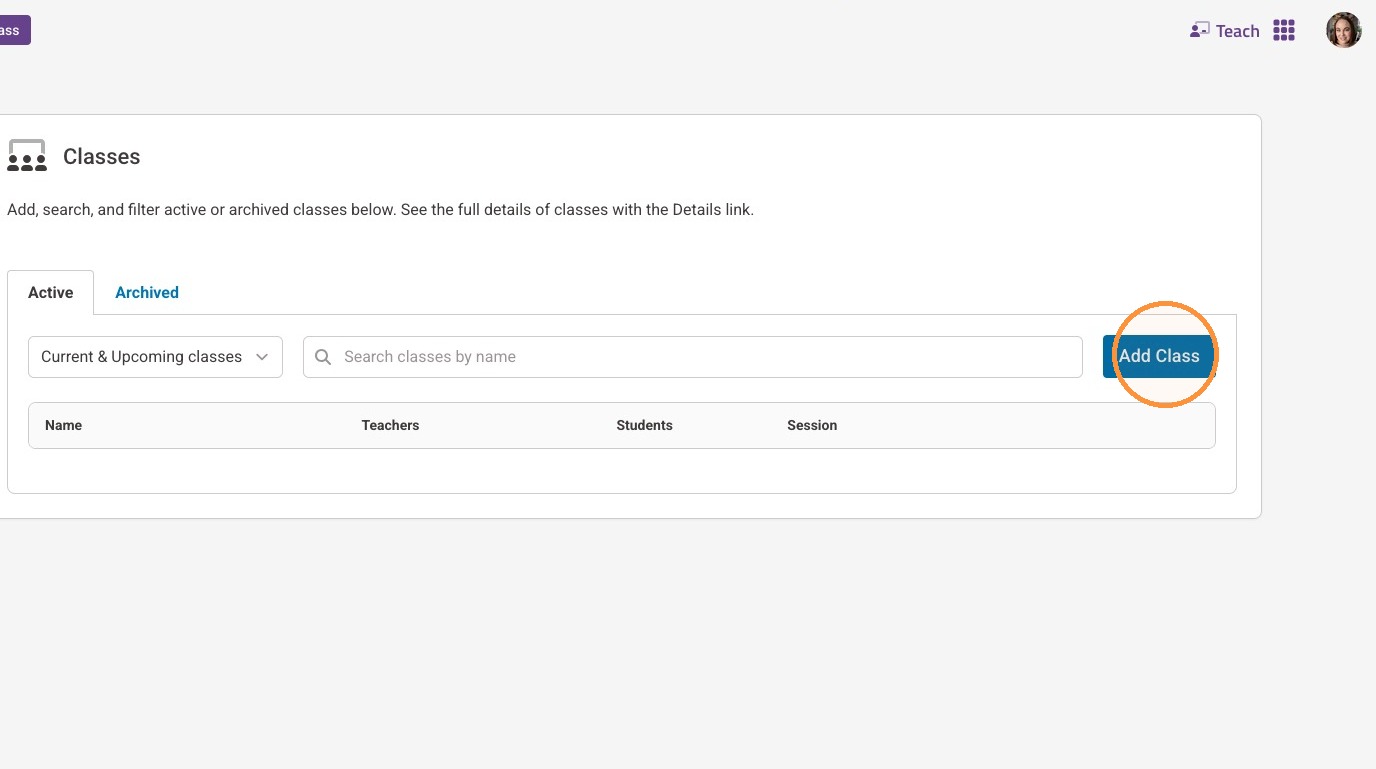
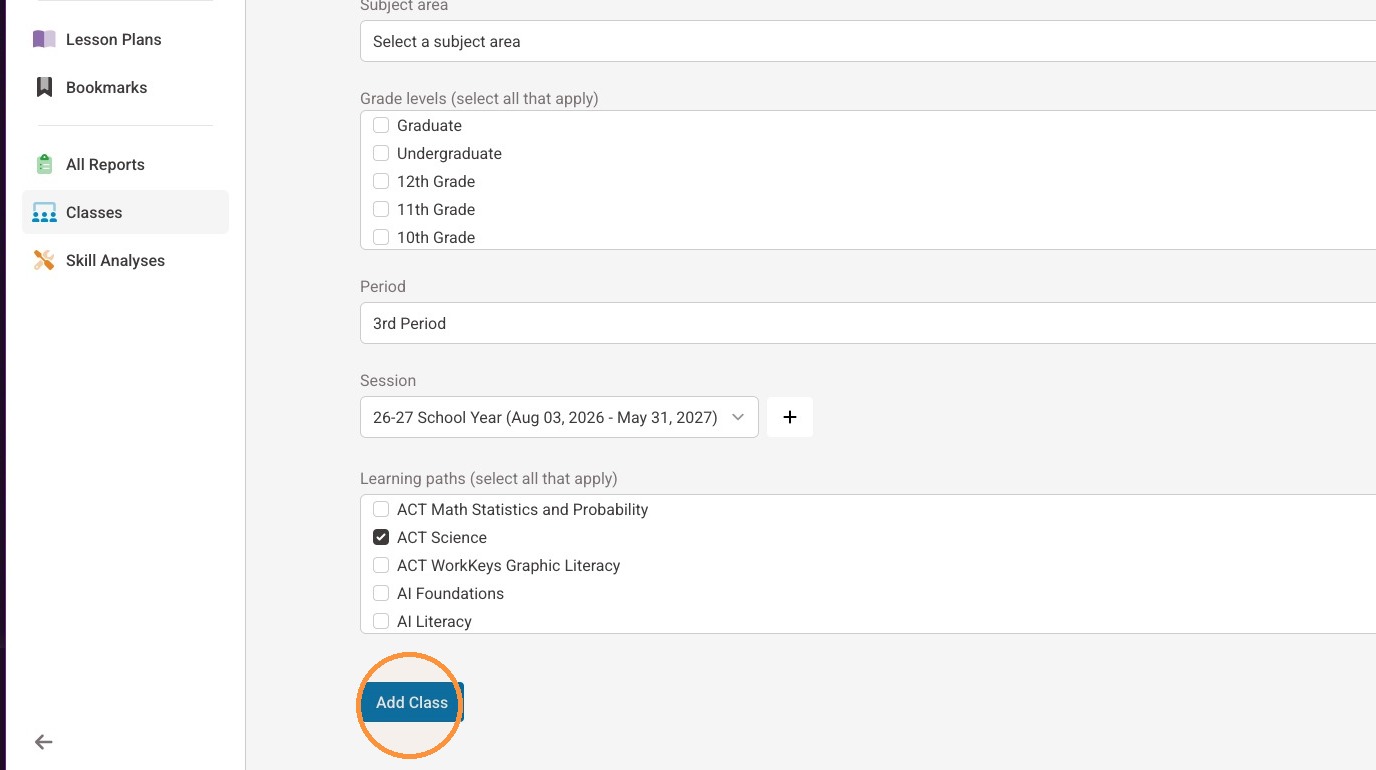
11. Select "Add Class."
12. Enter a name for your class.
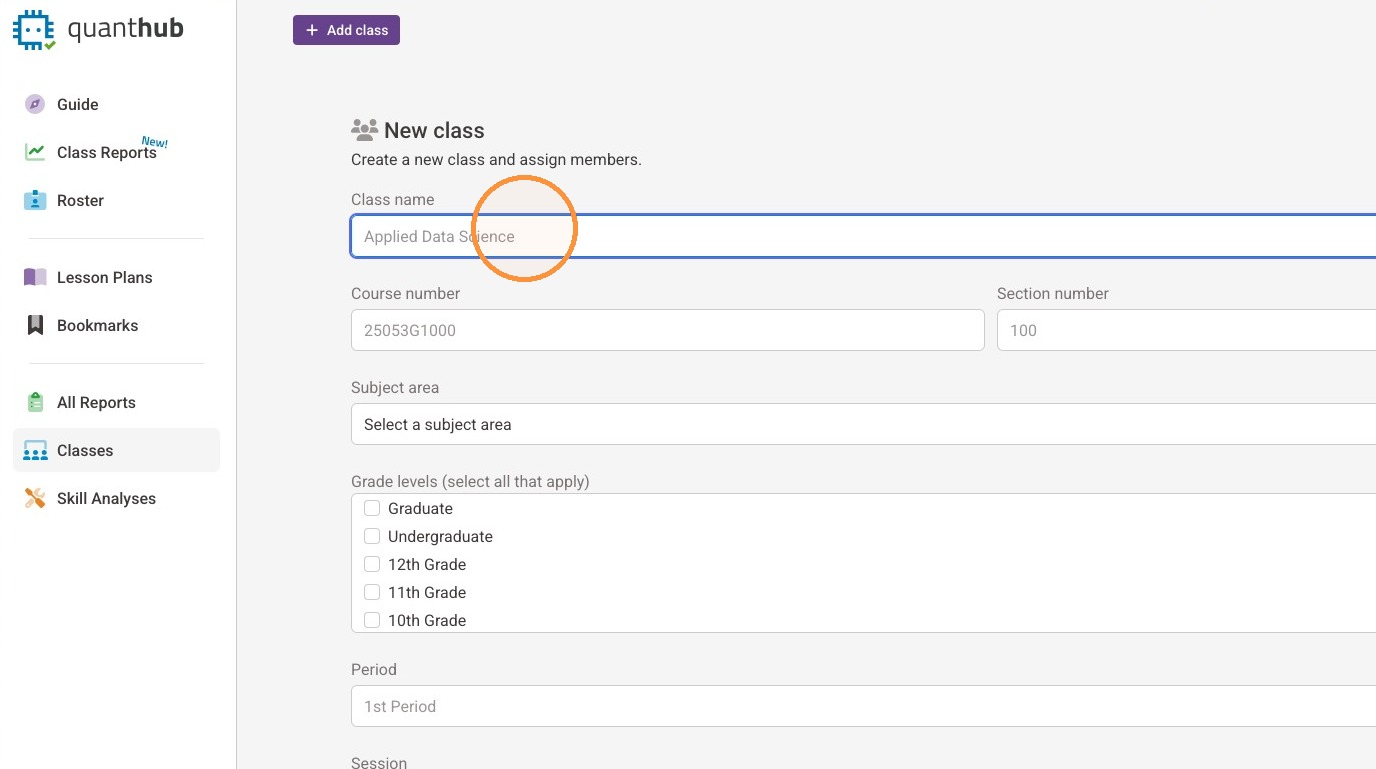
13. Enter your class period information.
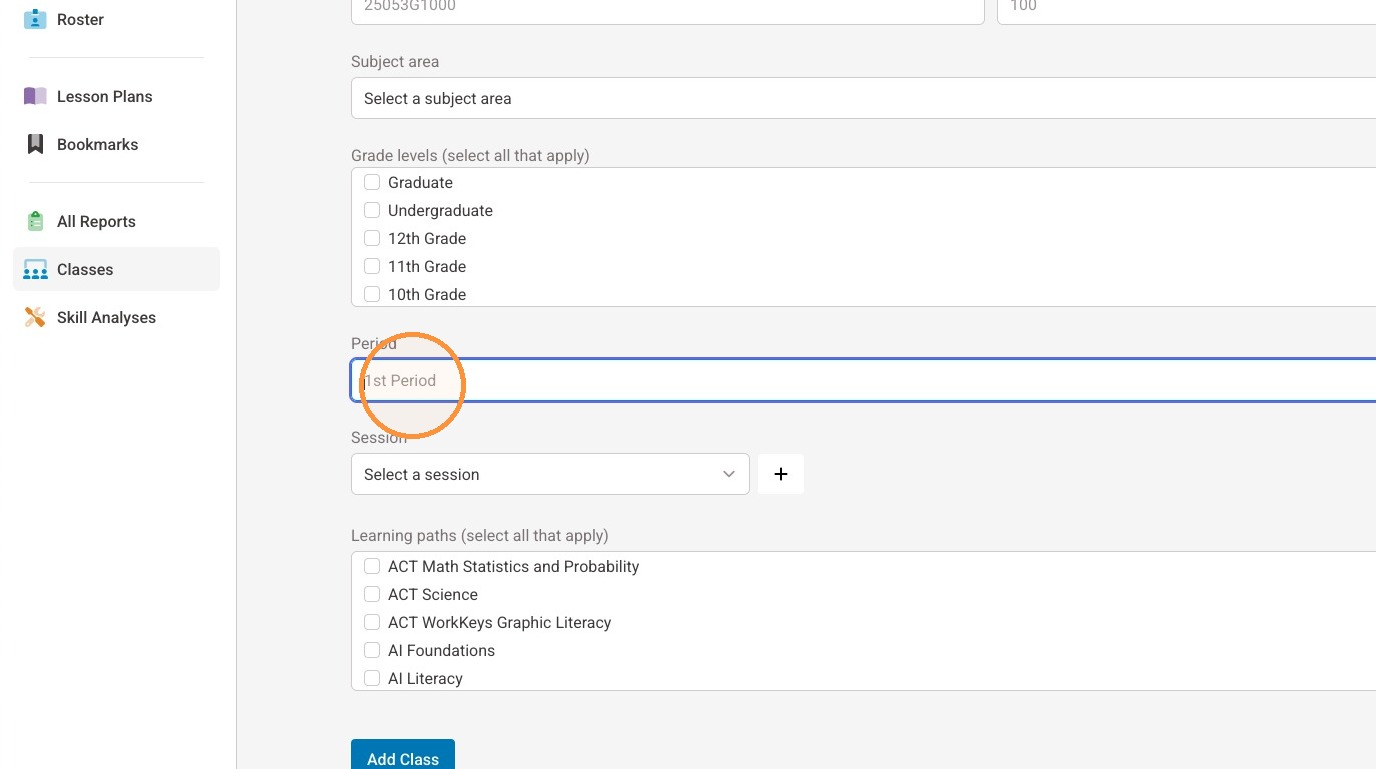
14. If an applicable session exists, select it from the drop down menu.
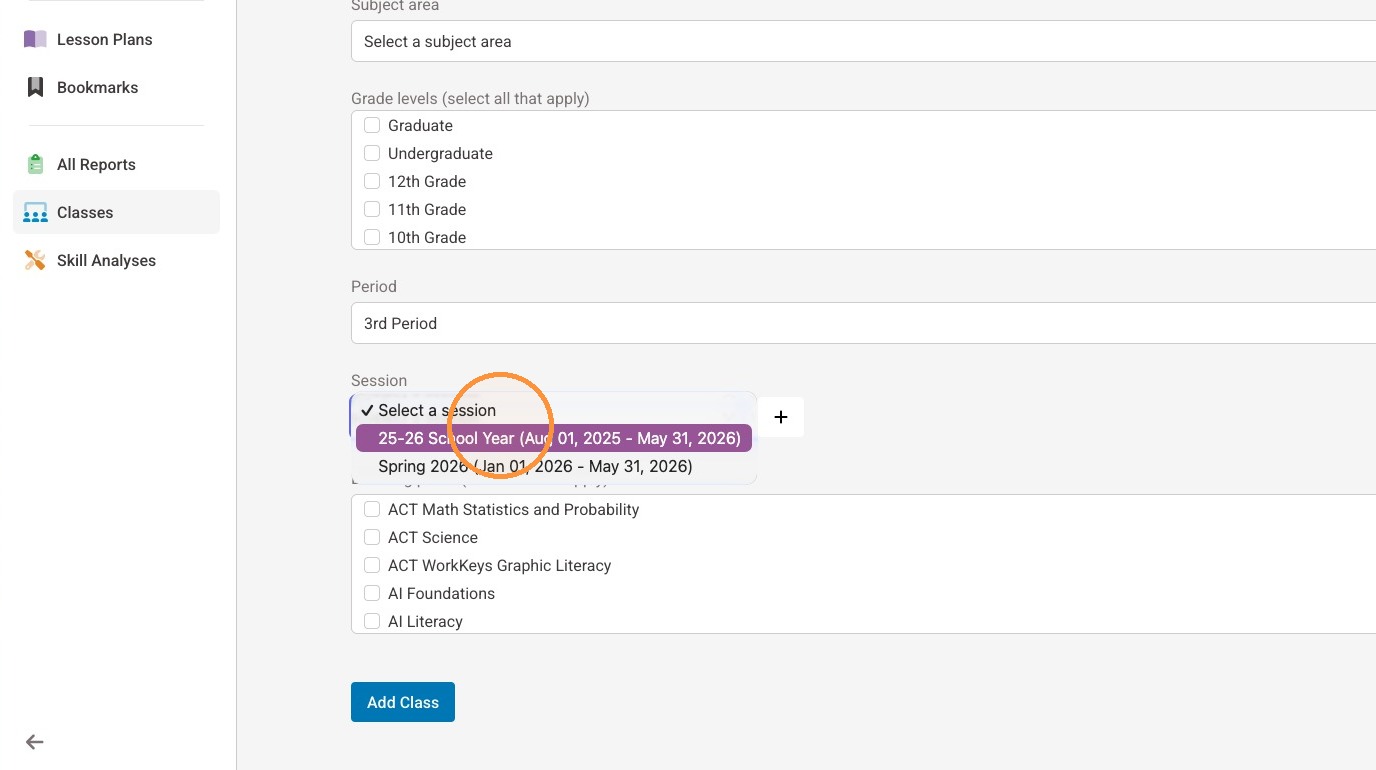
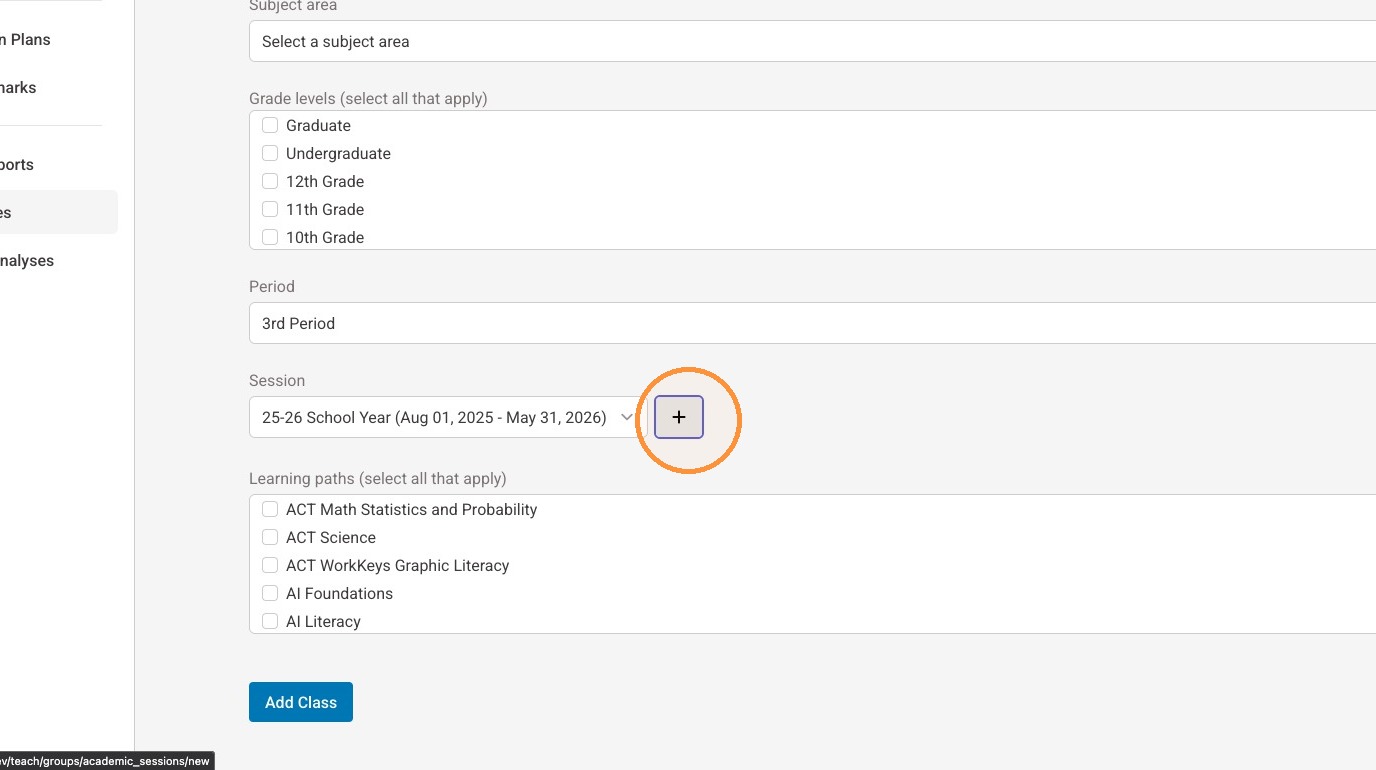
15. If an applicable session does not exist, select the "+" to create one.
16. Give your session a name.
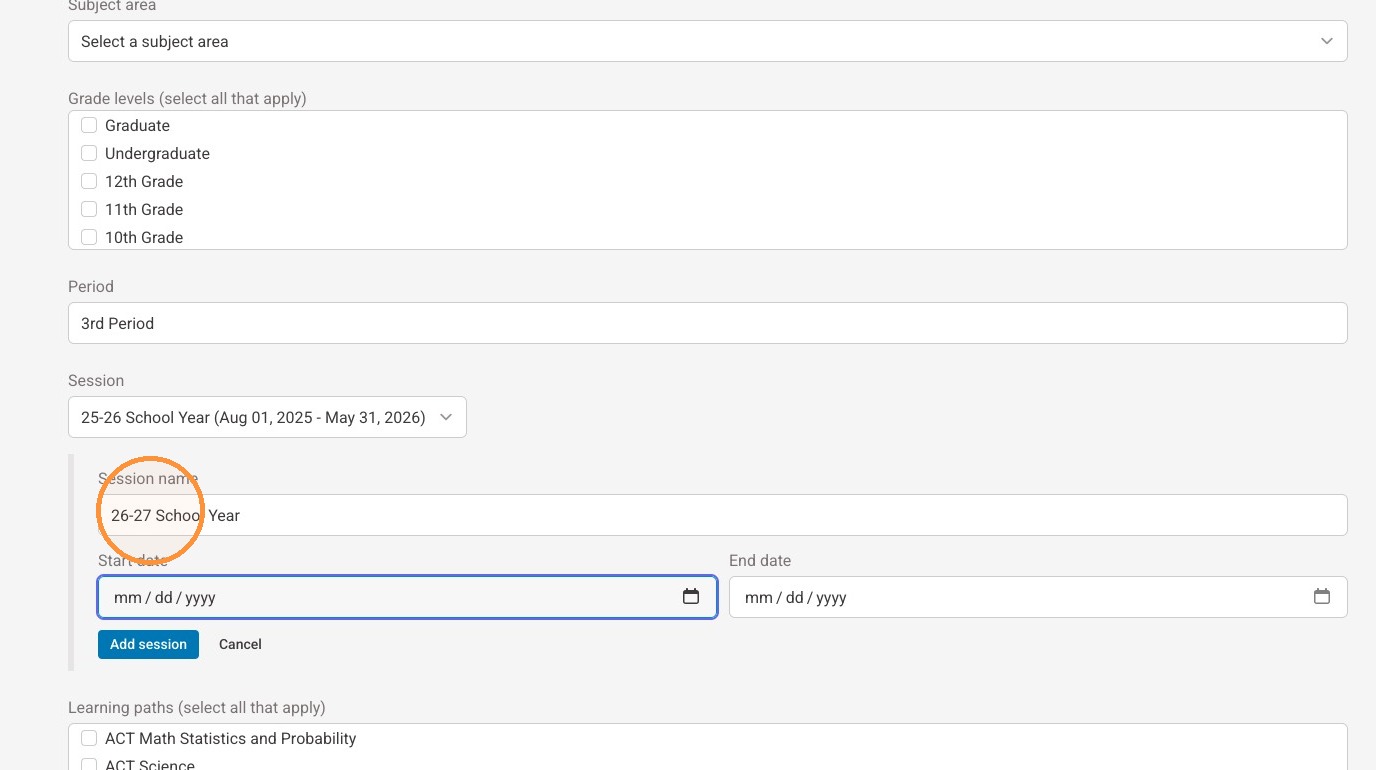
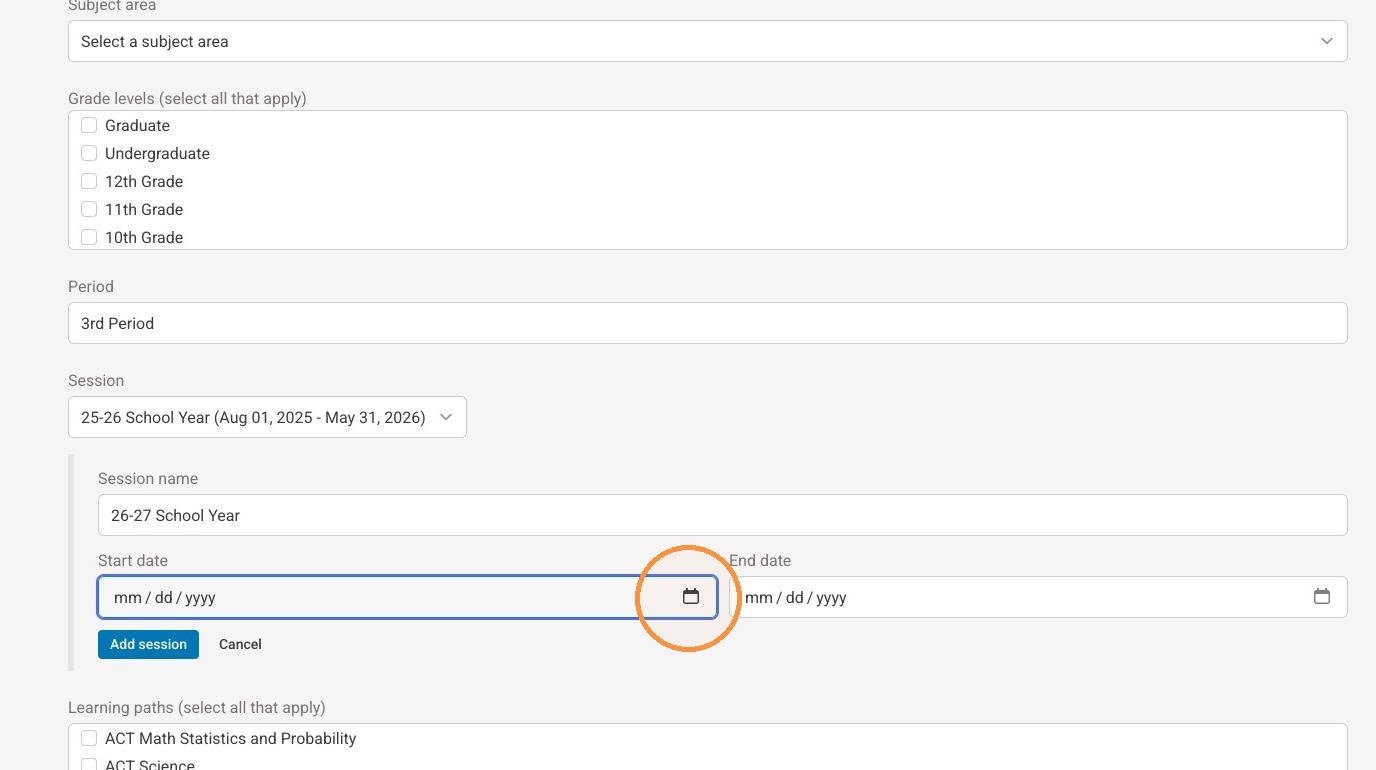
17. Use the date picker to select the start date for the session.
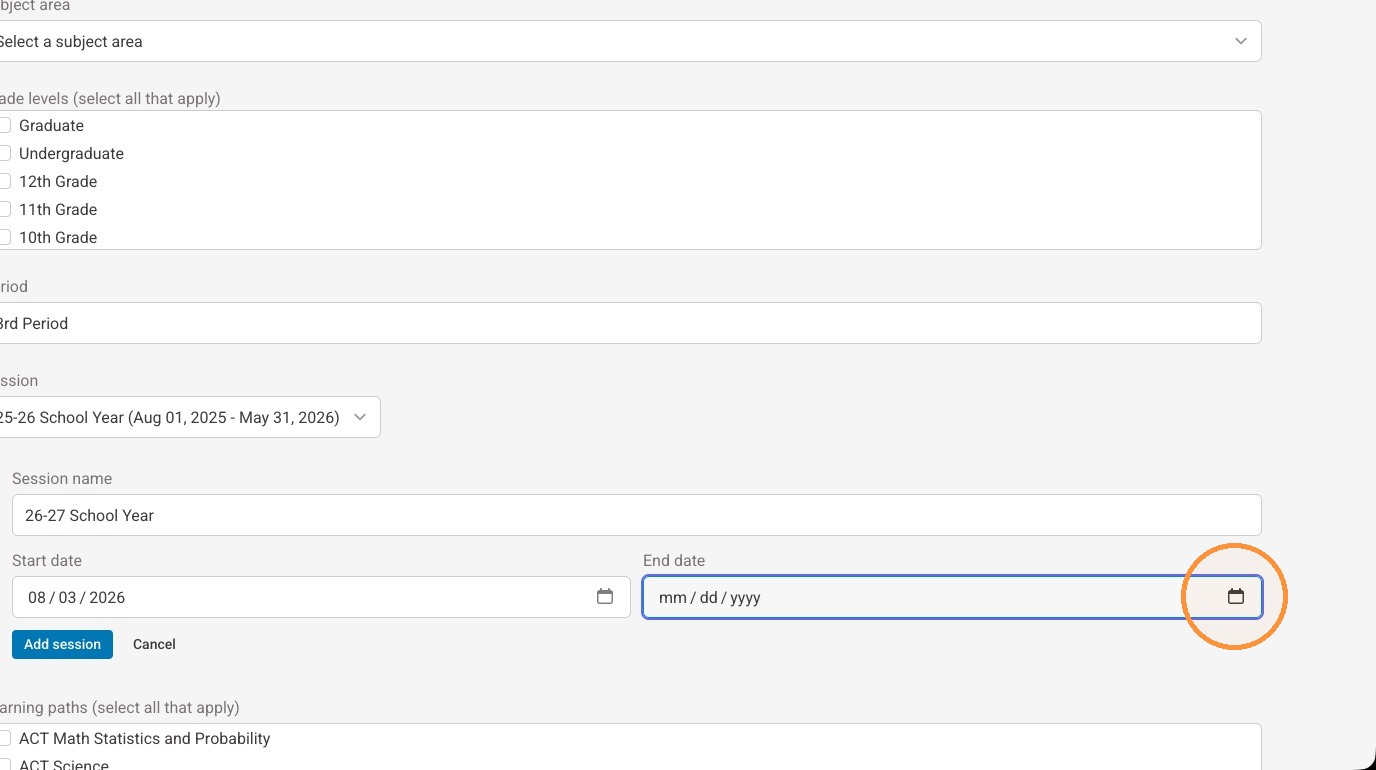
18. Use the date picker to select an end date for the session.
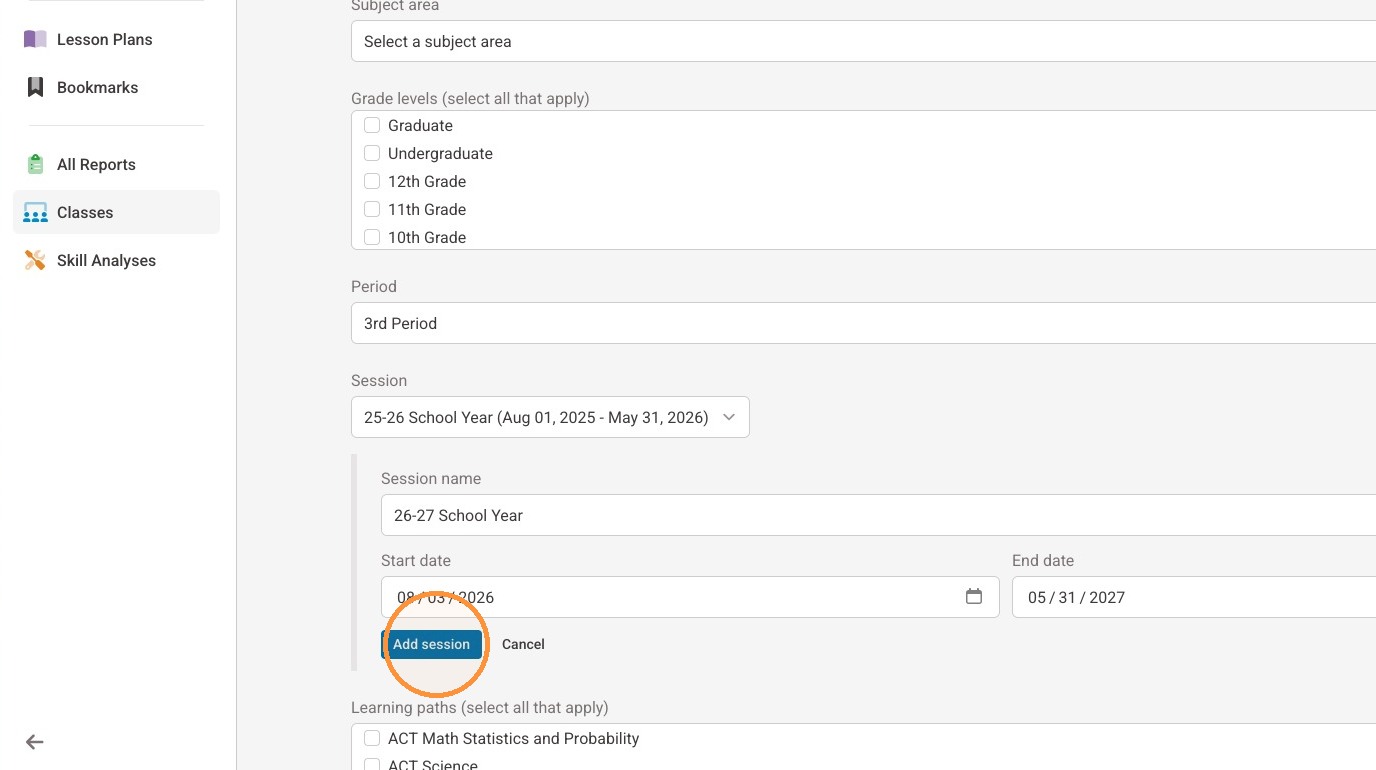
19. Select "Add session."
20. Select the relevant learning path(s) for your class.
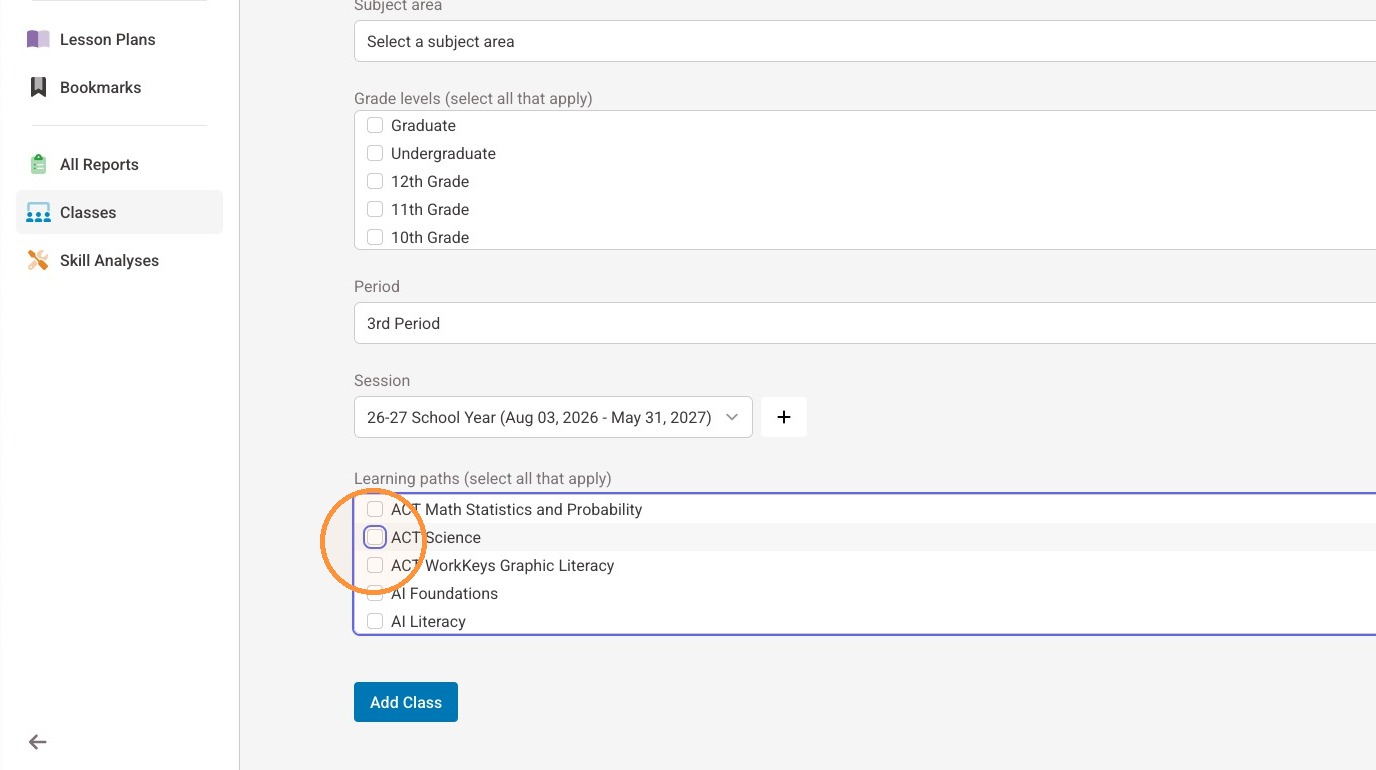
21. Select "Add Class."
Was this article helpful?
That’s Great!
Thank you for your feedback
Sorry! We couldn't be helpful
Thank you for your feedback
Feedback sent
We appreciate your effort and will try to fix the article