Watch the video below OR scroll down to view the steps listed out instead.
TABLE OF CONTENTS
Video Tutorial:
Step By Step Guide:
Connect your Blackboard course to QuantHub
1. Navigate to your course in Blackboard.
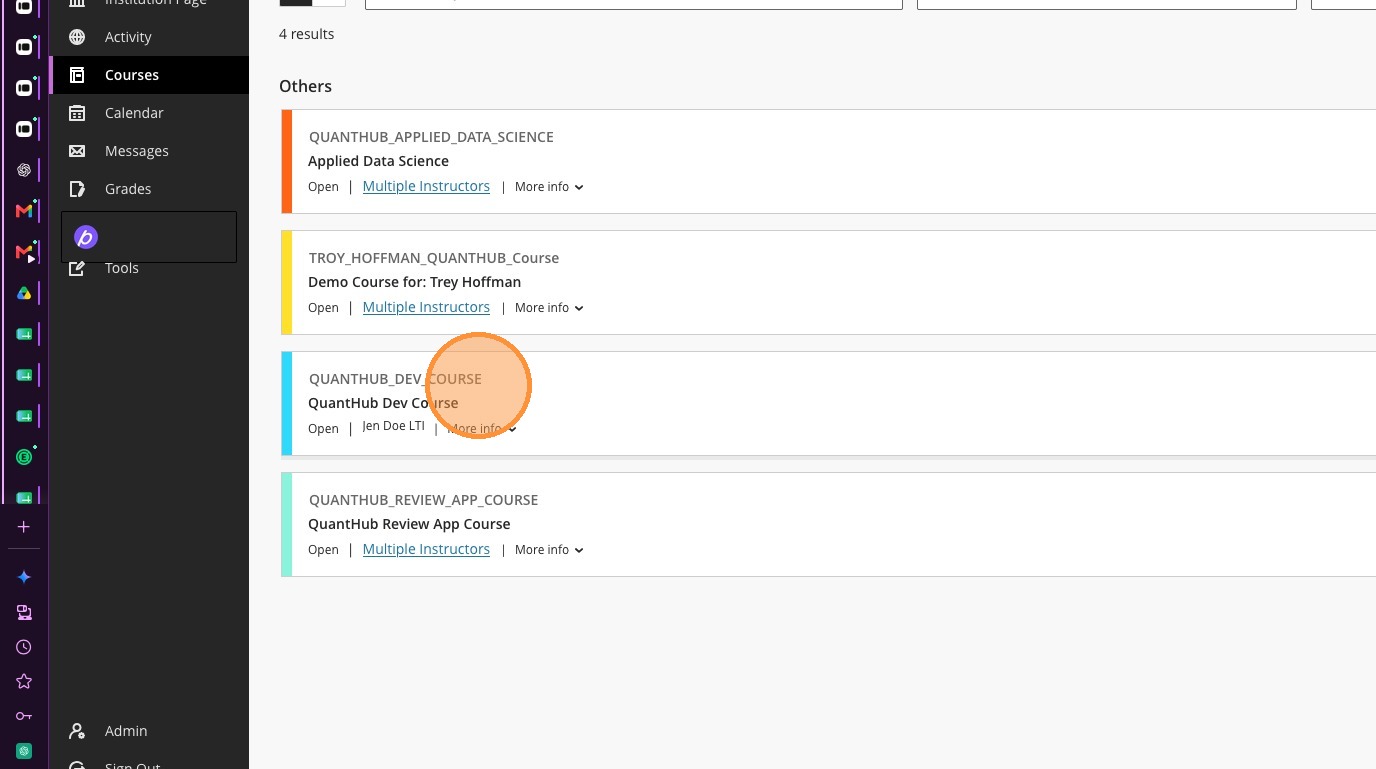
2. Select the location in which you wish to add the modules.
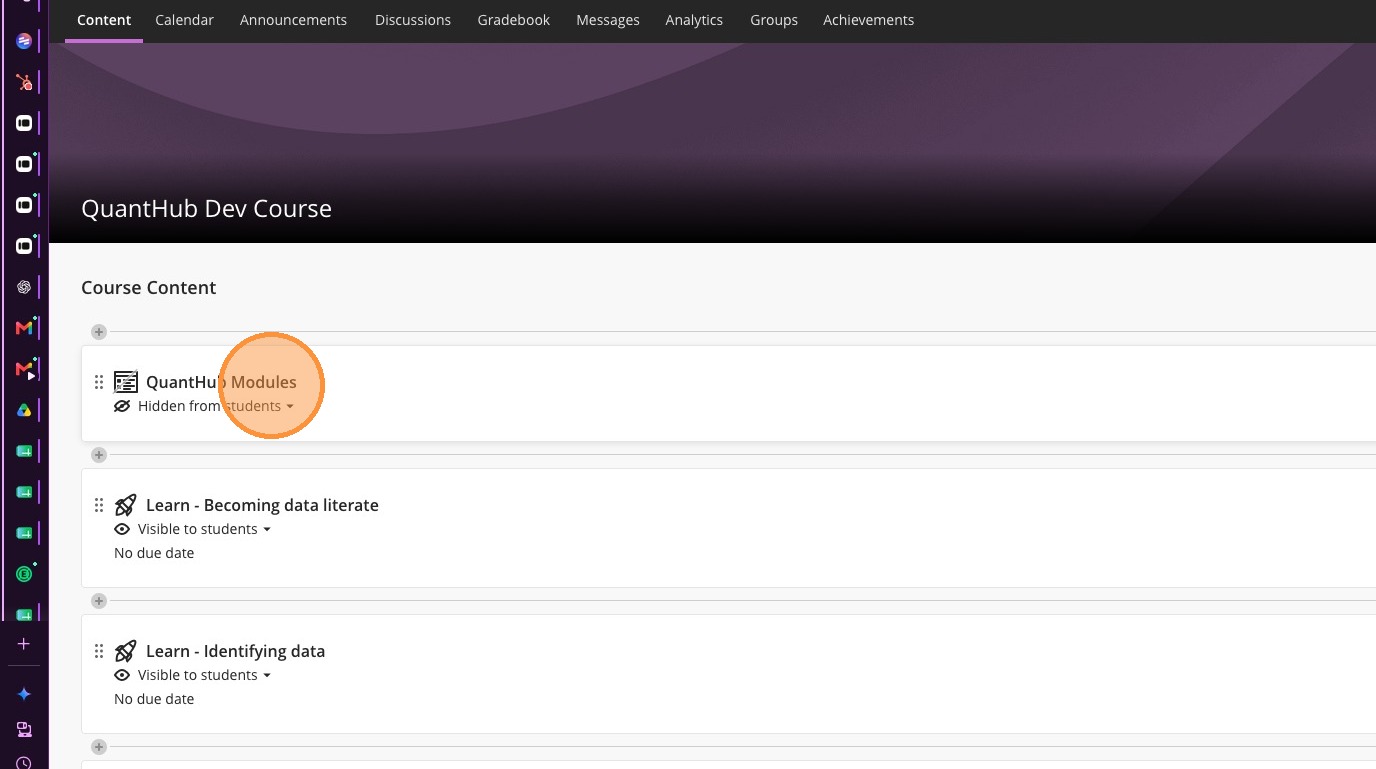
3. Select the "+" icon
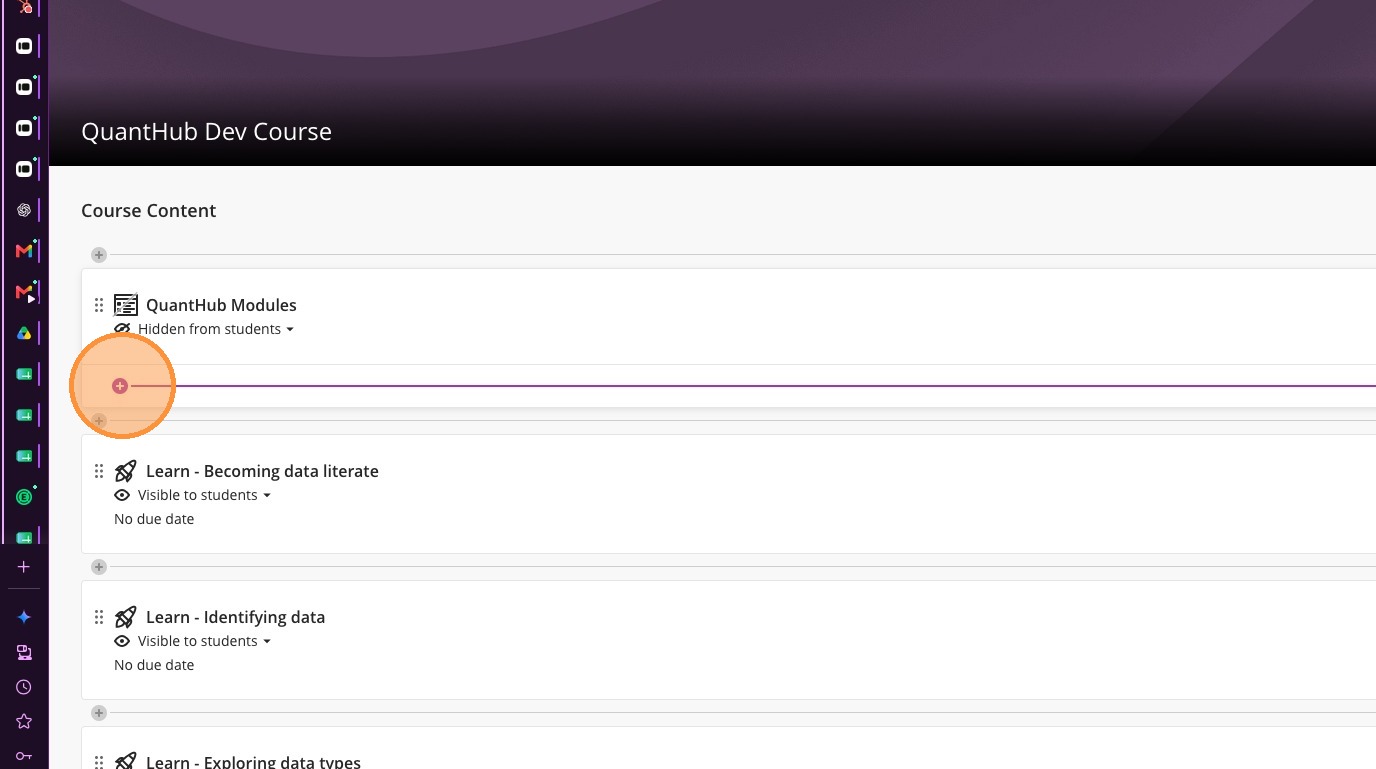
4. Select "Content Market"
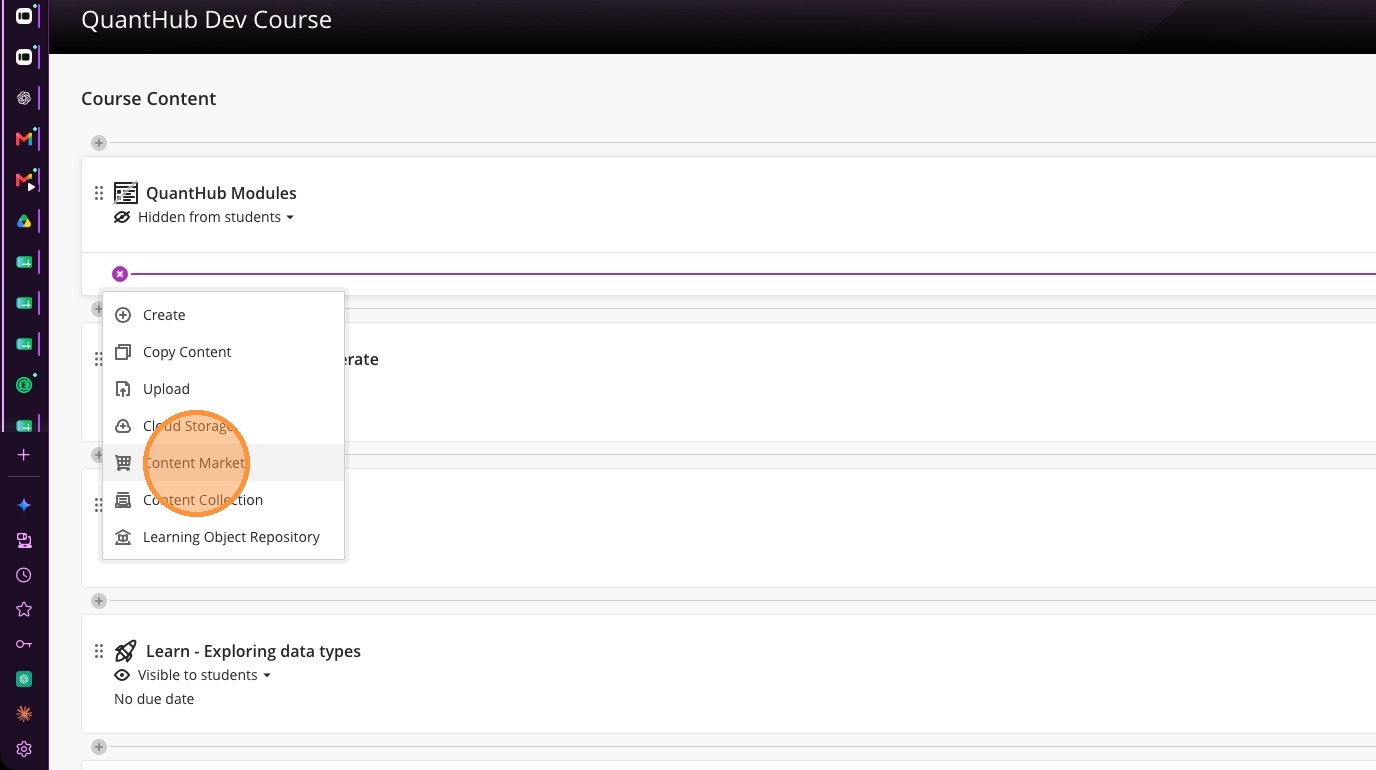
5. Select QuantHub Upskill
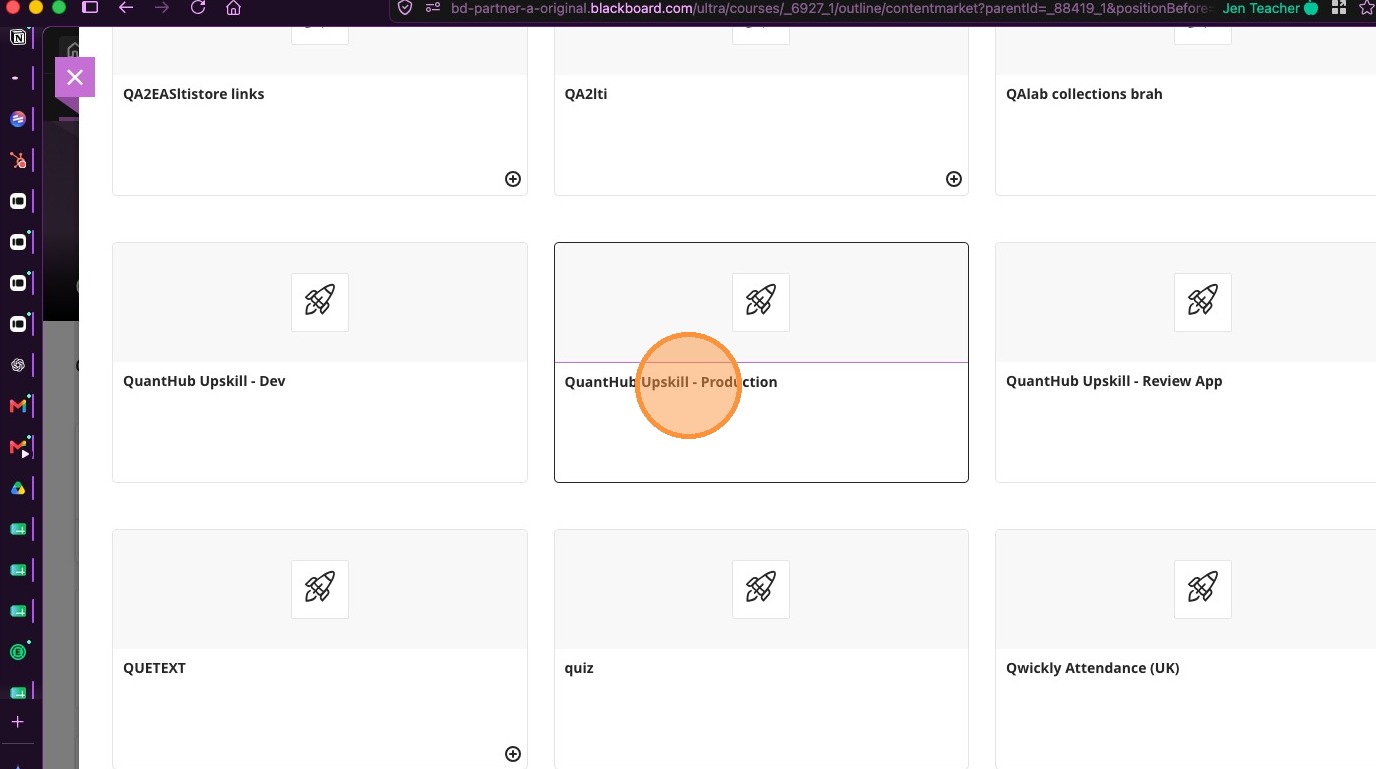
6. If you already have a section created in QuantHub that you wish to connect, select the "Connect" button for that section.
You may then skip to step 19.
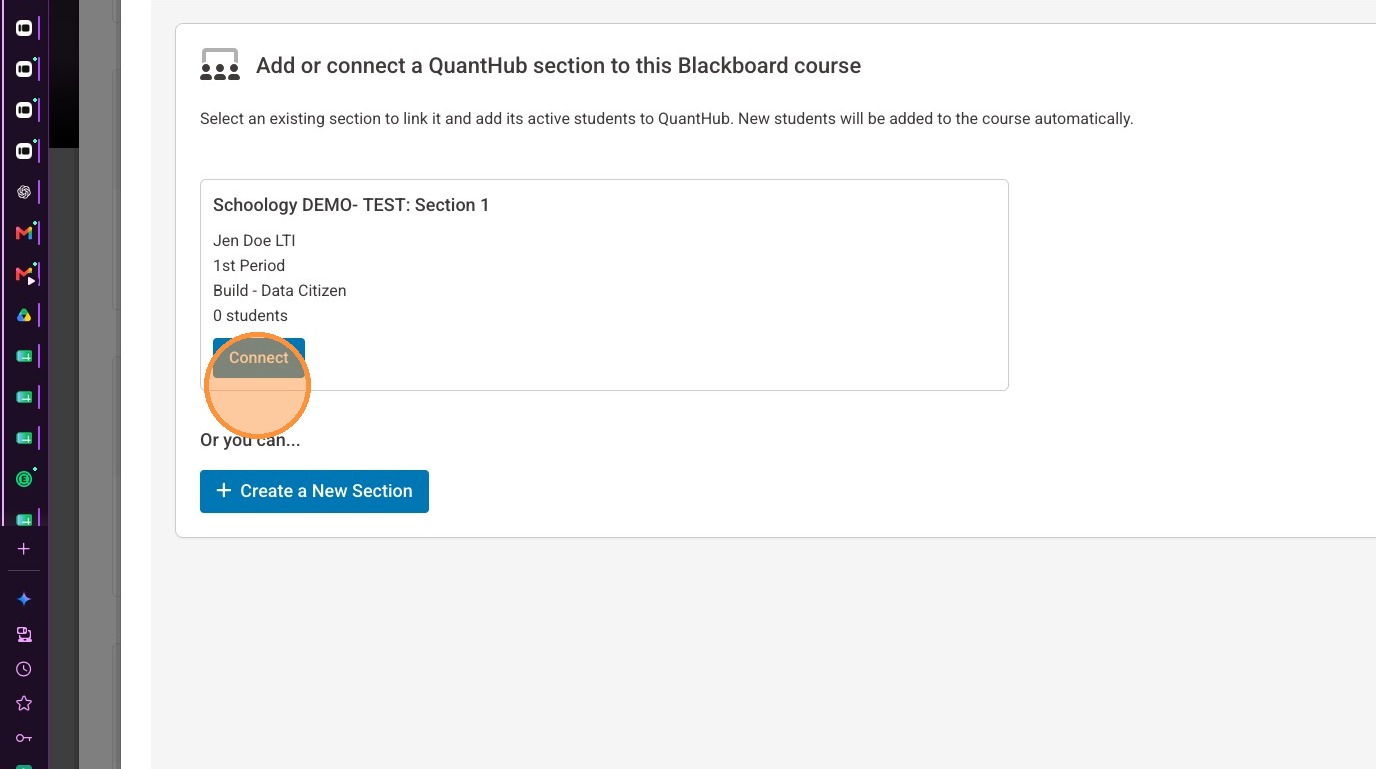
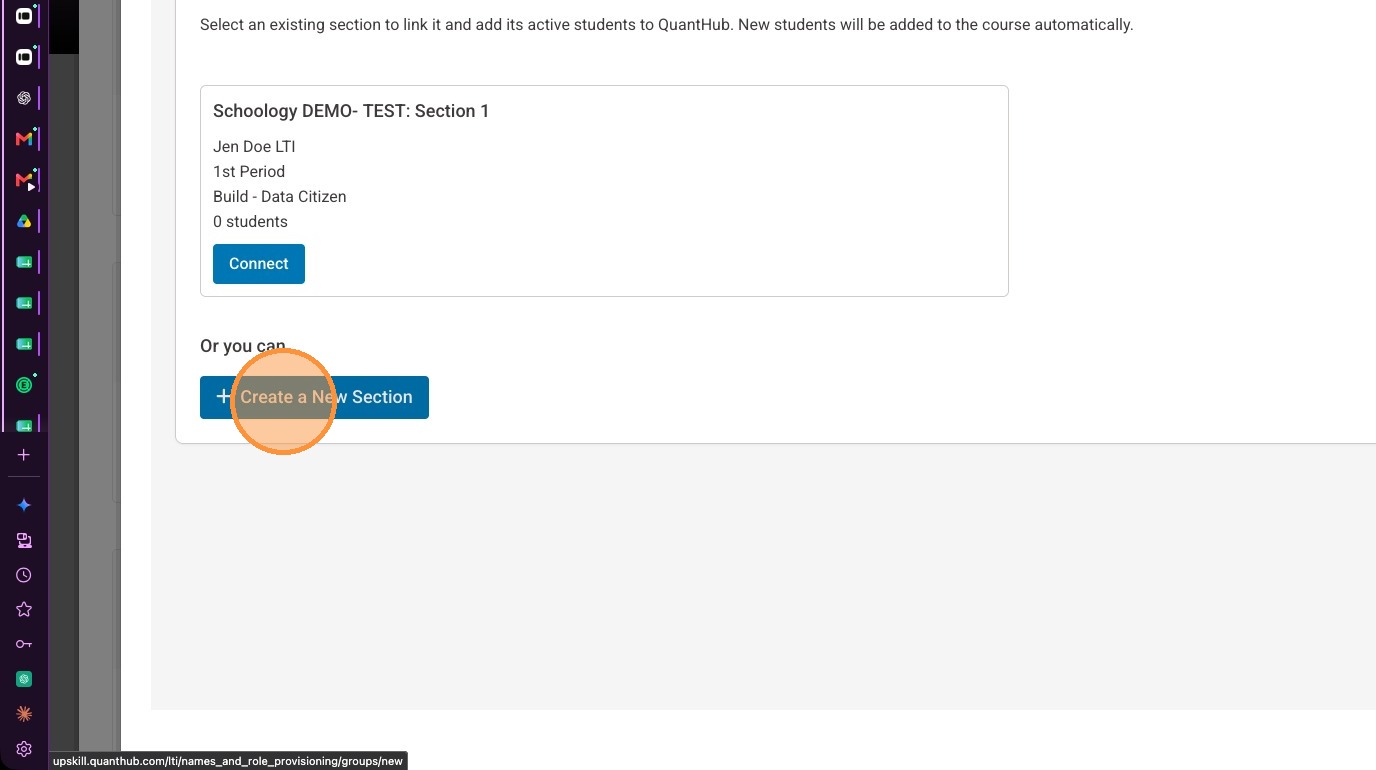
7. If you do not already have a section created in QuantHub that you wish to connect, select "+ Create a New Section"
8. The section name is pre-populated with your Blackboard course name. If you wish to change this, you may edit it.
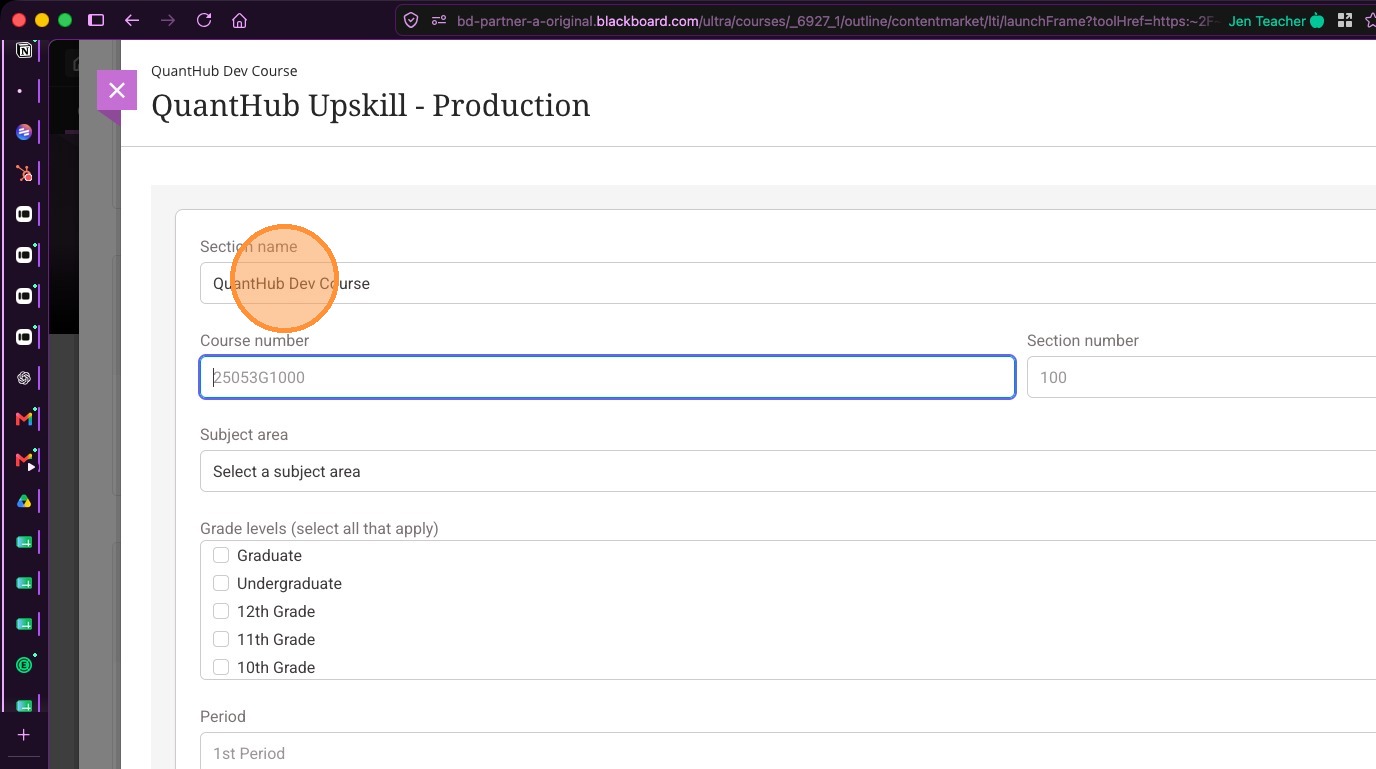
9. Enter your course number.
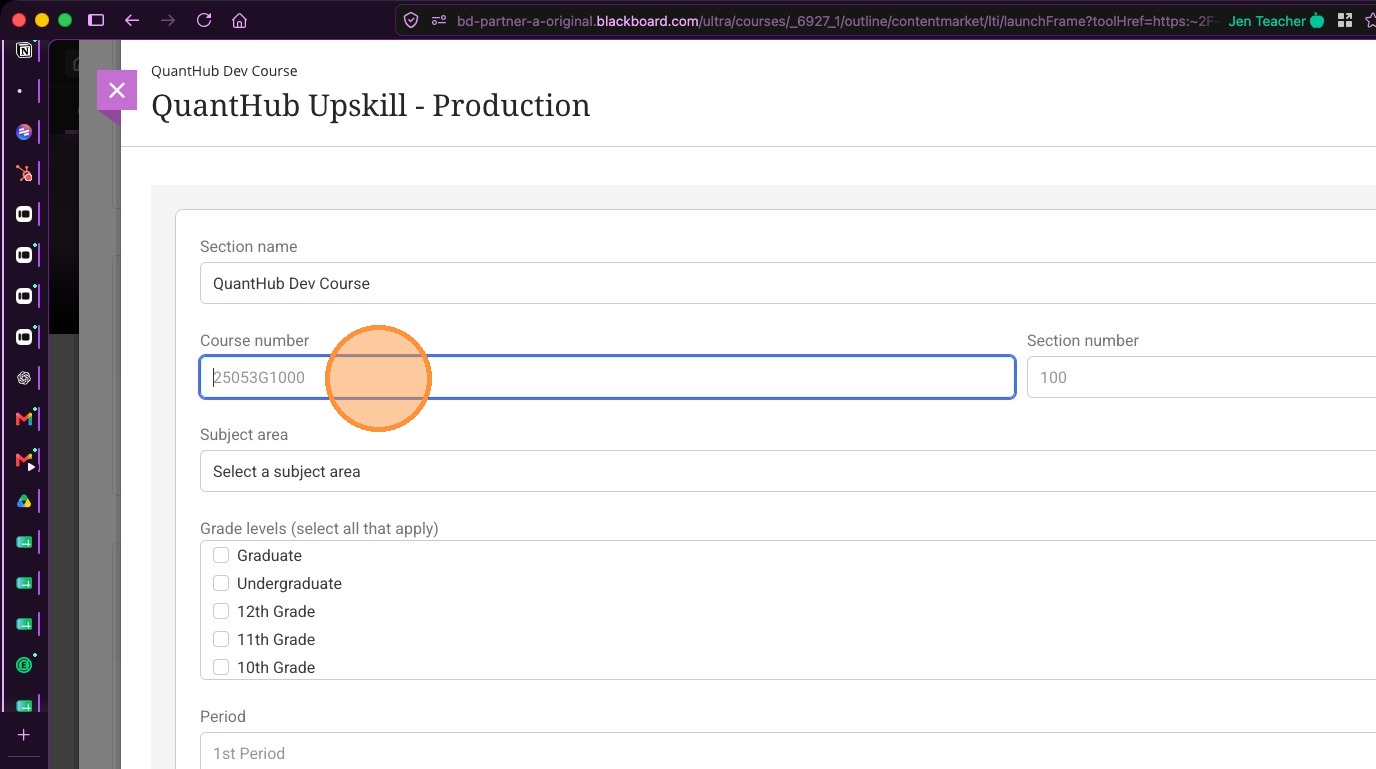
10. Enter your section number
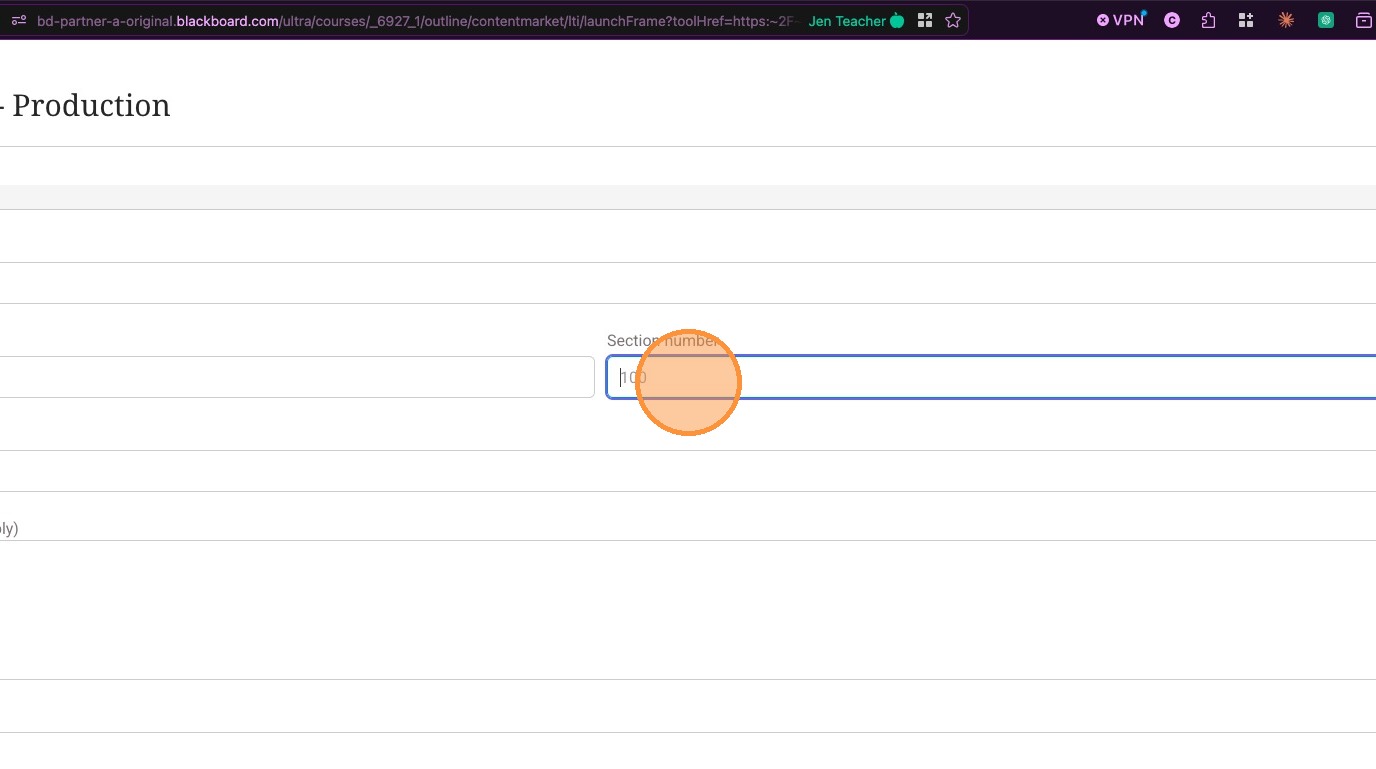
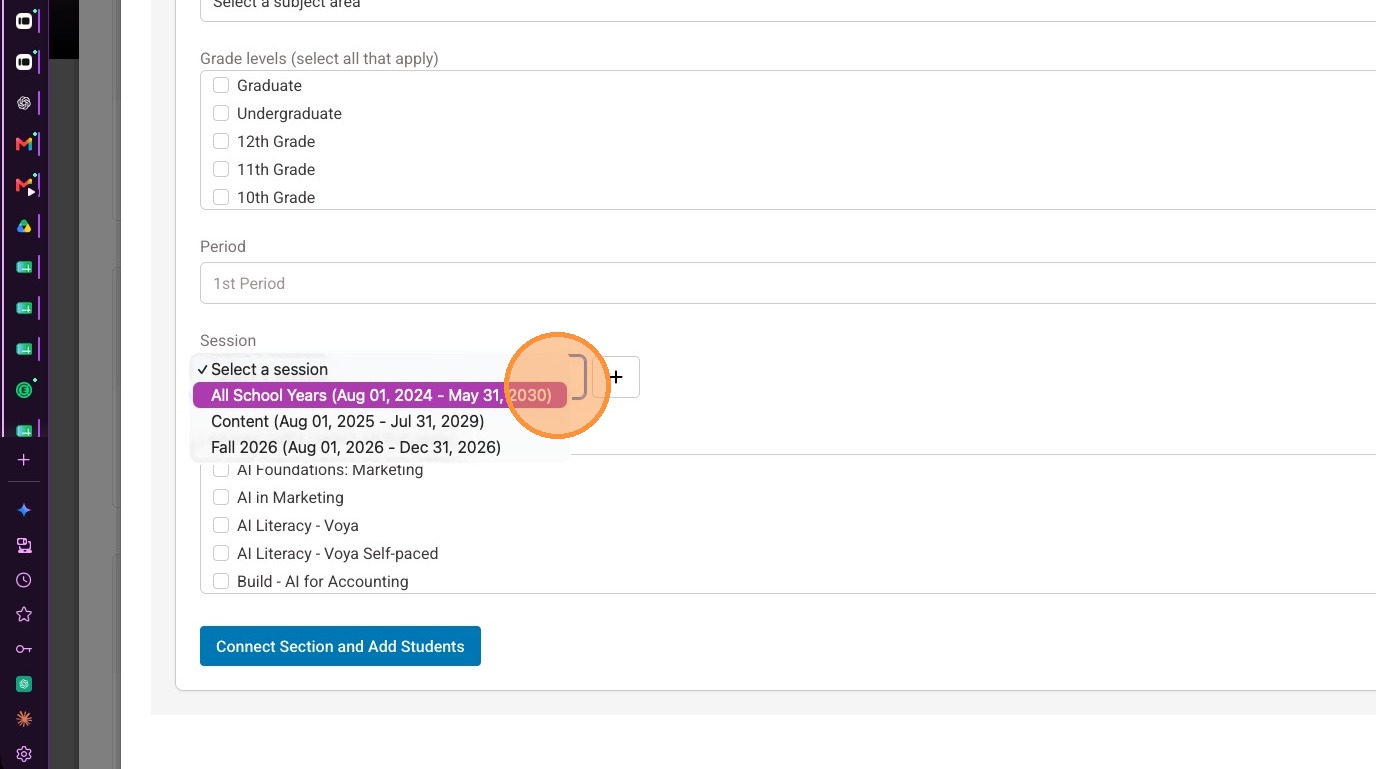
11. Select a session from the drop down list.
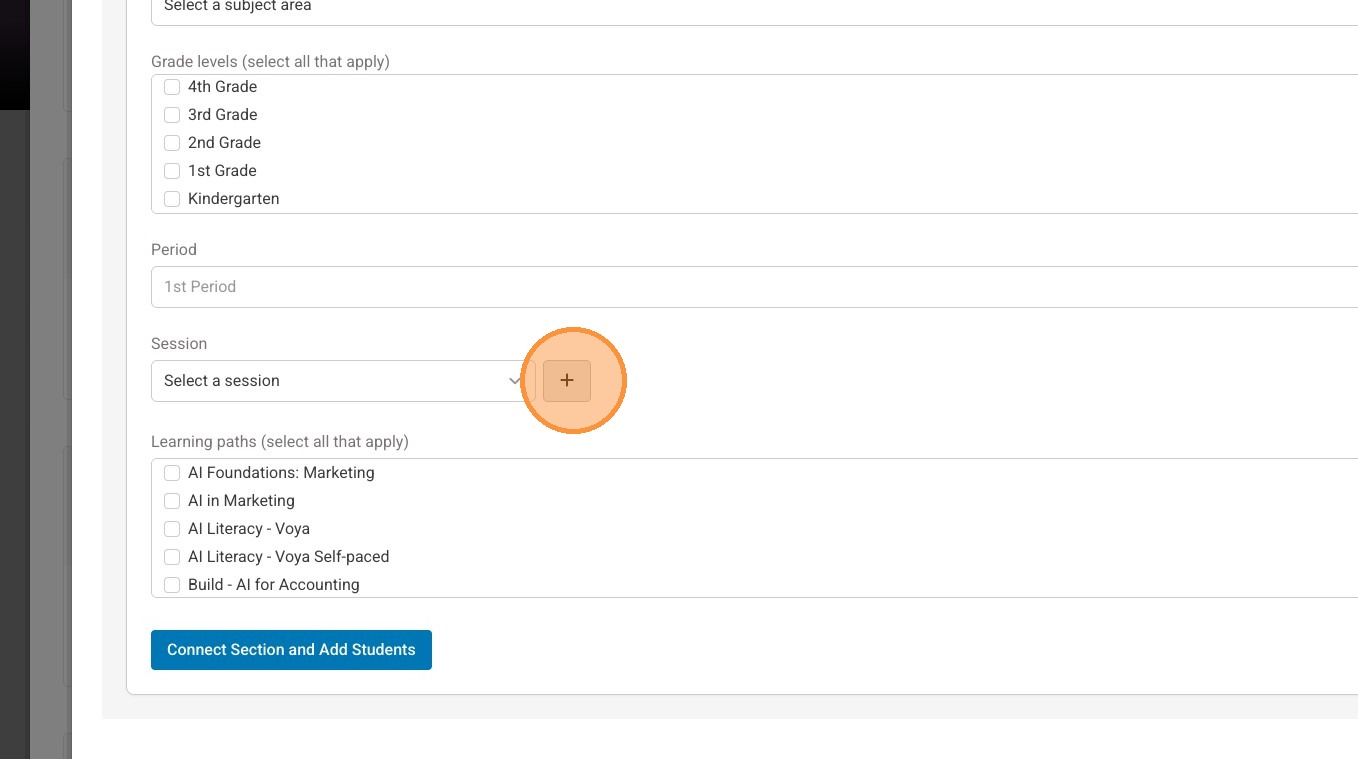
Note: If an appropriate session does not exist, follow steps 12-16 to create one.
12. Select the "+" button
13. Enter a name for the session
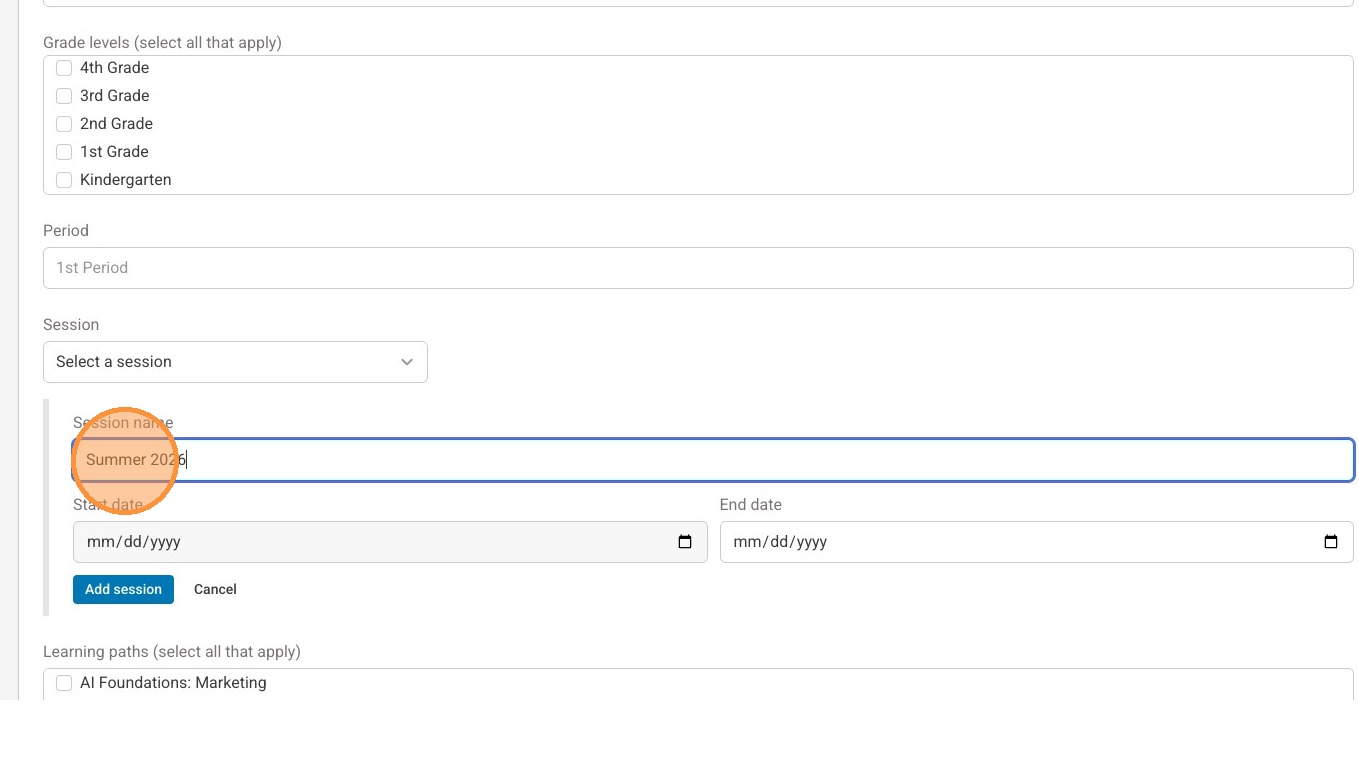
14. Use the date picker to set a start date for the session.
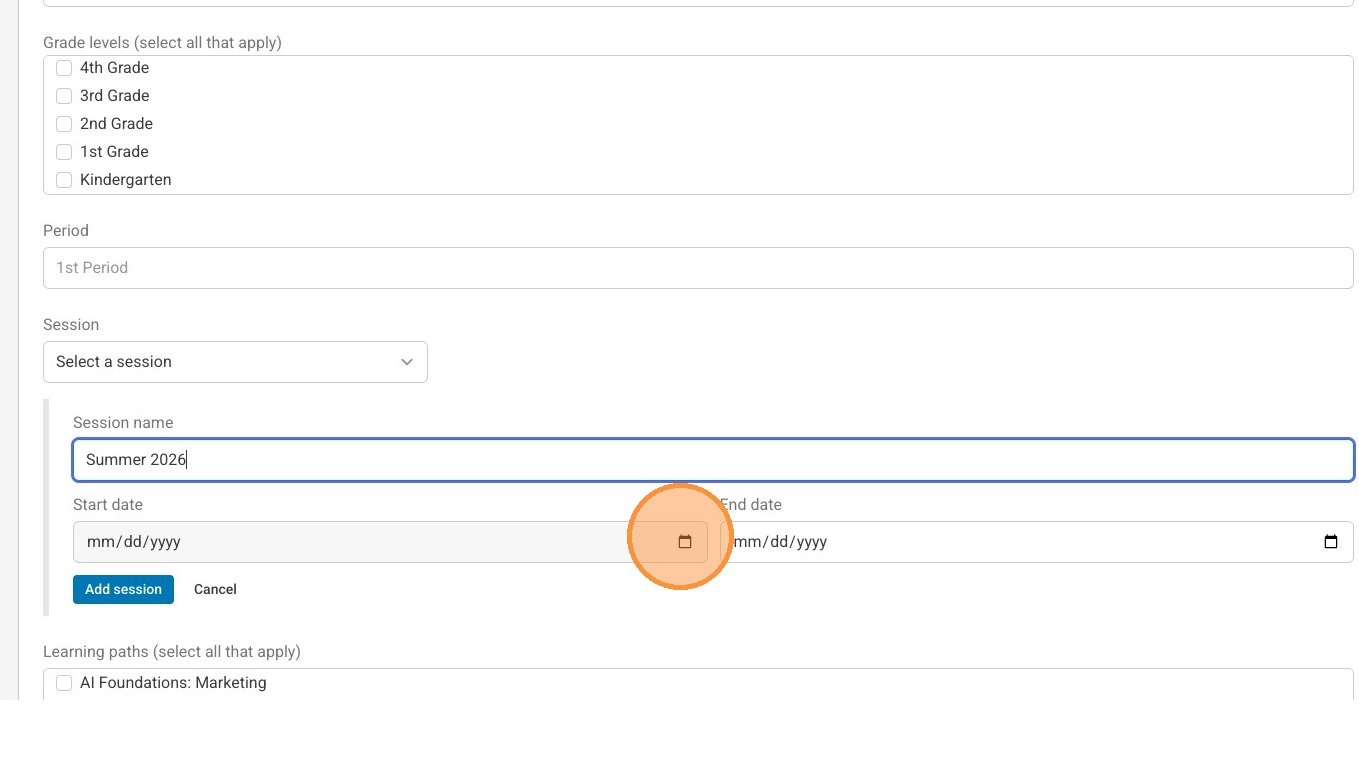
15. Use the date picker to set an end date for the session.
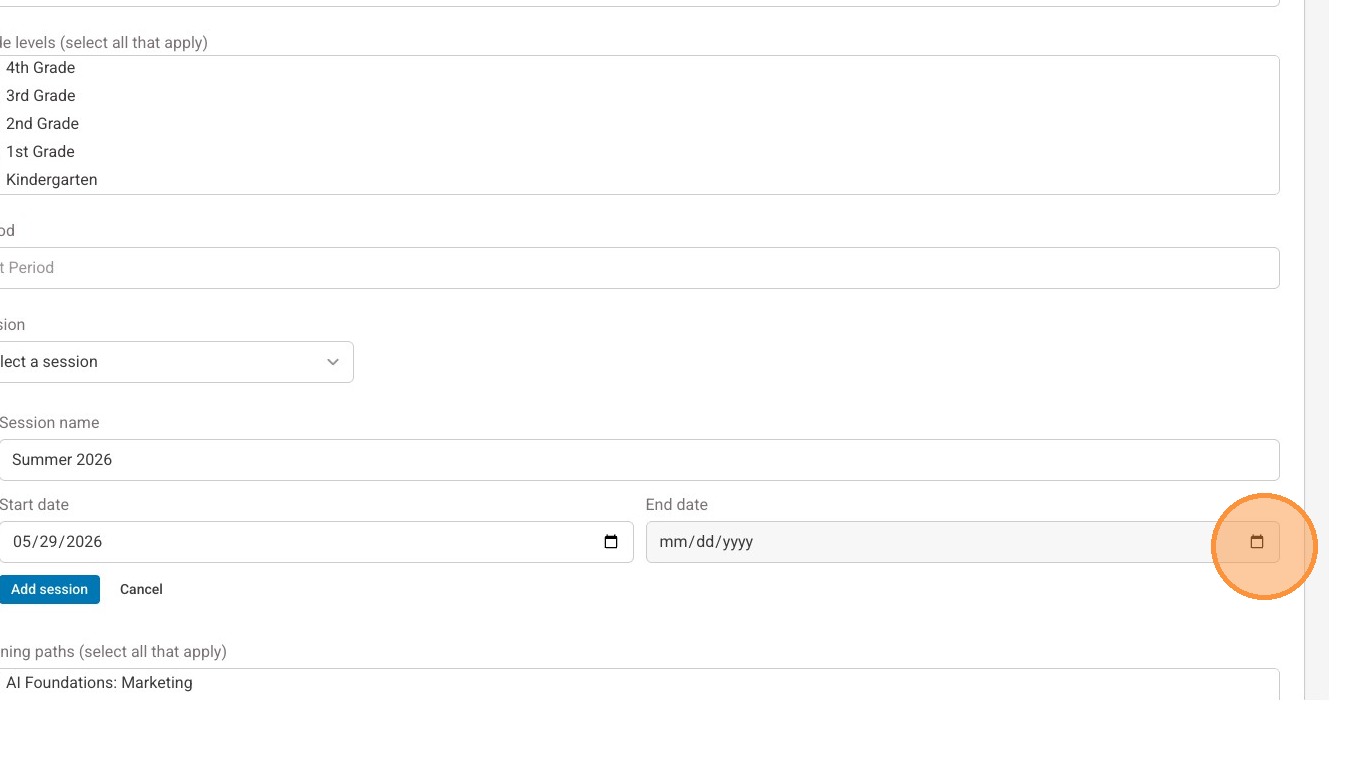
16. Select "Add session"
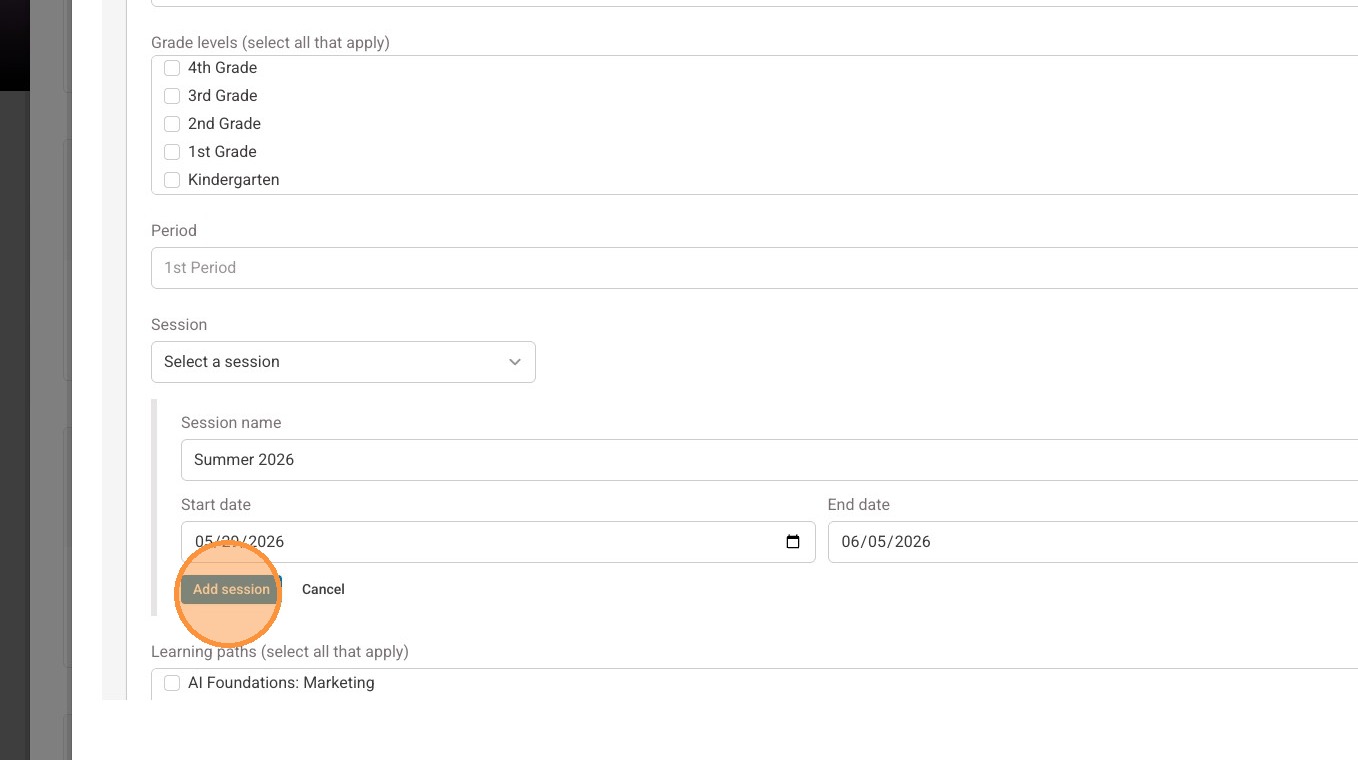
17. Select all of the learning paths that apply to this course
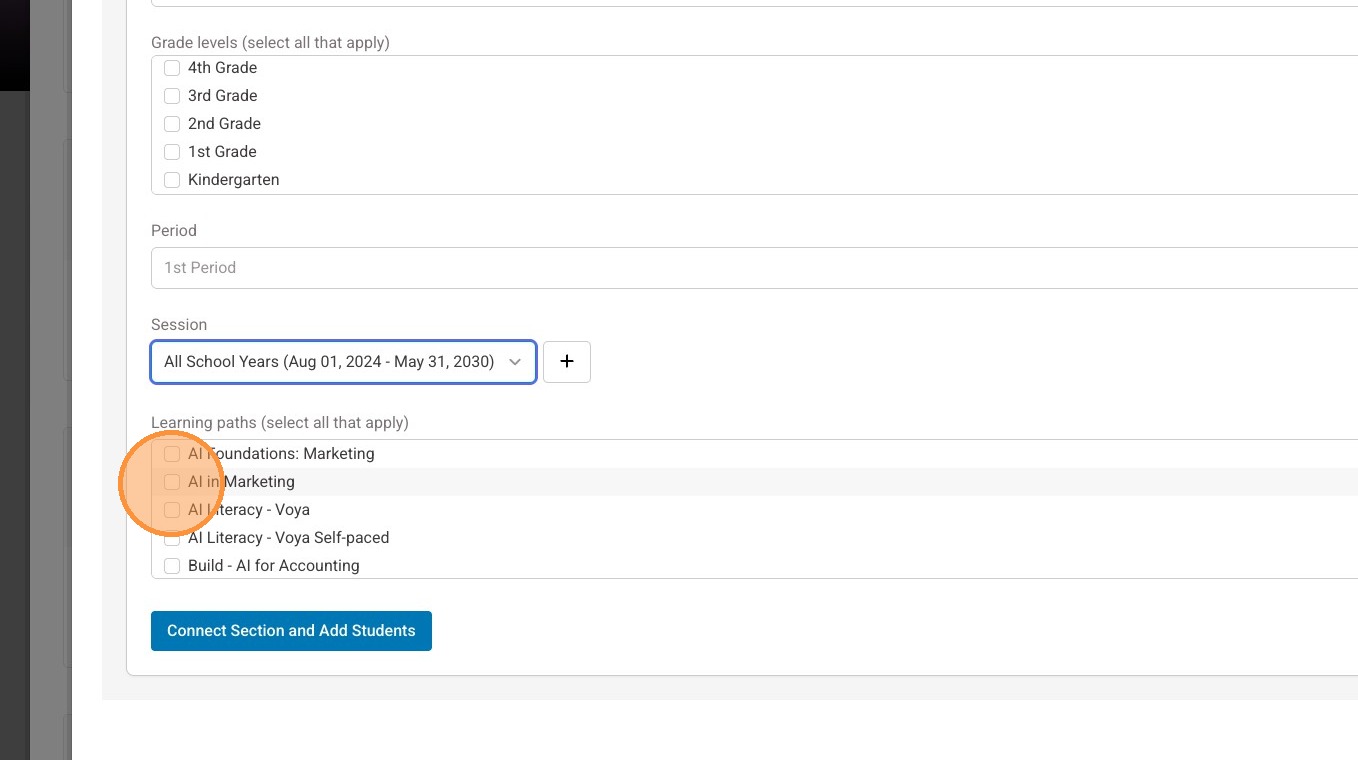
18. Select "Connect Section and Add Students"
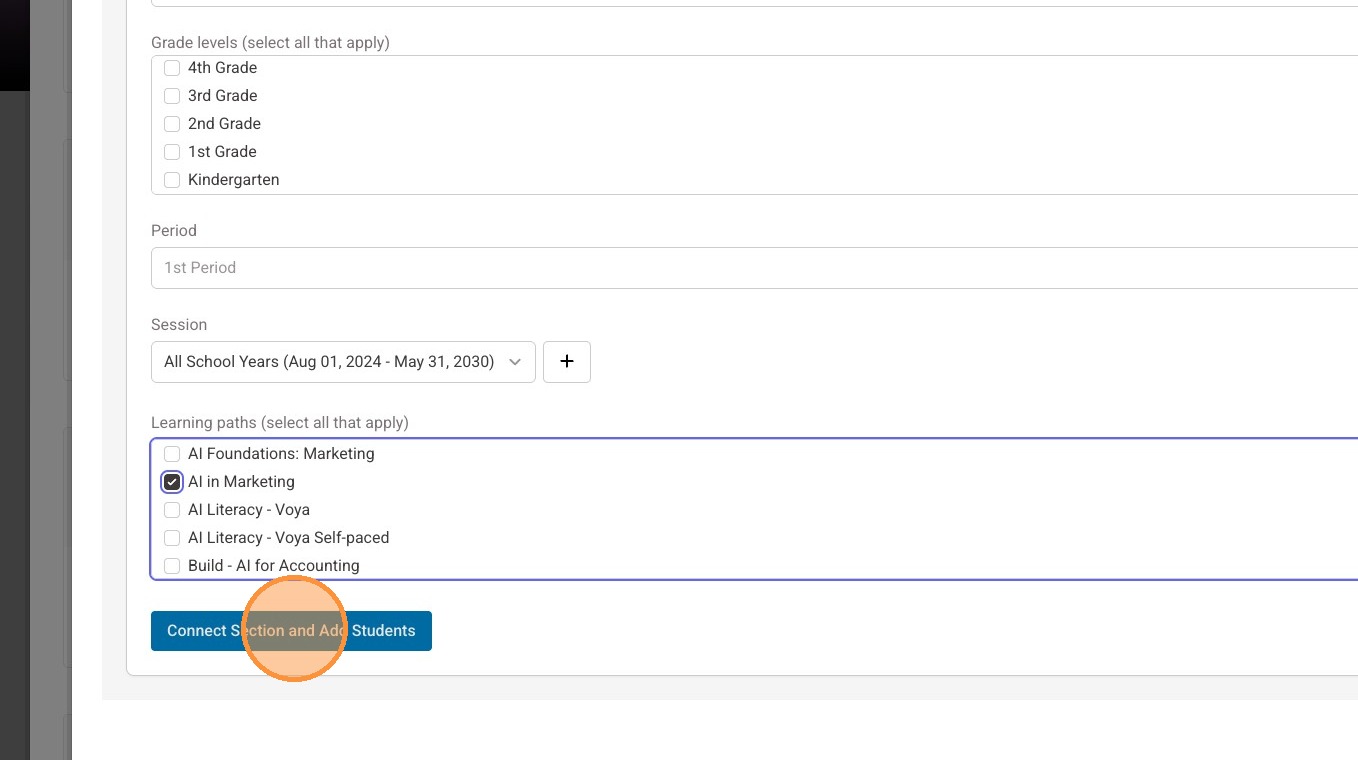
Add activities to your Blackboard course
19. Select the checkbox(es) for the lesson(s) you wish to add to your Blackboard course.
Note: You can select as many or as little as you'd like to add all at once.
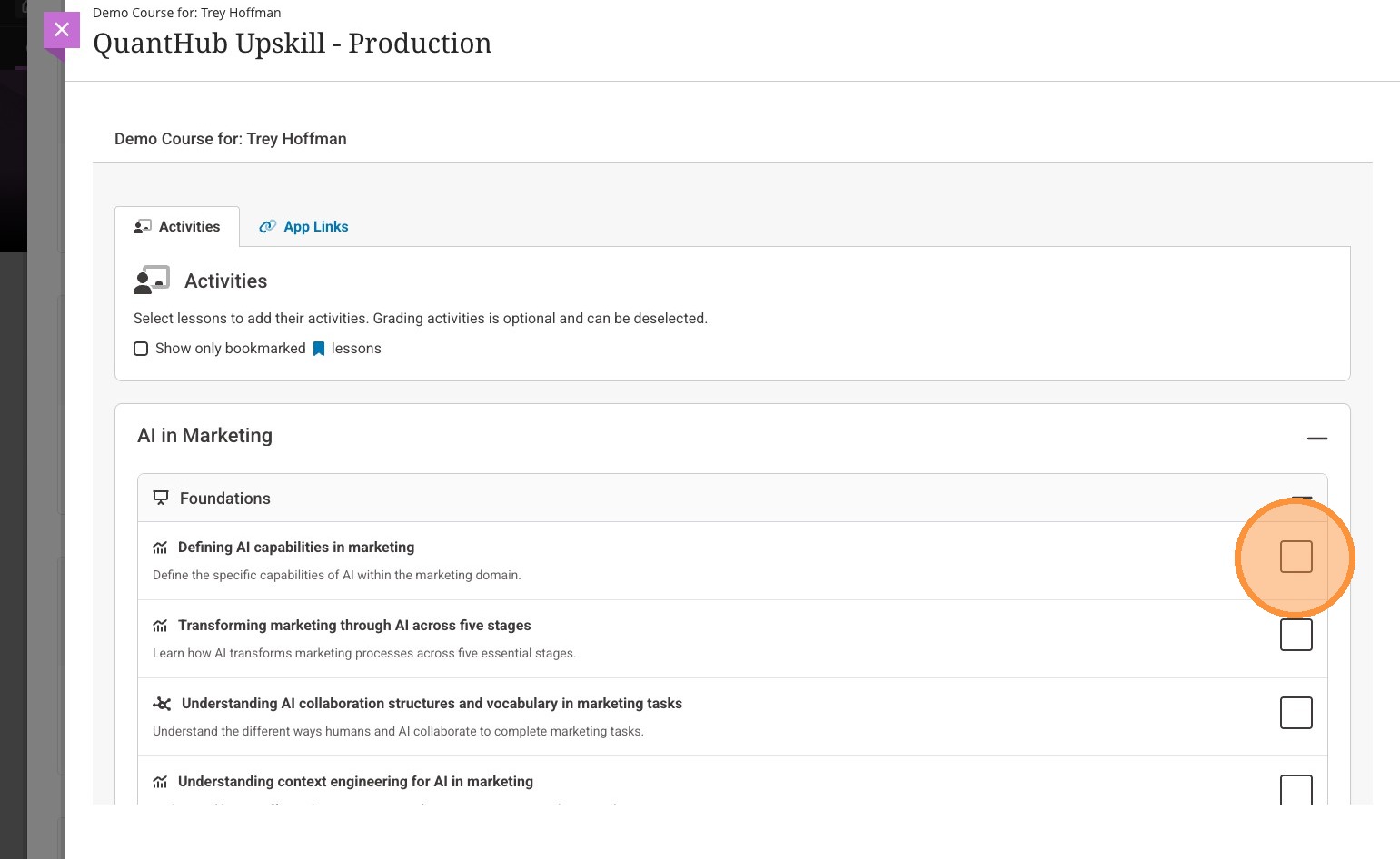
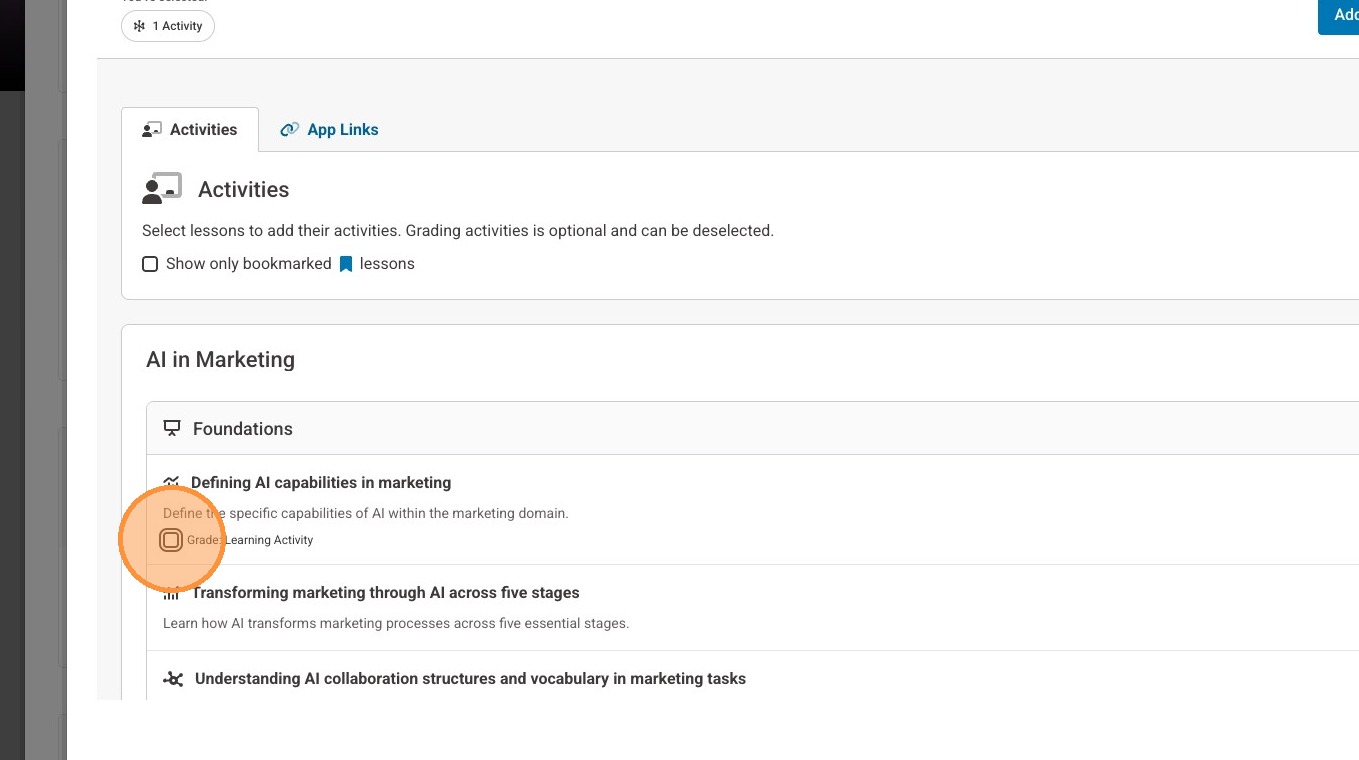
20. By default, the grade option is marked to include an item in your gradebook for the lesson.
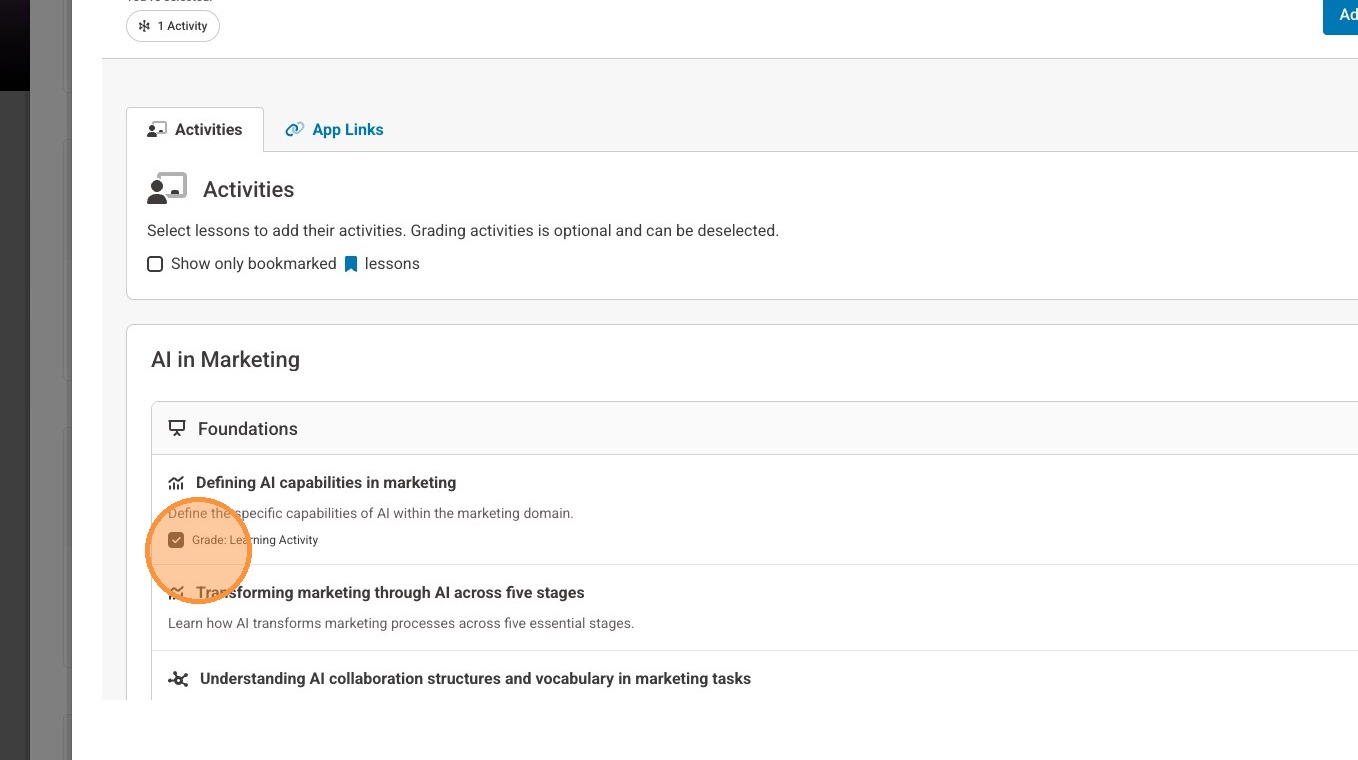
21. If you would prefer to not have a gradebook item associated with the lesson, simply uncheck the box.
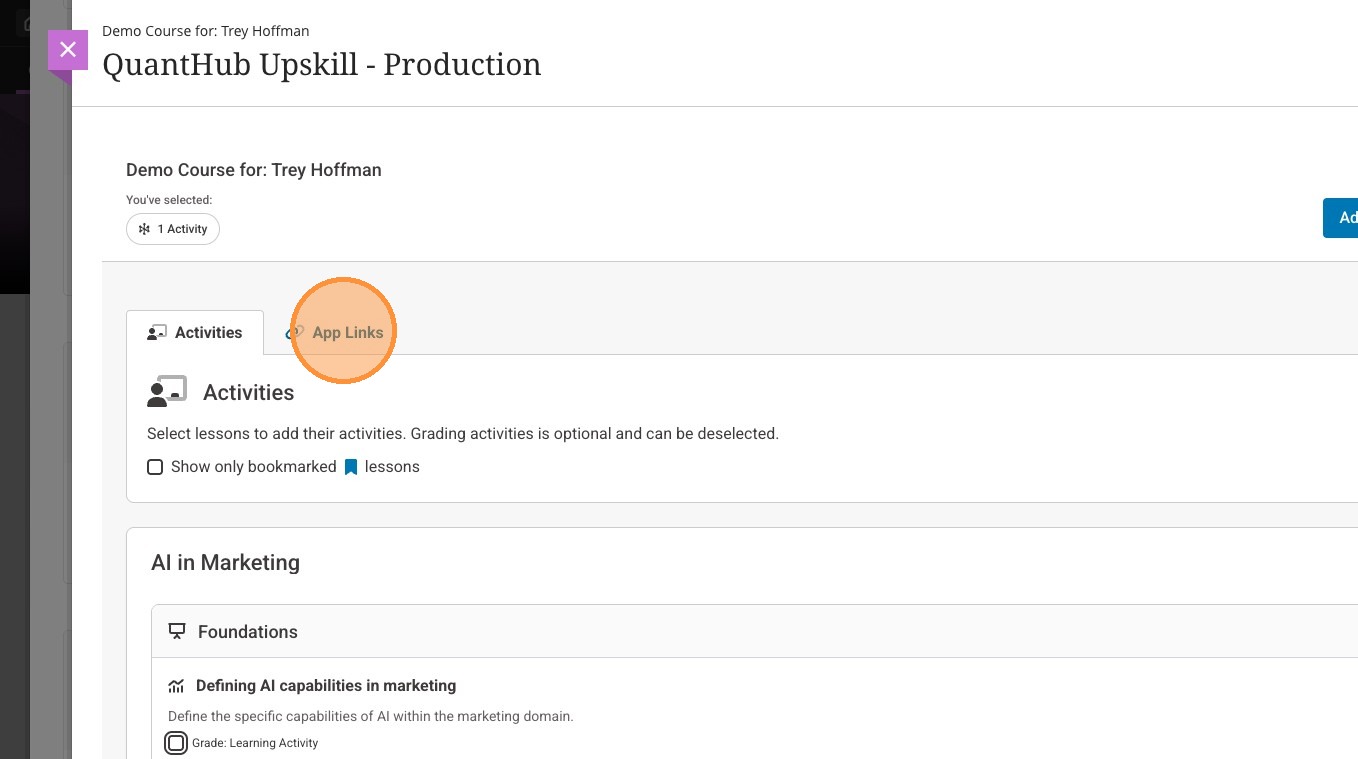
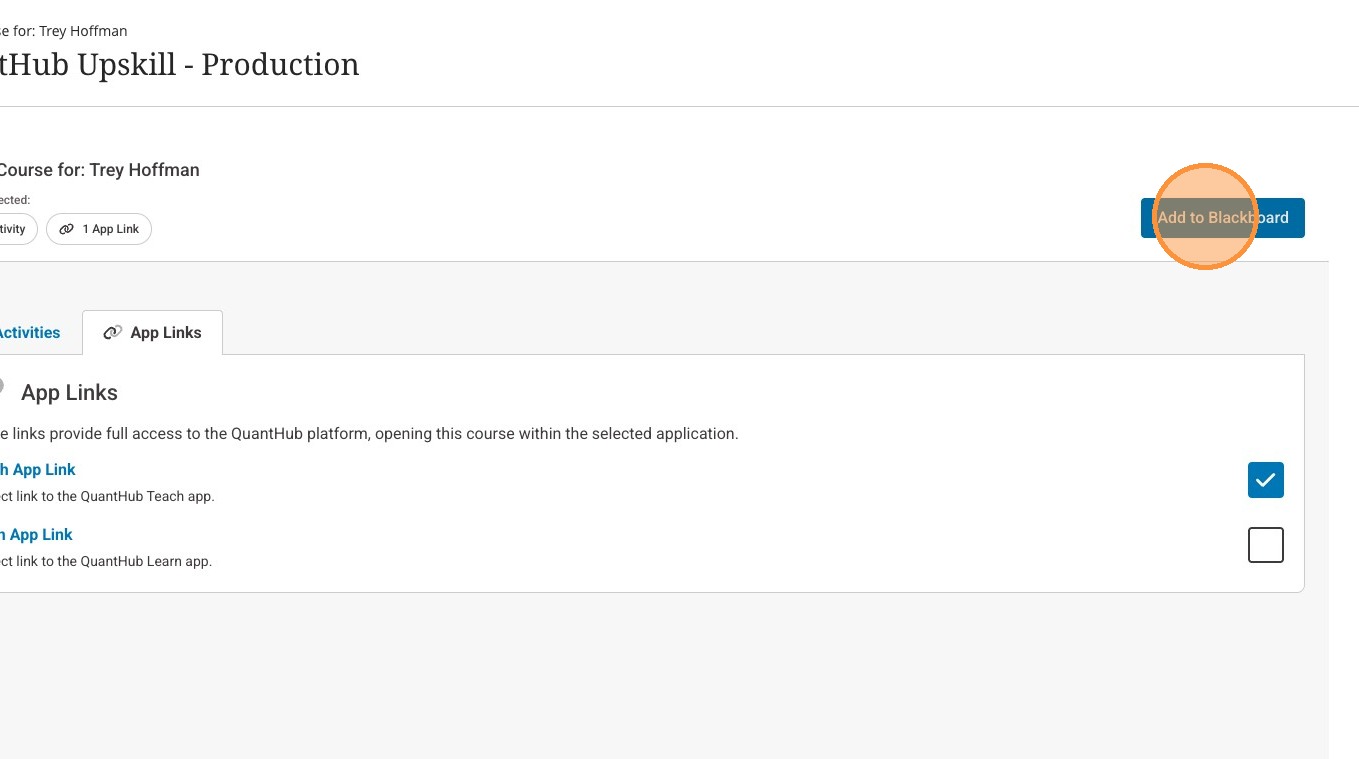
22. If you would like to include a shortcut to the Teach or Learn apps, select "App Links"
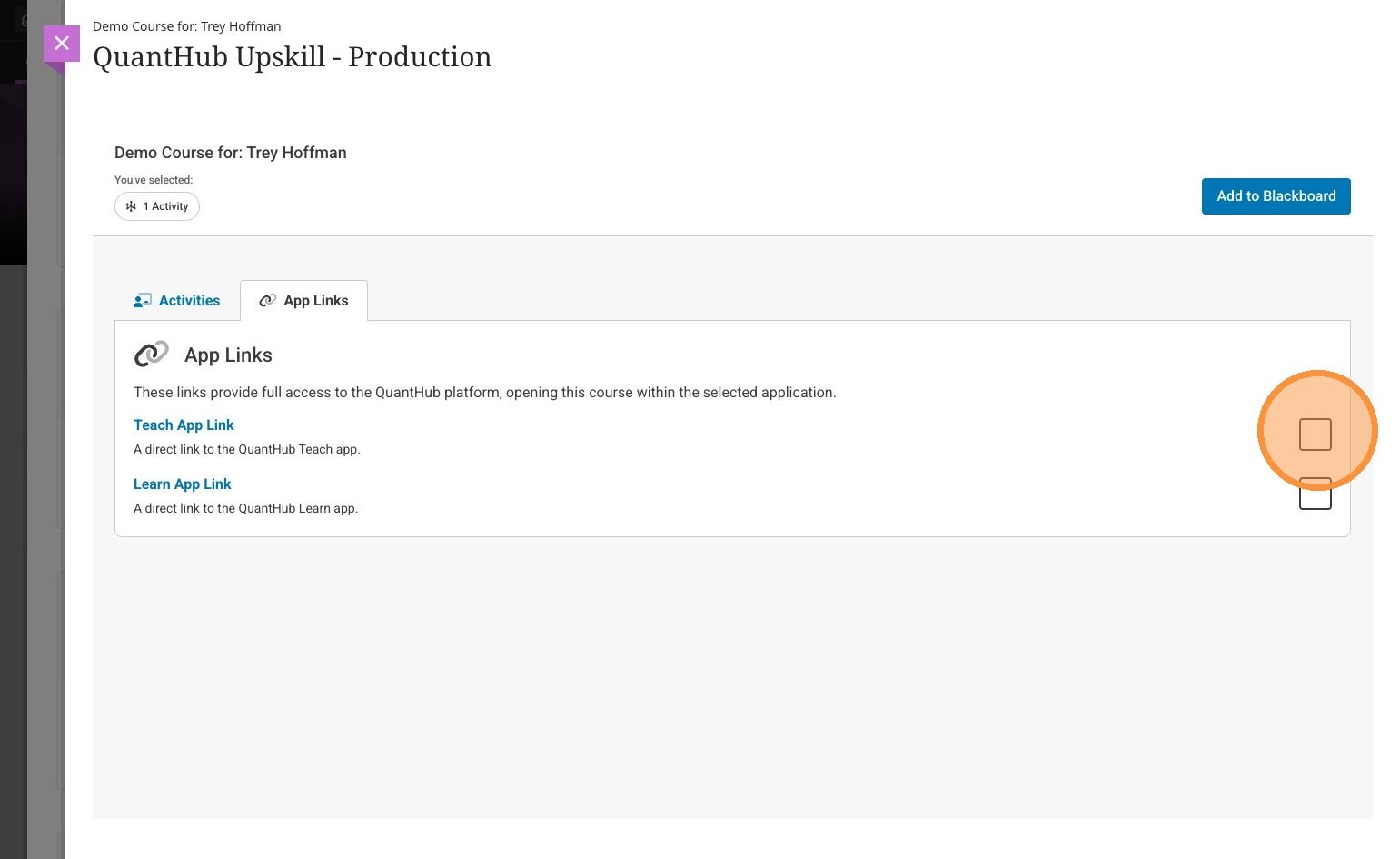
23. Select the checkbox(es) for the links you wish to add.
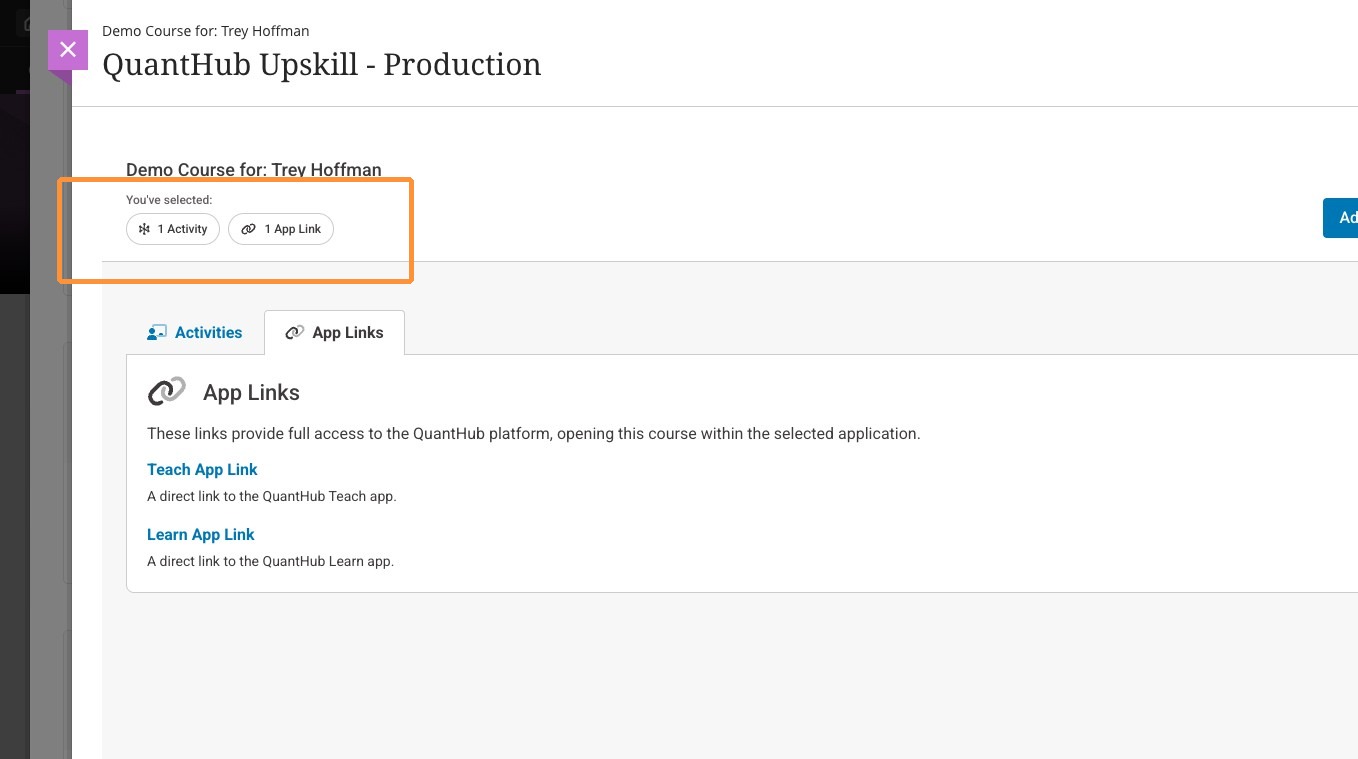
24. You will see a summary of what you have selected near the top of the screen.
25. Once you have selected your desired item(s), select "Add to Blackboard"
Note: You can always come back to QuantHub in the content market and add more content in another area of your course or at a later time. The section connection only happens once so you will be taken straight to the activities selection again.
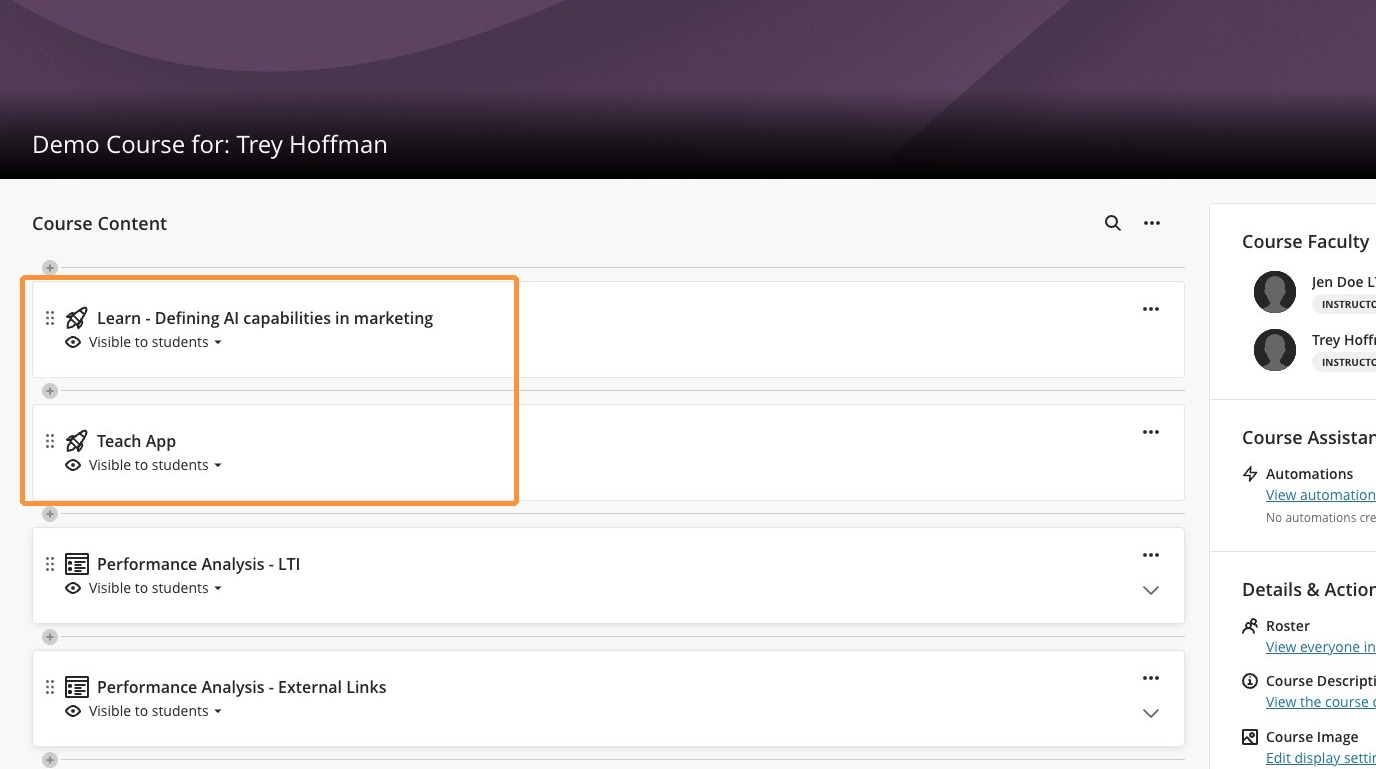
26. You will then see the selected items added to your Blackboard course. You may arrange them or edit them as you please.
Was this article helpful?
That’s Great!
Thank you for your feedback
Sorry! We couldn't be helpful
Thank you for your feedback
Feedback sent
We appreciate your effort and will try to fix the article