Watch the video below OR scroll down to view the steps listed out instead.
Video Tutorial
Step By Step Guide
1. Navigate to your QuantHub Account.
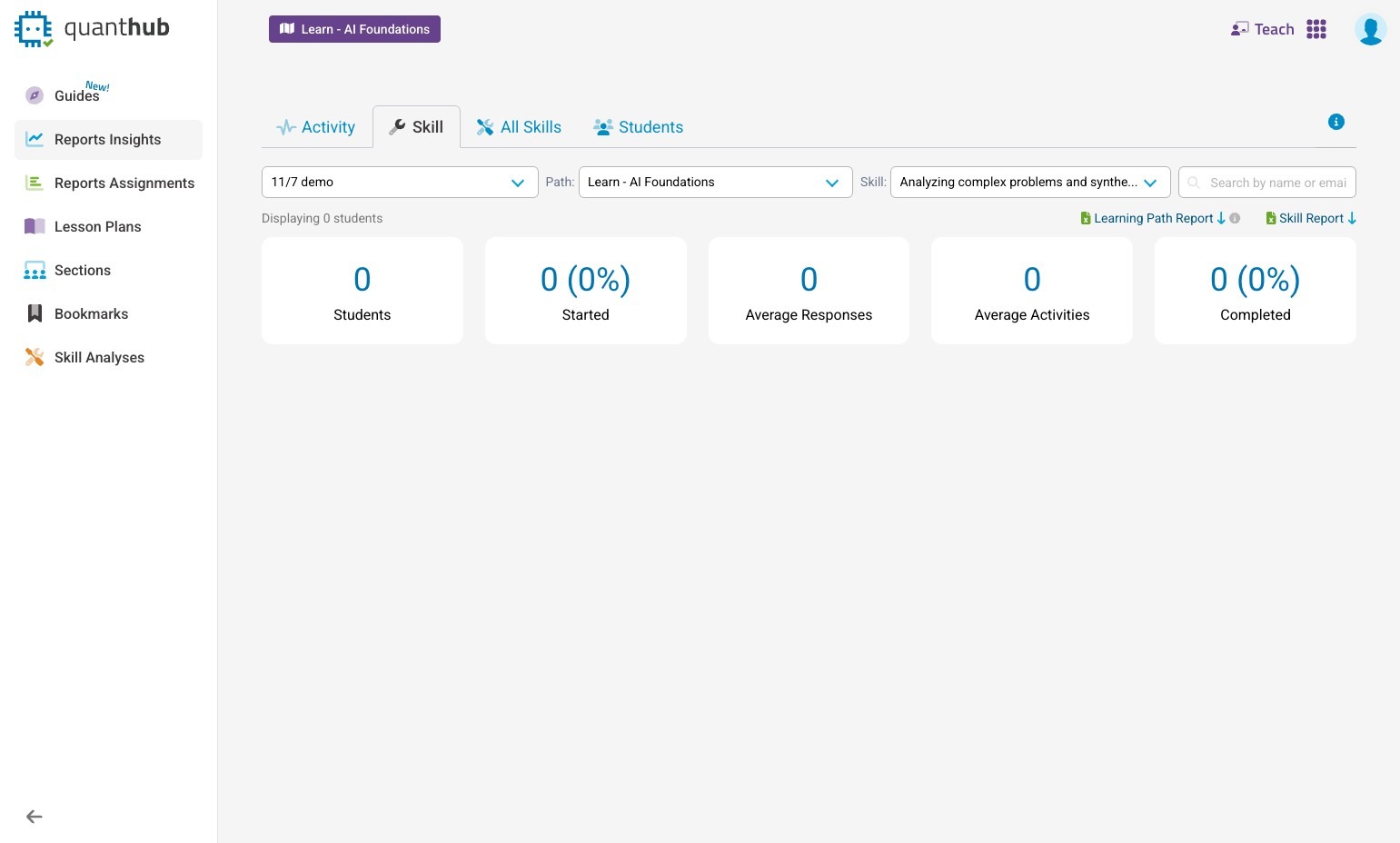
2. If you are not already in the "Teach" app - select your nine dot menu.
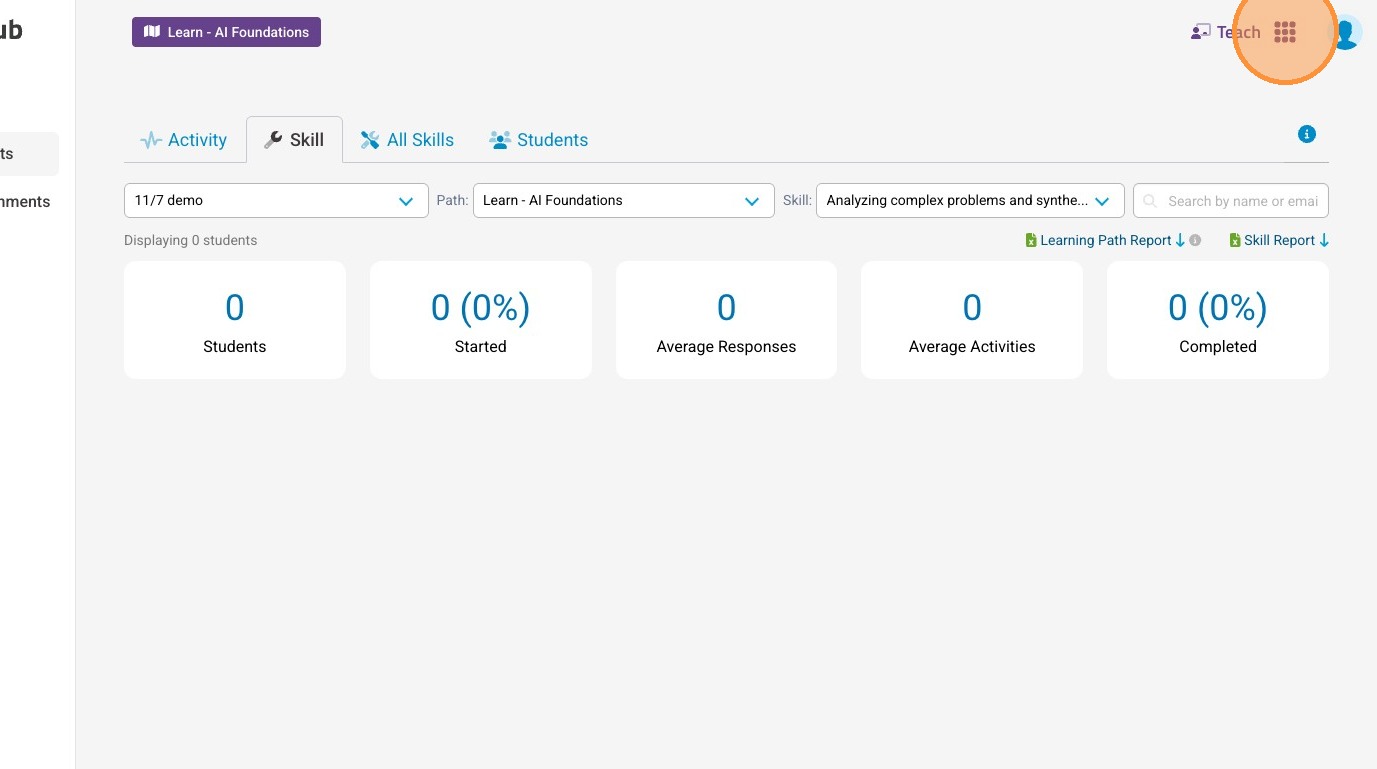
3. Select the "Teach" app.
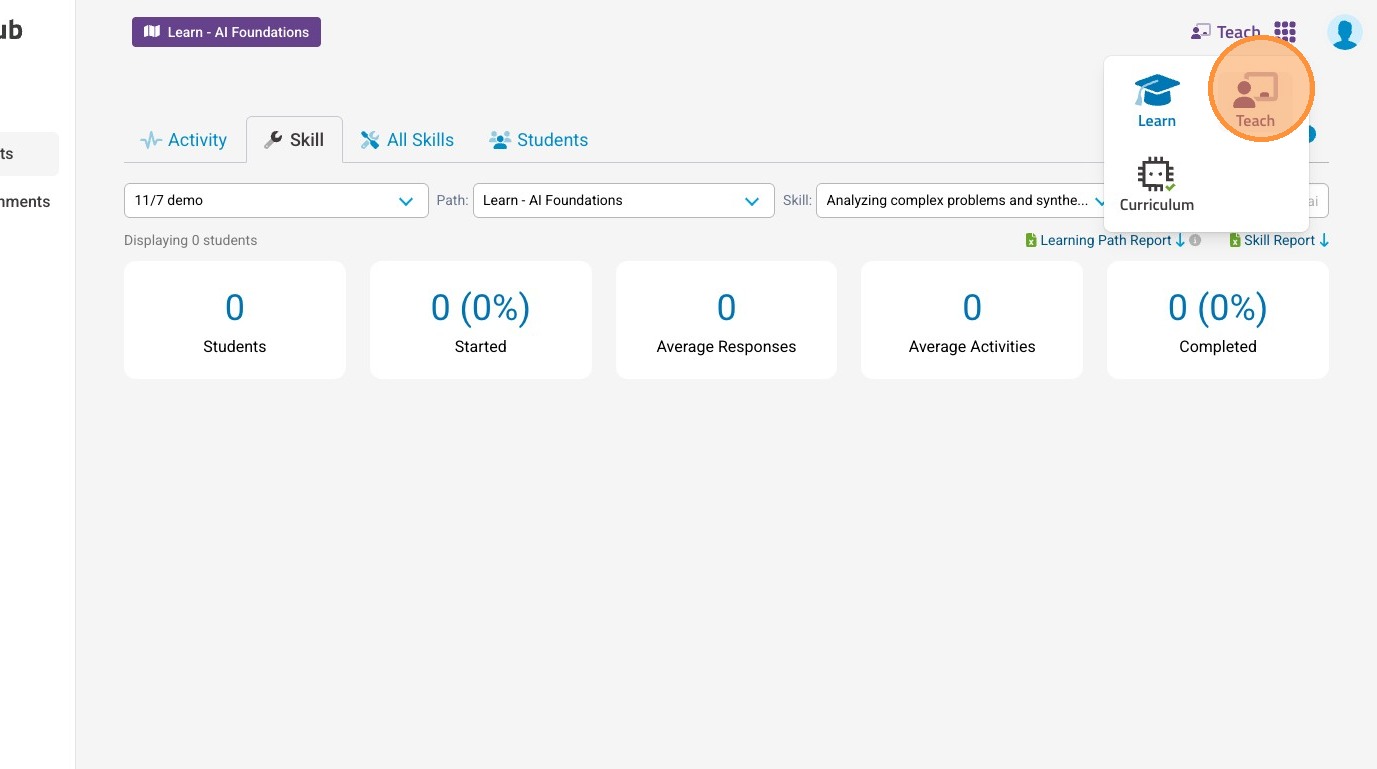
4. Select "Sections"
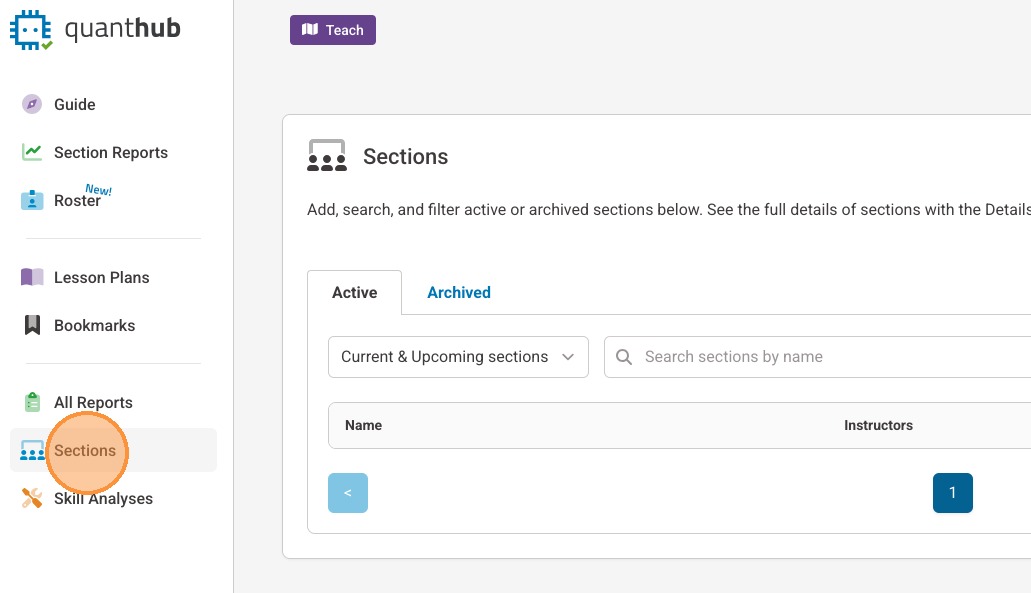
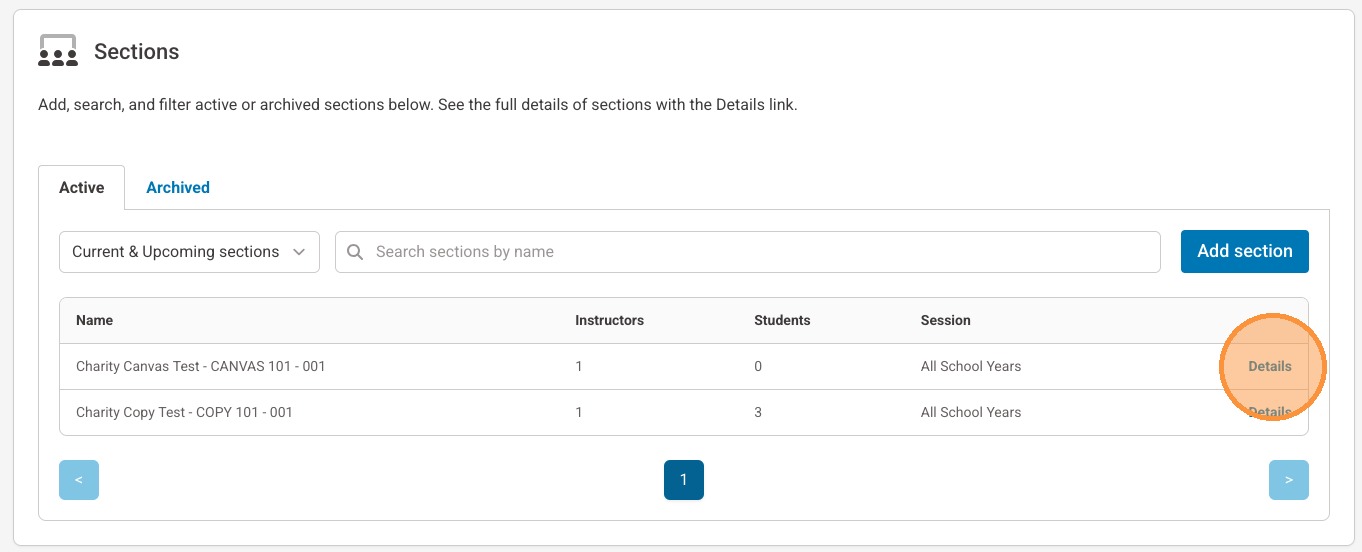
5. Select "Details" next to the section for which you wish to update the roster.
6. Scroll down by the enrolled students and select "Pull from LMS+."

7. Refresh the page to ensure updates were synced. If you encounter any issues please submit a support ticket in the portal so we can troubleshoot for you.
Was this article helpful?
That’s Great!
Thank you for your feedback
Sorry! We couldn't be helpful
Thank you for your feedback
Feedback sent
We appreciate your effort and will try to fix the article